
1. Танилцуулга
The D-Link Wireless N300 Dual Band PCI Express Desktop Adapter (DWA-566) provides high-speed wireless connectivity for your desktop computer. Utilizing Wireless N technology, it maximizes the speed and range of your wireless signal, offering superior performance compared to Wireless G devices. The dual-band capability supports both 2.4GHz and 5GHz wireless signals, allowing for flexible network usage, such as browsing on 2.4GHz and HD streaming or gaming on the clearer 5GHz band.
This adapter is designed to fit into any standard PCI Express slot, offering a higher performance interface than legacy PCI. It supports secure wireless networks with WPA or WPA2 encryption.

Figure 1.1: D-Link DWA-566 Wireless N300 Dual Band PCI Express Desktop Adapter with antennas.
2. Онцлогууд
The DWA-566 adapter includes the following key features:
- IEEE 802.11n, 802.11g, and 802.11a Compliant
- Dual Band Technology for Superior Wireless Performance (2.4GHz or 5GHz)
- Access secure wireless networks using advanced WPA or WPA2 encryption
- Fits into any standard PCI Express slot
- PCI Express Interface provides higher performance than a legacy PCI interface
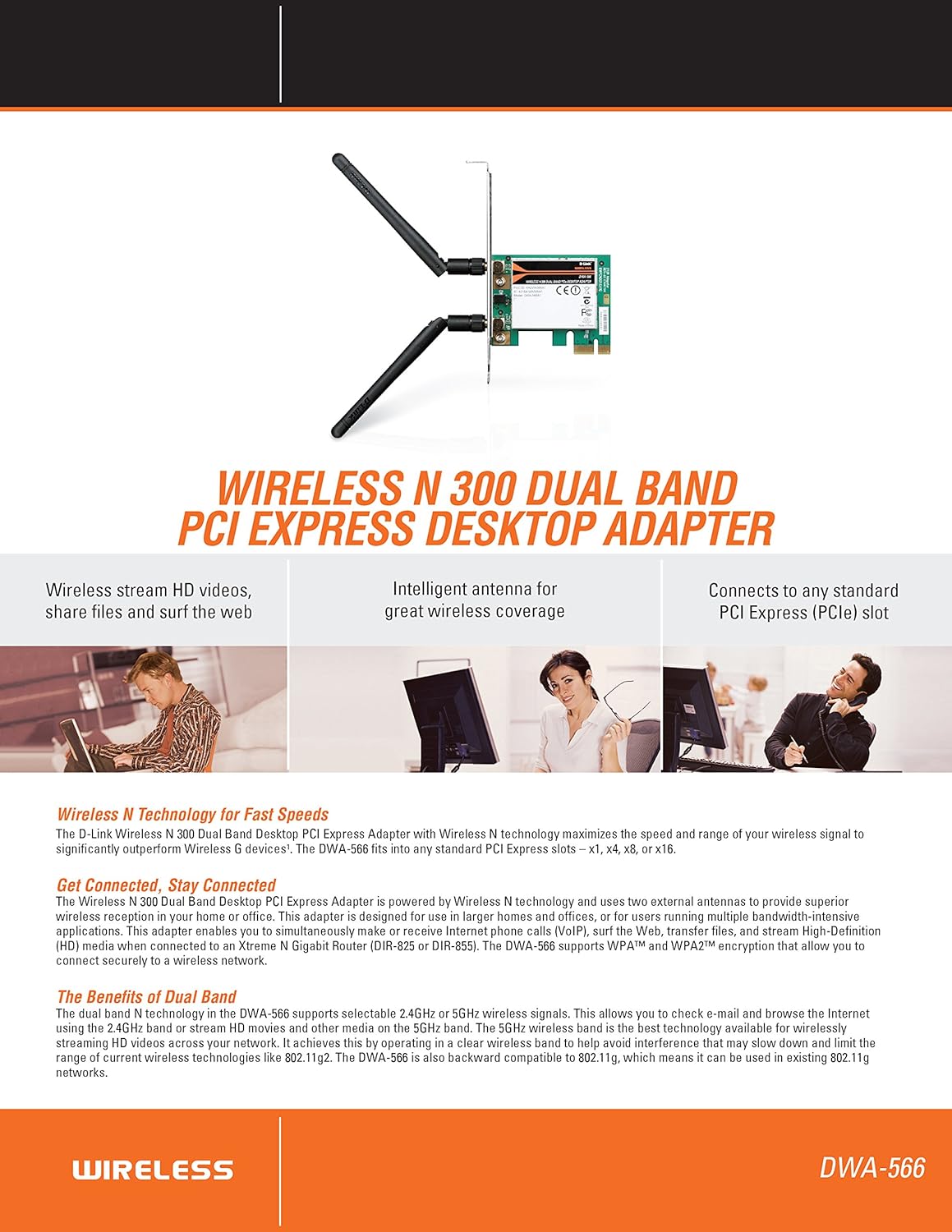
Зураг 2.1: Илүүview of DWA-566 features and benefits.
3. Багцын агуулга
Таны багц дараах зүйлсийг агуулж байгаа эсэхийг шалгана уу.
- Wireless N 300 Dual Band PCI Express Adapter (DWA-566)
- Хоёр салдаг антен
- Бага мэргэжлийнfile бэхэлгээний бэхэлгээ
- Шуурхай суулгах гарын авлага
- CD-ROM with:
- D-Link утасгүй холболтын менежер
- Жолооч нар
- Бүтээгдэхүүний баримт бичиг
4. Системийн шаардлага
Before installing the DWA-566, ensure your system meets the following minimum requirements:
- Computer with an available PCI Express slot
- Windows operating system (Windows XP, Vista, 7, 8, 10)
- CD-ROM drive (for driver installation from included CD)
- Internet Explorer 7 or Firefox 3.0 and above (for viewing documentation)
- Интернэт үйлчилгээ үзүүлэгч (ISP)-ийн захиалга
For optimal performance, a D-Link Wireless N router (DIR-655 or DIR-825) is recommended.

Figure 4.1: Detailed technical specifications, minimum requirements, and network diagram.
5. Тохиргоо ба суурилуулалт
5.1 Техник хангамж суурилуулах
- Power Off Computer: Компьютерээ унтраагаад цахилгааны утсыг салга.
- Нээлттэй компьютерийн гэр: Компьютерийн гэрний тагийг ав.
- PCI Express үүрийг олох: Find an available PCI Express slot on your motherboard.
- Адаптер оруулах: Carefully insert the DWA-566 adapter into the PCI Express slot, ensuring it is seated firmly.
- Аюулгүй адаптер: Secure the adapter with a screw to the computer chassis.
- Антеныг холбох: Screw the two included antennas onto the connectors on the adapter.
- Кейс хааж, асаалттай: Replace the computer case cover, plug in the power cord, and power on your computer.

Figure 5.1: DWA-566 adapter with antennas attached, ready for installation.
5.2 Програм хангамж суурилуулах
After hardware installation, proceed with driver and utility installation:
- Суулгах CD оруулах: Insert the DWA-566 installation CD into your computer's CD-ROM drive. The setup wizard should launch automatically. If not, navigate to the CD drive and run the 'Setup.exe' file.
- Дэлгэц дээрх зааврыг дагана уу: Follow the prompts of the D-Link setup wizard to install the drivers and the D-Link Wireless Connection Manager utility.
- Компьютерийг дахин эхлүүлэх: After the installation is complete, restart your computer when prompted.
Жич: For Windows 7/8 64-bit systems, ensure you are using the latest drivers available from the official D-Link support website to avoid potential compatibility issues.
6. Ашиглалтын заавар
Once the drivers are installed, you can connect to a wireless network:
- Launch Connection Manager: Open the D-Link Wireless Connection Manager utility or use the built-in Windows wireless network utility.
- Сүлжээ хайх: The utility will scan for available wireless networks in your area.
- Сүлжээг сонгоно уу: Choose your desired wireless network (SSID) from the list.
- Аюулгүй байдлын түлхүүрийг оруулна уу: If the network is secured, enter the correct WPA/WPA2 security key or passphrase.
- Холбох: Утасгүй холболт үүсгэхийн тулд 'Холбох' дээр дарна уу.
A successful connection will be indicated by a strong signal strength and internet access.
7. Засвар үйлчилгээ
To ensure optimal performance and longevity of your DWA-566 adapter:
- Драйверуудыг шинэчилж байгаарай: D-Link дэмжлэгийг үе үе шалгаж байгаарай webхамгийн сүүлийн үеийн драйверууд болон програм хангамжийн шинэчлэлтүүдийг авах сайт.
- Зөв агааржуулалтыг хангах: Make sure your computer case has adequate airflow to prevent overheating of internal components, including the wireless adapter.
- Антенны байрлал: Adjust the antennas for the best possible signal reception.
- Байгаль орчны хүчин зүйлүүд: Avoid placing your computer near large metal objects or other devices that may cause wireless interference.
8. Алдаа засах
Хэрэв та DWA-566 адаптертай холбоотой асуудалтай тулгарвал дараахь зүйлийг анхаарч үзээрэй.
8.1 Утасгүй холболт байхгүй
- Verify Hardware Installation: Ensure the adapter is correctly seated in the PCI Express slot and antennas are securely attached.
- Драйверуудыг шалгах: Confirm that the drivers are installed correctly. Check Device Manager for any error symbols next to the network adapter. Reinstall drivers if necessary.
- Чиглүүлэгчийн төлөв: Ensure your wireless router is powered on and broadcasting a signal.
- Аюулгүй байдлын түлхүүр: Double-check that the correct wireless security key (WPA/WPA2 passphrase) is entered.
- Галт ханын тохиргоо: Temporarily disable your computer's firewall to see if it is blocking the connection. If it resolves the issue, configure your firewall to allow the D-Link utility.
8.2 Slow Connection Speed or Frequent Disconnections
- Антенны тохируулга: Try repositioning the antennas for better signal reception.
- хөндлөнгийн оролцоо: Move the computer away from potential sources of interference (e.g., cordless phones, microwaves, Bluetooth devices).
- Чиглүүлэгчийн ойролцоо: Ensure the computer is within the effective range of your wireless router.
- Dual Band Usage: If your router supports it, try connecting to the 5GHz band for less interference and potentially higher speeds, especially for streaming or gaming.
- Драйверын шинэчлэлт: Update the adapter drivers to the latest version from the D-Link webсайт.
9. Техникийн үзүүлэлтүүд
| Онцлог | Тодорхойлолт |
|---|---|
| Брэнд | D-Link |
| Загварын дугаар | DWA-566 |
| Тоног төхөөрөмжийн интерфейс | PCI Express |
| Өгөгдлийн холболтын протокол | IEEE 802.11n, 802.11g, 802.11a |
| Өгөгдөл дамжуулах хурд | Секундэд 300 Мегабит хүртэл |
| Давтамжийн зурвас | 2.4 GHz / 5 GHz (Dual Band) |
| Аюулгүй байдал | WPA, WPA2 |
| Тохиромжтой төхөөрөмжүүд | Ширээний компьютерууд |
| Зүйлийн жин | 0.4 фунт (ойролцоогоор 181 грамм) |
| Гадаад туршилтын гэрчилгээ | FCC B, IC B, CE, C-Tick |
10. Баталгаат хугацаа ба дэмжлэг
The D-Link Wireless N300 Dual Band PCI Express Desktop Adapter (DWA-566) comes with a 1 жилийн хязгаарлагдмал баталгаат хугацаа. For specific terms and conditions, please refer to the warranty documentation included with your product or visit the official D-Link webсайт.
D-Link provides 24/7 Basic Installation Support to assist with initial setup and configuration. For technical assistance, driver downloads, and further product information, please visit the D-Link support webсайт эсвэл харилцагчийн үйлчилгээтэй холбогдоно уу.
D-Link дэмжлэг Webсайт: https://support.dlink.com/