
1. Бүтээгдэхүүн дууссанview
The TP-Link TL-WA750RE is a 150Mbps Universal Wireless Range Extender designed to expand the coverage of an existing wireless network. It eliminates Wi-Fi dead zones by boosting the wireless signal to previously unreachable or hard-to-wire areas. Its compact, wall-mounted design allows for flexible deployment and easy relocation within your home or office.
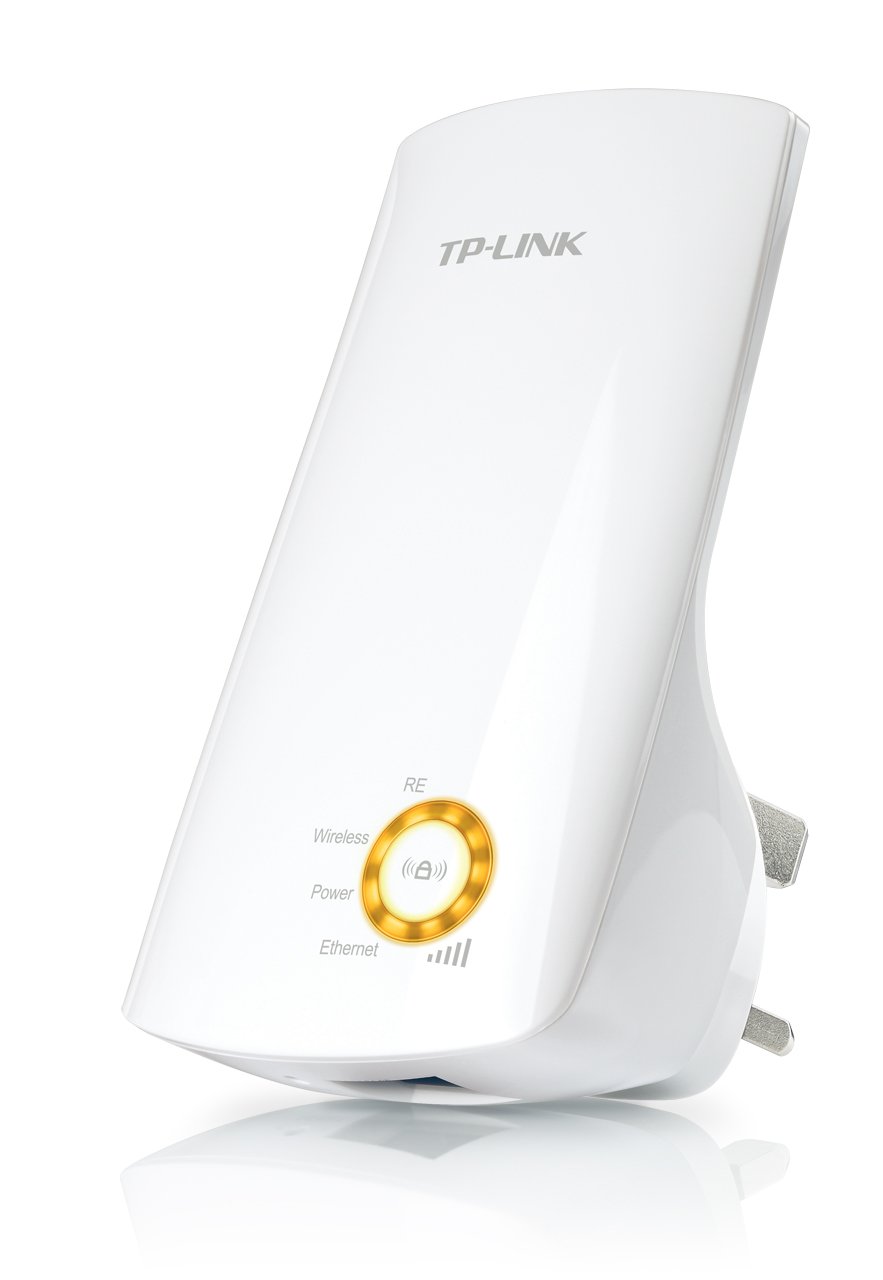
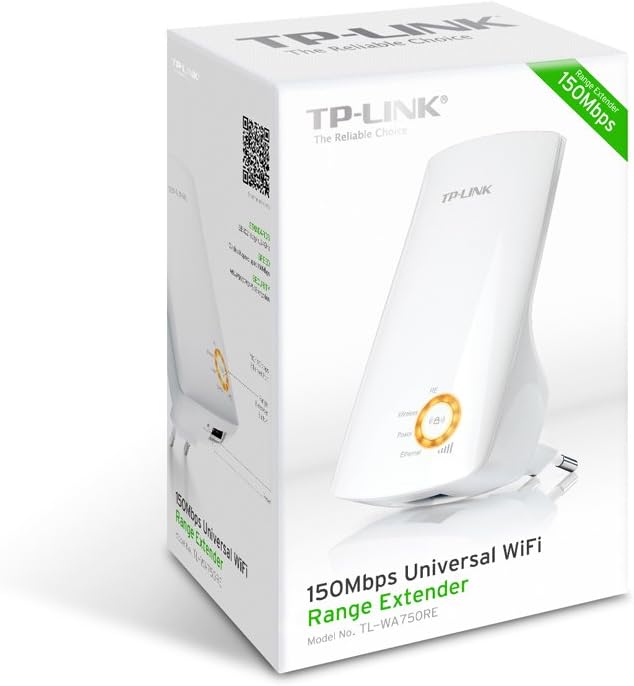
Зураг 1: TP-Link TL-WA750RE Universal Wireless Range Extender. This image shows the device in its retail packaging, highlighting its compact design and wall-plug form factor.
2. Үндсэн шинж чанарууд
- Хүрээг өргөтгөх горим: Boosts wireless signal to eliminate Wi-Fi dead zones and extend network coverage.
- Компакт дизайн: Small size and wall-mounted design for easy deployment and flexible movement.
- WPS товчлуур: Allows for instant setup and secure connection with compatible routers.
- Ухаалаг дохионы үзүүлэлт: Helps users find the optimal location for placing the range extender for best performance.
- Нийтэд нийцтэй байдал: Works seamlessly with all 802.11n/g/b wireless devices.
3. Багцын агуулга
Бүтээгдэхүүний багцад ихэвчлэн дараахь зүйлс орно.
- TP-Link TL-WA750RE 150Mbps Universal Wireless Range Extender
- Зааварчилгааны гарын авлага
4. Тохируулах гарын авлага
4.1. Quick Setup using WPS Button
- Залгаас: Plug the TL-WA750RE into an electrical outlet near your wireless router.
- Чиглүүлэгч дээр WPS идэвхжүүлэх: Press the WPS button on your main wireless router. Refer to your router's manual for the exact location and procedure.
- Activate WPS on Extender: Within two minutes, press the WPS button on the TL-WA750RE. The Signal LED on the extender should begin to flash.
- Холболтыг хүлээнэ үү: The Signal LED will turn solid blue or green when a successful connection is established.
- Extender-ийг шилжүүлэх: Unplug the extender and move it to a location between your router and the Wi-Fi dead zone. Ensure the Signal LED indicates a strong connection (e.g., solid blue or green) in the new location.
4.2. Гараар тохируулах Web Хөтөч
- Залгаас: Plug the TL-WA750RE into an electrical outlet near your computer.
- Extender-д холбогдох: Connect your computer to the extender's Wi-Fi network (e.g., "TP-LINK_Extender_XXXXXX"). No password is required initially.
- Хандалт Web Интерфэйс: Нээлттэй a web хөтөч болон төрөл http://tplinkrepeater.net or the extender's default IP address (usually 192.168.0.254) into the address bar.
- Нэвтрэх: Enter "admin" for both the username and password when prompted.
- Дэлгэц дээрх зааврыг дагана уу: Use the Quick Setup wizard to select your main Wi-Fi network and enter its password.
- Extender-ийг шилжүүлэх: Once configured, unplug the extender and move it to an optimal location between your router and the desired coverage area.
Зураг 2: Хажуу тал view of the TL-WA750RE. This image illustrates the physical layout of the device, including the WPS button and Ethernet port, which are crucial for setup and operation.
5. Operating the Range Extender
Once the TL-WA750RE is successfully set up, it will automatically extend your existing Wi-Fi network. Devices within the extended range can connect to the network name created by the extender (e.g., "YourNetworkName_EXT").
5.1. Ухаалаг дохионы индикатор
The Smart Signal Indicator LEDs on the front of the device provide real-time feedback on the signal strength received from your main router. This helps you determine the best placement for the extender:
- Цэнхэр/Ногоон: Excellent signal strength.
- Тод улаан: Weak signal strength. Consider relocating the extender closer to your router.
- Унтраах: No connection to the main router.
5.2. Ethernet Port Usage
The TL-WA750RE includes an Ethernet port. This port can be used to connect a wired device, such as a desktop computer, gaming console, or smart TV, to your wireless network, providing a stable wired connection in the extended Wi-Fi area.
6. Засвар үйлчилгээ
- Цэвэрлэгээ: Төхөөрөмжийг цэвэрлэхийн тулд зөөлөн, хуурай даавуу ашиглана уу. Шингэн болон аэрозол цэвэрлэгч хэрэглэж болохгүй.
- Байршил: Avoid placing the extender in direct sunlight, near heat sources, or in areas with high humidity.
- Програм хангамжийн шинэчлэлтүүд: TP-Link албан тушаалтныг үе үе шалгаж байгаарай webоновчтой гүйцэтгэл, аюулгүй байдлыг хангахын тулд програм хангамжийн шинэчлэлт хийх сайт.
- Эрчим хүчний мөчлөг: Хэрэв төхөөрөмжид асуудал гарвал цахилгааны залгуураас 10 секундын турш салгаад дахин залгана уу.
7. Алдаа засах
- А1: Хэрэв би өргөтгөгч рүү хандах боломжгүй бол яах ёстой вэ web удирдлагын хуудас?
- A1: Ensure your computer is connected to the extender's network. Verify that http://tplinkrepeater.net is correctly typed in the browser. If issues persist, try using the extender's IP address (e.g., 192.168.0.254) or reset the extender to factory defaults.
- Q2: My extended network has poor signal or frequent disconnections.
- A2: Check the Smart Signal Indicator on the extender. If it's red or off, the extender is too far from your main router. Relocate the extender to a position where the indicator shows a strong signal (solid blue/green). Ensure there are no major obstructions between the router and the extender.
- А3: Өргөтгөгчийг үйлдвэрийн анхдагч тохиргоонд хэрхэн дахин тохируулах вэ?
- A3: With the extender powered on, use a pin to press and hold the Reset button (usually a small hole) for approximately 5-10 seconds until all LEDs flash briefly. The extender will then restart with factory default settings.
8. Техникийн үзүүлэлтүүд
| Брэнд | TP-Link |
| Загварын дугаар | TL-WA750RE |
| Утасгүй стандарт | 802.11b/g/n |
| Өгөгдөл дамжуулах хурд | 150 Mbps |
| Давтамж | 2.4 GHz |
| Онцлог шинж чанарууд | Smart Signal Indicator, WPS Button |
| Холбогч төрөл | RJ45 (Ethernet порт) |
| Зүйлийн жин | 0.4 фунт |
| Өнгө | Цагаан |
9. Баталгаат хугацаа ба дэмжлэг
9.1. Баталгаат хугацааны мэдээлэл
This TP-Link TL-WA750RE device comes with a 2 жилийн баталгаат хугацаа худалдан авсан өдрөөс. Баталгаат заргад зориулж худалдан авалтаа нотлох баримтаа үлдээнэ үү. Баталгаат хугацаа нь ердийн ашиглалтын үед хийгдсэн материал, хийцийн согогийг хамарна.
9.2. Техникийн дэмжлэг
For technical assistance, troubleshooting, or further inquiries, please visit the official TP-Link support website or contact their customer service. You can find detailed support resources, FAQs, and contact information at www.tp-link.com/support.