
1. Танилцуулга
This manual provides detailed instructions for setting up, operating, and maintaining your Epson L485 Wi-Fi Inktank Printer. Please read this manual thoroughly to ensure proper use and to maximize the performance and longevity of your device.
Бүтээгдэхүүн дууссанview
The Epson L485 is a versatile all-in-one printer offering print, scan, and copy functionalities with the added convenience of Wi-Fi Direct. It features an innovative ink tank system designed for high-volume printing with impressive page yields and a high print resolution for quality output.

Зураг 1: Урд view of the Epson L485 Wi-Fi Inktank Printer.
Хайрцагт юу байна
- Epson L485 Printer Unit
- Програм хангамж CD
- Цахилгаан кабель
- Баталгаат карт
- Set of Original Epson Ink Bottles (Black, Cyan, Magenta, Yellow)
Видео 1: Дууслааview of the Epson L485 Wi-Fi Inktank Printer's features and design.
2. Тохируулах гарын авлага
Follow these steps to set up your Epson L485 printer for the first time.
Video 2: Step-by-step guide on how to set up your Epson InkTank Printer.
2.1 Initial Printer Preparation
- Принтерийг задлах: Принтерийг савлагаанаас нь болгоомжтой салга. Бүх хамгаалалтын хальс болон материалыг ав.
- Check Valve Position: Locate the ink tank valve on the side of the printer. Ensure it is in the upright (printing) position.
- Open Ink Tank Unit: Gently unhook the ink tank unit from the side of the printer and open its lid to access the ink tanks.
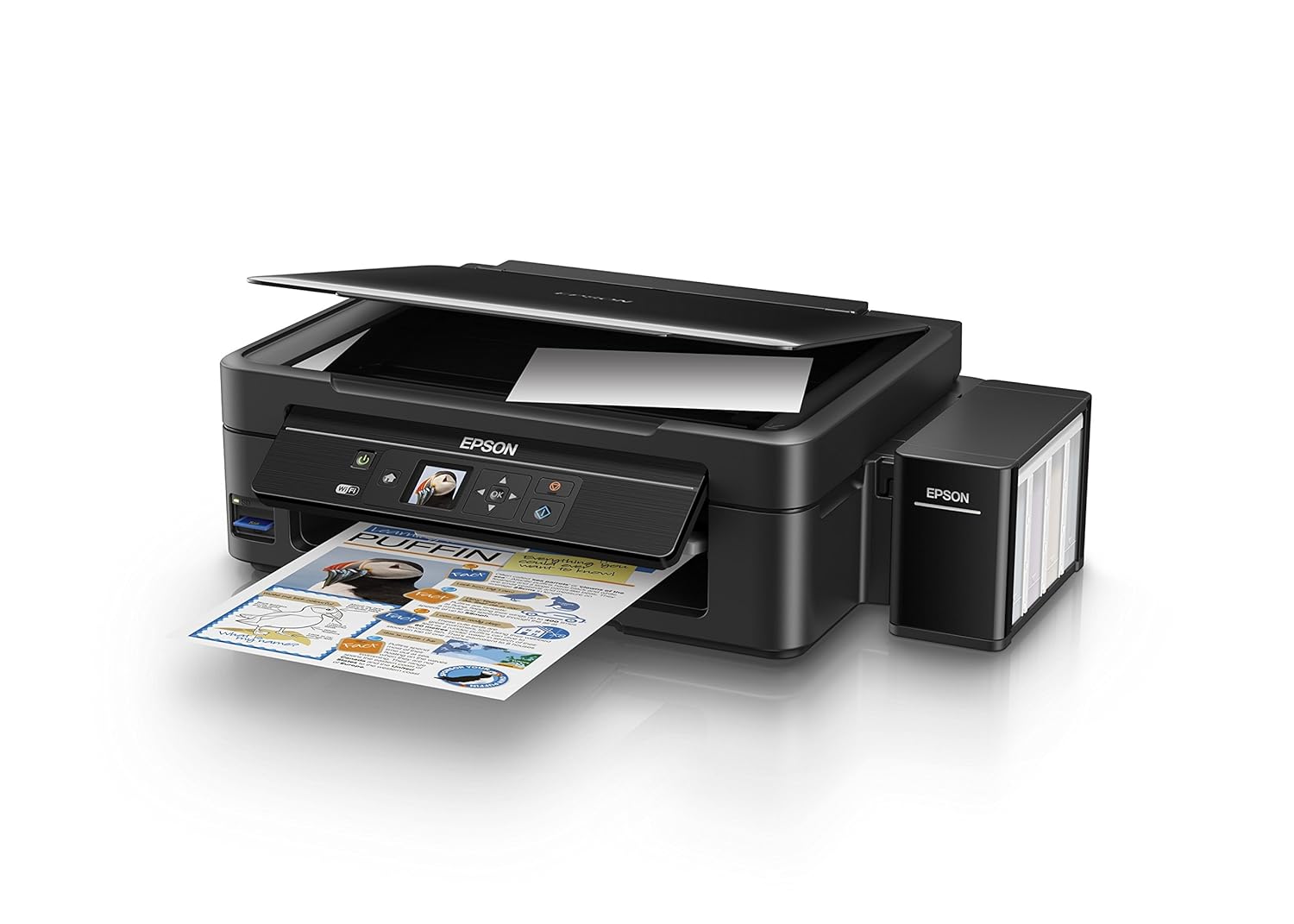
Figure 2: The ink tank unit unhooked and open, showing the ink reservoirs.
2.2 Бэхний савыг дүүргэх
- Prepare Ink Bottles: Snap off the tip of each ink bottle and remove the cap.
- Бэхний савыг дүүргэх: Match the color of the ink bottle with the corresponding ink tank. Carefully pour the entire contents of each ink bottle into its respective tank. Do not overfill.
- Аюулгүй тагнууд: Once all tanks are filled, replace the caps securely on the ink tanks.
- Close Ink Tank Unit: Close the lid of the ink tank unit and re-hook it to the printer.

Figure 3: Demonstrating the process of filling an ink tank with a yellow ink bottle.

Figure 4: The four color ink bottles used for the Epson L485 printer.
2.3 Power On and Ink Charging
- Эрчим хүчийг холбох: Цахилгааны кабелийг хэвлэгч рүү, дараа нь ханын залгуурт залгаарай.
- Turn On Printer: Принтерийг асаахын тулд цахилгаан товчийг дарна уу.
- Initiate Ink Charge: Press and hold the 'Ink Charge' button (usually indicated by a droplet icon) for 3 seconds until the lights start blinking. The initial ink charging process takes approximately 20 minutes. Do not turn off or unplug the printer during this process.
- Дуусгах: The lights will stop blinking when ink charging is complete.
2.4 Драйвер суурилуулах
- Insert Software CD: Insert the provided Software CD into your computer's CD/DVD drive. If your computer does not have a CD drive, download the latest drivers from the official Epson support webсайт.
- Дэлгэц дээрх зааврыг дагана уу: Follow the prompts on your computer screen to install the printer drivers and utilities. Agree to the license agreement and select 'Start & Connection' for setup.
- Connect USB Cable (if prompted): If setting up via USB, connect the USB cable between the printer and your computer when prompted by the installation software.
2.5 Connectivity Setup
The Epson L485 supports both USB and Wi-Fi connectivity.
USB холболт
Connect the USB cable from the printer to an available USB port on your computer. The printer should be recognized automatically after driver installation.
Wi-Fi тохиргоо
The printer features an LCD screen for easy Wi-Fi setup without needing a PC.
- Access Wi-Fi Setup: On the printer's control panel, navigate to the 'Wi-Fi Setup' option using the arrow keys and press 'OK'.
- Сүлжээг сонгоно уу: Choose your desired wireless network from the list and enter the password if required.
- Холболтыг баталгаажуулах: Once connected, the Wi-Fi indicator light will be solid, and the LCD screen will confirm the setup is complete.

Figure 5: Demonstrating wireless printing from a smartphone to the Epson L485 printer.
3. Принтерийг ажиллуулах
3.1 Хэвлэх
The Epson L485 delivers high-quality prints with a resolution of 5760 dpi. It offers print speeds of up to 33 ppm for black and 15 ppm for color documents.
- Цаас ачаалах: Цаасыг арын цаас тэжээгч рүү хийнэ үү. Цаасны чиглүүлэгчийг цаасны хэмжээнд тохируулан тохируулна уу.
- Хэвлэх ажлыг сонгох: From your computer or mobile device, select the document or image you wish to print.
- Тохиргоог тохируулах: Choose your print settings (e.g., paper size, print quality, color/black & white) in the print dialog box.
- Хэвлэх: Ажлыг хэвлэгч рүү илгээхийн тулд 'Хэвлэх' дээр дарна уу.

Figure 6: The Epson L485 printer in action, producing a vibrant print.
3.2 Сканнердах
The printer features a sheetfed scanner with an optical resolution of 1200 dpi x 2400 dpi for clear and detailed scans.
- Баримт бичгийг байрлуулах: Lift the scanner lid and place your document face-down on the scanner glass, aligning it with the corner mark.
- Скан хийх: From your computer, open the Epson Scan software or use the scan function on the printer's control panel.
- Тохиргоог тохируулах: Select scan settings such as resolution, color mode, and destination folder.
- Скан хийж эхлэх: Begin the scanning process.

Figure 7: The scanner bed of the Epson L485 printer with the lid open.
3.3 Хуулбарлах
Make copies directly from the printer's control panel.
- Баримт бичгийг байрлуулах: Place the document you wish to copy on the scanner glass.
- Хуулбарлах функцийг сонгоно уу: On the printer's LCD screen, navigate to the 'Copy' option.
- Тохиргоог тохируулах: Select the number of copies, color or black & white, and other copy settings.
- Хуулбарлахыг эхлүүлэх: Хуулж эхлэхийн тулд "Эхлүүлэх" товчийг дарна уу.
3.4 Wi-Fi Direct
Wi-Fi Direct allows you to connect your mobile devices directly to the printer without a router, enabling convenient wireless printing.
- Enable Wi-Fi Direct: On the printer's control panel, go to 'Wi-Fi Setup' and select 'Wi-Fi Direct'. Follow the on-screen instructions to enable it and view сүлжээний нэр, нууц үг.
- Мобайл төхөөрөмжийг холбох: On your mobile device, go to Wi-Fi settings, find the printer's Wi-Fi Direct network, and connect using the provided password.
- Хэвлэх: Use an Epson printing app (e.g., Epson iPrint) or your device's native print function to print directly to the printer.
4. Засвар үйлчилгээ
4.1 Бэх дүүргэлт
When ink levels are low, refill the tanks using genuine Epson ink bottles. Refer to section 2.2 for detailed ink filling instructions. Always use the correct color ink for each tank.
4.2 Цэвэрлэгээ
Тогтмол цэвэрлэгээ хийх нь хэвлэх чанарыг хадгалахад тусалдаг ба принтерийн ашиглалтын хугацааг уртасгадаг.
- Гадна цэвэрлэгээ: Принтерийн гадна талыг зөөлөн арчиж, damp даавуу. Зүлгүүрийн цэвэрлэгч хэрэглэхээс зайлсхий.
- Хэвлэх толгой цэвэрлэх: If print quality declines (e.g., missing lines, incorrect colors), perform a print head cleaning using the printer's utility software on your computer or through the printer's control panel menu.
- Цорго шалгах: Run a nozzle check pattern to diagnose print quality issues before performing a head cleaning.
5. Алдаа засах
Энэ хэсэгт таны Epson L485 хэвлэгчтэй холбоотой нийтлэг асуудлуудыг авч үзэх болно.
5.1 Принтер хариу өгөхгүй байна
- Принтер асаалттай бөгөөд цахилгааны залгуурт найдвартай холбогдсон эсэхийг шалгаарай.
- Check the USB cable connection to both the printer and computer, or verify the Wi-Fi connection status.
- Принтер болон компьютер/гар утасны төхөөрөмжөө хоёуланг нь дахин эхлүүлнэ үү.
5.2 Хэвлэх чанар муу
- Perform a nozzle check to identify clogged nozzles. If necessary, run a print head cleaning cycle.
- Бэхний түвшинг шалгаж, бага савыг дүүргэ.
- Ensure you are using genuine Epson ink and appropriate paper types for your print job.
5.3 Цаасан саатал
- Turn off the printer and carefully remove any jammed paper from the paper tray, output tray, or inside the printer.
- Цаасыг зөв ачиж, үрчлээгүй эсэхийг шалгах эсвэл curled.
6. Техникийн үзүүлэлтүүд
| Брэнд | Epson |
| Загварын нэр | L485 |
| Холболтын технологи | Wi-Fi |
| Хэвлэлийн технологи | Бэхэн |
| Онцлог шинж чанар | Санах ойн картны үүр |
| Өнгө | Хар |
| Принтерийн гаралт | Өнгө |
| Хамгийн их хэвлэх хурд (өнгөт) | 15 ppm |
| Хамгийн их хэвлэх хурд (Цанг өнгөтэй) | 33 ppm |
| Зүйлийн жин | 6001 грамм |
| Хэвлэгчийн төрөл | Бэхэн |
| Сканнерийн төрөл | Хуудас |
| Maximum Copy Speed (Black and White) | 33 ppm |
| Дэлгэцийн төрөл | LCD |
| Тохиромжтой төхөөрөмжүүд | Ухаалаг утаснууд |
| Бэхний өнгө | Хар, Цэнхэр, Нил ягаан, Шар |
| Шийдвэр | 5760 x 5760 DPI |
| Принтерийн нэмэлт функцууд | Бүгдийг нэг дор (Хэвлэх, Сканнердах, Хуулах) |
| Хамгийн их медиа хэмжээ | A4 |
| Цаасны хэмжээ | A4 |
| Хоёр талт хэвлэх | Үгүй |
7. Баталгаат хугацаа ба дэмжлэг
Your Epson L485 Wi-Fi Inktank Printer comes with a free installation service and an onsite warranty.
7.1 Free Installation and Onsite Warranty
To avail free installation for your printer, please contact Epson support after receiving your product. The onsite warranty covers manufacturing defects and ensures professional assistance at your location.
7.2 Дэмжлэгтэй холбоо барина уу
For installation, support, or any technical assistance, please contact Epson customer service:
- Утас: 1860 3000 1600 (Timings: 9 am - 6 pm)