
1. Танилцуулга
The Cisco SG500-28MPP-K9 is a 28-port Gigabit Max PoE+ stackable managed switch designed to provide high availability, scalability, and performance for small to medium-sized businesses. This manual provides essential information for the proper installation, configuration, and maintenance of your device, ensuring optimal network performance and reliability.
2. Тохируулах заавар
2.1. Багцын агуулга
Таны багц дараах зүйлсийг агуулж байгаа эсэхийг шалгана уу.
- Cisco SG500-28MPP-K9 28-Port Gigabit Max PoE+ Managed Switch
- Цахилгааны утас
- Rack-mount Kit
- Консол кабель (RJ-45-аас DB-9 хүртэл)
- Баримтжуулалтын CD (эсвэл онлайн эх сурвалжийн холбоос)
2.2. Физик суурилуулалт
The switch can be installed on a desktop or mounted in a standard 19-inch equipment rack.
- Ширээний суулгац: Шилжүүлэгчийг тэгш, тогтвортой гадаргуу дээр байрлуул. Төхөөрөмжийн эргэн тойронд хангалттай агааржуулалтыг хангах.
- Тавиур дээр суурилуулах: Attach the provided rack-mount brackets to the sides of the switch using the included screws. Secure the switch into the equipment rack.
2.3. Шилжүүлэгчийг холбож байна
Follow these steps to connect your switch:
- Цахилгааны утсыг унтраалгын цахилгаан оролтод, дараа нь газардуулгатай цахилгаан залгуурт холбоно уу.
- Connect your network devices (computers, IP phones, wireless access points) to the switch's Gigabit Ethernet ports using standard Ethernet cables. The switch supports Power over Ethernet Plus (PoE+) on its ports.
- For initial configuration, connect a computer to the switch's console port using the provided console cable, or connect a computer to any Ethernet port and configure its IP address to be in the same subnet as the switch's default IP address (typically 192.168.1.254).
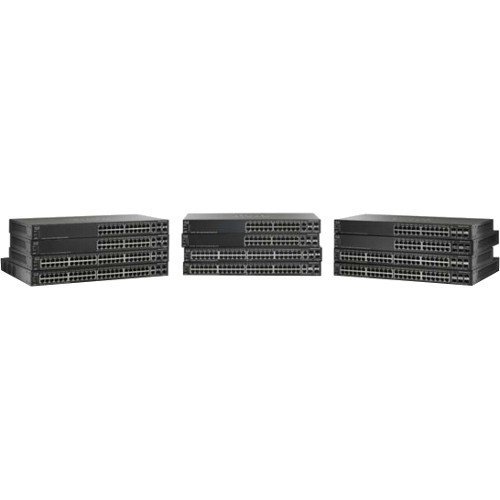
Урд талыг харуулсан зураг view of the Cisco SG500-28MPP-K9 28-Port Gigabit Max PoE+ Managed Switch, highlighting its 28 ports and status indicators.
3. Шилжүүлэгчийг ажиллуулах
3.1. Анхдагч асаалттай
Once connected to power, the switch will automatically power on. Observe the system LED indicators. The 'System' LED should turn green, indicating normal operation. Port LEDs will illuminate when a device is connected and active.
3.2. Үндсэн тохиргоо
The Cisco SG500-28MPP-K9 is a managed switch, offering extensive configuration options via a web-based graphical user interface (GUI) or command-line interface (CLI).
- Web GUI хандалт: Нээлттэй a web browser and enter the switch's default IP address (e.g., http://192.168.1.254). Log in using the default credentials (refer to the documentation for specific defaults, often 'cisco' for both username and password).
- CLI хандалт: Use a terminal emulation program (e.g., PuTTY) to connect via the console port. Configure the serial connection settings (e.g., 115200 baud, 8 data bits, no parity, 1 stop bit, no flow control).
It is highly recommended to change default passwords immediately after initial access for security purposes.
3.3. Гол онцлогууд дууссанview
- Гигабит Ethernet портууд: Provides high-speed connectivity for network devices.
- Max PoE+: Delivers Power over Ethernet Plus to connected devices, simplifying deployment of IP phones, wireless access points, and IP cameras.
- Тогтвортой: Allows multiple switches to be managed as a single unit, increasing network scalability and simplifying management.
- Managed Features: Supports advanced features such as VLANs, QoS, security, and IPv6 routing for robust network control.
4. Засвар үйлчилгээ
4.1. Програм хангамжийн шинэчлэлтүүд
Cisco дэмжлэгийг тогтмол шалгаж үзээрэй website for the latest firmware updates. Keeping your switch's firmware up-to-date ensures access to new features, performance improvements, and critical security patches. Follow the instructions provided with the firmware update package carefully.
4.2. Цэвэрлэгээ
To maintain proper airflow and prevent overheating, periodically clean the switch. Use a soft, dry cloth to wipe the exterior. For dust accumulation in ventilation openings, use compressed air. Ensure the switch is powered off and disconnected from the power source before cleaning.
4.3. Байгаль орчны асуудал
Operate the switch within its specified environmental ranges for temperature and humidity to ensure longevity and stable performance. Avoid placing the switch in direct sunlight, near heat sources, or in areas with excessive dust or moisture.
5. Алдаа засах
5.1. Нийтлэг асуудал ба шийдэл
- Эрчим хүчгүй:
Шинж тэмдэг: Цахилгаан LED унтраалттай байна.
Шийдэл: Цахилгааны залгуурыг унтраалга болон цахилгааны залгуурт холбосон эсэхийг шалгана уу. Залгуур ажиллаж байгаа эсэхийг шалгана уу. - Сүлжээний холболт байхгүй:
Шинж тэмдэг: Devices connected to the switch cannot access the network.
Шийдэл: Verify that Ethernet cables are securely connected to both the switch and the devices. Check port status LEDs; a solid green or blinking green indicates a link. Ensure the switch has a valid IP configuration and is connected to your router/gateway. - PoE төхөөрөмж асахгүй байна:
Шинж тэмдэг: PoE-powered device (e.g., IP phone) does not receive power.
Шийдэл: Ensure the device is PoE-compatible. Check the switch's PoE status LEDs for the specific port. Verify PoE settings in the switch's management interface. Ensure the total PoE budget of the switch is not exceeded. - Нэвтрэх боломжгүй Web GUI:
Шинж тэмдэг: Browser cannot reach the switch's IP address.
Шийдэл: Verify your computer's IP address is in the same subnet as the switch. Ping the switch's IP address to confirm network reachability. Clear browser cache or try a different browser.
If issues persist after attempting these solutions, refer to the comprehensive troubleshooting guide on the Cisco support webсайт эсвэл техникийн дэмжлэгтэй холбоо барина уу.
6. Техникийн үзүүлэлтүүд
| Онцлог | Тодорхойлолт |
|---|---|
| Загвар | SG500-28MPP-K9 |
| Портын тоо | 28 Гигабит Ethernet |
| Интерфейсийн төрөл | PoE+ |
| Бүтээгдэхүүний хэмжээс | 21.5 x 18.7 x 4.3 инч |
| Зүйлийн жин | 15.31 фунт |
| Брэнд | Cisco |
| UPC | 748926547055 |
7. Баталгаат хугацааны мэдээлэл
This Cisco product is typically covered by a limited hardware warranty. For detailed information regarding the terms, conditions, and duration of your specific warranty, please refer to the warranty documentation included with your purchase or visit the official Cisco website. Warranty coverage may vary based on region and reseller.
8. Дэмжлэг
For further assistance, technical support, or to download the latest drivers and firmware, please visit the official Cisco support website. You can also find extensive documentation, FAQs, and community forums there.
Cisco дэмжлэг Webсайт: https://www.cisco.com/go/support