
1. Танилцуулга
Thank you for choosing the Gembird MUS-6B-01 Optical USB Mouse. This manual provides essential information for setting up, operating, maintaining, and troubleshooting your new mouse. Please read these instructions carefully to ensure optimal performance and longevity of your device.

Image: The official Gembird brand logo, featuring the company name in a stylized font with a geometric design.
2. Бүтээгдэхүүн дууссанview
The Gembird MUS-6B-01 is a reliable 6-button optical USB mouse designed for comfortable and precise navigation. Its ambidextrous design makes it suitable for both left and right-handed users.
Гол онцлогууд:
- Оптик мөрдөх: Provides smooth and accurate cursor control.
- 6 Товчлуур: Includes standard left/right click, scroll wheel, DPI adjustment, and two side buttons for enhanced functionality.
- USB холболт: Simple plug-and-play connection to your computer.
- Хоёр талт загвар: Зүүн болон баруун гараараа ажилладаг хэрэглэгчдэд аль алинд нь тохиромжтой.
Бүрэлдэхүүн хэсгүүд:
- Зүүн товчийг дарна уу
- Баруун товчийг дарна уу
- Scroll Wheel (also functions as a middle click button)
- DPI тохируулах товчлуур
- Урагшлах товчлуур (Хажуугийн)
- Буцах товчлуур (Хажуу тал)
- Optical Sensor (underside)
- USB Connector (at the end of the cable)
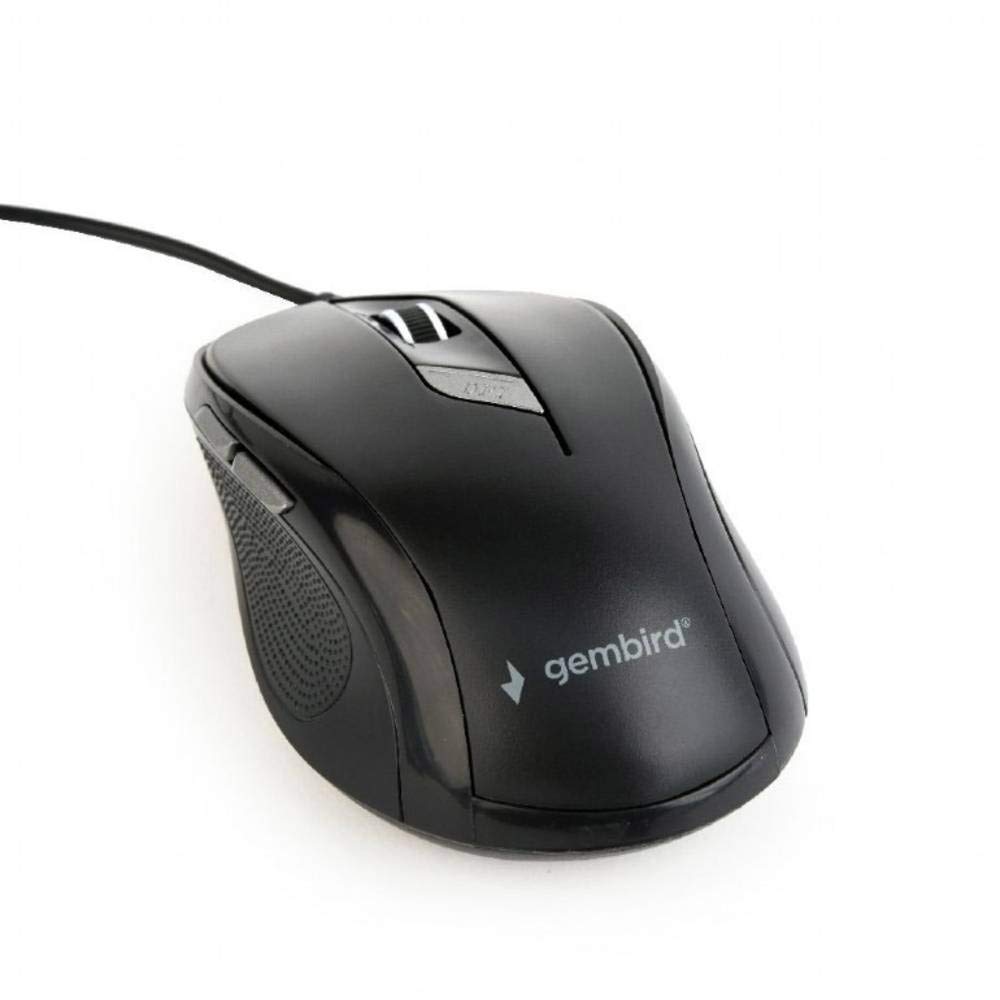
Зураг: Дээрээс доош view of the Gembird MUS-6B-01 optical USB mouse. The mouse is black with a matte finish, featuring a scroll wheel, left and right click buttons, a DPI button, and two side buttons. A black USB cable extends from the front of the mouse.
3. Тохиргоо
Setting up your Gembird MUS-6B-01 mouse is a simple plug-and-play process.
Суулгах алхамууд:
- Компьютер дээрээ байгаа USB портыг олоорой.
- Plug the USB connector of the Gembird MUS-6B-01 mouse firmly into the USB port.
- Your operating system (Windows, Linux) will automatically detect and install the necessary drivers. This process may take a few moments.
- Драйверуудыг суулгасны дараа хулгана ашиглахад бэлэн болно.
No additional software installation is typically required for basic functionality.
4. Ашиглалтын заавар
Familiarize yourself with the functions of each button on your Gembird MUS-6B-01 mouse.
Үндсэн функцууд:
- Зүүн товшилт: Primary action, selecting items, opening files.
- Баруун товшино уу: Opens context menus, provides additional options.
- Гүйлгэх дугуй: Баримт бичгүүдийг дээш эсвэл доош гүйлгэ web хуудаснууд.
- Дунд товшилт (Гүйлгэх дугуй дарах): Often used to open links in new tabs or for specific application functions.
Нарийвчилсан функцууд:
- DPI тохируулах товч: Located behind the scroll wheel, this button allows you to cycle through different sensitivity (DPI) settings. Press it to change the cursor speed to suit your preference.
- Урагшлах товчлуур (Хажуу тал): Typically navigates forward in web хөтөч эсвэл file судлаачид.
- Буцах товчлуур (Хажуу тал): Typically navigates backward in web хөтөч эсвэл file судлаачид.
The functionality of the side buttons may vary depending on the application or operating system settings. Some operating systems allow customization of these buttons.
5. Засвар үйлчилгээ
Proper care will help extend the life of your Gembird MUS-6B-01 mouse.
Цэвэрлэгээ:
- Цэвэрлэхийн өмнө хулганаа компьютерээс салга.
- Зөөлөн, бага зэрэг хэрэглээрэй damp, lint-free cloth to wipe the surface of the mouse.
- For stubborn dirt, a small amount of mild soap solution can be applied to the cloth (not directly to the mouse).
- Use a cotton swab or compressed air to clean around the scroll wheel and between buttons.
- Ensure the optical sensor on the underside is clean and free of dust or debris.
- Do not use harsh chemicals, abrasive cleaners, or immerse the mouse in water.
Хадгалах:
When not in use for extended periods, store the mouse in a clean, dry environment away from extreme temperatures and direct sunlight.
6. Алдаа засах
If you encounter issues with your Gembird MUS-6B-01 mouse, try the following troubleshooting steps:
| Асуудал | Боломжит шийдэл |
|---|---|
| Хулгана хариу өгөхгүй байна |
|
| Erratic or jumpy cursor movement |
|
| Товчнууд ажиллахгүй байна |
|
7. Техникийн үзүүлэлтүүд
Detailed technical specifications for the Gembird MUS-6B-01 Optical USB Mouse:
| Онцлог | Тодорхойлолт |
|---|---|
| Брэнд | Gembird |
| Загварын нэр | MUS-6B-01 |
| Холболтын технологи | Утастай (USB) |
| Хөдөлгөөнийг илрүүлэх технологи | Оптик |
| Товчлуурын тоо | 6 |
| Гарын чиг баримжаа | Хоёр талт |
| Тохиромжтой үйлдлийн системүүд | Линукс, Windows 7, Windows XP (болон түүнээс хойшхи хувилбарууд) |
| Техник хангамжийн платформ | Хувийн компьютер |
| Кабелийн урт | 5.0 метр |
| Зүйлийн жин | 74 грамм |
| Материал | Хуванцар |
| Өнгө | Хар |
| Батерей шаардлагатай | Үгүй |
8. Аюулгүй байдлын мэдээлэл
Дараах аюулгүй байдлын удирдамжийг дагаж мөрдөнө үү.
- Хулганыг ус эсвэл хэт их чийгэнд бүү оруул.
- Хулгана унах, хүчтэй цохилтонд оруулахаас зайлсхий.
- Хулганыг өөрөө задлах эсвэл засах гэж бүү оролдоорой. Мэргэшсэн үйлчилгээний ажилтнаас зөвлөгөө аваарай.
- Төхөөрөмжийг хэт өндөр температур, нарны шууд тусгалаас хол байлга.
- Орон нутгийн дүрэм журмын дагуу цахим хог хаягдлыг хариуцлагатай устгана уу.
9. Баталгаат хугацаа ба дэмжлэг
Gembird products are designed for reliability and performance. For specific warranty terms and conditions, please refer to the warranty card included with your product or visit the official Gembird website. For technical support or further assistance, please contact your retailer or the Gembird customer service department.