
1. Бүтээгдэхүүн дууссанview
The SIIG JU-DK0L11-S1 is a versatile USB 3.0 Dual Monitor Docking Station designed to expand your laptop or desktop's connectivity and display capabilities. It supports up to two 1080p@60Hz Full HD video displays via two HDMI ports, along with multiple USB ports, Gigabit Ethernet, and a 3.5mm audio jack. This docking station is compatible with both Windows and macOS operating systems, including Mac M1/M2/M3 Pro&Max.
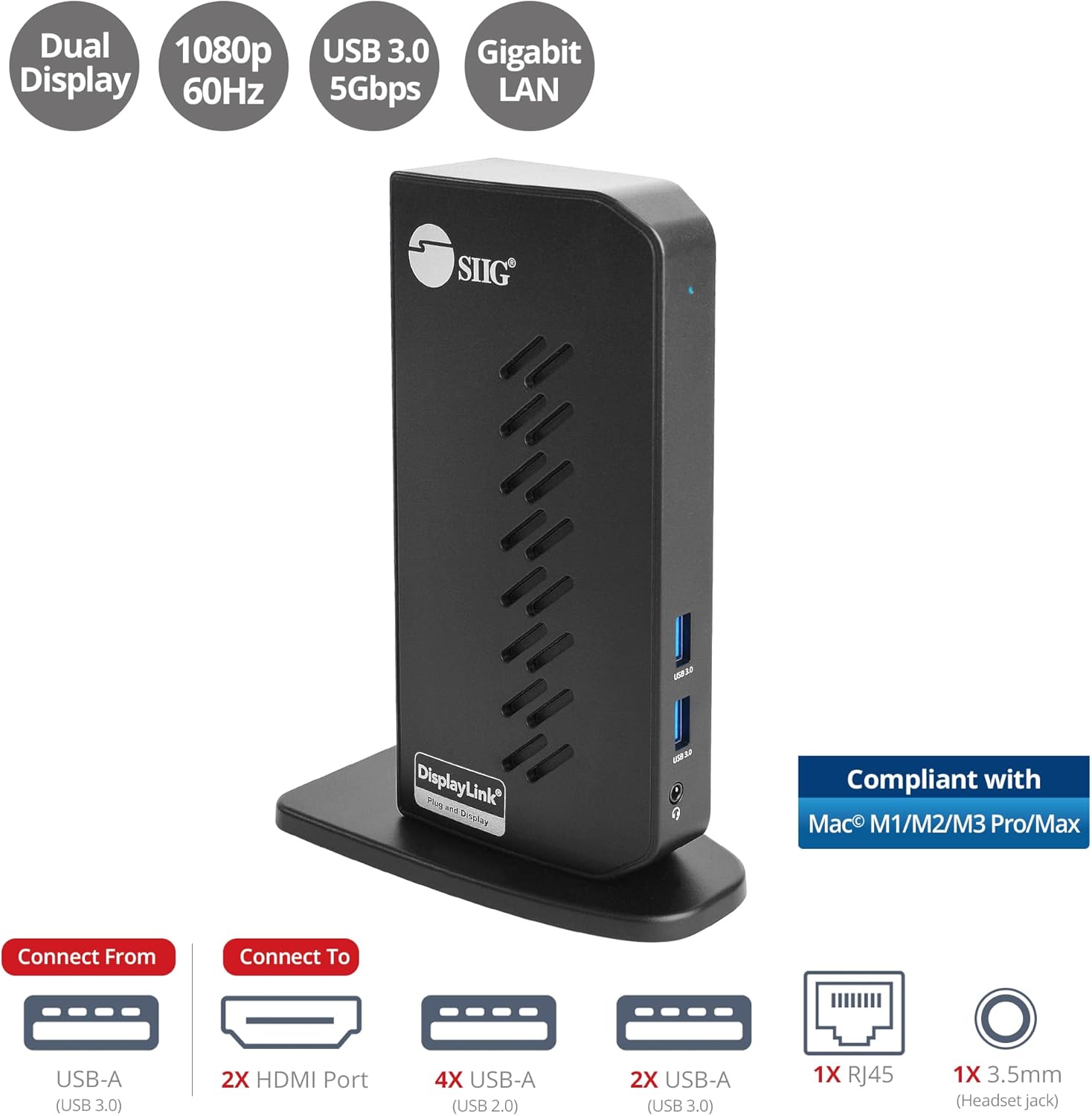
Image 1.1: The SIIG JU-DK0L11-S1 Dual Monitor Docking Station, showcasing its compact vertical design and various connectivity options.
2. Багцын агуулга
Суулгацыг үргэлжлүүлэхийн өмнө багцад бүх зүйл байгаа эсэхийг шалгаарай.
- SIIG JU-DK0L11-S1 Dual Head Full HD HDMI Video Docking Station
- Цахилгаан хувиргагч (12V/2A)
- USB 3.0 Type-A to Type-B Cable
- Driver CD (Drivers can also be downloaded from the official SIIG webсайт)
- Хэрэглэгчийн гарын авлага

Image 2.1: All components included in the SIIG JU-DK0L11-S1 docking station package, including the docking station, power adapter, USB cable, driver CD, and user manual.
3. Техник хангамжийн зохион байгуулалт
Familiarize yourself with the ports and indicators on the docking station.
Урд самбар
- Эрчим хүчний LED: Эрчим хүчний төлөвийг заана.
- 2 USB 3.0 портууд: For connecting high-speed USB devices (5Gbps, 4.5W/900mA).
- 3.5 мм чихэвчний залгуур: For connecting headphones or stereo speakers with microphone input.
Арын самбар
- 4 USB 2.0 портууд: For connecting standard USB devices (480Mbps, 5V/900mA).
- RJ45 Гигабит Ethernet порт: Утастай сүлжээний холболтын хувьд (10/100/1000Mbps).
- 2x HDMI Outputs: For connecting external displays (up to 1080p@60Hz).
- USB 3.0 Type-B Port: For connecting the docking station to your host computer.
- Эрчим хүчний Жак: 12V/2A тэжээлийн адаптерийг холбох зориулалттай.

Зураг 3.1: Нарийвчилсан view of the front and rear panels of the docking station, highlighting all available ports and their functions.
4. Тохируулах заавар
Док станцаа тохируулахын тулд дараах алхмуудыг дагана уу:
- DisplayLink драйверуудыг суулгах: Before connecting the docking station, install the necessary DisplayLink drivers on your computer. You can use the included driver CD or download the latest drivers from the official DisplayLink webсайт (www.displaylink.com/downloads) or SIIG's support page.
- Эрчим хүчийг холбох: Plug the provided 12V/2A power adapter into the docking station's power jack and then into a wall outlet. The Power LED on the front panel should illuminate.
- Connect to Host Computer: Use the supplied USB 3.0 Type-A to Type-B cable to connect the docking station's USB 3.0 Type-B port to an available USB 3.0 Type-A port on your laptop or desktop computer.
- Дэлгэцүүдийг холбох: Connect your external monitors to the two HDMI output ports on the rear of the docking station using HDMI cables.
- Дагалдах төхөөрөмжүүдийг холбох: Connect your USB devices (keyboard, mouse, printer, flash drives, etc.) to the available USB 3.0 and USB 2.0 ports. Connect an Ethernet cable to the RJ45 port for a wired network connection. Plug your headset or speakers into the 3.5mm audio jack.
Video 4.1: An official video demonstrating the setup and connectivity of the SIIG JU-DK0L11-S1 Dual Head Full HD HDMI Docking Station, showing how to connect monitors and peripherals.
5. Ашиглалтын заавар
Once the docking station is set up, you can configure your display settings and utilize the connected peripherals.
Дэлгэцийн горимууд
The docking station supports three primary display modes:
- Толин тусгал горим: Таны үндсэн дэлгэцийг гадаад дэлгэц дээр хуулбарлана.
- Өргөтгөх горим: Extends your desktop across multiple screens, allowing for increased workspace.
- Үндсэн горим: Designates one of the connected displays as the main display.
Та эдгээр тохиргоог үйлдлийн системийн дэлгэцийн тохиргоогоор (жишээ нь, Windows Дэлгэцийн Тохиргоо эсвэл macOS Системийн Тохиргоо > Дэлгэцүүд) дамжуулан тохируулж болно.

Image 5.1: A typical dual 1080p monitor setup utilizing the SIIG docking station, demonstrating an extended display configuration for enhanced productivity.
USB холболт
The docking station provides two USB 3.0 ports for high-speed data transfer (e.g., external hard drives, SSDs) and four USB 2.0 ports for standard peripherals (e.g., keyboard, mouse, printer). Simply plug your devices into the corresponding ports.
Гигабит Ethernet
For a stable and fast internet connection, connect an Ethernet cable from your router or modem to the RJ45 port on the docking station. This provides a more reliable connection than Wi-Fi, supporting 10/100/1000 BASE-T wired networks.

Зураг 5.2: Ойролцоогоор view of the Gigabit RJ45 Ethernet port and USB ports, illustrating their use for network and high-speed data transmission.
Аудио холболт
The 3.5mm headset jack allows you to connect headphones, speakers, or a microphone. Ensure your operating system's audio settings are configured to use the docking station's audio output/input.
6. Specifications (Model: JU-DK0L11-S1)
| Брэнд | SIIG |
| Загварын дугаар | JU-DK0L11-S1 |
| Тоног төхөөрөмжийн интерфейс | 3.5mm Audio, Ethernet, HDMI, USB 1.1, USB 2.0, USB 3.0 |
| Тохиромжтой төхөөрөмжүүд | Desktop or laptop computer with an available USB 3.0 Type-A port. Compatible with Windows® 11/10/8.1/8/7 and macOS® 11 / 10.15 to 10.10. |
| Нийт USB портууд | 6 (2х USB 3.0, 4х USB 2.0) |
| Нийт HDMI портууд | 2 |
| Макс тогтоол | 1080p@60Hz (per display) |
| Ethernet хурд | Гигабит (10/100/1000Mbps) |
| Оролтын хэмжээtage | 100 вольт (AC) |
| Бүтээгдэхүүний хэмжээ (L x W x H) | 5.31" x 2.87" x 7.36" |
| Зүйлийн жин | 0.75 фунт |

Image 6.1: Physical dimensions of the SIIG JU-DK0L11-S1 docking station, illustrating its compact and space-saving design.
7. Алдаа засах
- Дэлгэцийн гаралт байхгүй:
- Док станц асаалттай, цахилгаан LED асдаг эсэхийг шалгаарай.
- Verify that the USB 3.0 cable is securely connected between the docking station and your computer.
- Check that HDMI cables are firmly connected to both the docking station and your monitors.
- Confirm that DisplayLink drivers are correctly installed and up to date.
- Компьютерээ дахин эхлүүлээд үзээрэй.
- Танигдаагүй USB төхөөрөмжүүд:
- Ensure the docking station is powered and connected to your computer.
- USB төхөөрөмжийг залгах станцын өөр порт руу холбож үзнэ үү.
- Connect the USB device directly to your computer to rule out device issues.
- Сүлжээний холболт байхгүй:
- Verify the Ethernet cable is securely connected to the RJ45 port on the docking station and your network source.
- Check your computer's network settings to ensure the Ethernet adapter is enabled.
- Confirm that your router/modem is functioning correctly.
- Аудио асуудал:
- Ensure your headset/speakers are properly plugged into the 3.5mm jack.
- Check your computer's sound settings to select the docking station as the default audio output/input device.
8. Засвар үйлчилгээ
To ensure the longevity and optimal performance of your SIIG docking station, follow these maintenance guidelines:
- Төхөөрөмжийг зөөлөн, хуурай даавуугаар арчиж цэвэр байлгаарай. Шингэн цэвэрлэгч эсвэл аэрозоль хэрэглэхээс зайлсхий.
- Ensure proper ventilation around the docking station to prevent overheating. The vertical design with heat dissipation features aids in this.
- Төхөөрөмжийг хэт өндөр температур, чийгшил, нарны шууд тусгалд оруулахаас зайлсхий.
- Кабель болон холбогчийг гэмтээхээс сэргийлж зөөлөн барь.
9. Баталгаат хугацаа ба дэмжлэг
For warranty information and technical support, please refer to the documentation included with your product or visit the official SIIG website. SIIG is committed to providing reliable products and customer assistance.
For further assistance, you may contact SIIG customer support directly through their webсайт эсвэл таны бүтээгдэхүүний савлагаанд заасан холбоо барих мэдээлэл.