
1. Бүтээгдэхүүн дууссанview
The Cisco Catalyst 9300 C9300-24S-E is a 24-port Gigabit Ethernet SFP modular uplink network switch designed for enterprise-level network deployments. It provides high-performance switching capabilities, advanced security features, and network automation for modern business environments. This manual provides essential information for the safe and efficient installation, operation, and maintenance of your switch.
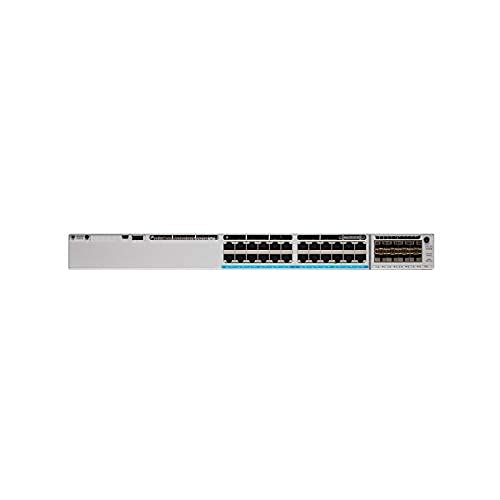
Зураг 1: Урд view of the Cisco Catalyst 9300 C9300-24S-E Switch. This image displays the 24 SFP ports and modular uplink slots.
2. Аюулгүй байдлын мэдээлэл
Read all safety warnings and instructions before installing, operating, or servicing this equipment. Failure to follow these instructions can result in serious injury or equipment damage.
- Цахилгааны аюулгүй байдал: Ensure the power source matches the switch's voltage requirements. Always connect the power cord to a grounded outlet. Do not operate the switch with damaged power cords or plugs.
- Агааржуулалт: Хэт халалтаас сэргийлэхийн тулд унтраалгын эргэн тойронд хангалттай агаарын урсгалыг хадгална уу. Агааржуулалтын нүхийг бүү бөглөөрэй.
- Харьцуулах: This device is heavy. Use proper lifting techniques or assistance when moving or installing.
- Байгаль орчин: Operate the switch within the specified temperature and humidity ranges. Avoid exposure to moisture or extreme temperatures.
- Үйлчилгээ: Refer all servicing to qualified service personnel. Do not attempt to open or repair the switch yourself.
3. Багцын агуулга
Verify that your package contains the following items. If any item is missing or damaged, contact your vendor immediately.
- Cisco Catalyst 9300 C9300-24S-E Switch
- Хувьсах гүйдлийн цахилгааны утас
- Rack-mount Kit (brackets, screws)
- Консол кабель (RJ-45-аас DB-9 хүртэл)
- Баримт бичиг (Шуурхай эхлүүлэх гарын авлага, аюулгүй байдлын мэдээлэл)
4. Physical Description and Components
The C9300-24S-E switch features a robust design with various ports and indicators for network connectivity and status monitoring.
4.1 Урд самбар
Зураг 2: Нарийвчилсан view of the switch's front panel, highlighting SFP ports and status LEDs.
- 24 x SFP Ports: For Gigabit Ethernet fiber or copper connectivity using SFP transceivers.
- Modular Uplink Slots: Located on the right side, these slots accommodate optional uplink modules for higher bandwidth connections (e.g., 10G, 25G, 40G, 100G).
- Статус LED: Indicate system status (SYS), redundant power supply (RPS), port status (STAT), and stack status (STACK).
- USB Type-A порт: For external storage or software upgrades.
- USB Type-C Console Port: For console access and initial configuration.
- RJ-45 Console Port: For traditional console access.
4.2 Арын самбар
Зураг 3: Ар талд view of the switch, showing power supply bays and fan modules.
- Power Supply Bays: Two bays for redundant power supplies.
- Сэнс модулиуд: Field-replaceable fan modules for cooling.
- StackWise-1T Ports: (If applicable to the specific model variant) For stacking multiple switches.
5. Тохиргоо ба суурилуулалт
Follow these steps to properly install your Cisco Catalyst 9300 switch.
5.1 Rack суурилуулах
- Дагалдах боолтыг ашиглан өгөгдсөн тавиур дээр суурилуулах хаалтуудыг унтраалгын хажуу талуудад бэхлэнэ үү.
- Шилжүүлэгчийг тоног төхөөрөмжийнхөө тавиур дээрх хүссэн тавиурын нэгж (RU) зайтай зэрэгцүүл.
- Secure the switch to the rack using the rack screws.
Figure 4: Illustration of the switch being mounted into a standard equipment rack.
5.2 Эрчим хүчний холболт
- Insert the AC power cord into the power supply module on the rear of the switch.
- Цахилгааны утаснуудын нөгөө үзүүрийг газардуулсан АС цахилгаан залгуурт холбоно.
- If using redundant power supplies, repeat for the second power supply.
5.3 Сүлжээний холболтууд
- Insert appropriate SFP transceivers into the 24 SFP ports as needed.
- Connect fiber optic or copper cables from your network devices (servers, workstations, other switches) to the SFP transceivers.
- Install any optional uplink modules into the modular uplink slots and connect them to your core network infrastructure.
6. Ашиглалтын заавар
6.1 Асаах
Once power is connected, the switch will automatically power on. Observe the system status LEDs on the front panel. The SYS LED should turn green after the boot sequence completes.
6.2 Анхны тохиргоо
For initial configuration, connect a console cable from your computer to the switch's console port (either USB-C or RJ-45). Use a terminal emulation program (e.g., PuTTY, Tera Term) with the following settings:
- Дохионы түвшин: 9600
- Өгөгдлийн битүүд: 8
- Паритет: Байхгүй
- Битийг зогсоох: 1
- Урсгалын хяналт: Байхгүй
Follow the on-screen prompts to complete the initial setup wizard. For advanced configurations, refer to the Cisco IOS XE documentation for Catalyst 9300 Series switches.
6.3 LED үзүүлэлтүүд
| LED | Өнгө/Төлөв | Тодорхойлолт |
|---|---|---|
| SYS (Систем) | Ногоон (хатуу) | Систем хэвийн ажиллаж байна. |
| Хув (Хатуу) | Системийн алдаа эсвэл алдаа. | |
| STAT (Port Status) | Ногоон (хатуу) | Холбоос тогтоогдсон. |
| Ногоон (анивчсан) | Порт дээрх үйл ажиллагаа. | |
| Унтраах | Холбоос эсвэл порт идэвхгүй болоогүй байна. |
7. Засвар үйлчилгээ
Тогтмол засвар үйлчилгээ нь таны унтраалгын оновчтой ажиллагаа, удаан эдэлгээг баталгаажуулдаг.
- Цэвэрлэгээ: Periodically clean the exterior of the switch with a soft, dry cloth. Ensure ventilation openings are free from dust and debris. Do not use liquid cleaners directly on the switch.
- Програм хангамжийн шинэчлэлтүүд: Cisco дэмжлэгийг тогтмол шалгаж үзээрэй website for the latest firmware updates. Applying updates can improve performance, add features, and address security vulnerabilities. Follow Cisco's recommended procedures for firmware upgrades.
- Байгаль орчны хяналт: Ensure the operating environment remains within specified temperature and humidity ranges to prevent hardware stress.
8. Алдаа засах
Энэ хэсэг нь танд тулгарч болох нийтлэг асуудлуудын шийдлүүдийг өгдөг.
8.1 Эрчим хүчгүй
- Цахилгааны утсыг шалгах: Цахилгааны утсыг унтраалга болон тэжээлийн залгуурт найдвартай холбосон эсэхийг шалгаарай.
- Гаралтыг баталгаажуулах: Цахилгаан залгуур ажиллаж байгаа эсэхийг шалгахын тулд өөр төхөөрөмжөөр шалгана уу.
- Цахилгаан хангамжийн төлөв: Check the power supply LEDs on the rear of the switch. If off or amber, the power supply may be faulty or not receiving power.
8.2 Порт дээр холбоос байхгүй
- Кабелийн холболт: Ensure the network cable is securely connected to both the switch port and the connected device.
- Кабелийн бүрэн бүтэн байдал: Test the cable with another device or replace it to rule out a faulty cable.
- Transceiver: If using SFP transceivers, ensure they are properly seated and compatible with both the switch and the connected device.
- Портын тохиргоо: Verify that the switch port is enabled and correctly configured (e.g., speed, duplex settings).
8.3 Сүлжээний холболтын асуудлууд
- IP тохиргоо: Verify IP addresses, subnet masks, and gateway settings on connected devices and the switch.
- VLAN: If using VLANs, ensure ports are assigned to the correct VLANs and trunk links are properly configured.
- Firewall/ACLs: Check for any Access Control Lists (ACLs) or firewall rules on the switch that might be blocking traffic.
- Програм хангамжийн асуудлууд: Consider restarting the switch or checking the system logs for error messages.
9. Техникийн үзүүлэлтүүд
Key technical specifications for the Cisco Catalyst 9300 C9300-24S-E switch:
| Онцлог | Дэлгэрэнгүй |
|---|---|
| Загварын дугаар | C9300-24S-E |
| Брэнд | Cisco |
| Интерфейсийн төрөл | SFP |
| Портын тоо | 24 |
| Тохиромжтой төхөөрөмжүүд | Ширээний компьютер, зөөврийн компьютер, хэвлэгч |
| Бүтээгдэхүүний хэмжээс | 21.65 x 22.44 x 9.45 инч |
| Кейсийн материал | Хуванцар |
| Дээд температурын үнэлгээ | Цельсийн 40 градус |
| Үйлдвэрлэгч | CISCO SYSTEMS - ENTERPRISE |
| UPC | 656942062790 |
10. Баталгаат хугацаа ба дэмжлэг
This Cisco product is typically covered by a limited hardware warranty provided by Cisco Systems. The exact terms and duration of the warranty may vary based on your region and purchase agreement. For detailed warranty information, please refer to the official Cisco warranty statements available on their webсайт эсвэл эрх бүхий Cisco борлуулагчтайгаа холбогдоно уу.
For technical support, documentation, and software downloads, visit the official Cisco Support webсайт. Бүртгүүлэх, тодорхой дэмжлэгийн эх сурвалжид хандахын тулд танд бүтээгдэхүүний серийн дугаар хэрэгтэй болно.
- Cisco дэмжлэг Webсайт: www.cisco.com/go/support
- Дэмжлэгтэй холбоо барина уу: Cisco-г үзнэ үү webбүс нутгийн холбоо барих мэдээллийн сайт.