
Танилцуулга
This instruction manual provides comprehensive guidance for the 8Bitdo Media Remote (White Short Edition), designed for seamless media control on your Xbox One, Xbox Series X, and Xbox Series S consoles. This remote offers dedicated media playback buttons, Xbox system navigation, and motion-activated backlighting for enhanced usability.
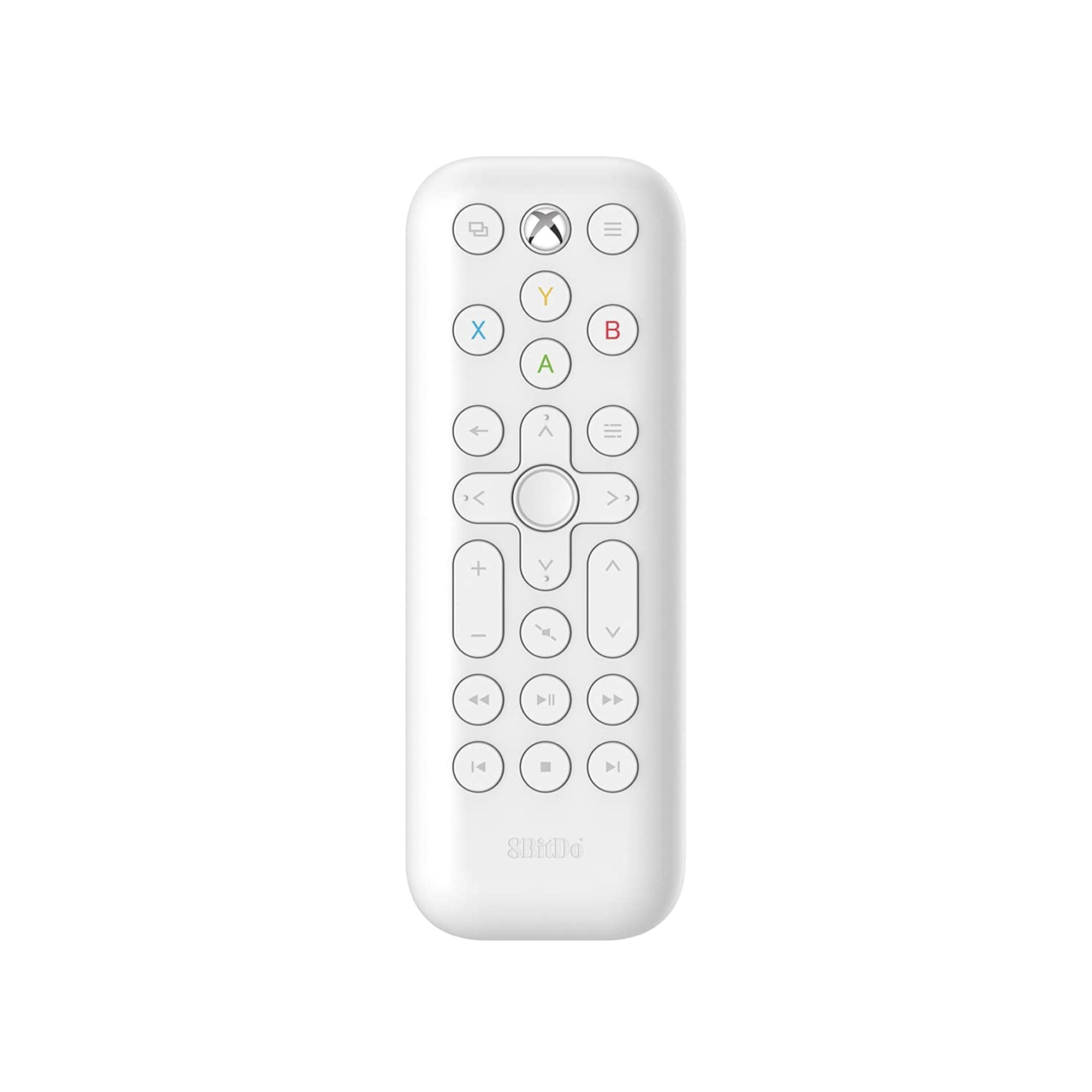
Image: The 8Bitdo Media Remote in White, Short Edition, showcasing its compact design and button layout.
Тохиргоо
1. Зай суурилуулах
The 8Bitdo Media Remote requires two AAA batteries for operation. These are typically included with your purchase.
- Удирдлагын ар талд байгаа зайны тасалгааны тагийг олоорой.
- Тасалгааг нээхийн тулд тагийг доош нь гулсуулна уу.
- Хоёр AAA батерейг оруулаад зөв туйлшралыг (+ ба -) баталгаажуулна уу.
- Батерейны тасалгааны тагийг найдвартай товших хүртэл шургуулна уу.

Image: A hand demonstrating how to open the battery compartment and insert AAA batteries into the remote.
2. Анхны холболт
The 8Bitdo Media Remote uses infrared (IR) technology. No manual pairing is required. Simply ensure a clear line of sight between the remote's IR emitter (located at the top) and your Xbox console's IR receiver.

Image: A user holding the 8Bitdo Media Remote, pointing it towards an Xbox Series S console, illustrating the line-of-sight requirement for infrared communication.
Ашиглалтын заавар
1. Powering On/Off and Navigation
- Dedicated Home Button: Press the Xbox Home button (located at the top center) to instantly wake your Xbox console.
- Чиглэлийн дэвсгэр (D-Pad): Use the circular D-Pad for navigating menus and selecting items.
- A/B/X/Y товчлуурууд: These colored buttons correspond to standard Xbox controller functions for menu selection and interaction.

Image: The 8Bitdo Media Remote being used to wake an Xbox console, highlighting the dedicated Home button functionality.
2. Media Playback Controls
The remote features a full suite of media playback buttons:
- Тоглуулах/түр зогсоох: Медиа тоглуулахыг эхлүүлэх эсвэл түр зогсоох.
- Хурдан урагшлах/буцах: Skip forward or backward through content.
- Дууны хэмжээг нэмэгдүүлэх/доошруулах: Adjust the volume of your media.
- Дууг хаах: Дууны дууг хаах эсвэл нээх.
3. Motion-Activated Backlight
The buttons on the remote are motion-activated and will illuminate when the remote is picked up or moved, making it easy to use in low-light conditions.
4. OneGuide Button Customization
The OneGuide button (three horizontal lines icon) can be customized to launch a specific application on your Xbox. To configure this:
- On your Xbox, go to Тохиргоо.
- руу шилжих Devices & connections, дараа нь сонгоно уу Медиа алсын.
- Choose the desired action or app to launch when the OneGuide button is pressed.
5. TV Volume Control (HDMI-CEC)
Your Xbox can control your TV's volume if your TV supports HDMI-CEC (Consumer Electronics Control). To enable this:
- Press the Xbox button on your controller to open the guide.
- руу оч Тохиргоо > Генерал > TV & display options.
- Сонго Төхөөрөмжийн удирдлага > HDMI-CEC and enable all options.
- Consult your TV manufacturer's manual for specific HDMI-CEC settings.
Засвар үйлчилгээ
1. Зай солих
Replace the AAA batteries when the remote's performance diminishes or the backlight becomes dim. Refer to the 'Battery Installation' steps in the Setup section.
2. Цэвэрлэгээ
Wipe the remote with a soft, dry cloth. Avoid using harsh chemicals or abrasive materials that could damage the finish or buttons.
Алдааг олж засварлах
- Алсын удирдлага хариу өгөхгүй байна:
- Шинэ батерейг зөв суулгасан эсэхийг шалгаарай.
- Verify a clear line of sight between the remote and your Xbox console. Obstructions can block the infrared signal.
- Confirm your Xbox console is powered on and not in a deep sleep mode that disables IR reception.
- Backlight constantly active:
- The backlight is motion-activated. Any movement will trigger it. This is normal operation.
- If battery life is a concern due to frequent backlighting, consider using rechargeable AAA batteries.
- TV volume control not working:
- Ensure your TV supports HDMI-CEC and that it is enabled in your TV's settings.
- Verify HDMI-CEC settings are correctly configured on your Xbox console (Settings > General > TV & display options > Device control > HDMI-CEC).
Үзүүлэлтүүд
| Загвар | 6922621501848 (White Short Edition) |
| Брэнд | 8Битдо |
| Холболт | Хэт улаан туяаны (IR) |
| Тохиромжтой байдал | Xbox Series X, Xbox Series S, Xbox One |
| Эрчим хүчний эх үүсвэр | 2 x AAA батерей (дагсан) |
| Dimensions (Short Edition) | 134.25 x 48 x 18.8 мм |
| Зүйлийн жин | 2.88 унц |

Image: A visual comparison of the 8Bitdo Media Remote in both short and long editions, detailing their respective dimensions.

Image: An illustration showing the 8Bitdo Media Remote's compatibility with Xbox One, Xbox Series X, and Xbox Series S consoles.
Баталгаат болон дэмжлэг
8Bitdo is committed to producing high-quality gaming hardware. For specific warranty information, product support, or to access the latest firmware updates, please visit the official 8Bitdo webсайт эсвэл харилцагчийн үйлчилгээтэй шууд холбогдоно уу. Баталгаат нэхэмжлэл гаргахын тулд худалдан авалтаа нотлох баримтаа хадгалаарай.
Нэмэлт эх сурвалж, бүтээгдэхүүний талаарх мэдээллийг авахыг хүсвэл зочилно уу 8Bitdo Store on Amazon.
Бүтээгдэхүүн дууссанview Видео
Видео: Албан тушаалтан ирсэнview of the 8Bitdo Media Remote for Xbox One and Xbox Series X|S, demonstrating its features and functionality.