
Танилцуулга
This manual provides essential information for setting up, operating, maintaining, and troubleshooting your Acer Aspire 3 A315-58-79LA laptop. Please read this guide thoroughly to ensure proper use and longevity of your device.
1. Тохиргоо
1.1 Хайрцагнаас задлах, анхны үзлэг
Carefully remove the laptop and all accessories from the packaging. Inspect the device for any signs of damage. Retain the packaging for future transport or service needs.
1.2 Цахилгааныг холбох
Connect the AC adapter to the laptop's power input port and then plug the adapter into a power outlet. The battery will begin charging automatically. It is recommended to fully charge the battery before the first use.
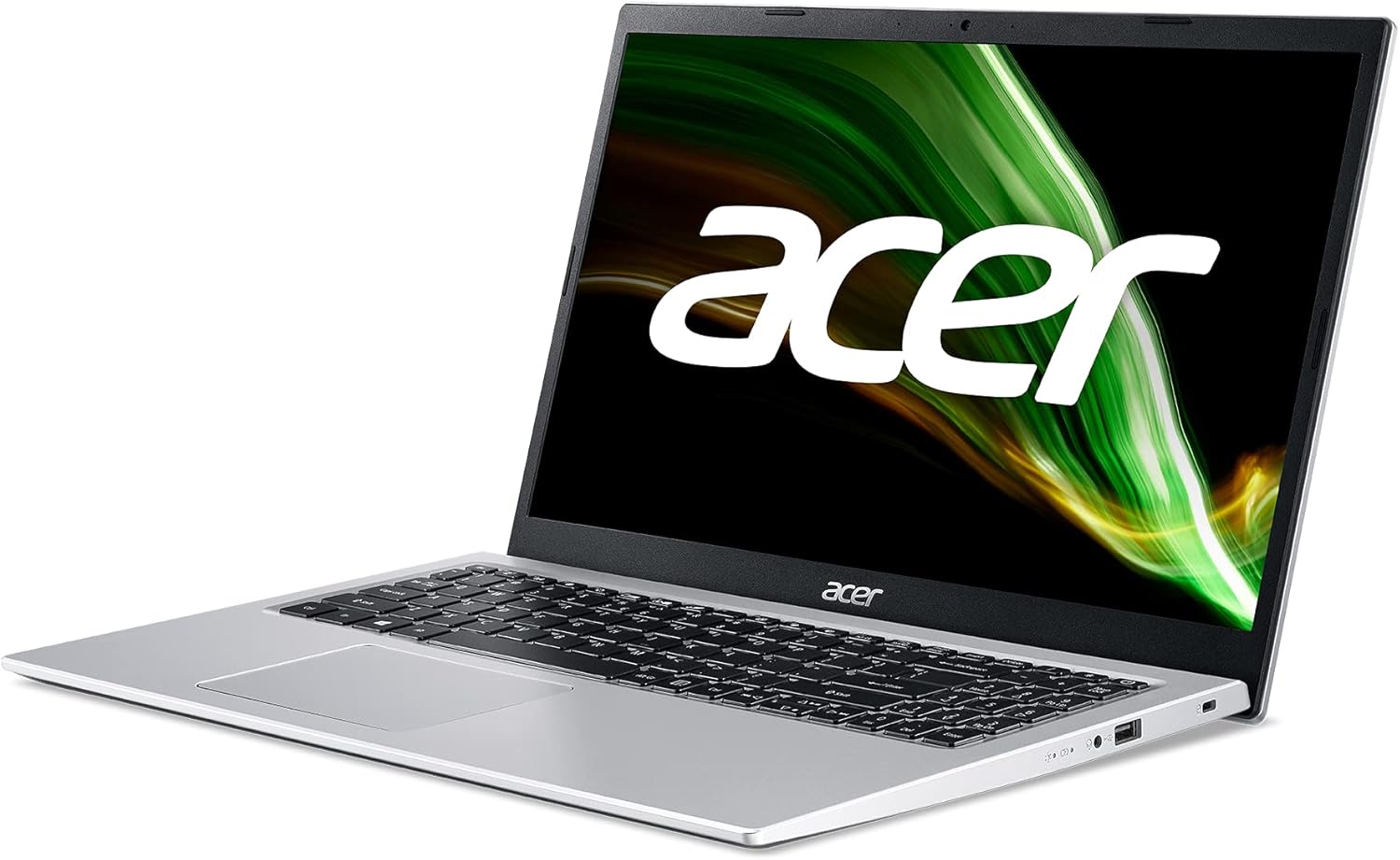
Зураг: Баруун талд view of the Acer Aspire 3 laptop, showing the power input port.
1.3 Эхний ачаалах болон Windows тохиргоо
Press the power button to turn on the laptop. Follow the on-screen instructions to complete the Windows 11 Home setup process. This includes selecting your language, region, connecting to a network, and creating a user account.
1.4 Захын төхөөрөмжүүдийг холбох
You can connect external devices such as a mouse, keyboard, or external storage via the available USB ports. For external displays, use the HDMI port.

Зураг: зүүн тал view of the Acer Aspire 3 laptop, highlighting the HDMI and USB ports for connecting external devices.
2. Зөөврийн компьютерээ ажиллуулах
2.1 Power On/Off and Sleep Modes
- Асаах: Гар дээр байрлах цахилгаан товчийг дарна уу.
- Унтраах: "Эхлүүлэх" товчийг дараад "Асаах" товчийг дараад "Унтраах" гэснийг сонгоно уу.
- Унтах: Close the laptop lid or click the Start button, then Power, and select "Sleep".
2.2 Гар ба мэдрэгчтэй самбар
The laptop features a QWERTY Spanish keyboard layout and a precision touchpad. Use the touchpad for navigation and gestures. Refer to Windows settings for touchpad customization.

Зураг: дээрээс доош view of the Acer Aspire 3 laptop, showing the QWERTY Spanish keyboard and the integrated touchpad.
2.3 Сүлжээний холболт
- Wi-Fi: Access Wi-Fi settings through the Windows taskbar network icon to connect to available wireless networks. The laptop supports Wi-Fi 5 (802.11a/b/g/n/ac).
- Bluetooth: Enable Bluetooth in Windows settings to pair with compatible devices like headphones or mice (Bluetooth version 5.0).
- Ethernet: Connect an Ethernet cable to the LAN port for a wired internet connection (up to 1000 Mbps).
3. Засвар үйлчилгээ
3.1 Зөөврийн компьютерээ цэвэрлэх
Зөөлөн, хөвөнгүй даавуу хэрэглэх dampened with a small amount of water or a specialized screen cleaner to clean the display and exterior surfaces. Avoid harsh chemicals or abrasive materials. For the keyboard, use compressed air to remove dust and debris.
3.2 Батерейны арчилгаа
To maximize battery life, avoid extreme temperatures. Do not leave the laptop plugged in constantly after it is fully charged for extended periods. Periodically discharge and recharge the battery. The laptop uses a 1-cell Lithium Ion battery with an estimated life of 8 hours.
3.3 Програм хангамжийн шинэчлэлтүүд
Regularly check for and install Windows updates to ensure your system has the latest security patches and performance improvements. Acer may also provide driver updates through their support webсайт.
3.4 Хадгалалтын менежмент
Үе үе дахинview мөн шаардлагагүй устгана file512GB SSD дээр хадгалах зайг чөлөөлөхийн тулд s. Том хэмжээний үүлэн санах ойг ашиглах талаар бодож үзээрэй files to optimize local performance.
4. Алдаа засах
4.1 Нийтлэг асуудал ба шийдвэрлэх арга замууд
- Зөөврийн компьютер асахгүй байна: Ensure the AC adapter is securely connected and the power outlet is functional. Try a different power outlet. If the battery is completely drained, it may take a few minutes to show signs of life after plugging in.
- Display problems (no image, flickering): Connect an external monitor via HDMI to check if the issue is with the laptop's internal display. Restart the laptop. Update graphics drivers.
- Wi-Fi холболт байхгүй: Windows тохиргоонд Wi-Fi идэвхжсэн эсэхийг шалгана уу. Чиглүүлэгч болон зөөврийн компьютерээ дахин эхлүүлнэ үү. Жолооч нар шинэчлэгдсэн эсэхийг шалгаарай.
- Удаан гүйцэтгэл: Close unnecessary applications. Check for malware. Ensure sufficient free storage space. Update Windows and drivers.
4.2 Системийг сэргээх
Windows 11 offers recovery options to reset your PC or restore from a previous point. Access these options via Windows Settings > System > Recovery.
4.3 Дэмжлэг үзүүлэх үйлчилгээтэй хэзээ холбоо барих вэ
If you encounter persistent issues that cannot be resolved with the above steps, or if you suspect a hardware malfunction, contact Acer customer support or an authorized service center.
5. Техникийн үзүүлэлтүүд
| Онцлог | Дэлгэрэнгүй |
|---|---|
| Загварын нэр | A315-58 |
| Бүтээгдэхүүний загварын дугаар | NX.ADDEB.01L |
| Процессор | Intel Core i7-1165G7 (4C/Quadcore 2.80GHz) |
| График | Intel Iris Xe график (нэгдсэн) |
| RAM | 16 GB DDR4 SDRAM (2800 MHz, Max 64 GB, 3 total slots) |
| Хадгалах | 512 GB SSD PCI Express (Solid State) |
| Үйлдлийн систем | Windows 11 Нүүр хуудас |
| Дэлгэц | 15.6 inches, FullHD (1920 x 1080 pixels), LED LCD |
| Утасгүй холболт | Wi-Fi 5 (802.11a/b/g/n/ac), Bluetooth 5.0 |
| Утастай холболт | Ethernet (1000 Mbps), HDMI (1 port), USB (3 ports) |
| Гарны зохион байгуулалт | QWERTY Испани хэл |
| Заагч төхөөрөмж | Мэдрэгч самбар |
| Webкамер | Нэгдсэн |
| Микрофон | Тиймээ |
| Илтгэгчид | Нэгдсэн стерео чанга яригч |
| Батерей | 1-cell Lithium Ion, 36 Watt-hours, approx. 8 hours life |
| Хэмжээ (L x W x H) | 36.3 см х 2 см х 23.8 см |
| Жин | 1.7 кг |
| Өнгө | Мөнгө |
| Загварын жил | 2022 |
6. Баталгаат хугацааны мэдээлэл
This Acer Aspire 3 laptop comes with a 3 жилийн хязгаарлагдмал баталгаат хугацаа. For detailed terms and conditions, including coverage, exclusions, and how to make a claim, please refer to the warranty documentation included with your product or visit the official Acer support webсайт.
7. Дэмжлэг
Нэмэлт тусламж авах, техникийн дэмжлэг авах эсвэл хамгийн сүүлийн үеийн драйвер, программ хангамжийг татаж авахыг хүсвэл Acer албан ёсны дэмжлэгт зочилно уу webсайт. Та ихэвчлэн тэндээс Түгээмэл асуултууд, алдааг олж засварлах гарын авлага, харилцагчийн үйлчилгээний холбоо барих мэдээллийг олж болно.
Acer дэмжлэг Webсайт: www.acer.com/support