1. Танилцуулга
The AeroCool Blade is an ATX semi-tower PC case designed for optimal airflow and aesthetic appeal. It features an RGB front panel with preset lighting modes, a full tempered glass side window, and ample space for component installation. This manual provides essential information for the proper setup, operation, and maintenance of your PC case.
Аюулгүй байдлын мэдээлэл: Always disconnect power from your system before performing any installation or maintenance. Handle components with care to avoid damage. Refer to individual component manuals for specific installation instructions.
2. Багцын агуулга
- AeroCool Blade ATX Semi-Tower PC Case
- 1 x 120mm RGB Rear Fan (pre-installed)
- 3 x 120mm Front Fans (pre-installed)
- Дагалдах хэрэгсэл (эрэг, тулгуур, кабель зангиа)
3. Тохиргоо ба суурилуулалт
3.1 Хэргийг бэлтгэх
Carefully remove the case from its packaging. Place it on a stable, flat surface. Remove the tempered glass side panel by unscrewing the thumb screws at the rear of the case and gently pulling the panel away.

Зураг 3.1: Дотоод view of the AeroCool Blade PC case, illustrating the layout for component installation.
3.2 Эх хавтангийн суурилуулалт
- Install the necessary motherboard standoffs into the motherboard tray according to your motherboard's form factor (ATX, Micro-ATX, Mini-ITX).
- Оролт/гаралтын бамбайг хайрцагны арын нүхэнд суулгана.
- Эх хавтангаа тулгуур дээр болгоомжтой байрлуулж, шурагны нүхнүүдийг тэгшлээрэй.
- Эх хавтанг нийлүүлсэн эрэг ашиглан бэхлээрэй.
3.3 Цахилгаан хангамжийн нэгж (PSU) суурилуулах
The AeroCool Blade supports bottom-mounted PSUs. Slide your PSU into the dedicated compartment at the bottom rear of the case. Secure it with screws from the rear of the case.
3.4 Хадгалах хөтч суурилуулах
- 3.5" HDD: Install 3.5" hard drives into the drive cage located beneath the PSU shroud.
- 2.5" SSDs/HDDs: Install 2.5" drives onto the dedicated mounting points on the motherboard tray or behind it.

Зураг 3.2: Арын дотоод view, highlighting cable management routes and 2.5-inch drive mounting locations.
3.5 Expansion Card (GPU) Installation
Remove the necessary expansion slot covers from the rear of the case. Insert your graphics card or other expansion cards into the PCIe slots on your motherboard and secure them with screws.
3.6 Fan and Cooling Installation
The case comes with one 120mm RGB fan pre-installed at the rear and three 120mm fans pre-installed at the front. Ensure all fan cables are connected to appropriate headers on your motherboard or fan controller.

Figure 3.3: A 120mm RGB fan, similar to those pre-installed in the AeroCool Blade case.
3.7 Урд талын самбарын оролт/гаралтын холболтууд
Connect the front panel cables (USB 3.0, USB 2.0, HD Audio, Power Switch, Reset Switch, LED Switch, Power LED, HDD LED) to the corresponding headers on your motherboard. Refer to your motherboard manual for exact pin configurations.
4. Ашиглалтын заавар
4.1 Асаах
Once all components are installed and connected, replace the side panel. Connect your monitor, keyboard, mouse, and power cable to the PSU. Press the Power button located on the top panel of the case to turn on your system.

Зураг 4.1: Дээд талын урд view of the case, indicating the location of the power button and front I/O ports.
4.2 RGB гэрэлтүүлгийн удирдлага
The AeroCool Blade features an RGB front panel. Use the dedicated LED button on the top panel to cycle through various preset lighting modes and effects. Pressing the button will change the lighting pattern or color.

Зураг 4.2: Урд view of the AeroCool Blade case with its distinctive RGB lighting.
4.3 Урд самбарын портууд
The top panel provides convenient access to:
- 1 x USB 3.0 порт
- 2 x USB 2.0 порт
- HD Audio output
- Микрофоны оролт
Connect your USB devices, headphones, and microphone to these ports as needed.
5. Засвар үйлчилгээ
5.1 Тоосны шүүлтүүр цэвэрлэх
Regularly check and clean the dust filters to maintain optimal airflow and prevent dust buildup inside the case. Dust filters are typically located at the top, front, and bottom (under the PSU). Gently remove them and clean with compressed air or rinse with water (ensure they are completely dry before re-installation).
5.2 Гадна цэвэрлэгээ
Хэргийн гадна талын гадаргууг зөөлөн, damp cloth. Avoid using harsh chemicals or abrasive materials that could damage the finish or tempered glass.
6. Алдаа засах
- Систем асахгүй байна:
Ensure the PSU is switched on and properly connected to the wall outlet. Verify all power cables from the PSU are correctly connected to the motherboard and components. Check the front panel power switch connection to the motherboard. - RGB гэрэлтүүлэг ажиллахгүй байна:
Ensure the RGB controller (if applicable) and fan RGB cables are securely connected. Press the LED button on the top panel to cycle through modes. If connected to a motherboard header, check motherboard software settings. - Фэнүүд эргэхгүй байна:
Verify that all fan power cables are securely connected to the motherboard fan headers or a fan controller. Check BIOS/UEFI settings for fan speed control. - Урд самбар USB/Аудио ажиллахгүй байна:
Ensure the USB and HD Audio cables from the front panel are correctly connected to the corresponding headers on your motherboard.
7. Техникийн үзүүлэлтүүд
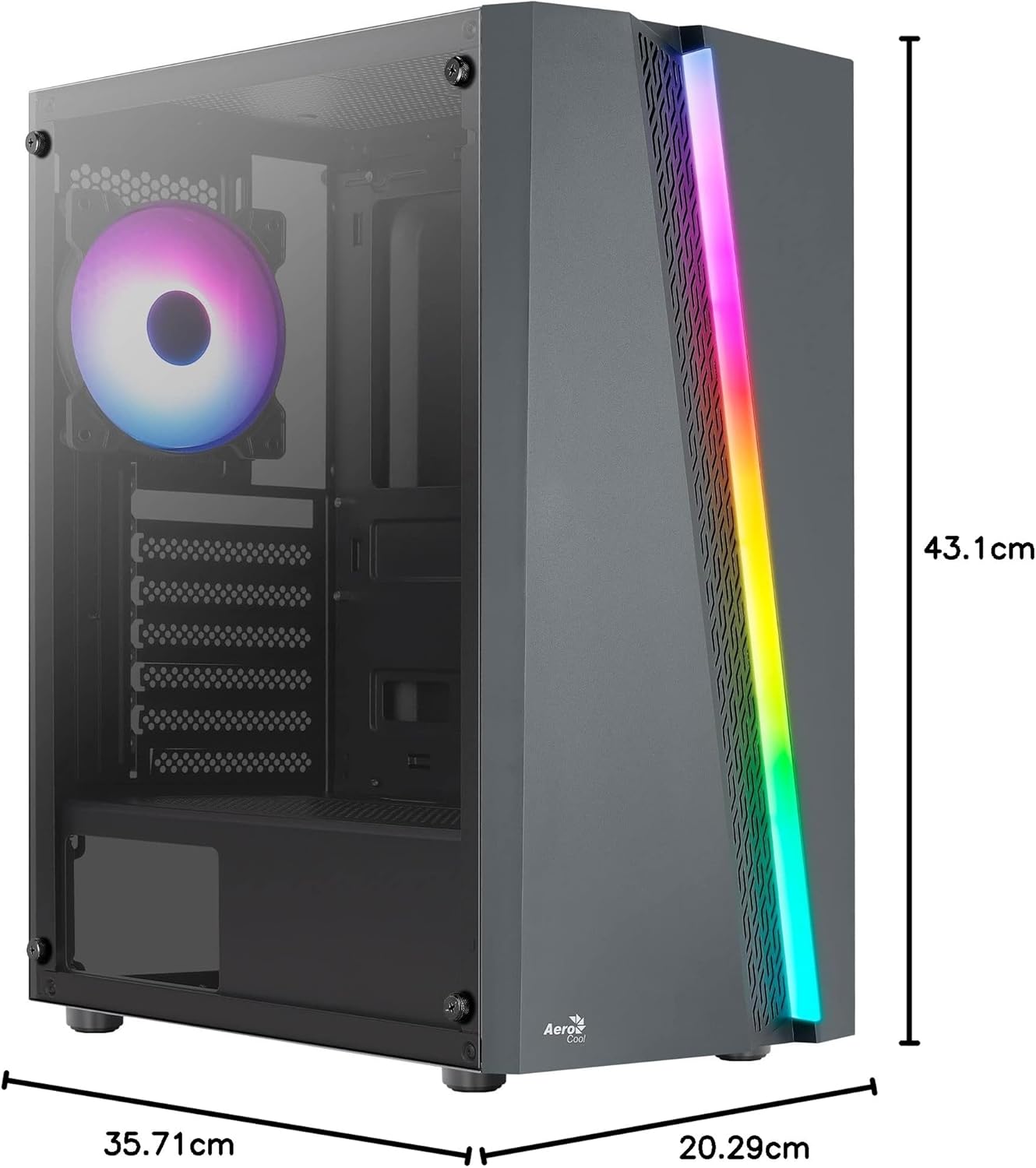
Figure 7.1: Dimensions of the AeroCool Blade PC Case.
| Онцлог | Тодорхойлолт |
|---|---|
| Брэнд | AeroCool |
| Загварын нэр | BLADEBK |
| Кейсийн төрөл | Semi-Tower |
| Эх хавтангийн нийцтэй байдал | ATX, Micro ATX, Mini ITX |
| Материал | Tempered Glass (Side Panel) |
| Бүтээгдэхүүний хэмжээ (L x W x H) | 43.1 x 20.3 x 35.7 см |
| Зүйлийн жин | 4 кг |
| Drive Bays | 2 x 3.5", 2 x 2.5" |
| GPU цэвэрлэгээ | 307 мм хүртэл |
| CPU хөргөгчийн өндөр | 155 мм хүртэл |
| Урд I / O портууд | 1 x USB 3.0, 2 x USB 2.0, HD Audio, Mic, LED Control, Power |
| Урьдчилан суулгасан фенүүд | 1 x 120mm RGB Rear, 3 x 120mm Front |
| Хөргөх арга | Агаар |
8. Баталгаат хугацаа ба дэмжлэг
For warranty information and technical support, please refer to the official AeroCool webсайт эсвэл орон нутгийн жижиглэн худалдаалагчтай холбоо барина уу. Баталгаат нэхэмжлэл гаргахын тулд худалдан авалтаа нотлох баримтаа хадгалаарай.
Холбоо барих мэдээлэл: Нэмэлт тусламж авахыг хүсвэл зочилно уу www.aerocool.io.