
1. Бүтээгдэхүүн дууссанview
The havit GK59 Gaming Microphone is designed for clear audio capture during gaming, streaming, and voice communication. It features a condenser microphone for high-quality sound and a versatile design for ease of use.

Зураг 1.1: Урд view of the havit GK59 Gaming Microphone, showcasing its main body, stand, and control buttons.
Гол онцлогууд:
- Хэрэглэхэд хялбар: Энгийн залгаад тоглох функц.
- Good Performance: Delivers clear and consistent audio.
- Good Quality: Durable construction for reliable use.
- Зөөврийн дизайн: Авсаархан, тээвэрлэхэд хялбар.
- Тохируулах тавиур: Уян хатан байрлалыг зөвшөөрдөг.
2. Тохируулах заавар
2.1 Багцын агуулга
Дараах зүйлсийн багцад байгаа эсэхийг шалгана уу.
- havit GK59 Gaming Microphone
- USB холболтын кабель
- Хэрэглэгчийн гарын авлага (энэ баримт бичиг)
2.2 Микрофоныг холбох
The GK59 microphone offers versatile connectivity options for various devices.
- USB холболт: Connect the provided USB cable to the USB-C port on the back of the microphone and the other end to an available USB port on your computer or gaming console. The microphone is plug-and-play and should be automatically recognized by most operating systems.
- 3.5mm Jack Connection: For devices supporting a 3.5mm auxiliary input, connect a 3.5mm audio cable (not included) to the 3.5mm jack on the back of the microphone and to your device's audio input.
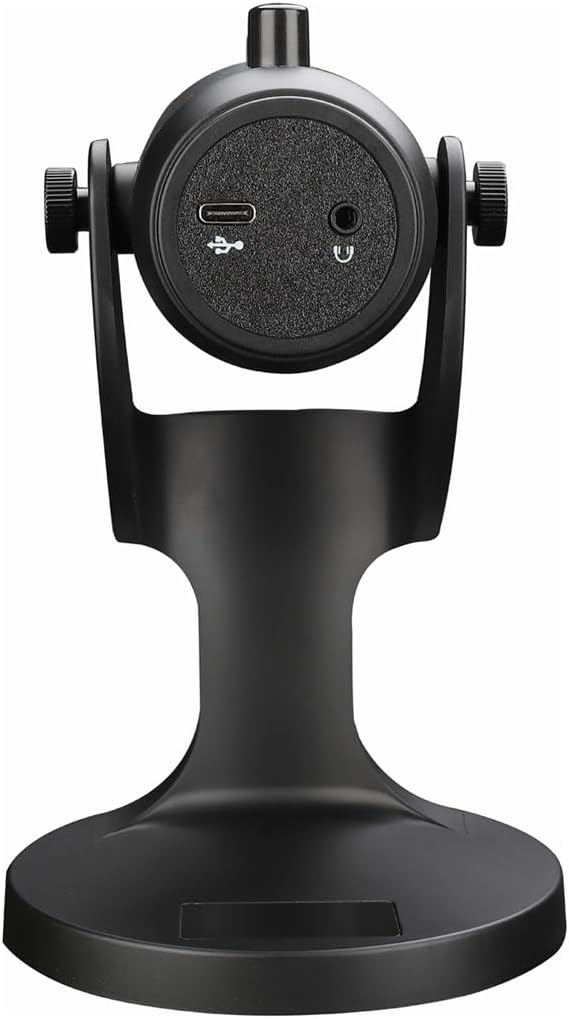
Зураг 2.1: Ар талд view of the havit GK59 Gaming Microphone, highlighting the USB-C port for data and power, and the 3.5mm headphone jack for monitoring.
After connecting, ensure the microphone is selected as the default input device in your system's sound settings or your gaming/streaming software.
3. Ашиглалтын заавар
3.1 Үндсэн удирдлага
The havit GK59 features intuitive controls located on the front of the microphone body:
- Дууг хаах товч: Press to mute or unmute the microphone. An indicator light will typically show the mute status.
- MIC +/- Buttons: Adjust the microphone input sensitivity (gain). Press '+' to increase, '-' to decrease.
- VOL +/- товчлуурууд: Adjust the headphone output volume for monitoring. Press '+' to increase, '-' to decrease.
- ECHO +/- Buttons: Adjust the echo effect level. Press '+' to increase, '-' to decrease.
Зураг 3.1: Нарийвчилсан view of the microphone's control panel, including the mute button, microphone gain, volume, and echo adjustment buttons.
3.2 Adjusting Microphone Position
The microphone is equipped with an adjustable stand, allowing you to optimize its position for best sound capture and comfort.
- Gently hold the microphone body and the base of the stand.
- Tilt the microphone forward or backward to achieve the desired angle. The stand's design helps reduce vibration and abnormal sounds during use.
- Position the microphone approximately 6-12 inches (15-30 cm) from your mouth for optimal voice clarity.

Figure 3.2: The havit GK59 microphone demonstrating its adjustable tilt feature on the stand, designed for anti-vibration.
4. Засвар үйлчилгээ
4.1 Цэвэрлэгээ
To maintain the microphone's performance and appearance:
- Disconnect the microphone from its power source before cleaning.
- Гаднах гадаргууг зөөлөн, хуурай даавуугаар арчина.
- Шингэн цэвэрлэгч, аэрозоль, уусгагчийг бүү ашигла, учир нь эдгээр нь өнгөлгөө болон дотоод эд ангиудыг гэмтээж болзошгүй.
4.2 Хадгалалт
When not in use, store the microphone in a cool, dry place away from direct sunlight and extreme temperatures. Protect it from dust and moisture.
5. Алдаа засах
If you encounter issues with your havit GK59 Gaming Microphone, please refer to the following table for common problems and solutions:
| Асуудал | Боломжит шалтгаан | Шийдэл |
|---|---|---|
| No sound input from microphone | Микрофон зөв холбогдоогүй байна Буруу оролтын төхөөрөмж сонгогдсон Микрофоны дууг хаасан | USB кабель найдвартай холбогдсон эсэхийг шалгана уу. Check system sound settings and select GK59 as input. Press the Mute button on the microphone to unmute. |
| Микрофоны дуу бага | Microphone gain too low System input volume too low | Press the 'MIC +' button on the microphone. Adjust input volume in your system's sound settings. |
| Дуу чимээ гажуудсан эсвэл тодорхойгүй байна | Microphone gain too high Microphone too close to mouth Байгаль орчны дуу чимээ | Press the 'MIC -' button on the microphone. Микрофоны байрлалыг тохируулна уу (амнаас 6-12 инч). Орчныхоо арын чимээг багасга. |
| No headphone monitoring sound | Чихэвч холбогдоогүй байна Headphone volume too low | Ensure headphones are plugged into the 3.5mm jack. Press the 'VOL +' button on the microphone. |
6. Техникийн үзүүлэлтүүд
Below are the technical specifications for the havit GK59 Gaming Microphone:
| Онцлог | Тодорхойлолт |
|---|---|
| Брэнд | завгүй |
| Загварын дугаар | GK59 |
| Холболтын технологи | USB, 3.5 mm Jack (Auxiliary) |
| Зөвлөмж болгож буй хэрэглээ | Тоглоом |
| Туйлын загвар | Нэг чиглэлтэй |
| Микрофоны хэлбэр хүчин зүйл | Handheld (with desktop stand) |
| Зүйлийн жин | 429 грамм |
| Эсэргүүцэл | 250 Ом |
| Дуу шуугианы харьцаа | 18 дБ |
| Дуу чимээ | 18 децибел |
| Эрчим хүчний эх үүсвэр | Утастай цахилгаан (USB-ээр) |
| Тохиромжтой төхөөрөмжүүд | Gaming Consoles, PCs |
| Хэмжээ (LxWxH) | 5.59 x 4.92 x 9.06 инч |
| Өнгө | Хар |
7. Баталгаат хугацаа ба дэмжлэг
7.1 Баталгаат хугацааны мэдээлэл
The havit GK59 Gaming Microphone comes with a standard manufacturer's warranty. Please refer to the warranty card included in your product packaging or visit the official havit webнарийвчилсан баталгаат нөхцөлийг сайтаас авна уу.
7.2 Хэрэглэгчийн дэмжлэг
For technical assistance, troubleshooting not covered in this manual, or warranty claims, please contact havit customer support through their official channels. You can find more information and contact details on the havit Store on Amazon эсвэл тэдний албан тушаалтан webсайт.