
1. Танилцуулга
Welcome to the user manual for your Havit Gaming Mouse MS1032. This document provides essential information for setting up, operating, maintaining, and troubleshooting your device. Please read it carefully to ensure optimal performance and longevity of your mouse.
The Havit MS1032 is a gaming mouse featuring six adjustable DPI settings, a comfortable ergonomic design, and a non-slip surface. It is engineered for smooth and quiet operation, aiming to reduce fatigue during extended use.
2. Тохиргоо
2.1 Багцын агуулга
- Havit Gaming Mouse MS1032
- Хэрэглэгчийн гарын авлага
2.2 Системийн шаардлага
- Operating System: Windows XP, Windows 7, Linux
- Боломжтой USB порт
2.3 Хулгана холбох
- Unpack the Havit Gaming Mouse MS1032 from its packaging.
- Компьютер дээрээ байгаа USB портыг олоорой.
- Хулганы USB холбогчийг USB порт руу оруулна уу.
- Таны үйлдлийн систем автоматаар шаардлагатай драйверуудыг илрүүлж суулгах ёстой. Энэ үйл явц хэдэн хором болж магадгүй.
- Once installation is complete, the mouse is ready for use.
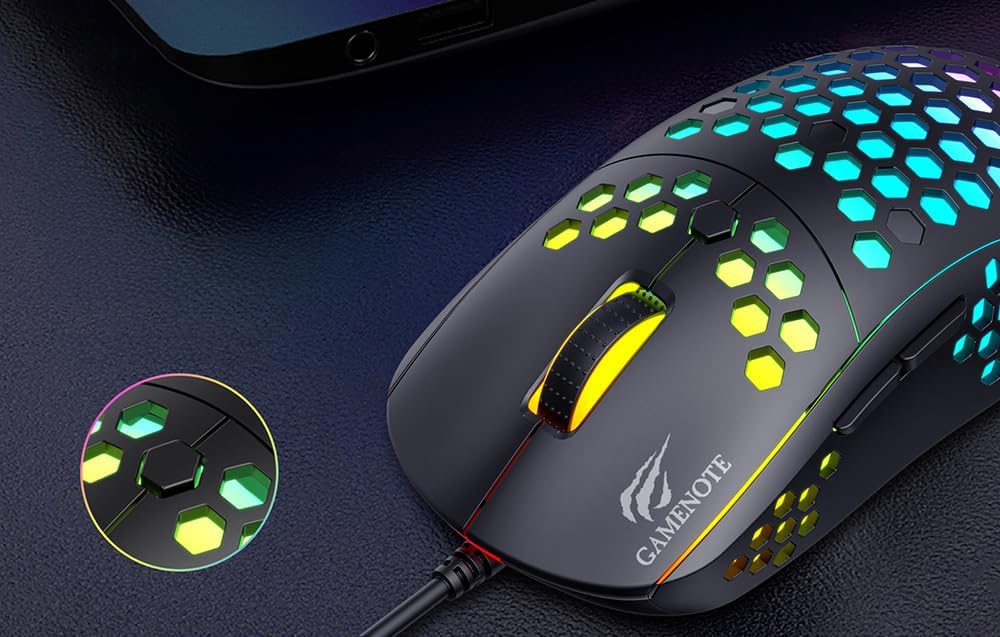
Figure 1: Havit MS1032 Gaming Mouse connected via USB.
3. Ашиглалтын заавар
3.1 Үндсэн функцууд
- Зүүн товшилт: Үндсэн үйлдэл, сонголт, идэвхжүүлэлт.
- Баруун товшино уу: Opens context menus, performs secondary actions.
- Гүйлгэх дугуй: Scrolls up/down documents or web хуудаснууд. Мөн дунд товшилтын функцийг дарж болно.
- Хажуугийн товчлуурууд: Ерөнхийдөө урагш/ухраах навигацид ашиглагддаг web browsers or custom functions in games.
3.2 DPI тохируулга
The Havit MS1032 features six adjustable DPI (Dots Per Inch) settings, allowing you to change the mouse sensitivity on the fly. This is useful for adapting to different tasks, such as precise aiming in games or fast navigation across multiple monitors.
To adjust the DPI, locate the DPI button, typically positioned behind the scroll wheel. Press this button to cycle through the available DPI settings. The LED lighting on the mouse may change to indicate the current DPI level, providing visual feedback for your selection.
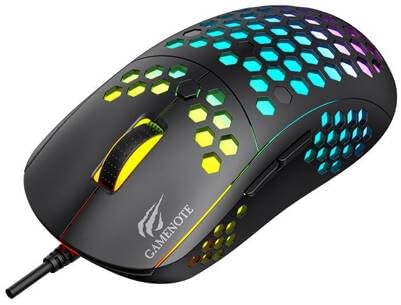
Figure 2: Location of the DPI button (behind the scroll wheel).
4. Засвар үйлчилгээ
4.1 Цэвэрлэгээ
Хамгийн сайн гүйцэтгэл болон гадаад төрхийг хадгалахын тулд хулганаа тогтмол цэвэрлээрэй:
- Цэвэрлэхийн өмнө хулганаа компьютерээс салга.
- Зөөлөн, хөвөнгүй даавууг бага зэрэг хэрэглээрэй dampус эсвэл зөөлөн, зүлгүүргүй цэвэрлэгээний уусмалаар дүүргэнэ.
- Хулганы гадаргууг зөөлөн арчина.
- For crevices and the optical sensor, use a cotton swab or compressed air to remove dust and debris.
- Avoid using harsh chemicals, abrasive cleaners, or excessive moisture, as these can damage the mouse's finish or internal components.
4.2 Хадгалалт
When not in use, store the mouse in a clean, dry environment away from direct sunlight and extreme temperatures to prevent damage.
4.3 Ерөнхий арчилгаа
- Хулганаа унагах эсвэл хүчтэй цохилтонд оруулахаас зайлсхий.
- Do not attempt to disassemble the mouse, as this will void the warranty and may cause irreparable damage.
- Keep the mouse away from liquids to prevent electrical damage.
5. Алдаа засах
If you encounter issues with your Havit Gaming Mouse MS1032, please refer to the following common solutions:
5.1 Хулгана хариу өгөхгүй байна
- USB холболтыг шалгана уу: USB кабелийг компьютер дээрээ ажиллаж байгаа USB портод найдвартай залгасан эсэхийг шалгаарай. Өөр USB портоор оролдоно уу.
- Компьютерийг дахин эхлүүлэх: Sometimes a simple computer restart can resolve connectivity issues.
- Өөр компьютер дээр туршилт хийх: Боломжтой бол хулганаа өөр компьютер дээр туршаад асуудал нь хулгана эсвэл таны компьютерийн тохиргоонд байгаа эсэхийг шалгаарай.
5.2 Cursor Movement is Erratic or Jumpy
- Цэвэр мэдрэгч: Хулганы доод хэсэгт байрлах оптик мэдрэгч нь цэвэр, тоос, хог хаягдалгүй эсэхийг шалгаарай.
- Гадаргууг шалгах: Use the mouse on a clean, non-reflective, and uniform surface (e.g., a mouse pad). Avoid glass or highly reflective surfaces.
- DPI тохируулах: If the cursor is too fast or too slow, adjust the DPI setting using the DPI button.
5.3 Товчлуур ажиллахгүй байна
- Саадыг шалгах: Товчлуурын доор хог хаягдал байхгүй эсэхийг шалгаарай.
- Програм хангамжийн зөрчил: If you have custom mouse software installed, try uninstalling it temporarily to see if it resolves the issue.
5.4 LED гэрэл ажиллахгүй байна
- Холболтыг шалгах: Ensure the mouse is properly connected to the computer.
- Эрчим хүчний мөчлөг: Disconnect and reconnect the mouse to reset its power.
6. Техникийн үзүүлэлтүүд

Figure 3: Havit MS1032 Gaming Mouse design overview.
| Онцлог | Дэлгэрэнгүй |
|---|---|
| Загвар | MS1032 |
| Брэнд | Хавит |
| Хэмжээ | 15 x 8 x 5.2 см |
| Жин | 200 гр |
| DPI тохиргоо | Тохируулж болох 6 түвшин |
| Үйлдлийн системүүд | Линукс, Windows 7, Windows XP |
| Холболт | Утастай USB |
| Батерей шаардлагатай | Үгүй |
7. Баталгаат хугацаа ба дэмжлэг
For detailed warranty information and technical support, please refer to the official Havit website or contact your local retailer where the product was purchased. It is recommended to keep your purchase receipt as proof of purchase for any warranty claims.
Үйлдвэрлэгч: Хавит
Загварын дугаар: MS1032