1. Танилцуулга
Thank you for choosing the Qulose Wireless Bluetooth Keyboard. This manual provides essential information for setting up, operating, and maintaining your new keyboard. Please read it carefully before use.
1.1 Бүтээгдэхүүн дууссанview
This wireless keyboard is designed to enhance your Microsoft Surface Pro experience, transforming your tablet into a versatile laptop. It features a magnetic attachment, Bluetooth 5.1 connectivity, a precision trackpad, and a built-in pen holder.

Зураг: дээрээс доош view of the Qulose Wireless Bluetooth Keyboard, showcasing нь бүрэн QWERTY байрлал болон нэгдсэн трекпадтай.
1.2 Тохиромжтой байдал
This keyboard is compatible with the following Microsoft Surface Pro models:
- Surface Pro 11 (2024) 13"
- Surface Pro 10 (2024 new release) 13"
- Surface Pro 9 (2022) 13"
- Surface Pro 8 (2021) 13"
- Surface Pro X (2019-2021) 13"
Note: This Bluetooth keyboard is NOT compatible with Surface Go series or Surface Pro 7+/7/6/5/4/3 tablets.

Image: A visual chart detailing compatible and incompatible Microsoft Surface Pro models for the keyboard.
2. Хайрцагт юу байна
- Qulose Wireless Bluetooth Keyboard for Surface Pro
- Type-C Charging Cable (Charger not included)
- Хэрэглэгчийн гарын авлага
3. Тохируулах заавар
3.1 Гарыг цэнэглэх
Before initial use, fully charge the keyboard. Connect the provided Type-C charging cable to the keyboard's charging port and a suitable USB power source (e.g., computer USB port, USB wall adapter). The battery status indicator will show charging status.
- Батерейны хүчин чадал: 180mAh Li-ion
- Цэнэглэх хугацаа: Ойролцоогоор 3 цаг
- Battery Life: Up to 6 months on a single charge (based on typical usage)
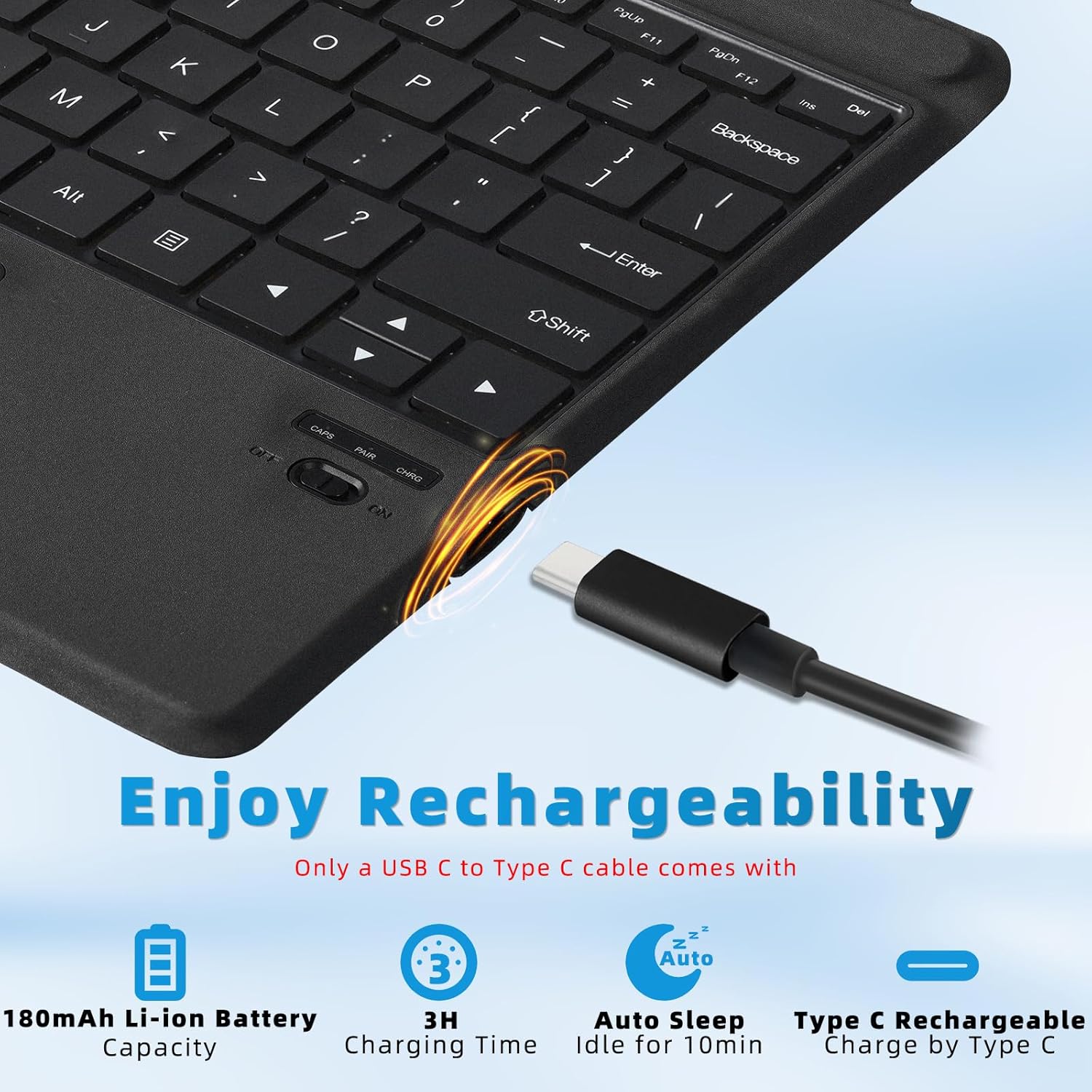
Зураг: Ойролцоогоор view of the keyboard's Type-C charging port and battery indicators.
3.2 Attaching the Keyboard to your Surface Pro
The keyboard features a powerful magnetic attachment strip. Align the top edge of the keyboard with the magnetic connector on your Surface Pro. The keyboard will snap securely into place, transforming your device into a laptop-like setup.

Image: Illustration showing the magnetic attachment of the keyboard to a Surface Pro tablet, highlighting the strong magnetic connection.
3.3 Bluetooth холболт
Follow these steps to pair your Qulose keyboard with your Surface Pro:
- Цахилгаан унтраалгыг асаана уу: Locate the power switch on the side of the keyboard and slide it to the 'ON' position.
- Bluetooth холболтыг идэвхжүүлэх: Press the "Fn" + "C" keys simultaneously on the keyboard to activate Bluetooth pairing mode. The Bluetooth LED indicator will start blinking.
- Enable Bluetooth on your Surface Pro: On your Surface Pro, go to Тохиргоо > Bluetooth ба төхөөрөмжүүд мөн Bluetooth-г "Асаалттай" эсэхийг шалгаарай.
- Гарыг сонгоно уу: In the list of available Bluetooth devices, select "Bluetooth Keyboard" to initiate pairing.
- Холболтыг баталгаажуулах: Once paired, the Bluetooth LED indicator on the keyboard will stop blinking and remain solid for a few seconds, then turn off. Your device will show "Connected".

Image: A four-step visual guide demonstrating how to connect the Qulose keyboard via Bluetooth, from turning on the power to selecting the device on the Surface Pro.
The keyboard uses Bluetooth 5.1 for a strong and stable connection, effective within a range of up to 33 feet (10 meters).
4. Үйл ажиллагаа
4.1 Keyboard Layout and Shortcut Keys
The keyboard features a full QWERTY layout with ergonomic scissors-switch keys for comfortable and fluid typing. It also includes a row of shortcut keys for quick access to various functions.
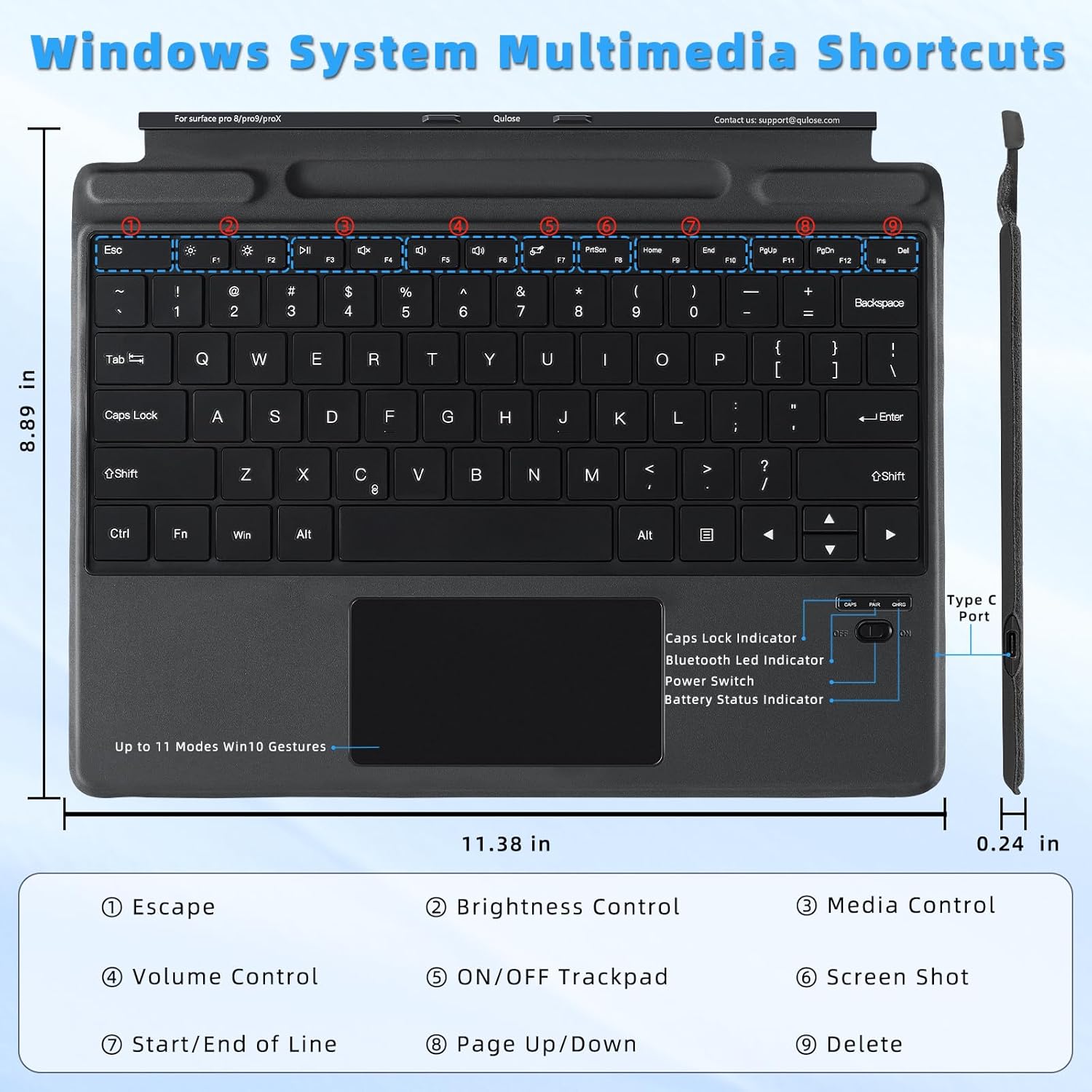
Image: Detailed diagram of the keyboard layout, highlighting the function keys and their corresponding actions such as brightness control, media control, and volume control.
Common shortcut functions include:
- Fn+F1: Зугтах
- Fn + F2/F3: Гэрэлтүүлгийн хяналт
- Fn + F4/F5/F6: Media Control (Previous, Play/Pause, Next)
- Fn+F7: Trackpad ON/OFF
- Fn+F8: Дэлгэцийн зураг авалт
- Fn + F9/F10: Start/End of Line
- Fn + F11/F12: Хуудас дээш/доошоо
- Fn + Del: Устгах
4.2 Трэкпад функц
The precision trackpad supports multi-touch gestures, allowing for intuitive navigation within Windows. You can customize these gestures in your Windows settings.

Image: A diagram illustrating various multi-point touchpad gestures for Windows, including drag, one-finger click, two-finger click, two-finger slide, three-finger click, and three-finger swipe.
To prevent accidental touches while typing, you can enable or disable the trackpad function by pressing "Fn" + "F7".

Image: An illustration showing how to press "Fn" + "F7" to lock or unlock the trackpad, preventing unintended input during typing.
4.3 Үзэгний бариул
The keyboard includes a built-in pen holder for convenient storage of your stylus. This helps prevent loss and keeps your pen accessible.
Notice: The pen slot is for storage only and does not support charging. Pen is not included.

Зураг: Ойрын зураг view of the keyboard's integrated magnetic pen holder, designed for secure storage of a stylus.
4.4 Тохируулах боломжтой Viewing Angings
The Surface Pro's built-in kickstand, combined with the keyboard, allows for multiple viewing angles. Adjust the kickstand to find the most comfortable position for typing or viewагуулга.

Image: Two illustrations demonstrating the ergonomic design of the keyboard and Surface Pro, showing flexible and stable adjustable viewтав тухтай ашиглах өнцөг.
5. Засвар үйлчилгээ
5.1 Цэвэрлэгээ
To clean the keyboard, gently wipe the keys and trackpad with a soft, damp, lint-free cloth. Avoid using harsh chemicals or abrasive materials that could damage the surface.
5.2 Батерейны арчилгаа
Батерейны ашиглалтын хугацааг уртасгахын тулд:
- Байнга зайгаа бүрэн цэнэглэхээс зайлсхий.
- Гараа удаан хугацаагаар ашиглаагүй бол сэрүүн, хуурай газар хадгална.
- Charge the keyboard regularly, even if not used daily.
5.3 Эрчим хүчний менежмент
The keyboard features an auto-sleep function to conserve energy:
- If the keyboard is not used for 10 minutes, it will enter sleep mode.
- To reactivate, press any key.
- The keyboard will automatically switch off when your connected Surface Pro is turned off.
6. Алдаа засах
6.1 Гар Bluetooth-ээр холбогдоогүй байна
- Гар цэнэглэгдэж, асаалттай байгаа эсэхийг шалгаарай.
- Verify Bluetooth is enabled on your Surface Pro.
- Press "Fn" + "C" on the keyboard to re-enter pairing mode.
- Remove any previous "Bluetooth Keyboard" entries from your Surface Pro's Bluetooth device list and attempt to pair again.
- Ensure the keyboard is within the 33-foot (10-meter) operating range.
6.2 Trackpad хариу өгөхгүй байна
- Press "Fn" + "F7" to ensure the trackpad is not locked.
- Гарыг унтраагаад дахин асааж, дахин эхлүүлнэ үү.
- Check your Surface Pro's Windows settings for trackpad configurations.
6.3 Keys Not Responding or Lagging
- Ensure the keyboard is fully charged. Low battery can affect performance.
- Түлхүүрүүдийн доор ямар нэгэн саад байгаа эсэхийг шалгана уу.
- Reconnect the Bluetooth connection by turning the keyboard off and on, and re-pairing if necessary.
- Ensure there are no other devices causing Bluetooth interference nearby.
7. Техникийн үзүүлэлтүүд
| Онцлог | Дэлгэрэнгүй |
|---|---|
| Бүтээгдэхүүний хэмжээс | 13.8"L x 9.78"W x 0.7"H (35.05 x 24.84 x 1.78 см) |
| Зүйлийн жин | 1.3 фунт (0.59 кг) |
| Холболтын технологи | Bluetooth 5.1 |
| Гарын тайлбар | Утасгүй |
| Батерей | 180mAh литийн ион (оруулсан) |
| Цэнэглэх порт | Төрөл-C |
| Материал | Хуванцар |
| Өнгө | Хар |
| Онцлог шинж чанарууд | Bluetooth keyboard with touchpad, Magnetic detachable, Rechargeable, Ergonomic design, Pen holder |
| Тохиромжтой төхөөрөмжүүд | Microsoft Surface Pro 11/10/9/8/X |
8. Баталгаат хугацаа ба дэмжлэг
8.1 Баталгаат хугацааны мэдээлэл
Please refer to the product packaging or the Qulose official webбаталгаат нөхцөл, дэлгэрэнгүй мэдээллийг авах боломжтой сайт.
8.2 Хэрэглэгчийн дэмжлэг
For any questions, technical assistance, or support needs, please contact Qulose customer service:
- Имэйл: support@qulose.com
- Онлайн: -д зочилно уу Qulose Store on Amazon нэмэлт мэдээлэл, дэмжлэгийн эх сурвалжийг авна уу.