
1. Танилцуулга
This instruction manual provides essential information for the safe and efficient use of your COOPERS Android 15 Tablet 10-inch, model CP10PRO. Please read this manual thoroughly before using the device and retain it for future reference.
2. Багцын агуулга
Таны бүтээгдэхүүний багцад доор жагсаасан бүх зүйл байгаа эсэхийг шалгана уу.
- COOPERS Android 15 Tablet (10-inch)
- Утасгүй гар
- Утасгүй хулгана
- Хамгаалалтын хайрцаг
- Stylus Pen
- C төрлийн цэнэглэгч кабель

Image: COOPERS Android 15 Tablet and its accompanying accessories.
3. Бүтээгдэхүүн дууссанview
The COOPERS Android 15 Tablet is a versatile 10-inch device designed for various tasks, from entertainment to productivity. Key features include:
- Дэлгэц: 10.1-inch HD IPS screen with 1280x800 resolution.
- Гүйцэтгэл: Quad-Core processor, 6GB RAM (2GB physical + 4GB virtual), 32GB internal storage, expandable up to 1TB via microSD card.
- Үйлдлийн систем: Android 15 with Google Mobile Service (GMS) certification.
- Холболт: 2.4GHz Wi-Fi, Bluetooth.
- Камерууд: 2MP front camera, 8MP rear camera.
- Зай: 6000mAh capacity, providing up to 8 hours of video playback.
- Дагалдах хэрэгсэл: Includes a wireless keyboard, mouse, stylus, and protective case for a 2-in-1 computing experience.
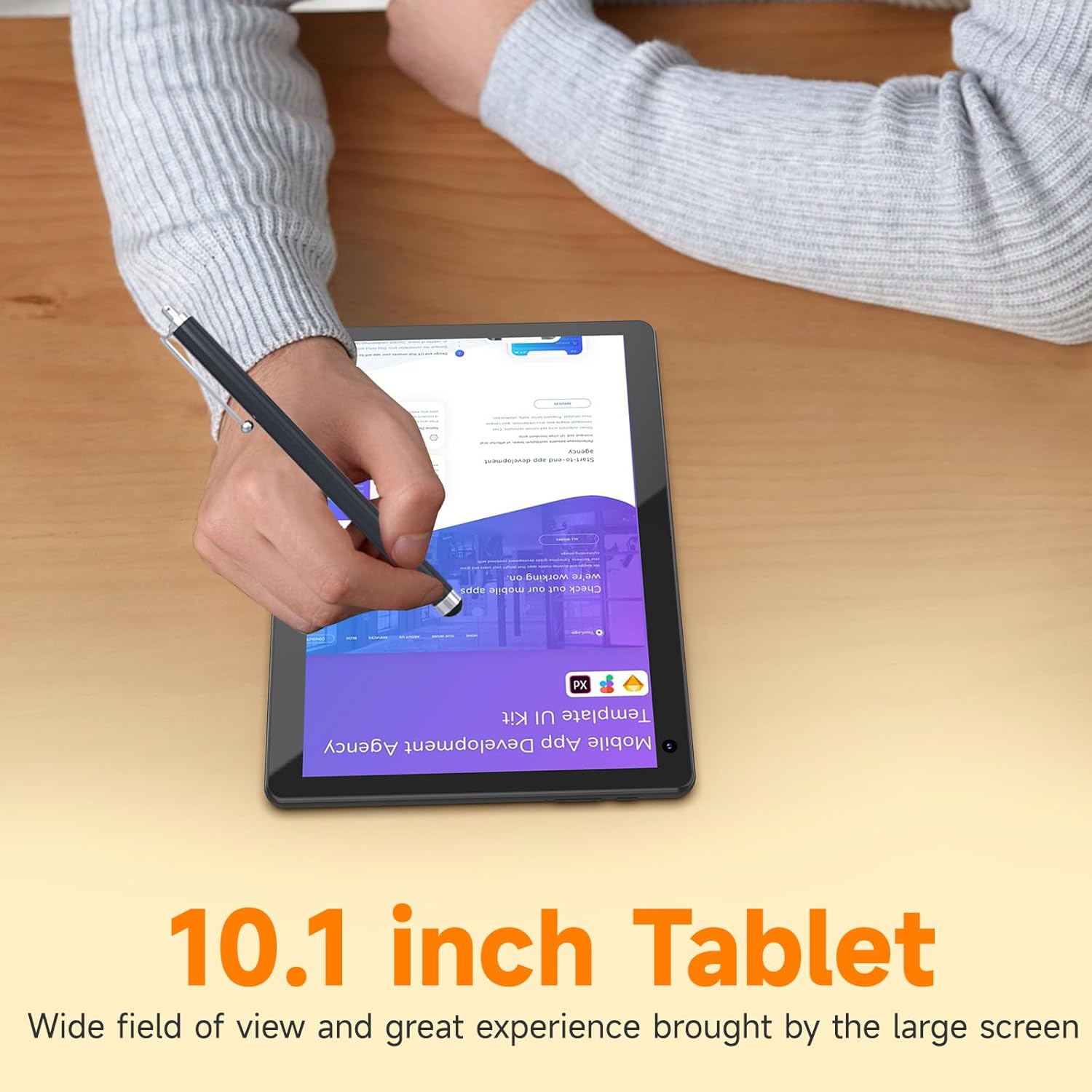
Image: The 10.1-inch display of the COOPERS tablet, demonstrating stylus interaction.

Image: Illustration of the tablet's dual camera system, featuring a 2MP front camera and an 8MP rear camera.
4. Тохиргоо
4.1 Анхны цэнэглэлт
Before first use, fully charge the tablet using the provided Type-C cable and a compatible power adapter (not included). The battery indicator on the screen will show charging status. A full charge typically takes several hours.

Image: Tablet connected to a charger, highlighting its 6000mAh battery and Type-C fast charging capability.
4.2 Асаах/унтраах
- Асаахын тулд: Дэлгэц гэрэлтэх хүртэл таблетын хажуу талд байрлах Power товчийг дараад барина уу.
- Унтраахын тулд: Асаах товчийг удаан дарж, дэлгэцэн дээр гарч ирэх сонголтуудаас "Асаах" гэснийг сонгоно уу.
- Дахин эхлүүлэхийн тулд: Асаах товчийг удаан дарж, сонголтуудаас "Дахин эхлүүлэх"-ийг сонгоно уу.
4.3 Андройдын анхны тохиргоо
Upon first power-on, follow the on-screen prompts to complete the initial setup. This includes selecting your language, connecting to a Wi-Fi network, and signing in with your Google account. A Google account is required to download applications from the Google Play Store.
4.4 Connecting Accessories (Keyboard, Mouse)
The included keyboard and mouse connect wirelessly via Bluetooth.
- Ensure the keyboard and mouse are powered on and in pairing mode (refer to their individual manuals if necessary).
- On your tablet, navigate to Тохиргоо > Холбогдсон төхөөрөмжүүд > Bluetooth.
- Toggle Bluetooth to "On" if it's not already.
- Tap "Pair new device" and select the keyboard or mouse from the list of available devices.
- Хослуулах үйл явцыг дуусгахын тулд дэлгэцэн дээрх дурын зааврыг дагана уу.
5. Ашиглалтын заавар
5.1 Үндсэн навигаци
- Хүрэх: Апп нээх эсвэл зүйл сонгохын тулд дүрс дээр товшино уу.
- Шудрах: Хуудас эсвэл жагсаалтаар гүйлгэхийн тулд хуруугаа дэлгэцэн дээр чирнэ үү.
- Томруулахын тулд чимхэх: Зургийг томруулж, жижигрүүлэхийн тулд хоёр хуруугаа ашиглана уу web хуудаснууд.
- Үндсэн дэлгэц: Tap the Home button (usually a circle or house icon) to return to the main screen.
- Буцах: Tap the Back button (usually an arrow) to return to the previous screen.
5.2 Wi-Fi холболт
Wi-Fi сүлжээнд холбогдохын тулд:
- руу оч Тохиргоо > Сүлжээ ба интернет > Wi-Fi.
- Ensure Wi-Fi is turned on.
- Select your desired 2.4GHz network from the list.
- Хэрэв асуувал нууц үгээ оруулаад "Холбох" дээр дарна уу.
5.3 Using the Google Play Store
Your tablet is GMS certified, allowing full access to the Google Play Store for downloading applications, games, movies, and books.
- Open the "Play Store" app from your home screen or app drawer.
- хайх the desired application.
- Tap "Install" to download and install the app.

Image: Android 15 interface on the tablet, showing common app icons.
5.4 Камерын ажиллагаа
Таблет нь 2 мегапикселийн урд камер болон 8 мегапикселийн арын камертай.
- "Камер" програмыг нээнэ үү.
- Tap the camera switch icon to alternate between front and rear cameras.
- Зураг авах эсвэл видео бичлэг эхлүүлэх/зогсоохын тулд Хөшигний товчийг товшино уу.
5.5 Хадгалалтын менежмент
The tablet comes with 32GB of internal storage. You can expand this by inserting a microSD card (up to 1TB) into the designated slot.
- To insert a microSD card, locate the card slot on the side of the tablet and gently push the card in until it clicks.
- To manage storage, go to Тохиргоо > Хадгалах.
6. Засвар үйлчилгээ
6.1 Төхөөрөмжийг цэвэрлэх
Use a soft, lint-free cloth to clean the screen and body of the tablet. Avoid using harsh chemicals or abrasive materials, which can damage the surface.
6.2 Батерейны арчилгаа
- Батерейны ашиглалтын хугацаанд нөлөөлж болзошгүй тул хэт өндөр температураас зайлсхий.
- Таблетыг удаан хугацаанд бүрэн цэнэггүй орхиж болохгүй.
- Цэнэглэхийн тулд зөвхөн өгөгдсөн Type-C кабелийг ашиглана уу.
6.3 Програм хангамжийн шинэчлэлтүүд
Periodically check for system updates to ensure optimal performance and security. Go to Тохиргоо > Систем > Системийн шинэчлэл боломжтой шинэчлэлтүүдийг шалгаж суулгах.
7. Алдаа засах
| Асуудал | Боломжит шийдэл |
|---|---|
| Таблет асахгүй байна | Ensure the battery is charged. Connect the tablet to a power source and try again. If unresponsive, press and hold the power button for 10-15 seconds to force a restart. |
| Удаан гүйцэтгэл эсвэл хөлдөх | Close unused applications. Clear cache from apps in Settings > Apps. Restart the tablet. Ensure sufficient free storage space. |
| Wi-Fi холболтын асуудал | Ensure Wi-Fi is enabled. Restart your router and the tablet. Forget the network and reconnect. Verify the Wi-Fi password. |
| Accessories (keyboard/mouse) not connecting | Ensure accessories are charged and in pairing mode. Re-pair them via Bluetooth settings. Restart the tablet. |
| Touchscreen unresponsive in certain areas | Restart the tablet. Ensure the screen is clean and free of debris. If the issue persists, contact customer support. |
If troubleshooting steps do not resolve the issue, please refer to the support information provided by your retailer or the manufacturer.
8. Техникийн үзүүлэлтүүд
| Онцлог | Дэлгэрэнгүй |
|---|---|
| Загварын дугаар | CP10PRO |
| Брэнд | КОПЕРС |
| Үйлдлийн систем | Android 15 |
| Дэлгэцийн хэмжээ | 10.1 инч |
| Дэлгэцийн нягтрал | 1280 x 800 Pixels (HD IPS) |
| Процессор | Quad-Core, 1.8 GHz (Allwinner ARM chipset) |
| RAM | 6GB (2GB физик + 4GB виртуал) |
| Дотоод санах ой | 32 ГБ |
| Өргөтгөх боломжтой хадгалах сан | microSD картаар дамжуулан 1TB хүртэл |
| Утасгүй холболт | 802.11n (2.4GHz Wi-Fi), Bluetooth |
| Урд камер | 2 МП |
| Арын камер | 8 МП |
| Зайны багтаамж | 6000 мАч |
| Батерейны дундаж хугацаа | 8 цаг хүртэл (видео тоглуулах) |
| Хэмжээ (LxWxH) | 10 x 5 x 0.31 инч |
| Зүйлийн жин | 2.72 фунт |
9. Баталгаат хугацаа ба дэмжлэг
For warranty information and customer support, please refer to the documentation provided at the time of purchase or contact your retailer. Specific warranty terms and conditions may vary.
For technical assistance or further inquiries, please reach out to COOPERS customer service through their official channels, if available, or the seller from whom the product was purchased.