
1. Танилцуулга
This manual provides essential information for the proper setup, operation, and maintenance of your NexiGo NG17QH 4K Portable Monitor. Please read this manual thoroughly before using the device to ensure optimal performance and to prevent damage. Keep this manual for future reference.

Image: The NexiGo NG17QH 4K Portable Monitor, showcasing its sleek design and smart cover.
2. Багцын агуулга
Verify that all items listed below are included in your package. If any items are missing or damaged, please contact NexiGo customer support.
- NexiGo NG17QH 4K Portable Monitor
- Smart Cover / Stand
- USB-C-аас USB-C кабель
- Mini HDMI -ээс HDMI кабель
- USB-A-аас USB-C хүртэлх тэжээлийн кабель
- Эрчим хүчний адаптер
3. Бүтээгдэхүүн дууссанview
Familiarize yourself with the ports and controls on your NexiGo NG17QH portable monitor.
Зураг: Нарийвчилсан view of the monitor's ports and controls.
Портууд болон товчлуурууд:
- Бүтэн онцлог USB-C порт: Used for power, video, and audio transmission with compatible devices.
- Мини HDMI порт: Used for video and audio transmission with HDMI-compatible devices.
- Цахилгаан товч: Press and hold to power the monitor on or off. Short press to access the OSD menu.
- Цахилгаан индикаторын гэрэл: Indicates the monitor's power status.
- Multi-Function Key: Used to navigate the OSD menu and adjust settings.
- OTG Interface (USB-C): Allows connection of USB peripherals like keyboards or mice when the monitor is connected via the full-featured USB-C port.
- 3.5 мм чихэвчний залгуур: Гадаад аудио төхөөрөмжийг холбоход зориулагдсан.
4. Тохиргоо
Follow these steps to set up your NexiGo NG17QH portable monitor.
4.1 Мониторыг тэжээх
- Using a single USB-C cable (Full-Featured): If your device (laptop, smartphone) supports full-featured USB-C output, connect the monitor to your device using the provided USB-C to USB-C cable. This single cable can provide both power and display signal.
- Using an external power adapter: If your device does not provide sufficient power or if you are using the Mini HDMI port, connect the provided USB-A to USB-C power cable to the monitor's full-featured USB-C port and plug the USB-A end into the power adapter, then into a wall outlet.
4.2 Төхөөрөмжүүдэд холбогдох
- Laptop/PC (USB-C): Connect the monitor to your laptop/PC using the USB-C to USB-C cable. Ensure your laptop's USB-C port supports DisplayPort Alternate Mode.
- Laptop/PC (HDMI): Connect the monitor to your laptop/PC using the Mini HDMI to HDMI cable. Ensure the monitor is powered externally via the USB-C power cable.
- Gaming Consoles (PS5, Xbox, Switch): Connect the monitor to your console using the Mini HDMI to HDMI cable. Ensure the monitor is powered externally via the USB-C power cable.
- Ухаалаг утас: Connect the monitor to your smartphone using the USB-C to USB-C cable. Ensure your smartphone's USB-C port supports video output.
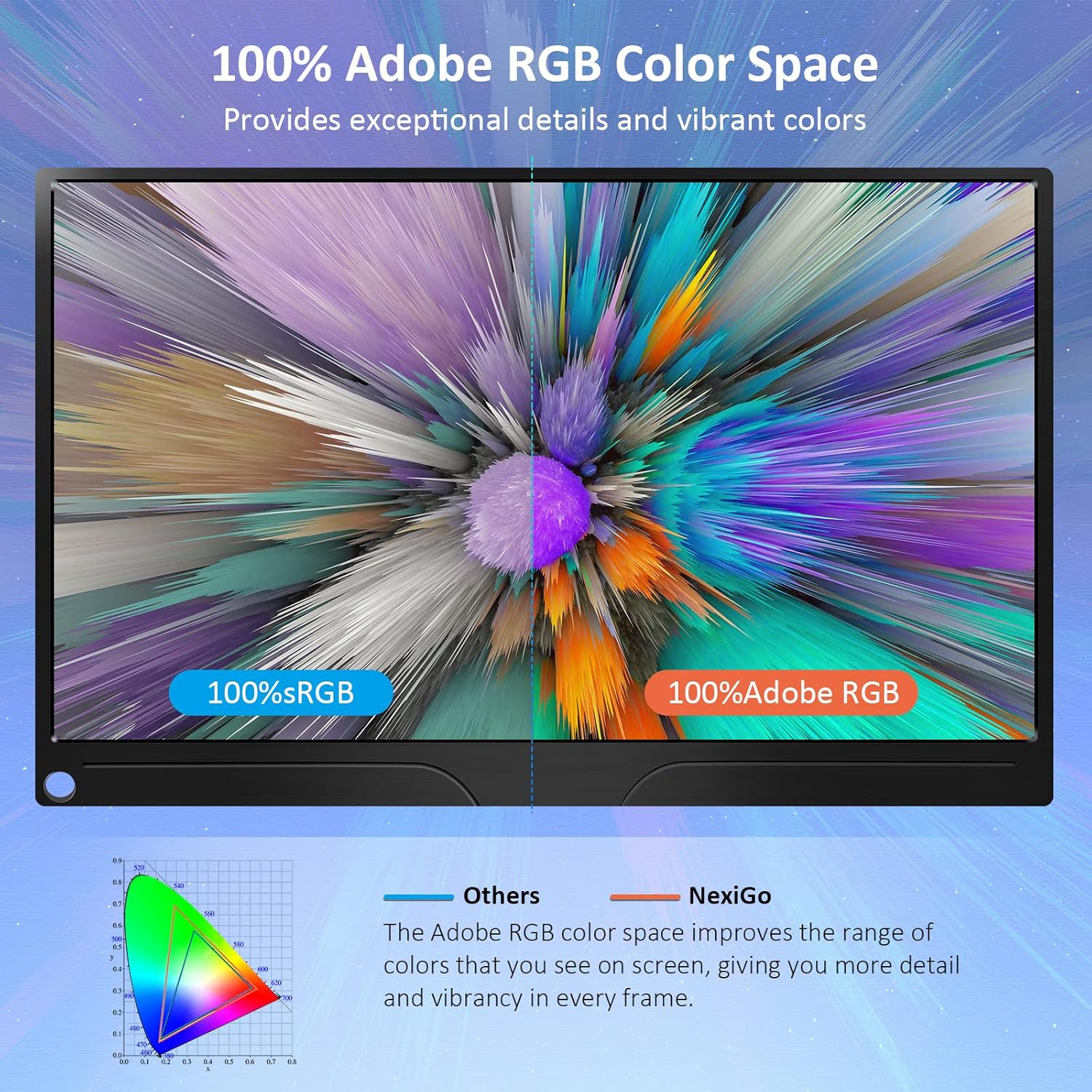
Image: The portable monitor connected to a laptop, demonstrating an extended display setup.
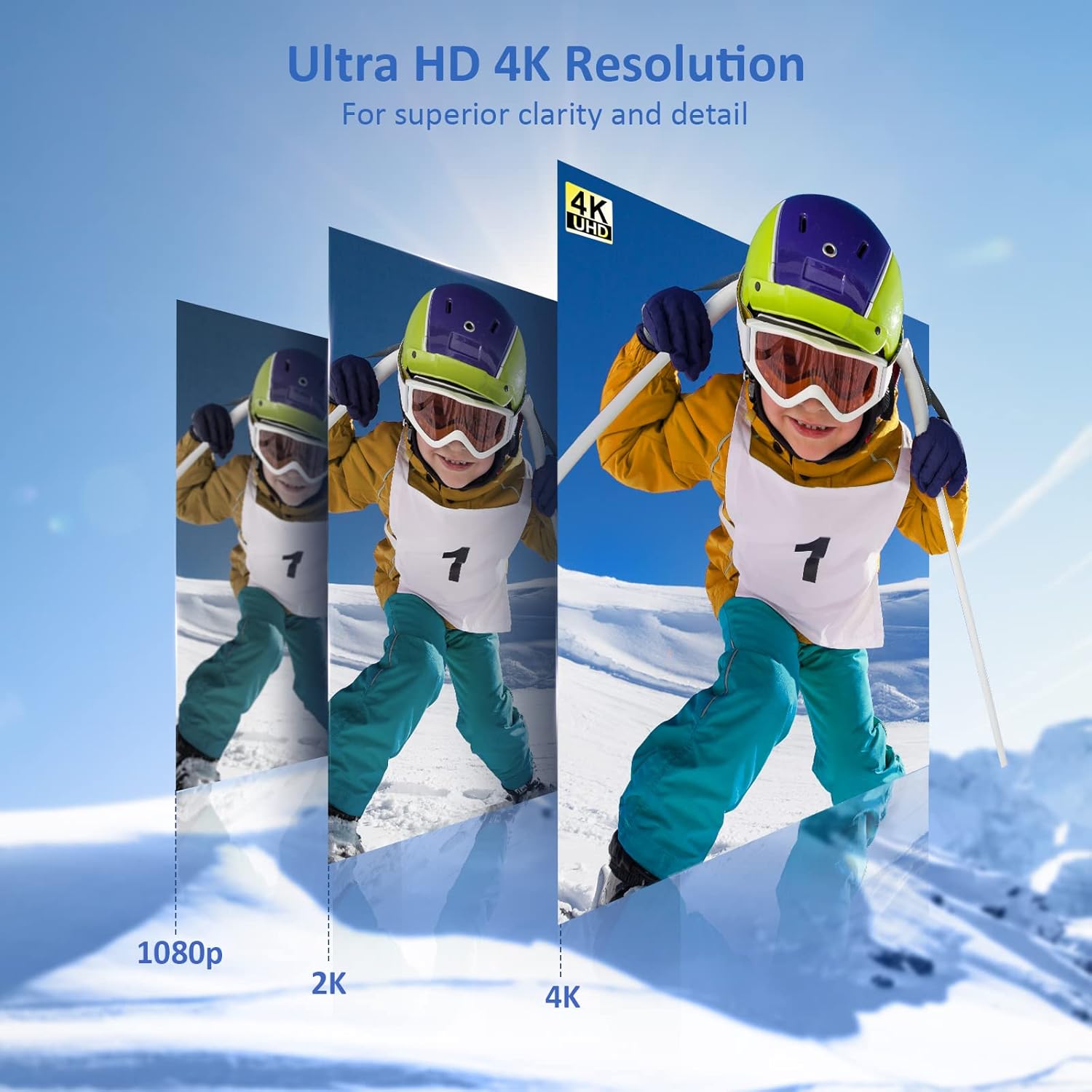
Image: The portable monitor connected to a smartphone, displaying content.
4.3 VESA суурилуулах
The monitor is compatible with VESA mounts (75x75mm). To mount the monitor, remove the smart cover and attach it to a compatible VESA arm or wall mount using appropriate screws (not included).
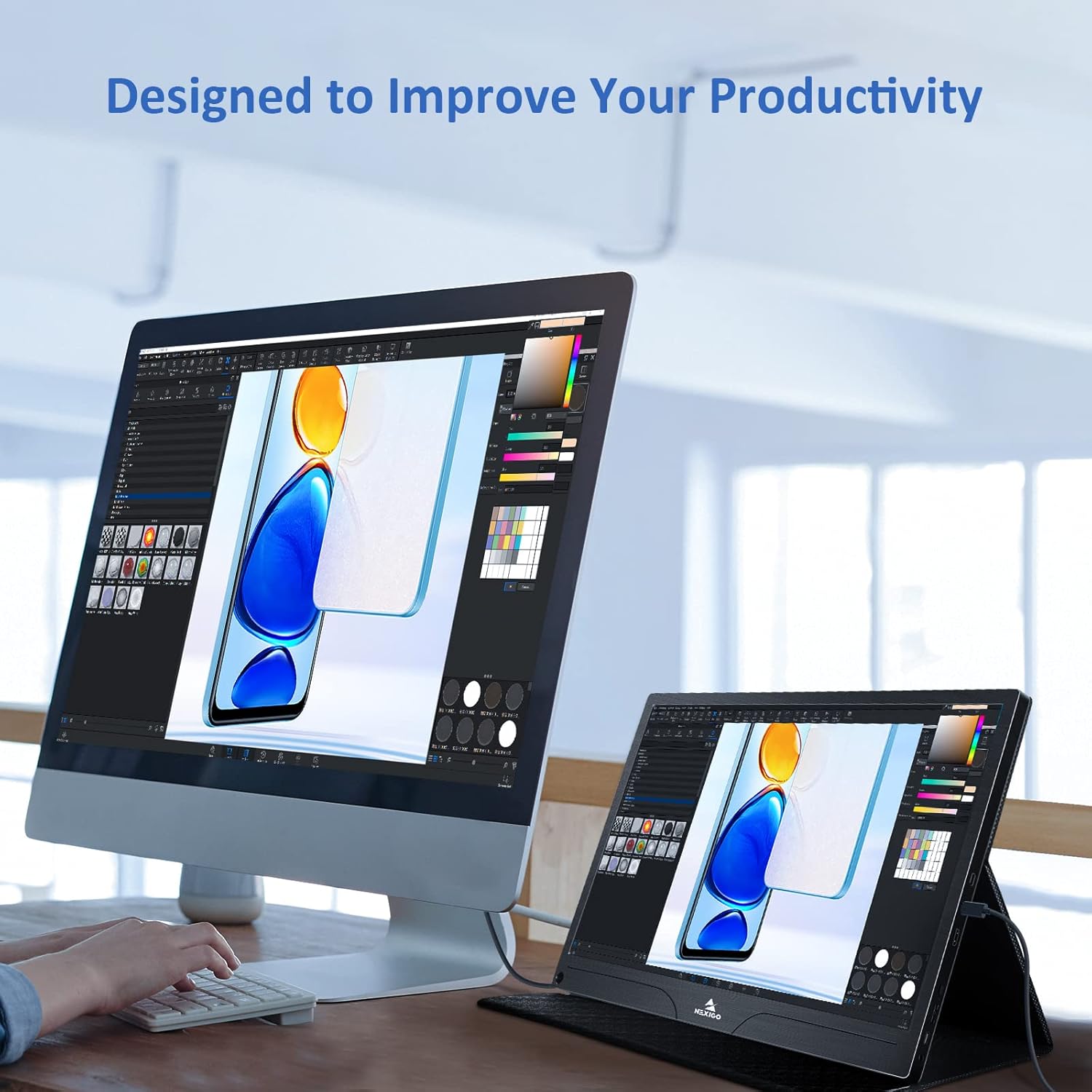
Image: The monitor mounted on a VESA-compatible desk arm.
5. Мониторыг ажиллуулах
5.1 Асаах/унтраах
-г удаан дар Цахилгаан товч for approximately 3 seconds to turn the monitor on or off.
5.2 Дэлгэц дээрх дэлгэц (OSD) цэс
The OSD menu allows you to adjust various display settings. Short press the Цахилгаан товч to open the OSD menu. Use the Олон үйлдэлт түлхүүр чиглүүлэх болон сонголтуудыг сонгох.
- Дээшээ доошоо: Move the Multi-Function Key up or down to navigate through menu options.
- Оруулна уу: Press the Multi-Function Key inward to select an option or confirm a setting.
- Гарах: Press the Power Button to exit the current menu or the OSD.
5.3 Дэлгэцийн тохиргоо
- Гэрэлтүүлэг/Ялгарал: Дэлгэцийн ерөнхий гэрэлтүүлэг, тодосгогчийг тохируулна уу.
- Өнгөний тохиргоо: Өнгөний температур, өнгө болон ханалтыг өөрчлөх.
- HDR горим: Enable or disable High Dynamic Range for enhanced visual quality with compatible content.
- FreeSync: Enable FreeSync for smoother gaming experiences by synchronizing the monitor's refresh rate with your GPU's frame rate.
- Харьцаа: Adjust the display aspect ratio (e.g., 16:9, 4:3).
5.4 Аудио тохиргоо
Adjust the volume of the built-in dual speakers or connected headphones through the OSD menu.
6. Засвар үйлчилгээ
- Дэлгэц цэвэрлэх: Зөөлөн, хөвөнгүй даавууг хөнгөн хэрэглээрэй dampусаар эсвэл зүлгүүргүй дэлгэц цэвэрлэгчээр дүүргэнэ. Дэлгэц рүү шууд шингэн цацаж болохгүй.
- C цэвэрлэхasing: Мониторыг арчих casing with a soft, dry cloth. Avoid using harsh chemicals or solvents.
- Хадгалах: When not in use, store the monitor in a cool, dry place, preferably in its original packaging or smart cover to protect it from dust and scratches.
- Онцгой нөхцөл байдлаас зайлсхийх: Мониторыг хэт өндөр температур, чийгшил эсвэл нарны шууд тусгалд бүү байлга.
7. Алдаа засах
If you encounter issues with your monitor, refer to the following table for common problems and solutions.
| Асуудал | Боломжит шалтгаан | Шийдэл |
|---|---|---|
| Дэлгэц байхгүй / "Дохио байхгүй" гэсэн мессеж | Кабелийн холболт буруу, цахилгаан хангалтгүй, оролтын эх үүсвэр буруу байна. | Ensure cables are securely connected. Verify external power is supplied if needed. Check the input source setting in the OSD menu. |
| Монитор асахгүй байна | Цахилгаан хангамж байхгүй, кабель эвдэрсэн. | Ensure the power adapter is connected and working. Try a different USB-C cable or power source. |
| Дэлгэц анивчдаг | Faulty cable, unstable power, incompatible resolution/refresh rate. | Replace the cable. Ensure stable power. Adjust the display resolution or refresh rate on your connected device. |
| Аудио байхгүй | Volume too low, incorrect audio output setting, faulty cable. | Increase volume via OSD or connected device. Ensure the monitor is selected as the audio output device on your source. Check cable connections. |
| OTG port not working | Monitor not powered via full-featured USB-C, device incompatibility. | Ensure the monitor is connected to a device via the full-featured USB-C port that supports OTG functionality. |
8. Техникийн үзүүлэлтүүд
Detailed technical specifications for the NexiGo NG17QH 4K Portable Monitor.
| Онцлог | Тодорхойлолт |
|---|---|
| Загварын дугаар | NG17QH |
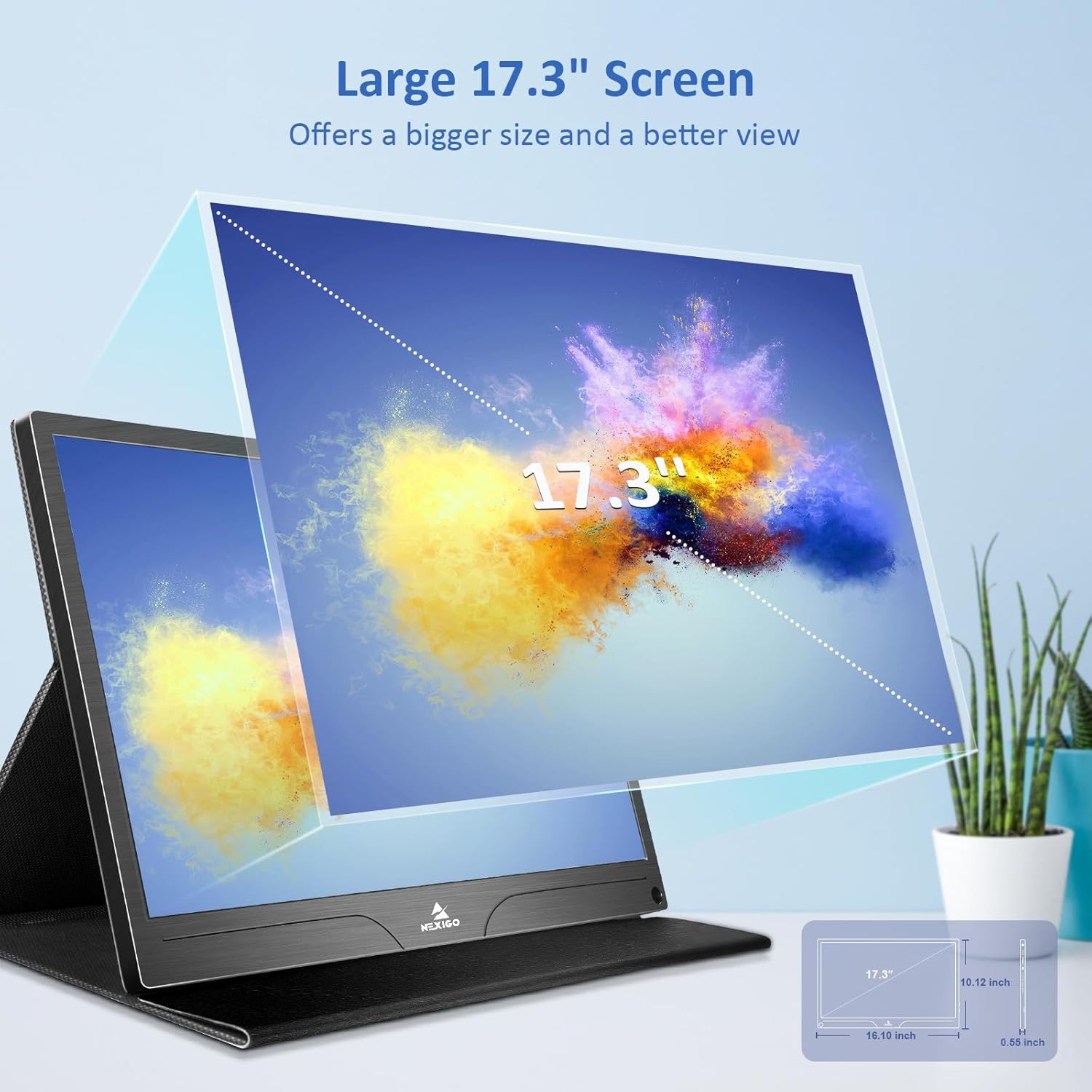
| Дэлгэцийн хэмжээ | 17.3 инч |
| Шийдвэр | 3840 x 2160 (4K UHD) |
| Самбарын төрөл | IPS |
| Гэрэлтүүлэг | 400 кд/м² |
| Өнгөний хүрээ | 100% Adobe RGB |
| Харьцаа | 16:9 |
| Viewing өнцөг | 178° |
| Онцлогууд | FreeSync, HDR, Eye Care Screen |
| Илтгэгчид | Dual Built-in Speakers |
| Холболт | Full-Featured USB-C (x1), Mini HDMI (x1), OTG USB-C (x1), 3.5mm Audio Jack (x1) |
| VESA нийцтэй байдал | 75 х 75 мм |
| Бүтээгдэхүүний хэмжээс | 16.1 x 10.12 x 0.55 инч |
| Зүйлийн жин | 6.39 фунт |

Image: Visual comparison of 1080p, 2K, and 4K resolutions, demonstrating the clarity of the 4K display.
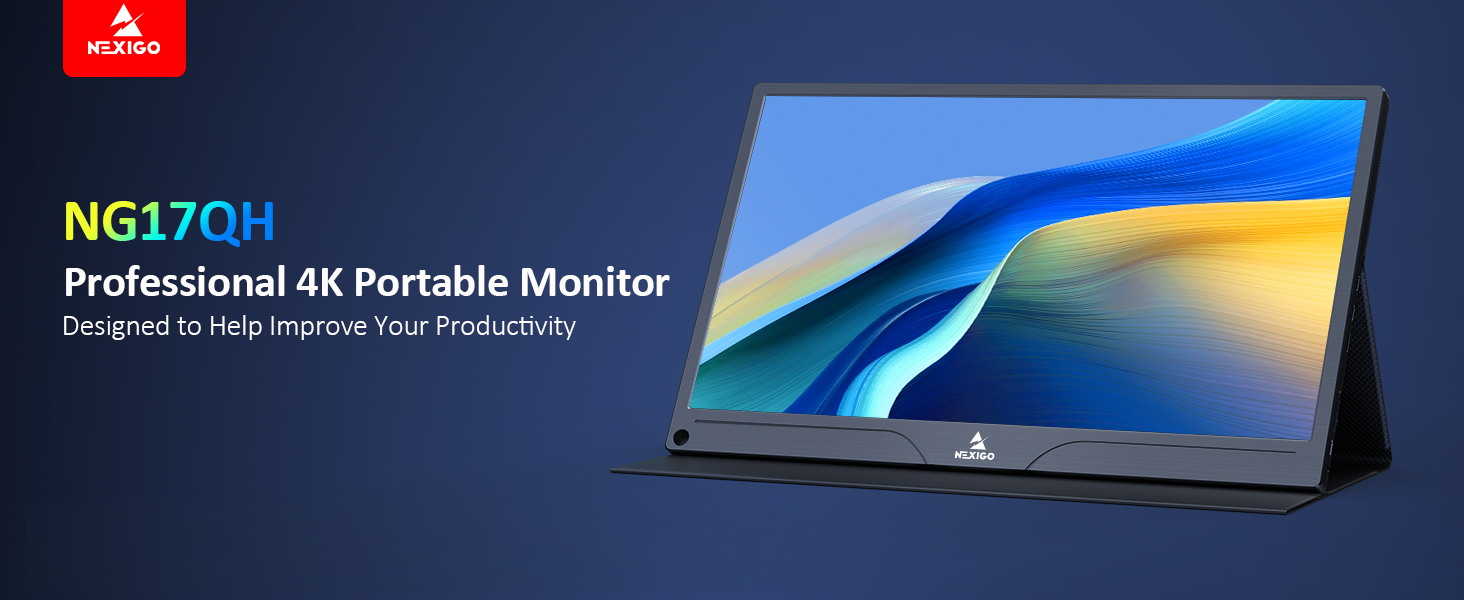
Image: A visual representation of 100% Adobe RGB color space coverage, indicating vibrant and detailed color reproduction.
9. Баталгаат хугацаа ба дэмжлэг
Your NexiGo NG17QH Portable Monitor comes with a manufacturer's warranty. For detailed warranty information, product registration, or technical support, please visit the official NexiGo webсайт эсвэл харилцагчийн үйлчилгээтэй шууд холбогдоно уу. Худалдан авалтын баримтаа баталгаат нэхэмжлэлд зориулж худалдан авалтын баталгаа болгон хадгална уу.
NexiGo Official Webсайт: www.nexigo.com