
1. гаруйview
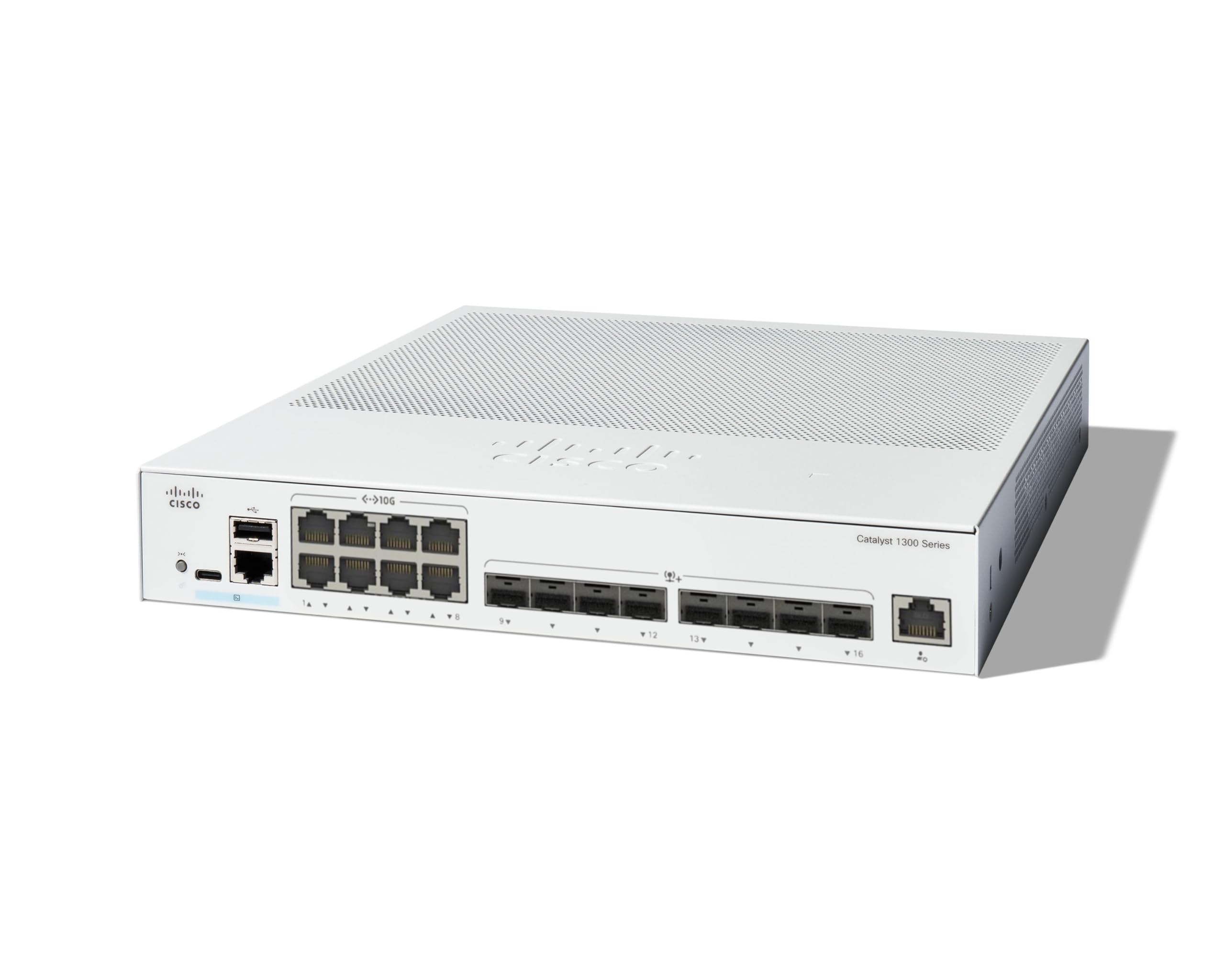
The Cisco Catalyst 1300-16XTS is a fully managed switch designed to provide reliable and secure connectivity for small business networks. This switch offers full Layer 2/3 capabilities, an intuitive web хяналтын самбар, дэвшилтэт сүлжээний боломжууд болон Power over Ethernet Plus (PoE+) дэмжлэг.
Гол онцлогууд нь:
- Портуудыг солих: 8 ports 10G Copper + 8x 10GE SFP+ ports + 1x GE Management Port.
- Хялбаршуулсан менежмент: Intuitive Cisco Business mobile app and local web interface for setup, management, and monitoring.
- Сайжруулсан аюулгүй байдал: IP-MAC port binding and IPv6 First Hop Security for network protection.
- Эрчим хүчний үр ашиг: Optimizes power usage, compliant with IEEE 802.3az Energy Efficient Ethernet.
- Business Ready: No subscription or licenses required, includes limited lifetime hardware warranty and complimentary 1-year technical support.
2. Багцын агуулга
Таны багц дараах зүйлсийг агуулж байгаа эсэхийг шалгана уу.
- Cisco Catalyst 1300-16XTS Managed Switch unit
- Цахилгааны утас эсвэл адаптер
- USB Type-C кабель
- Суурилуулах тоног төхөөрөмж
Хэрэв ямар нэгэн зүйл алга болсон эсвэл гэмтсэн бол худалдагч эсвэл Cisco-ийн дэмжлэгтэй холбогдоно уу.
3. Тохиргоо
Follow these steps to set up your Cisco Catalyst 1300-16XTS Managed Switch:
- Эрчим хүчийг холбох: Connect the power adapter to the switch's power input and then plug the power cord into an electrical outlet. Ensure the power LED on the switch illuminates.
- Чиглүүлэгч/сүлжээнд холбогдох: Use an Ethernet cable to connect one of the switch's 10G copper ports (or SFP+ ports with appropriate transceivers) to your router or existing network infrastructure.
- Төхөөрөмжүүдийг холбох: Connect your network devices (e.g., computers, servers, wireless access points) to the remaining available ports on the switch.
- Initial Configuration (Mobile App):
- Download the Cisco Business mobile app from your device's app store.
- Launch the app and follow the on-screen instructions to create your site and add your switch.
- The app will guide you through basic configuration, including setting up site credentials and adding wired/wireless devices.
- Анхны тохиргоо (Web UI): Alternatively, you can access the switch's web-д суурилсан хэрэглэгчийн интерфэйс (Web UI) by connecting a computer directly to the switch and navigating to its default IP address (refer to the Quick Start Guide for details).

4. Ашиглалтын заавар
Once the switch is powered on and connected, it will begin forwarding network traffic. For advanced configuration and monitoring, use the following tools:
- Cisco Business Mobile App: Provides real-time monitoring of device status, network activity, and connected clients. It also allows for basic actions like rebooting devices and upgrading firmware.
- Web Хэрэглэгчийн интерфэйс (Web UI): Offers comprehensive configuration options for all Layer 2/3 features, including VLANs, QoS, security settings, and port management.
- Cisco Business Dashboard: For managing multiple Cisco Business devices across different sites, the Dashboard provides a centralized platform for monitoring, configuration, and troubleshooting.
Refer to the detailed documentation available via the QR code on the product packaging or the Cisco support website for in-depth configuration guides.
5. Засвар үйлчилгээ
To ensure optimal performance and longevity of your Cisco Catalyst 1300-16XTS switch, consider the following maintenance practices:
- Програм хангамжийн шинэчлэлтүүд: Regularly check for and apply the latest firmware updates to benefit from new features, performance improvements, and security patches.
- Байгаль орчны нөхцөл: Унтраагчийг заасан температур болон чийгшлийн хязгаарт ажиллуулж байгаа эсэхийг шалгаарай. Нарны шууд тусгал эсвэл дулааны эх үүсвэрийн ойролцоо байрлуулахаас зайлсхий.
- Биеийн үзлэг: Periodically inspect the switch for any physical damage, loose cables, or excessive dust accumulation. Clean vents and ports as needed to maintain proper airflow.
- Нөөцлөлтийн тохиргоо: Regularly back up your switch configuration to prevent data loss in case of unexpected issues.
6. Алдаа засах
If you encounter issues with your switch, try these basic troubleshooting steps:
- Эрчим хүчгүй: Verify that the power cord is securely connected to both the switch and the electrical outlet. Check the power adapter and outlet for functionality.
- Сүлжээний холболт байхгүй:
- Check the Ethernet cables connecting devices to the switch and the switch to the router. Ensure they are securely plugged in and not damaged.
- Observe the link/activity LEDs on the switch ports. A solid green or amber light typically indicates a valid connection, while a blinking light indicates activity. No light may suggest a cable or device issue.
- Холбогдсон төхөөрөмжүүд болон унтраалга дээрх IP хаягийн тохиргоог шалгана уу.
- Удаан гүйцэтгэл:
- Check for excessive network traffic or loops using the switch's management interface.
- Ensure all devices are connected at their optimal speed (e.g., 10G devices to 10G ports).
- Програм хангамжийг шинэчлэх талаар бодож үзээрэй.
- Удирдлагын интерфейс рүү нэвтрэх: Хэрэв та нэвтэрч чадахгүй бол Web UI or mobile app, ensure your device is on the same network segment as the switch or connected directly. Verify the switch's IP address.
For more complex issues, refer to the comprehensive troubleshooting guides on the Cisco support webсайт эсвэл техникийн дэмжлэгтэй холбоо барина уу.
7. Техникийн үзүүлэлтүүд
| Онцлог | Дэлгэрэнгүй |
|---|---|
| Брэнд | Cisco |
| Загварын дугаар | C1300-16XTS |
| Портын тоо | 16 (8x 10G Copper, 8x 10GE SFP+) + 1x GE Management Port |
| Өгөгдөл дамжуулах хурд | Секундэд 80 Гигабит |
| Шилжүүлэгчийн төрөл | Удирдлагатай сүлжээний шилжүүлэгч |
| Интерфэйс | PoE, SFP |
| Хэмжээ (L x W x H) | 11.81"L x 10.55"W x 1.73"H |
| Зүйлийн жин | 3.6 кг |
| Кейсийн материалын төрөл | Зэс |
| UPC | 889728521482 |
8. Баталгаат хугацаа ба дэмжлэг
The Cisco Catalyst 1300-16XTS Managed Switch comes with a Хязгаарлагдмал насан туршийн техник хангамжийн баталгаа, which includes return-to-factory replacement. Additionally, you receive 1-year complimentary phone support to the Small Business Support Center.
For technical assistance, warranty claims, or to access additional resources, please visit the official Cisco support website or contact the Small Business Support Center.