
Танилцуулга
Худалдан авалт хийсэнд баярлалааasing the KTC H27S17 27-inch WQHD 180Hz Curved Gaming Monitor. This manual provides essential information for the safe and efficient use of your new monitor. Please read it thoroughly before use and retain it for future reference.
Бүтээгдэхүүн дууссанview Видео
Видео: Бүтээгдэхүүний албан ёсны видео шоуasing the key features and design of the KTC H27S17 27-inch Curved Gaming Monitor.
Багцын агуулга
Доор жагсаасан бүх зүйл таны багцад байгаа эсэхийг шалгаарай.
- Цахилгаан кабель
- DisplayPort кабель
- Эрчим хүчний адаптер
- Хяналтын зогсоол
- Суурь суурь
- Driver CD (or download link)
- Суурилуулах эрэг
- Instruction Manual (Japanese version)
- Түргэн эхлүүлэх гарын авлага
- Баталгаат карт
Тохируулах заавар
1. Стенд угсрах
Attach the stand base to the monitor stand using the provided screws. Then, securely attach the assembled stand to the back of the monitor.
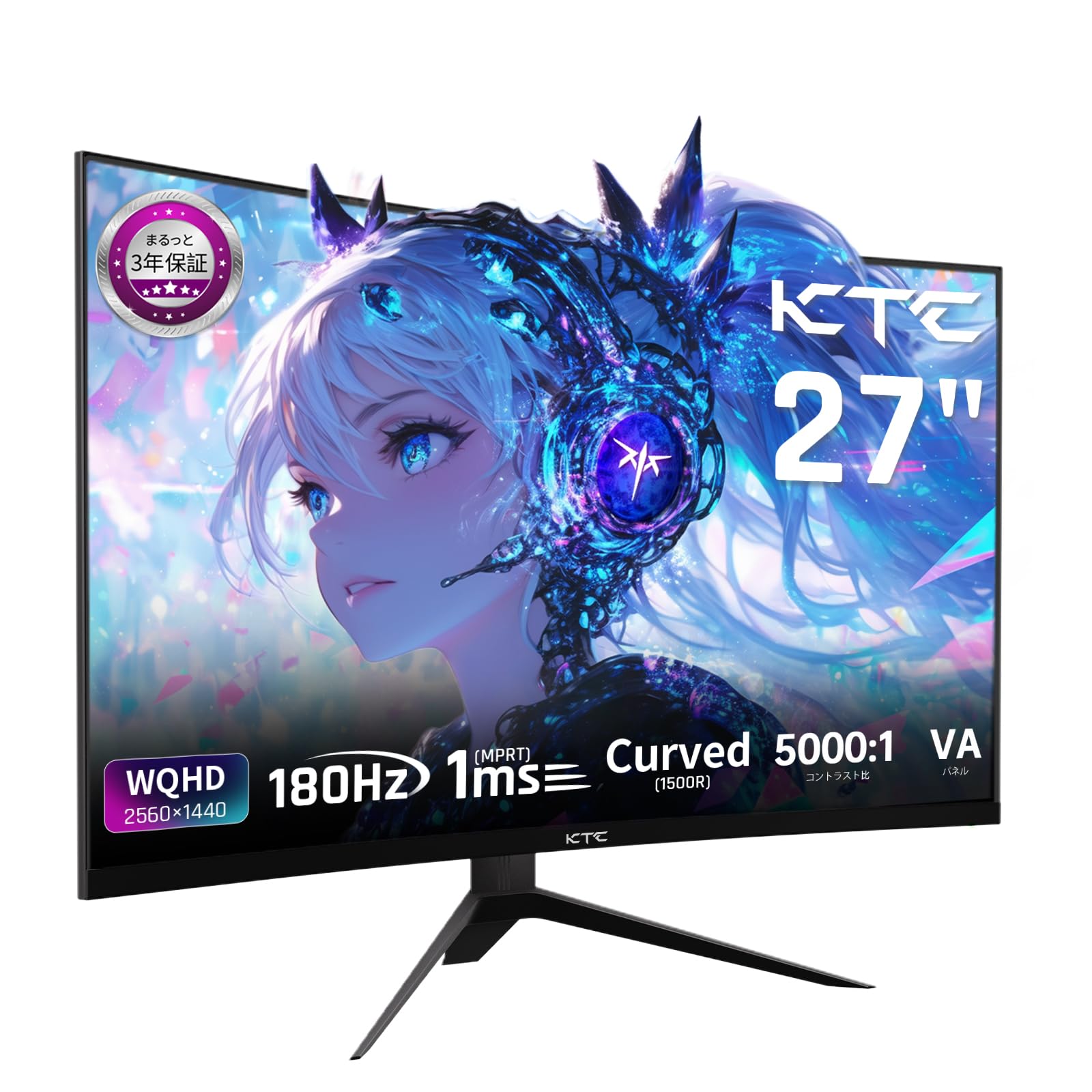
Image: The KTC H27S17 monitor fully assembled with its stand, viewурдаас ирсэн.
2. Эрчим хүчний эх үүсвэрт холбогдож байна
Цахилгаан адаптерийг дэлгэцийн тогтмол гүйдлийн оролтын порт руу холбож, дараа нь цахилгааны кабелийг ханын залгуурт залгана уу.
3. Төхөөрөмжид холбогдох
Use the appropriate cable (DisplayPort or HDMI) to connect your computer or gaming console to the monitor. Ensure the cable is securely connected to both the monitor and your device.

Зураг: Ар талд view of the monitor showing the various input ports including DC, USB, HDMI, DisplayPort, and headphone jack.
4. VESA суурилуулах (заавал биш)
The monitor supports VESA 100mm x 100mm mounting. If using a VESA mount, remove the stand and attach the monitor to your VESA-compatible arm or wall mount using appropriate screws.
Image: Diagram illustrating the VESA 100x100mm mounting pattern and tilt adjustment range on the back of the monitor.
Ашиглалтын заавар
Асаах/унтраах
Мониторыг асаах эсвэл унтраахын тулд ихэвчлэн арын эсвэл доод хэсэгт байрлах цахилгаан товчийг дарна уу. Дэлгэц асаалттай үед цахилгаан заагч гэрэл асна.
Дэлгэц дээрх дэлгэц (OSD) цэс
Use the joystick or buttons on the monitor to navigate the OSD menu. This menu allows you to adjust various display settings such as brightness, contrast, color temperature, input source, and gaming features.
Оролтын эх үүсвэрийн сонголт
If multiple devices are connected, use the OSD menu to select the desired input source (HDMI 1, HDMI 2, DisplayPort 1, DisplayPort 2).
Дэлгэцийн онцлог
Curved Display (1500R)
1500R муруйлт нь дүр төрхийг бий болгодог viewing experience, reducing eye strain during extended use by matching the natural curve of the human eye.

Image: A curved monitor displaying a vibrant image, highlighting the 1500R curvature for an immersive experience.
WQHD Resolution (2560x1440)
Experience detailed visuals with WQHD (2560x1440) resolution, offering approximately 1.7 times the pixel density of Full HD displays.

Image: A monitor displaying a high-resolution image, emphasizing the clarity of WQHD (2560x1440) compared to lower resolutions.
High Refresh Rate (180Hz) and Fast Response Time (1ms MPRT)
The 180Hz refresh rate and 1ms (MPRT) response time ensure smooth, blur-free visuals, crucial for fast-paced gaming and action scenes.

Image: A split screen comparison on the monitor, demonstrating the difference between 180Hz/1ms and 60Hz/5ms, highlighting reduced motion blur.
Vibrant Color Reproduction and HDR10
With sRGB 132%, DCI-P3 104%, Adobe RGB 112% color volume, and HDR10 support, the monitor delivers accurate and vivid colors with enhanced contrast between bright and dark areas.

Image: A monitor displaying a colorful scene, illustrating the wide color gamut and high contrast ratio (5000:1).
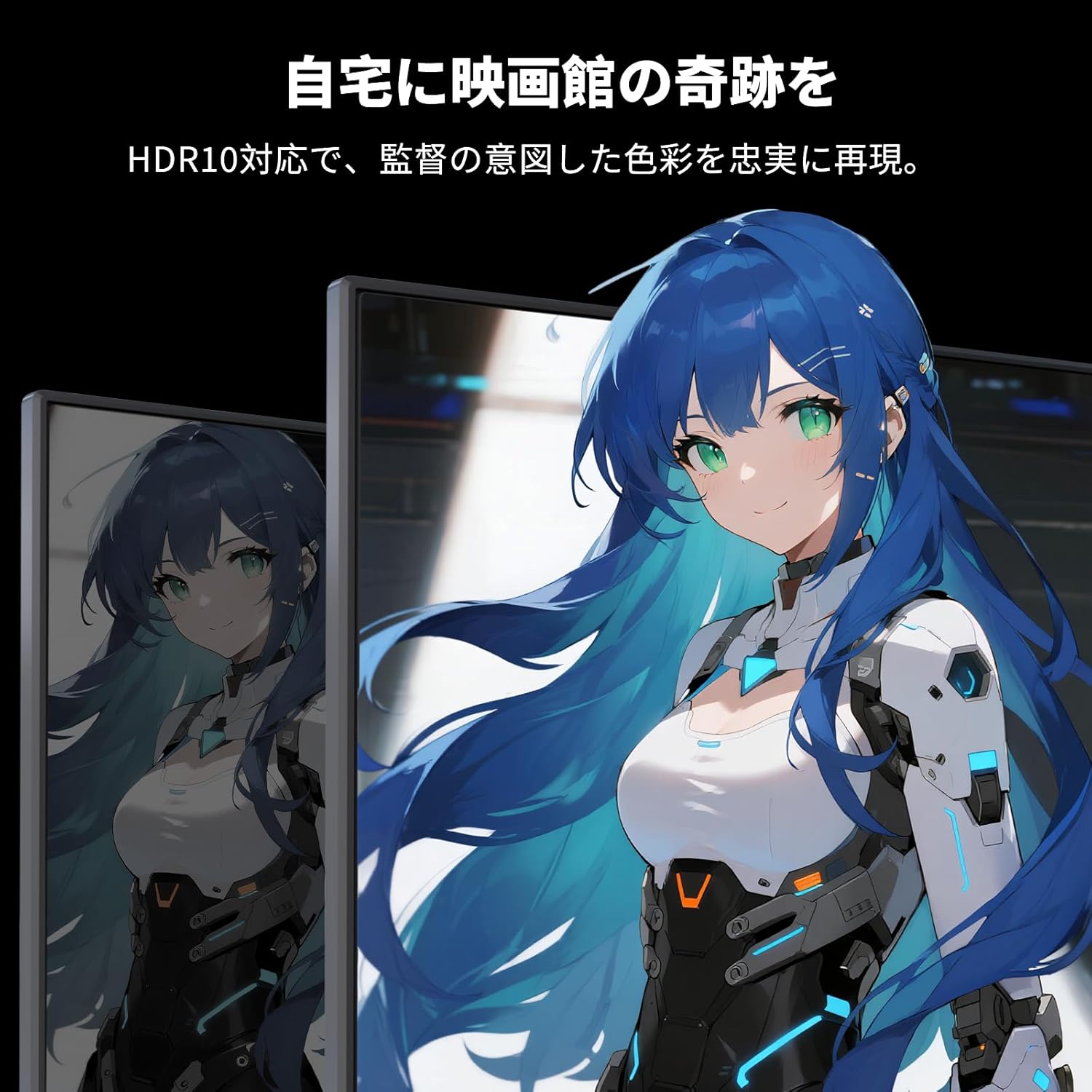
Image: A monitor showing a scene with HDR10 enabled, demonstrating improved dynamic range and detail in both bright and dark areas.
Дасан зохицох синхрончлолын технологи
Adaptive Sync (FreeSync and G-Sync compatible) eliminates screen tearing and stuttering, providing a fluid gaming experience.

Image: A split screen comparison on the monitor, showing the difference between Adaptive Sync OFF (screen tearing) and ON (smooth image).
Нүдний арчилгааны онцлог
The monitor includes Flicker-Free technology and a Low Blue Light mode to reduce eye strain during prolonged use.

Image: Illustrations demonstrating Flicker-Free technology and Low Blue Light mode, designed to reduce eye fatigue.
Холболт
The KTC H27S17 monitor offers multiple connectivity options:
- 2 x HDMI 2.0: Supports WQHD (2560x1440) at 144Hz.
- 2 x DisplayPort 1.4: Supports WQHD (2560x1440) at 180Hz.
- 1 x USB 2.0: For firmware upgrades only.
- 1 x 3.5mm Headphone Jack: Аудио гаралтын хувьд.
- 1 x DC Input: Цахилгаан холболтын хувьд.
Зураг: Нарийвчилсан view of the monitor's rear panel, highlighting the DC input, USB port, HDMI ports, DisplayPort inputs, and headphone jack.
Physical Adjustments
Налалтын тохируулга
The monitor stand allows for tilt adjustment from -5 to 15 degrees, enabling you to find an optimal viewтав тухтай байдлыг хангах өнцөг.
Image: Diagram illustrating the tilt adjustment range of the monitor stand.
VESA нийцтэй байдал
The monitor is compatible with VESA 100mm x 100mm mounting standards, allowing for flexible installation with monitor arms or wall mounts.
Засвар үйлчилгээ
Дэлгэц цэвэрлэх
Зөөлөн, хөвөнгүй даавуугаар дэлгэцийг зөөлөн арчина. Зөрүүд тэмдгийн хувьд хөнгөнөөр dampдаавууг ус эсвэл дэлгэц цэвэрлэх уусмалаар хийнэ. Химийн хатуу бодис, зүлгүүрийн материал ашиглахаас зайлсхий.
Cleaning the Monitor Body
Wipe the monitor body with a soft, dry cloth. Do not use liquid cleaners directly on the monitor.
Хадгалах
Удаан хугацаагаар ашиглаагүй бол мониторыг нарны шууд тусгал, хэт температураас хол, сэрүүн, хуурай газар хадгална.
Алдааг олж засварлах
Хэрэв танд монитортой холбоотой асуудал гарвал дараах нийтлэг шийдлүүдийг үзнэ үү.
- Эрчим хүчгүй: Ensure the power cable and adapter are securely connected and the power outlet is functional.
- Сүлжээ алга: Verify that the input cable (HDMI/DisplayPort) is correctly connected to both the monitor and the source device. Select the correct input source via the OSD menu.
- Анивчих/гажуудсан зураг: Check cable connections. Ensure your graphics card drivers are up to date. Try adjusting the refresh rate in your device's display settings.
- Үхсэн пиксел: While rare, a small number of dead pixels may be within manufacturing tolerances. Refer to the warranty policy for details.
- Audio Issues (Headphone Jack): Ensure headphones are fully plugged in. Check audio settings on your connected device.
For further assistance, please contact KTC customer support.
Үзүүлэлтүүд
| Онцлог | Тодорхойлолт |
|---|---|
| Брэнд | CTC |
| Загвар | H27S17 |
| Дэлгэцийн хэмжээ | 27 инч |
| Шийдвэр | WQHD (2560 x 1440 пиксел) |
| Харьцаа | 16:9 |
| Муруйлт | 1500R |
| Самбарын төрөл | VA |
| Сэргээх хурд | 180 Гц |
| Хариу өгөх хугацаа | 1 мс (MPRT) |
| Ялгаатай харьцаа | 5000:1 |
| Гэрэлтүүлэг | 300 кд/м² |
| Өнгөний хүрээ | sRGB 132% / DCI-P3 104% / Adobe RGB 112% |
| HDR дэмжлэг | HDR10 |
| Дасан зохицох синк | FreeSync, G-Sync Compatible |
| Холболт | 2x HDMI 2.0, 2x DisplayPort 1.4, 1x USB 2.0 (Upgrade only), 1x Headphone Jack |
| VESA уул | 100 мм x 100 мм |
| Налалтын тохируулга | -5-15 градус байна |
| Нүдний арчилгааны онцлог | Анивчихгүй, бүдэг цэнхэр гэрэл |
Баталгаат болон дэмжлэг
KTC provides a 3-year warranty and a 12-month exchange service for this product. For any questions or issues, please contact customer support.
- Утас: 050-3606-8990
- Имэйл: support@ktcplay.com

Image: Information regarding KTC's 3-year warranty and contact details for customer support.
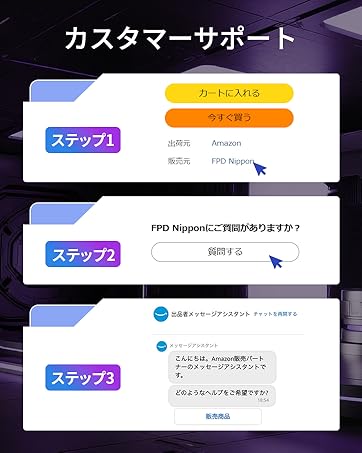
Image: Step-by-step guide on how to contact customer support via Amazon.