
1. Бүтээгдэхүүн дууссанview
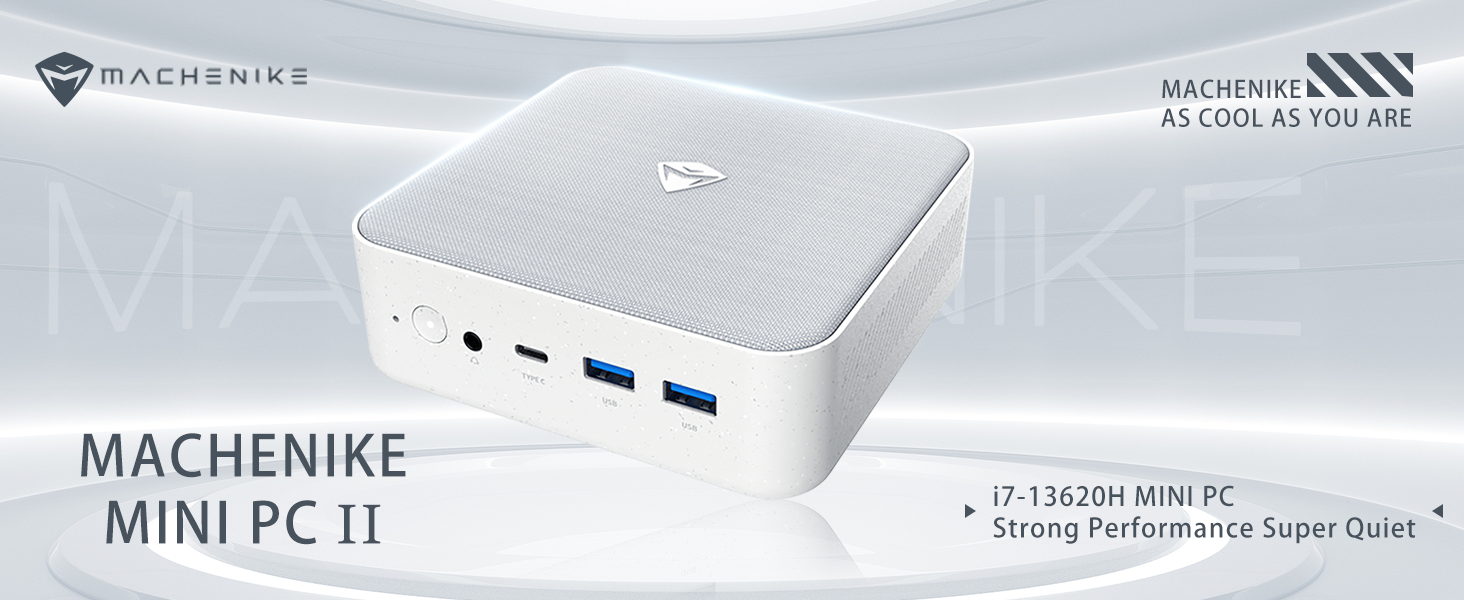
The Machenike Machcreator Mini Desktop, Model 4762H, is a compact and powerful computing solution designed for various applications, from business to everyday use. It features a 13th Gen Intel Core i7-13620H processor, 16GB DDR5 RAM, and a 512GB PCIe M.2 SSD, providing high-speed performance and efficient multitasking capabilities. This mini PC supports 4K dual monitor output and comes pre-installed with Windows 11 Pro.
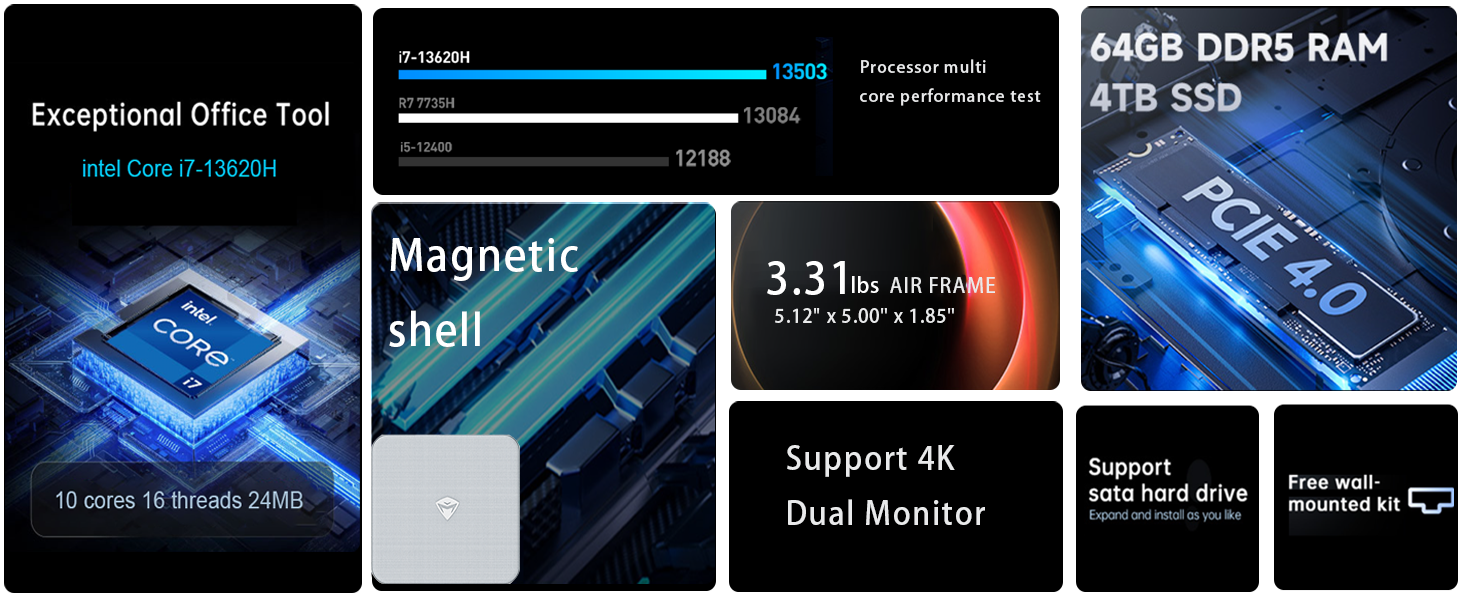
Зураг: Дууслааview of the Intel Core i7 processor, highlighting 10 Cores, 16 Threads, 4.90 GHz Max Turbo Frequency, and 24 MB L3 Cache.
Гол онцлогууд:
- Процессор: Intel Core i7-13620H (10 цөм, 16 утас, 4.9 GHz хүртэл)
- Санах ой: 16GB DDR5 SODIMM RAM (expandable up to 64GB)
- Хадгалах: 512GB PCIe M.2 Solid State Drive (supports dual M.2 expansion)
- Үйлдлийн систем: Windows 11 Pro
- График: Integrated Intel UHD Graphics, supporting 4K dual monitor output via HDMI 2.0 and DisplayPort 1.4
- Холболт: Wi-Fi 6, Bluetooth, 2 x RJ45 Ethernet, USB 3.2 Gen2 Type-A, USB Type-C
- Хөргөх систем: Twin turbine cooling fan with deluxe all-copper radiator
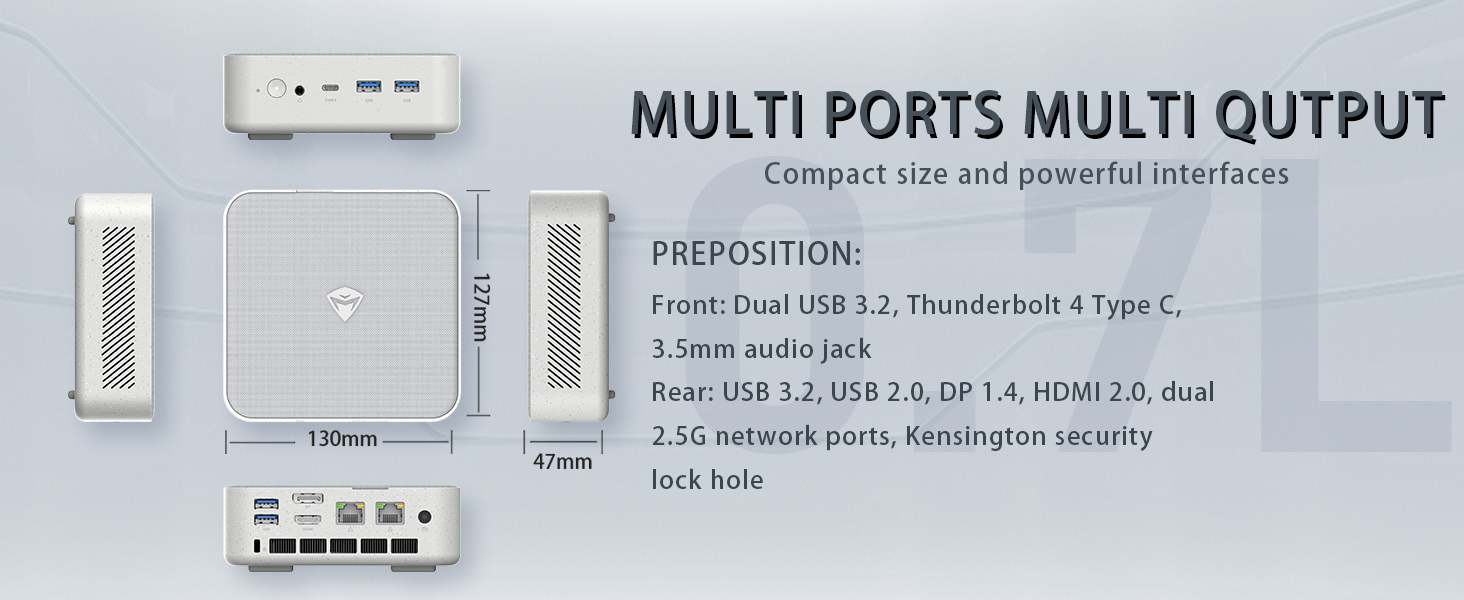
Image: Illustration of PCIe 4.0 SSD and memory slots, indicating support for up to 64GB DDR5 RAM and up to 4TB PCIe SSD expansion.
2. Тохируулах гарын авлага
2.1 Төхөөрөмжийг задлах
Сав баглаа боодолоос бүх бүрэлдэхүүн хэсгүүдийг болгоомжтой арилгана. Дараах зүйлс байгаа эсэхийг шалгаарай:
- Machenike Machcreator Mini Desktop (Model 4762H)
- Эрчим хүчний адаптер
- Хэрэглэгчийн гарын авлага (энэ баримт бичиг)
- (Optional) VESA Mount Kit
2.2 Захын төхөөрөмжүүдийг холбох
Асаахаасаа өмнө чухал дагалдах хэрэгслүүдээ холбоно уу:
- Дэлгэц: Connect your monitor(s) to the HDMI 2.0 or DisplayPort 1.4 ports on the rear of the mini PC. The USB Type-C port also supports video output.
- Гар ба хулгана: Connect your USB keyboard and mouse to any of the available USB 3.2 Gen2 Type-A ports.
- Сүлжээ: For a wired connection, connect an Ethernet cable to one of the RJ45 ports. For wireless, ensure your Wi-Fi network is available.
- Эрчим хүч: Connect the power adapter to the DC-in port on the mini PC, then plug the adapter into a power outlet.
Зураг: Нарийвчилсан view of the mini PC's front and rear ports, including USB 3.2 Gen2 Type-A, USB Type-C, 3.5mm Audio Jack, HDMI 2.0, DisplayPort 1.4, and RJ45 Ethernet ports. Dimensions are also shown.
2.3 Initial Boot-up and Windows 11 Pro Setup
- Мини компьютерийн урд талд байрлах цахилгаан товчийг дарна уу.
- The system will boot into the Windows 11 Pro setup wizard. Follow the on-screen instructions to configure your language, region, network, and user account.
- Once setup is complete, your mini PC is ready for use.
3. Ашиглалтын заавар
3.1 Асаах/унтраах
- Асаах: Цахилгаан товчийг нэг удаа дар.
- Унтраах: Windows дээр Start товчийг дараад Power > Shut down-ыг сонгоно уу.
- Дахин эхлүүлэх: Windows дээрх Start товчийг дараад Power > Restart-ыг сонгоно уу.
- Унтах: Windows дээр Start товчийг дараад Power > Sleep-г сонго.
3.2 Дэлгэцийн тохиргоо
The mini PC supports up to two 4K displays simultaneously. To configure display settings:
- Ширээний компьютер дээр хулганы баруун товчийг дараад "Дэлгэцийн тохиргоо" -г сонгоно уу.
- Here you can detect multiple displays, arrange them, change resolution, and adjust scaling.
3.3 Сүлжээний холболт
- Wi-Fi: Click the network icon in the taskbar, select your Wi-Fi network, enter the password, and connect.
- Ethernet: Хэрэв Ethernet кабель холбогдсон бол систем автоматаар утастай сүлжээний холболт үүсгэх ёстой.
3.4 Cooling System Modes
The mini PC features an advanced cooling system with adjustable modes via the BIOS to optimize performance and noise levels. These modes include:
- Чимээгүй горим: Prioritizes quiet operation, suitable for light tasks.
- Тэнцвэрийн горим: Offers a good balance between performance and noise.
- Гүйцэтгэлийн горим: Maximizes performance (up to 65W power release), ideal for demanding applications.
To change these settings, access the BIOS during startup (typically by pressing Дэл or F2 repeatedly after powering on) and navigate to the relevant power or performance settings.
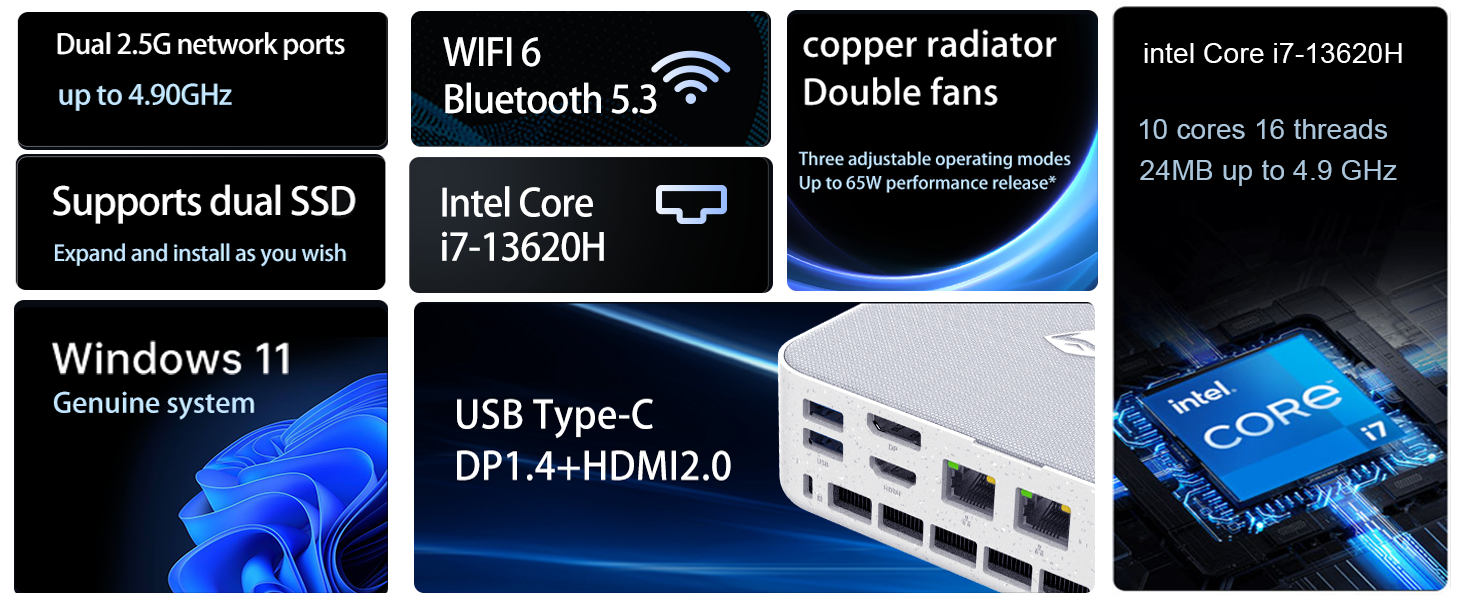
Image: Illustration of the twin turbine cooling fan and deluxe all-copper radiator, explaining how it prevents slowdowns due to overheating and offers silence, balance, and performance modes.
4. Засвар үйлчилгээ
4.1 Төхөөрөмжийг цэвэрлэх
To ensure optimal performance and longevity, regularly clean your mini PC:
- Power off the device and disconnect it from the power outlet.
- Зөөлөн, хуурай даавуугаар гадна талыг арчина.
- Use compressed air to gently clear dust from ventilation openings. Do not insert any objects into the vents.
4.2 Програм хангамжийн шинэчлэлтүүд
Keep your Windows 11 Pro operating system and drivers updated to ensure security and performance:
- Windows шинэчлэлтүүд: Go to Start > Settings > Windows Update and check for updates.
- Драйверын шинэчлэлтүүд: Visit the Machenike official website for the latest drivers for your specific model.
4.3 Хадгалах ба санах ойн өргөтгөл
The Machenike Machcreator Mini Desktop supports upgrades for both RAM and storage:
- RAM: The device has 2 SODIMM slots and supports up to 64GB DDR5 RAM.
- Хадгалах: It supports dual PCIe M.2 SSDs, allowing for significant storage expansion up to 4TB.
Жич: Opening the device for upgrades may void your warranty. Consult a qualified technician or refer to specific upgrade guides from Machenike if available.
5. Алдаа засах
Энэ хэсэгт танд тулгарч болох нийтлэг асуудлуудыг авч үзэх болно. Илүү төвөгтэй асуудлуудын хувьд хэрэглэгчийн дэмжлэгтэй холбоо барина уу.
5.1 Эрчим хүчгүй
- Цахилгаан адаптер нь мини компьютер болон ажиллаж байгаа цахилгаан залгуурт найдвартай холбогдсон эсэхийг шалгаарай.
- Өөр төхөөрөмжийг залгах замаар цахилгааны залгуур ажиллаж байгаа эсэхийг шалгана уу.
- Цахилгаан адаптерт харагдахуйц гэмтэл байгаа эсэхийг шалгана уу.
5.2 Дэлгэцийн гаралт байхгүй
- Confirm that the monitor is powered on and the correct input source is selected.
- Ensure the HDMI or DisplayPort cable is securely connected to both the mini PC and the monitor.
- Хэрэв боломжтой бол өөр дэлгэцийн кабель эсвэл монитор ашиглаж үзээрэй.
- If using multiple displays, try connecting only one display at a time.
5.3 Сүлжээний холболтын асуудлууд
- Утастай (Ethernet): Check if the Ethernet cable is properly connected to both the mini PC and the router/modem. Verify router/modem status.
- Утасгүй (Wi-Fi): Ensure Wi-Fi is enabled in Windows settings. Restart your router/modem. Check if other devices can connect to the Wi-Fi network.
- Run Windows Network Troubleshooter (Start > Settings > Network & internet > Advanced network settings > Network troubleshooter).
6. Техникийн үзүүлэлтүүд
Detailed technical specifications for the Machenike Machcreator Mini Desktop, Model 4762H:
| Онцлог | Тодорхойлолт |
|---|---|
| Брэнд | Machenike |
| Загварын дугаар | 4762 цаг |
| Үйлдлийн систем | Windows 11 Pro |
| CPU загвар | Intel Core i7-13620H |
| CPU-ийн хурд | Up to 4.9 GHz (Max Turbo Frequency) |
| Суулгасан RAM санах ойн хэмжээ | 16 GB DDR5 (64 GB хүртэл өргөжүүлэх боломжтой) |
| Санах ойн цагийн хурд | 4800 МГц |
| Санах ойн үүрүүд боломжтой | 2 |
| Санах ойн хадгалах багтаамж | 512 GB PCIe M.2 SSD (Supports dual M.2, up to 4TB) |
| График процессор | Intel UHD график (нэгдсэн) |
| Видео гаралтын интерфейс | HDMI 2.0, DisplayPort 1.4, USB Type-C |
| Дэлгэцийн хамгийн дээд нарийвчлал | 3840x2160 (4К) |
| Тоног төхөөрөмжийн интерфейс | 3.5mm Audio, Bluetooth, DisplayPort, Ethernet (2x RJ45), HDMI, USB, USB Type C |
| Утасгүй холболт | Wi-Fi 6 (802.11ax), Bluetooth |
| Хэмжээ (LxWxH) | 5.12 x 5 x 1.85 инч |
| Зүйлийн жин | 49.8 фунт (Note: This weight may be a data entry error; actual weight for a mini PC is typically much less.) |
| UPC | 193200587317 |
7. Баталгаат хугацаа ба дэмжлэг
7.1 Баталгаат хугацааны мэдээлэл
Machenike products typically come with a limited manufacturer's warranty. Please refer to the warranty card included with your purchase or visit the official Machenike webТанай бүс нутаг болон бүтээгдэхүүний загварт тохирсон баталгаат хугацааны дэлгэрэнгүй нөхцөл, болзлыг сайтаас авна уу. Баталгаат хугацааны нэхэмжлэл гаргахын тулд худалдан авалтын баримтаа хадгална уу.
7.2 Хэрэглэгчийн дэмжлэг
For technical assistance, troubleshooting beyond this manual, or warranty inquiries, please contact Machenike customer support:
- Онлайн дэмжлэг: Албан ёсны Machenike-д зочлоорой webсайт (www.machenike.com - exampхолбоос, бодит холбоос өөр байж болно) болон тусламжийн хэсэг рүү очно уу.
- Имэйл тусламж: Refer to your product documentation for the specific support email address.
- Утасны дэмжлэг: Check the Machenike webбүс нутгийн утасны дэмжлэгийн дугааруудын сайт.
When contacting support, please have your product model number (4762H) and serial number ready.