
1. Танилцуулга
Thank you for choosing the Leaven K610 Tri-Mode Mechanical Wireless Gaming Keyboard. This manual provides detailed instructions on how to set up, operate, and maintain your new keyboard. Designed for versatility and performance, the K610 offers seamless connectivity via Bluetooth 5.0, 2.4 GHz wireless, and wired Type-C connections, along with vibrant RGB lighting and a satisfying mechanical typing experience.
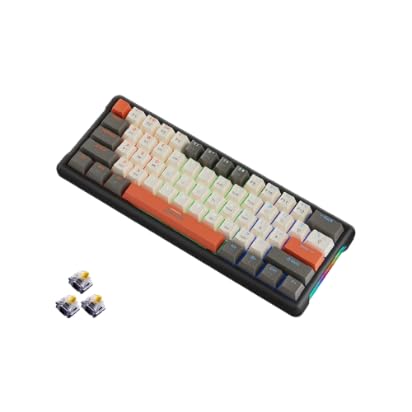
Image: Leaven K610 Tri-Mode Mechanical Wireless Gaming Keyboard, showcasing its compact design and included spare switches.
2. Бүтээгдэхүүний онцлог
- Гурван горимын холболт: Supports Bluetooth 5.0, 2.4 GHz wireless, and wired (Type-C) connections for maximum compatibility and flexibility.
- Mechanical Key Switches: Provides tactile feedback and a responsive typing experience, ensuring accuracy and durability.
- Халуунаар сольж болох дизайн: Allows for easy replacement of key switches without soldering, enabling customization and maintenance.
- Хурц RGB гэрэлтүүлэг: Features 16.8 million colors with customizable backlighting to personalize your setup and enhance the gaming atmosphere.
- Авсаархан 61 түлхүүртэй зохион байгуулалт: A streamlined arrangement that saves desk space while retaining essential functions.
- Эргономик дизайн: Crafted for comfortable typing posture, reducing strain during extended use.
- Удаан эдэлгээтэй барилга: Built with high-quality ABS material for long-lasting performance.
- Удаан эдэлгээтэй батерей: Ensures extended periods of uninterrupted wireless performance.

Зураг: Тэсэрсэн view diagram of the Leaven K610 keyboard, illustrating its internal components including ABS three-color keycaps, cover, RGB water cooling tube, pluggable mechanical switches, positioning plate, PCB board, and lower lid.
3. Багцын агуулга
Дараах зүйлсийн багцад байгаа эсэхийг шалгана уу.
- Leaven K610 Tri-Mode Mechanical Wireless Gaming Keyboard
- USB төрөл-C кабель
- 2.4 GHz USB Receiver (usually stored in the keyboard's battery compartment or a dedicated slot)
- Хэрэглэгчийн гарын авлага (энэ баримт бичиг)
- Keycap Puller (may be included for hot-swappable switches)
- Switch Puller (may be included for hot-swappable switches)
- Spare Mechanical Switches (typically 2-3 pieces)
4. Тохируулах гарын авлага
4.1. Гарыг цэнэглэж байна
Before first use, it is recommended to fully charge the keyboard. Connect the supplied USB Type-C cable to the keyboard's Type-C port and the other end to a USB power source (e.g., computer USB port, USB wall adapter). The charging indicator light will show the charging status and turn off when fully charged.
4.2. Connecting via 2.4 GHz Wireless Mode
- Locate the 2.4 GHz USB receiver. It is usually stored in a slot on the keyboard itself.
- Plug the 2.4 GHz USB receiver into an available USB port on your computer.
- Switch the keyboard's mode switch (usually on the back or side) to the "2.4G" or wireless icon position.
- The keyboard should automatically connect. If not, press the designated pairing key combination (refer to keyboard markings, often Fn + R or a specific key with a 2.4G icon) to initiate pairing.
4.3. Bluetooth горимоор холбогдож байна
- Switch the keyboard's mode switch to the "BT" or Bluetooth icon position.
- The keyboard typically has multiple Bluetooth channels (e.g., BT1, BT2, BT3). Press and hold the Fn key along with the corresponding Bluetooth channel key (e.g., Fn + Q for BT1, Fn + W for BT2, Fn + E for BT3) for 3-5 seconds until the indicator light flashes rapidly, indicating pairing mode.
- On your device (PC, smartphone, tablet), open Bluetooth settings and search for new devices.
- Select "Leaven K610" or a similar name from the list of available devices.
- Follow any on-screen prompts to complete the pairing process. The indicator light on the keyboard will stop flashing and remain solid when connected.
- To switch between paired Bluetooth devices, simply press Fn + Q/W/E (for BT1/BT2/BT3) once.
4.4. Утастай горимоор холбогдох
- Connect the supplied USB Type-C cable to the keyboard's Type-C port.
- USB Type-C кабелийн нөгөө үзүүрийг компьютер дээрх боломжтой USB порт руу холбоно уу.
- Switch the keyboard's mode switch to the "Wired" or cable icon position.
- The keyboard will be recognized as a standard USB keyboard and is ready for use.
5. Ашиглалтын заавар
5.1. RGB гэрэлтүүлгийн удирдлага
The Leaven K610 features dynamic RGB lighting. Use the following key combinations to control the lighting effects:
- Fn + \ |: Cycle through different lighting effects/modes.
- Fn + [{: Гэрэлтүүлгийг багасгах.
- Fn + ]}: Гэрэлтүүлгийг нэмэгдүүлэх.
- Fn + ;:: Гэрэлтүүлгийн хурдыг бууруул.
- Fn + '": Гэрэлтүүлгийн хурдыг нэмэгдүүл.
- Fn + Баруун шилжих: Change lighting color (for static modes).

Image: Close-up side view of the Leaven K610 keyboard, highlighting the "Side Wing Water Cooling Pipe" which illuminates with RGB lighting, adding to the aesthetic appeal.
5.2. Function Key Combinations (Fn Key)
Due to its compact 61-key layout, many functions are accessed via the Fn (Function) key in combination with other keys. Refer to the keycap legends for specific functions. Common combinations include:
- Fn + A/S/D: Switch between Bluetooth channels (BT1/BT2/BT3).
- Fn + R: Activate 2.4G pairing mode.
- Fn + T: Утастай горим руу шилжих.
- Fn + Буцах зай: Устгах (зарим байрлал дээр).
- Fn + P: Дэлгэц хэвлэх.
- Fn + L: Lock Windows key.
- Fn + U/I/O/P/J/K/L: Media controls (Play/Pause, Stop, Previous, Next, Mute, Volume Down, Volume Up).
- Fn + M/<, Fn + >./ Fn + ?/: Navigation keys (Home, End, Page Up, Page Down).
Note: Specific key combinations may vary slightly. Always refer to the legends printed on your keycaps.

Image: Diagram illustrating the 61-key compact arrangement of the Leaven K610 keyboard, emphasizing its minimalist design while retaining essential functionality.
6. Засвар үйлчилгээ, арчилгаа
- Цэвэрлэгээ: Use a soft, dry cloth to wipe the keyboard surface. For deeper cleaning, use a can of compressed air to remove dust and debris from between keycaps. For stubborn stains, a slightly damp зөөлөн савантай даавууг ашиглаж, гар руу шингэн орохгүй байхыг баталгаажуулна.
- Товчлуурын товчлуур болон унтраалга солих: If your keyboard comes with a keycap puller and switch puller, you can carefully remove keycaps and switches for cleaning or replacement. Always pull keycaps straight up to avoid damaging the switch stem. When replacing switches, align the pins correctly before gently pushing them into the hot-swap socket.
- Хадгалах: Гарыг нарны шууд тусгал, хэт температураас хол, сэрүүн, хуурай газар хадгална.
- Шингэнээс зайлсхийх: Do not expose the keyboard to water or other liquids. Liquid damage is not covered under warranty.

Зураг: Ойрын зураг view of a mechanical switch on the Leaven K610 keyboard, demonstrating the hot-swappable nature of the switches, allowing for easy replacement or customization.
7. Алдаа засах
- Гар хариу өгөхгүй байна:
- Гар цэнэглэгдсэн эсэхийг шалгаарай.
- Check the mode switch (Wired/2.4G/BT) is in the correct position.
- 2.4G-ийн хувьд USB хүлээн авагчийг найдвартай залгасан эсэхийг шалгаарай. Өөр USB порт ашиглаж үзнэ үү.
- For Bluetooth, ensure Bluetooth is enabled on your device and the keyboard is paired to the correct channel. Try re-pairing.
- For wired mode, ensure the Type-C cable is securely connected to both the keyboard and the computer. Try a different cable or USB port.
- Компьютер/төхөөрөмжөө дахин эхлүүлнэ үү.
- Бүртгүүлээгүй эсвэл давхар бичээгүй түлхүүрүүд:
- Clean under the keycap using compressed air.
- If hot-swappable, try removing and re-inserting the switch. If the issue persists, replace the switch with a spare one.
- RGB гэрэлтүүлэг ажиллахгүй байна:
- Гар асаалттай байгаа эсэхийг шалгаарай.
- Try cycling through lighting modes and adjusting brightness using Fn key combinations.
- Ensure the keyboard firmware is up to date (if applicable, check manufacturer's webсайт).
- Bluetooth холболт тогтворгүй байна:
- Ensure there are no strong interferences (e.g., other wireless devices, thick walls).
- Keep the keyboard within the recommended Bluetooth range.
- Try forgetting the device on your computer/smartphone and re-pairing.
8. Техникийн үзүүлэлтүүд
| Параметр | Дэлгэрэнгүй |
|---|---|
| Загвар | K610 |
| Холболт | Bluetooth 5.0, 2.4 GHz Wireless, USB Type-C Wired |
| Гарны төрөл | Механик, халуунаар солих боломжтой |
| Түлхүүрийн байршил | 61-Key Compact Arrangement |
| Арын гэрэлтүүлэг | RGB (16.8 сая өнгө) |
| Материал | Акрилонитрил бутадиен стирол (ABS) |
| Эрчим хүчний эх үүсвэр | Battery Powered and USB Cable |
| Тохиромжтой төхөөрөмжүүд | Laptop, PC (Win XP/7/8/10, MAC and Above 10.2), Mobile Devices |
| Бүтээгдэхүүний хэмжээс | 30 x 11 x 2 см |
| Зүйлийн жин | 400 гр |
| Гарал үүслийн улс | Хятад |
9. Баталгаат хугацаа ба дэмжлэг
This Leaven K610 keyboard comes with a 6 сарын баталгаат хугацаа from the date of purchase. This warranty covers manufacturing defects and issues arising from normal use. It does not cover damage caused by misuse, accidents, unauthorized modifications, or liquid damage.
For warranty claims or technical support, please contact your retailer or the manufacturer's authorized service center. Please retain your proof of purchase for warranty validation.