
SABLUTE B0DHG83QYC
SABLUTE Large Print Backlit Wired USB Keyboard Instruction Manual
Model: B0DHG83QYC
1. Танилцуулга
Thank you for choosing the SABLUTE Large Print Backlit Wired USB Keyboard. This keyboard is designed to provide a comfortable and efficient typing experience with its oversized characters, 7-color backlighting, integrated wrist rest, and convenient phone holder. This manual will guide you through the setup, operation, and maintenance of your new keyboard.
2. Хайрцагт юу байна
- SABLUTE Large Print Backlit Wired USB Keyboard
3. Тохируулах заавар
- Гарыг задлах: Гарыг савлагаанаас нь болгоомжтой салга.
- Өөрийн компьютерт холбогдох: Locate an available USB-A port on your computer (desktop, laptop, or compatible device). Insert the USB connector of the keyboard firmly into the USB-A port.
- Драйвер суурилуулах: The keyboard is plug-and-play. Your operating system (Windows, macOS, Linux) will automatically detect and install the necessary drivers. No additional software is required.
- Холболтыг баталгаажуулах: Once connected, the keyboard should be ready for use. Test by typing in a text editor or browser.
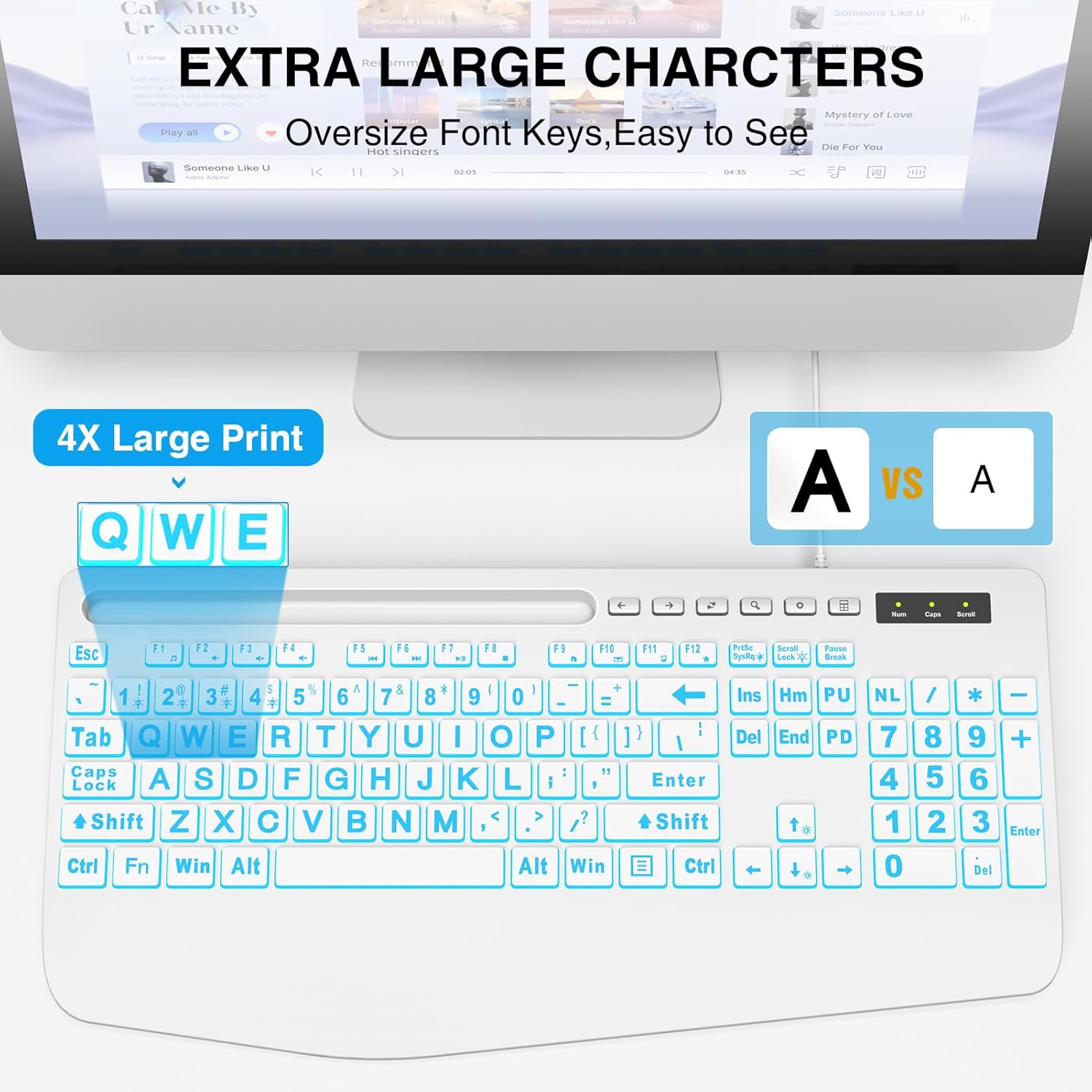
This image illustrates the large print keys on the SABLUTE keyboard, designed for enhanced visibility and reduced eye strain. A comparison highlights the increased character size compared to standard keyboards.
4. Ашиглалтын заавар
4.1 арын гэрэлтүүлгийн удирдлага
The keyboard features a 7-color backlight with adjustable brightness and multiple modes. Use the following key combinations to control the backlighting:
- Гэрэлтүүлгийг тохируулах: дарна уу Fn + Page Up Гэрэлтэлтийг нэмэгдүүлэхийн тулд дарна уу. Fn + Page Down Гэрэлтүүлгийг багасгахын тулд. Гэрэлтүүлгийн 7 түвшин байдаг.
- Turn Backlight On/Off: дарна уу Fn + Scroll Lock арын гэрлийг асаах эсвэл унтраахын тулд.
- Арын гэрэлтүүлгийн өнгийг асаах/унтраах: дарна уу Fn + 1 боломжтой 7 арын гэрлийн өнгийг ээлжлэн солих.
- Keep One Backlight Color: дарна уу Fn + 2 to select and maintain a single backlight color.
- Backlighting While Typing Mode: дарна уу Fn + 3 to activate a reactive mode where keys illuminate upon typing.
- Backlight Color Changes Back and Forth Mode: дарна уу Fn + 4 to activate a dynamic mode where colors transition back and forth.
This image displays the keyboard with its keys illuminated in various colors, demonstrating the 7-color backlight feature.

This diagram illustrates how to adjust the backlight brightness of the keyboard using the 'Fn' key combined with the brightness up/down keys.

This diagram demonstrates how to cycle through the available backlight colors by pressing the 'Fn' key simultaneously with the '1' key.

This diagram explains how to select and maintain a single backlight color by pressing the 'Fn' key along with the '2' key.

This diagram illustrates the reactive backlighting mode, where keys illuminate upon typing, activated by pressing 'Fn' + '3'.

This diagram demonstrates the dynamic backlight mode where colors transition back and forth, activated by pressing 'Fn' + '4'.
4.2 Integrated Phone/Tablet Holder
The keyboard features a built-in slot at the top, designed to hold your smartphone or tablet. This allows for convenient viewing of videos, video conferencing, or reading materials while using your computer. Please note that this holder does not provide charging functionality.

This image shows a smartphone securely placed in the keyboard's built-in holder, illustrating its convenience for multitasking.
4.3 Ergonomic Wrist Rest
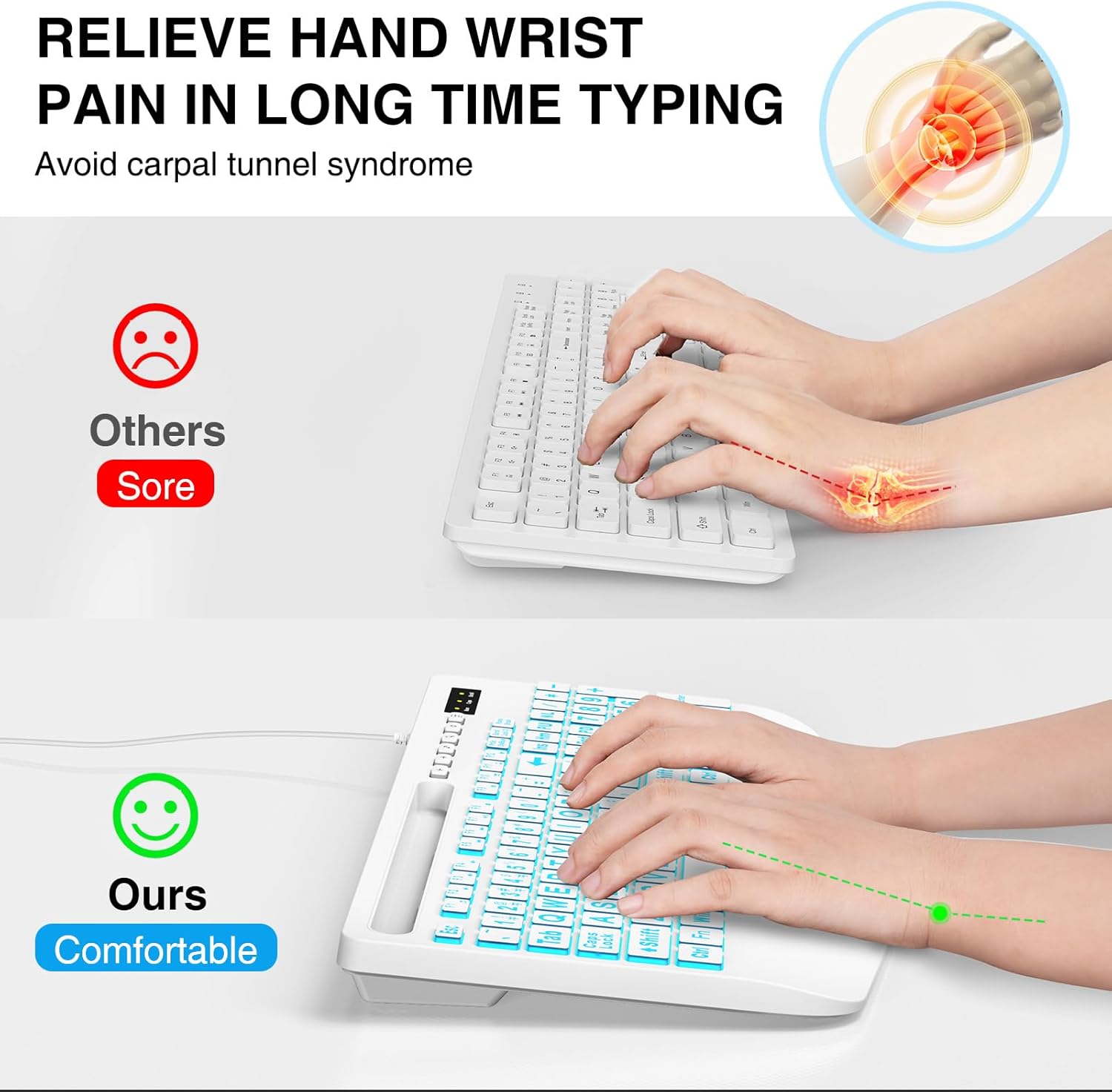
The keyboard is designed with an integrated palm rest to provide ergonomic support. This feature helps reduce wrist fatigue and discomfort during prolonged typing sessions, promoting a more natural hand position.
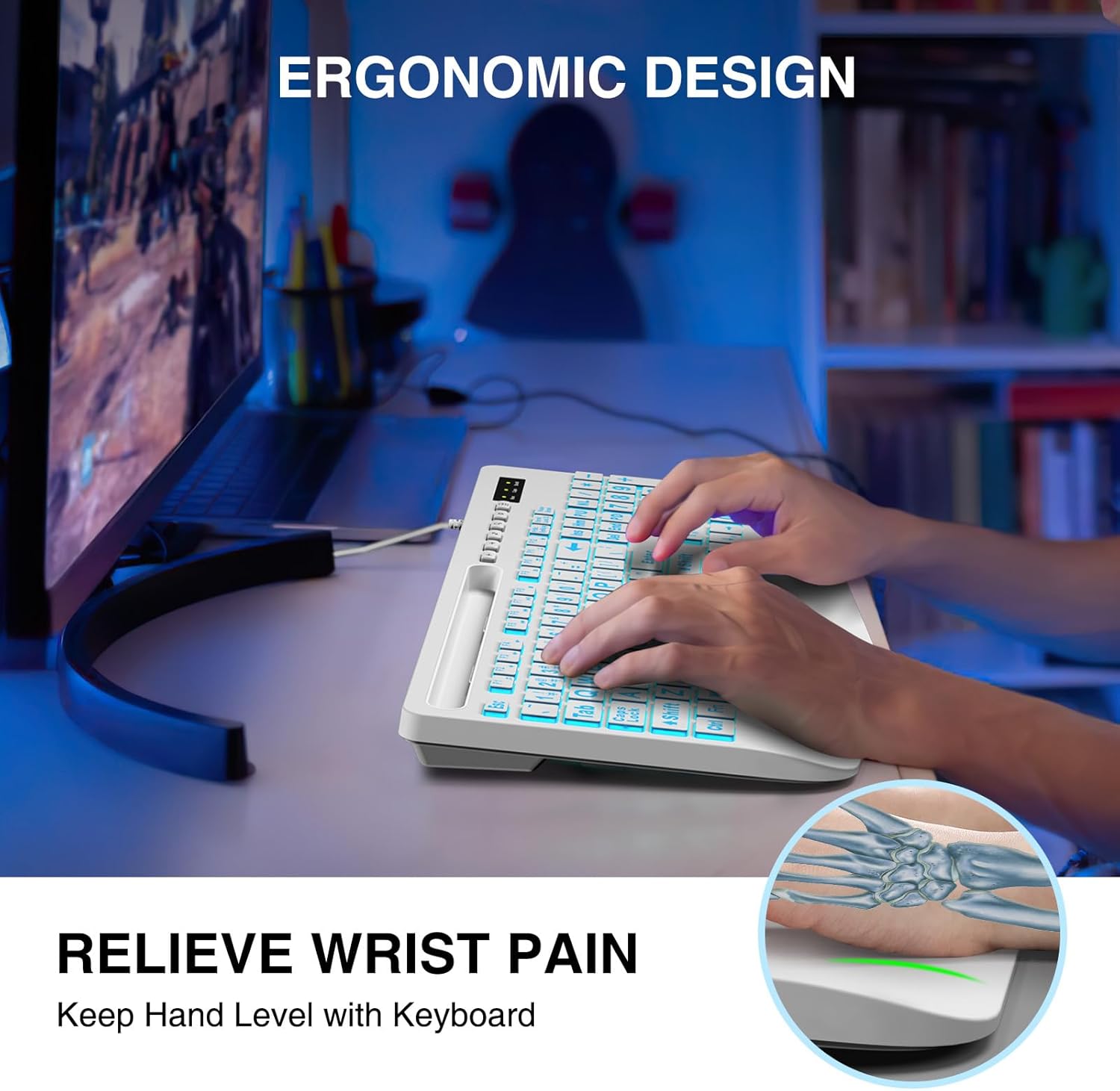
This image shows a user typing on the keyboard, emphasizing the integrated wrist rest designed to provide support and reduce discomfort during extended use.
4.4 Мультимедиа функцийн товчлуурууд
The keyboard includes dedicated function keys (F1-F12) that, when pressed with the Fn key, provide quick access to multimedia controls and other system functions. Refer to the key legends for specific functions such as volume control, media playback, and launching applications.
5. Засвар үйлчилгээ
- Цэвэрлэгээ: To clean the keyboard, disconnect it from your computer. Use a soft, damp cloth to wipe the surface. For stubborn dirt, a mild cleaning solution can be applied to the cloth (not directly to the keyboard). Avoid excessive moisture.
- Тоос арилгах: Товчлуурын хоорондох тоос, хог хаягдлыг арилгахын тулд шахсан агаарыг ашиглана.
- Хадгалах: Гарыг хуурай, сэрүүн газар, нарны шууд тусгал болон хэт өндөр температураас хол хадгална уу.
6. Алдаа засах
- Гар хариу өгөхгүй байна:
- USB кабель гар болон компьютерт найдвартай холбогдсон эсэхийг шалгаарай.
- Компьютер дээрээ гарыг өөр USB порт руу холбож үзнэ үү.
- Компьютерээ дахин эхлүүлнэ үү.
- Асуудал гар эсвэл компьютерт байгаа эсэхийг тодорхойлохын тулд гарыг өөр компьютер дээр туршиж үзээрэй.
- Арын гэрэл ажиллахгүй байна:
- Ensure the backlight is turned on by pressing Fn + Scroll Lock.
- Гэрэлтүүлгийг ашиглан тохируулна уу Fn + Page Up / Page Down.
- Keys Are Sticky or Unresponsive:
- Clean the keyboard as described in the Maintenance section to remove any debris that might be affecting key presses.
7. Техникийн үзүүлэлтүүд
| Брэнд | SABLUTE |
| Загвар | B0DHG83QYC |
| Холболтын технологи | USB-A (Утастай) |
| Тохиромжтой төхөөрөмжүүд | Mac, PC, Windows |
| Гарын тайлбар | Backlit, Wired, Large print keyboard with wrist rest |
| Онцлог шинж чанарууд | Large print keys, Phone/Tablet Holder, Wrist Rest, 7-Color Backlight |
| Гарны арын гэрэлтүүлгийн өнгөний дэмжлэг | RGB (7 өнгө) |
| Бүтээгдэхүүний хэмжээс | 17"L x 8.5"W x 1.25"H (43.18 см x 21.59 см x 3.18 см) |
| Зүйлийн жин | 1.9 фунт (0.86 кг) |
8. Баталгаат хугацааны мэдээлэл
SABLUTE products are manufactured to high-quality standards. For specific warranty details, please refer to the warranty card included with your purchase or contact SABLUTE customer support. Keep your proof of purchase for warranty claims.
9. Дэмжлэг
If you encounter any issues or have questions not covered in this manual, please contact SABLUTE customer support. Contact information can typically be found on the product packaging or the official SABLUTE webсайт.
Ask a question about this manual
Ask about setup, troubleshooting, compatibility, parts, safety, or missing instructions. Manuals+ will review the question and use this page’s manual context to help answer it.