
Танилцуулга
This manual provides detailed instructions for the JZK Voice Remote Control, designed as a replacement or secondary remote for NVIDIA Shield TV Pro models from 2015, 2017, and 2019. This remote features voice search capabilities and an ergonomic design for comfortable use. Please read this manual thoroughly before operating your device.
Багцын агуулга
Таны багцад бүх зүйл байгаа эсэхийг шалгана уу:
- 1 x JZK Voice Remote Control
- 1 x Хэрэглэгчийн гарын авлага (Энэхүү баримт бичиг)
Note: 2x AAA batteries are required and are not included in the package.

Image: Contents of the JZK remote control package, including the remote and a small user guide.
Тохиргоо
1. Зай суурилуулах
- Алсын удирдлагын ар талд байгаа зайны тасалгааг ол.
- Зайны тагийг нээхийн тулд доошоо гулсуулна уу.
- Тасалгааны дотор талд заасанчлан зөв туйлшралыг (+ ба -) хангаж, хоёр (2) AAA батерейг оруулна уу.
- Батерейны тагийг найдвартай товших хүртэл нь шургуулна уу.

Image: The remote control with its battery cover removed, illustrating where to insert two AAA batteries.
2. Алсын удирдлагыг хослуулах
The remote control uses an infrared connection. For initial setup or re-pairing, follow these steps:
- Ensure your NVIDIA Shield TV is powered on and within 1 foot (approx. 30 cm) of the remote control.
- On your NVIDIA Shield TV, navigate to Settings > Device Preferences > Remotes & Accessories.
- -г удаан дар Буцах товчлуур болон Гэр button simultaneously on the JZK remote control until the remote's indicator light begins to flash.
- The NVIDIA Shield TV should detect the new remote. Select it from the list of available devices to complete the pairing process.
- Once paired, the remote's light will stop flashing, and you can begin using it.
If pairing fails, ensure the batteries are correctly installed and charged, and try the process again. You may also need to restart your NVIDIA Shield TV.
Ашиглалтын заавар
Товчнууд болон тэдгээрийн функцуудтай танилцана уу:

Image: Detailed button layout of the JZK remote control with labels for each function.
| Үгүй | Товчлуур | Чиг үүрэг |
|---|---|---|
| 1 | Суурилагдсан микрофон | Used for Voice Search commands. |
| 2 | Хүч | Turns the NVIDIA Shield TV on or off. |
| 3 | Тохиргоо | Accesses the NVIDIA Shield TV settings menu. (Customizable in Settings > Devices & Accessories > Customize Settings button) |
| 4 | Навигацийн бөгж | Navigates menus: Up, Down, Right, Left. |
| 5 | Select (OK) | Confirms selections or opens items. |
| 6 | Буцах | Өмнөх дэлгэц эсвэл цэс рүү буцна. |
| 7 | Гэр | Үндсэн нүүр дэлгэц рүү буцна. |
| 8 | Хурдан урагшлуулах | Skips forward in media playback. |
| 9 | Тоглуулах/түр зогсоох | Медиа тоглуулахыг тоглуулах эсвэл түр зогсооно. |
| 10 | Ухраах | Skips backward in media playback. |
| 11 | Дуут хайлт | Activates voice command input. Press and hold, then speak your command. |
| 12 | Дууны хэмжээг нэмэгдүүлэх | Дууны хэмжээг нэмэгдүүлдэг. |
| 13 | Дууны хэмжээг багасгах | Дууны хэмжээг бууруулдаг. |
| 14 | Netflix-ийг нээх | Netflix програмыг шууд эхлүүлнэ. |
Using Voice Search
The voice search feature allows for quick navigation and content discovery. To use it:
- -г удаан дар Дуут хайлт товчлуур (11).
- Speak your command clearly into the built-in microphone (1). For example, say "Open YouTube," "Find action movies," or "Adjust volume."
- -г суллана Дуут хайлт Ярьж дуусаад товчийг дарна уу.
Засвар үйлчилгээ
Алсын удирдлага цэвэрлэх
Алсын удирдлагыг цэвэрлэхийн тулд зөөлөн, хуурай даавуу ашиглана уу. Зөрүүд шороонд бага зэрэг dampen the cloth with water or a mild, non-abrasive cleaner. Avoid using harsh chemicals or solvents, as these can damage the remote's surface or internal components.
Зай солих
When the remote's performance degrades or it becomes unresponsive, it's time to replace the batteries. Follow the battery installation steps outlined in the Тохиргоо section. Always replace both AAA batteries at the same time with new ones.
Алдааг олж засварлах
If you encounter issues with your JZK Voice Remote Control, refer to the following common problems and solutions:
| Асуудал | Боломжит шалтгаан | Шийдэл |
|---|---|---|
| Алсын удирдлага хариу өгөхгүй байна. | Low or dead batteries. Incorrect battery installation. Remote not paired. Obstruction between remote and Shield TV. | Replace batteries. Check battery polarity. Re-pair the remote (see Setup section). Ensure clear line of sight to Shield TV. |
| Voice Search not working. | Microphone blocked. Remote not properly paired for voice functions. Software glitch. | Ensure microphone is clear. Re-pair the remote. Restart NVIDIA Shield TV. |
| Buttons are sticky or not registering presses. | Товчлуурын доорх шороо, хог хаягдал. | Clean the remote (see Maintenance section). |
| Remote disconnects frequently. | Interference. Low batteries. | Ensure no strong interference sources nearby. Replace batteries. Re-pair the remote. |
Үзүүлэлтүүд
| Онцлог | Дэлгэрэнгүй |
|---|---|
| Брэнд | JZK |
| Загварын нийцтэй байдал | NVIDIA Shield TV Pro (2015, 2017, 2019 models), NVIDIA Shield TV Cube (2019) |
| Холболтын төрөл | Хэт улаан туяаны (IR) |
| Эрчим хүчний эх үүсвэр | 2 x AAA шүлтлэг батерей (оруулаагүй) |
| Онцлог шинж чанарууд | Voice Search, Ergonomic Design, Dedicated Netflix Button |
| Материал | Бат бөх ABS |
| Өнгө | Хар / Цагаан |
| Хэмжээ (L x W x H) | Ойролцоогоор 16.8 x 6 x 2.6 см (6.6 x 2.4 x 1.0 инч) |
| Жин | Ойролцоогоор 60 грамм (2.1 унц) |

Image: Dimensions of the JZK remote control, indicating its length, width, and thickness.
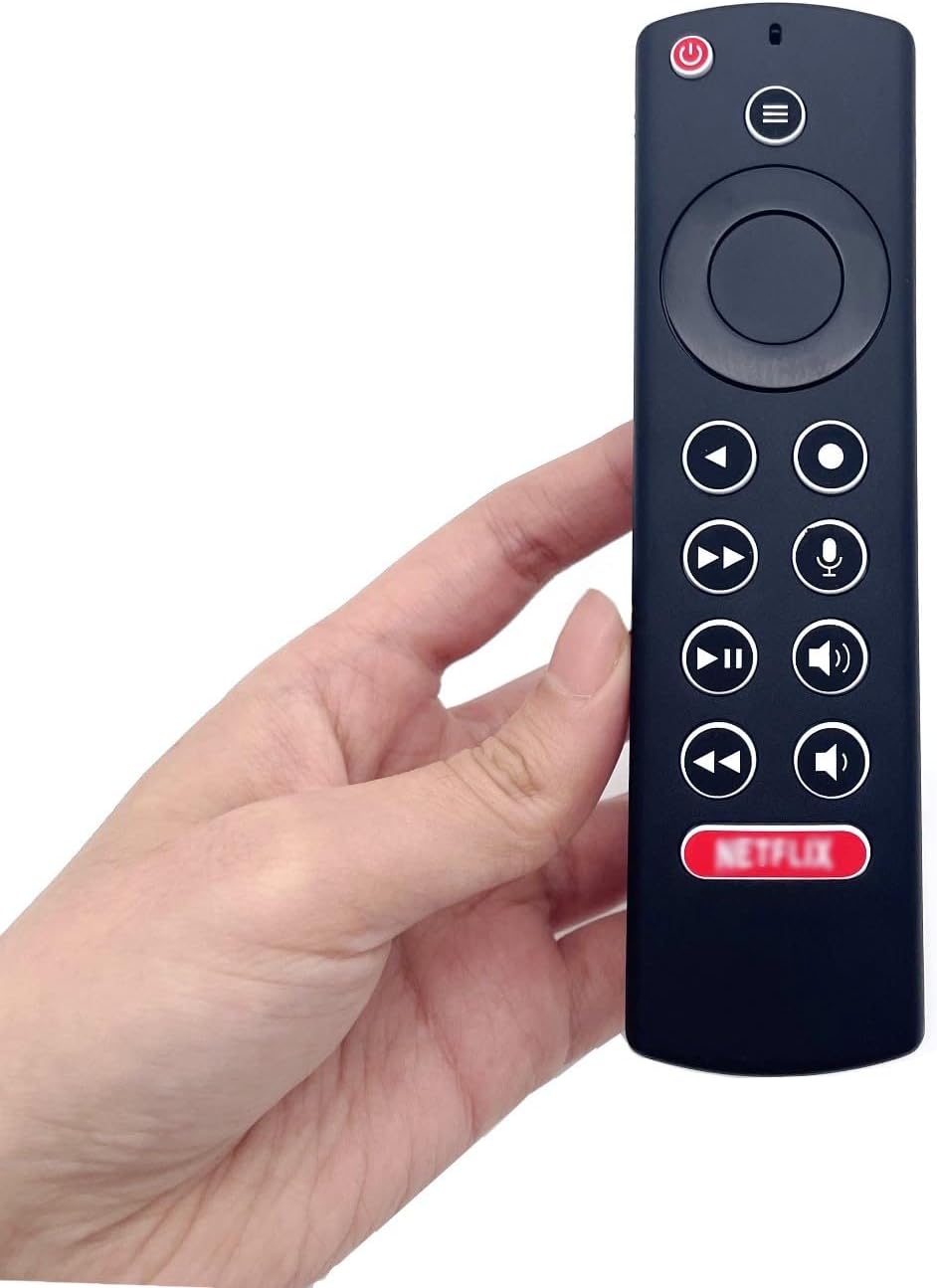
Image: The JZK remote control held in a hand, highlighting its comfortable and ergonomic design.
Баталгаат хугацааны мэдээлэл
Specific warranty details for this JZK product are not provided in the product description. Please refer to the retailer's return policy or contact JZK customer support for information regarding warranty coverage and terms.
Дэмжлэг
For further assistance, troubleshooting, or inquiries about your JZK Voice Remote Control, please contact the retailer where you purchased the product or refer to the official JZK website for customer support options.