
1. Танилцуулга
Худалдан авалт хийсэнд баярлалааasing the KTC 24-inch WQHD 100Hz IPS Monitor. This manual provides essential information for the safe and efficient use of your new monitor. Please read it thoroughly before use and keep it for future reference.
This monitor features a 24-inch IPS panel with WQHD (2560x1440) resolution, offering stunning visual clarity and vibrant colors with 122% sRGB coverage. A 100Hz refresh rate and FreeSync & G-Sync compatibility ensure smooth, tear-free visuals, ideal for both office work and casual gaming. Advanced eye care technologies, including blue light reduction and flicker-free operation, provide a comfortable viewing experience even during extended use. The monitor also supports HDR10 for enhanced dynamic range and features flexible connectivity options with HDMI and DisplayPort.
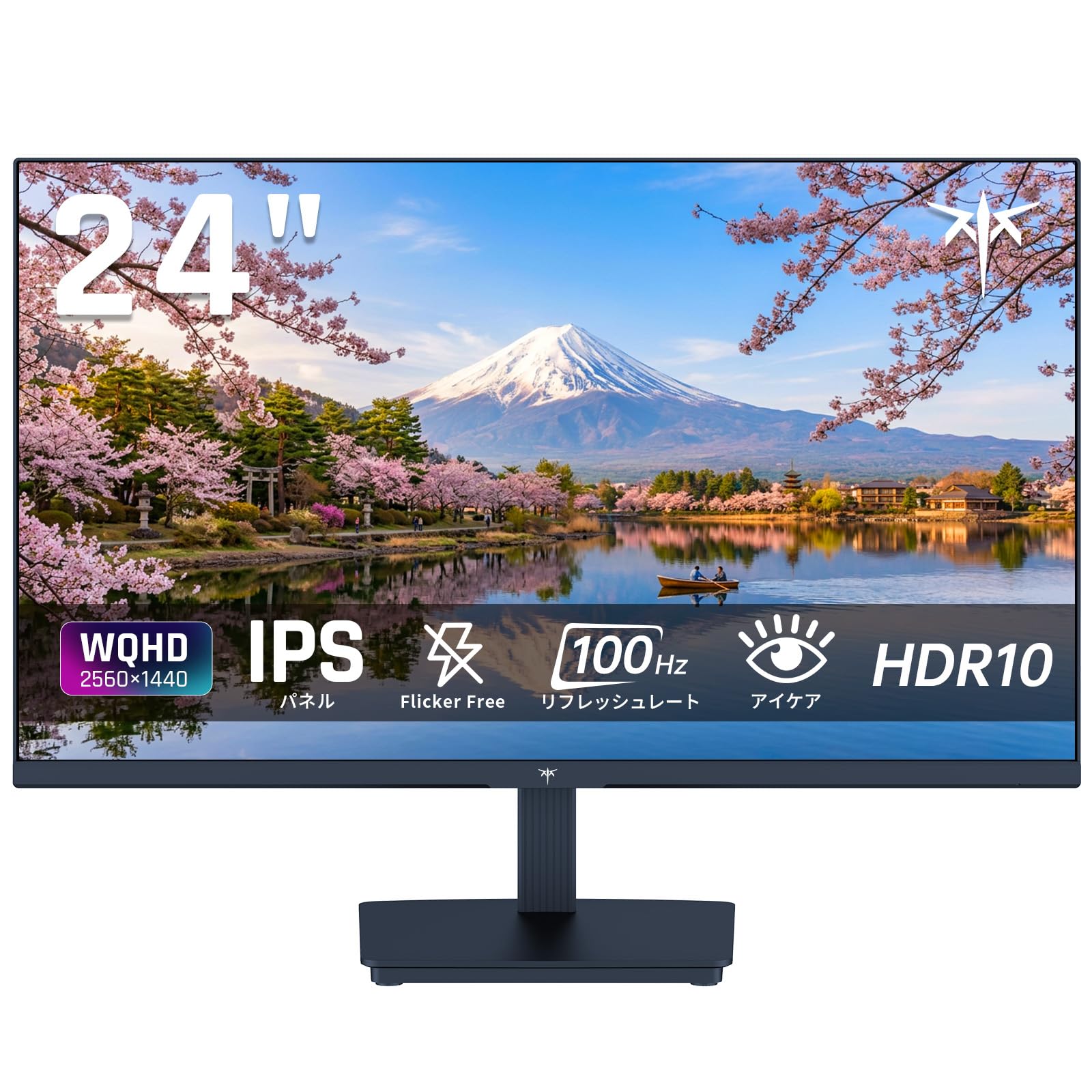
Image: KTC 24-inch WQHD 100Hz IPS Monitor.
2. Аюулгүй байдлын мэдээлэл
Please observe the following safety precautions to prevent damage to the monitor or injury to yourself or others:
- Мониторыг бороо, чийг, хэт өндөр температурт бүү тавь.
- Хэт халалтаас сэргийлэхийн тулд мониторын эргэн тойронд агааржуулалтыг сайтар хангана уу.
- Зөвхөн монитортой хамт ирдэг тэжээлийн адаптерийг ашиглана уу.
- Avoid placing heavy objects on the power cord or monitor.
- Мониторыг өөрөө задлах эсвэл засах гэж бүү оролдоорой. Мэргэшсэн үйлчилгээний ажилтантай холбогдоно уу.
- Мониторыг хүчтэй соронзон орноос хол байлга.
3. Багцын агуулга
Бүх зүйл багцад байгаа эсэхийг шалгана уу:
- KTC 24-inch WQHD 100Hz IPS Monitor (H24T27)
- Хяналтын суурь
- HDMI кабель
- Эрчим хүчний адаптер
- Хэрэглэгчийн гарын авлага
4. Тохиргоо
4.1 Стенд угсрах
- Монитор болон суурийг савлагаанаас болгоомжтой салга.
- Суурины хүзүүг дэлгэцийн самбарт бэхлэнэ үү.
- Secure the base to the stand neck using the provided screws.
4.2 Мониторыг холбох
Тохирох кабелийг ашиглан мониторыг компьютер эсвэл бусад төхөөрөмжид холбоно уу.
- Эрчим хүчний холболт: Цахилгаан адаптерийг мониторын тогтмол гүйдлийн оролтод холбож, цахилгааны залгуурт залгаарай.
- Видео холболт: Use the supplied HDMI cable or a DisplayPort cable to connect your computer's video output to the corresponding port on the monitor.
- Аудио гаралт: If desired, connect headphones or external speakers to the 3.5mm audio output jack.

Image: Close-up of the KTC monitor's rear ports, including DC power, HDMI, DisplayPort, and audio out.
5. Ашиглалтын заавар
5.1 Асаах/унтраах
Дэлгэц дээр байрлах цахилгаан товчийг дарж асаах эсвэл унтраана уу.
5.2 Дэлгэц дээрх дэлгэц (OSD) цэс
The OSD menu allows you to adjust various monitor settings. Use the control buttons (usually located on the back or bottom of the monitor) to navigate the menu and make selections.
5.3 Дэлгэцийн тохиргоо
- Шийдвэр: The monitor supports WQHD (2560x1440) resolution for sharp and detailed images. Ensure your graphics card is set to this resolution for optimal display.
- Сэргээх хурд: Enjoy smooth visuals with a 100Hz refresh rate. This can be configured in your operating system's display settings.
- Өнгөний хүрээ: The monitor offers 122% sRGB coverage for rich and accurate colors.

Image: KTC monitor highlighting key features like IPS panel, 100Hz, WQHD, 24-inch, Adaptive Sync, and blue light reduction.

Image: Comparison of WQHD (2560x1440) and FHD (1920x1080) resolutions, demonstrating enhanced detail with WQHD.

Image: Comparison of 100Hz and 60Hz refresh rates, showing smoother motion with 100Hz.
5.4 Adaptive Sync (FreeSync & G-Sync)
The monitor supports both FreeSync and G-Sync technologies to eliminate screen tearing and stuttering, providing a fluid gaming experience. Ensure this feature is enabled in your graphics card settings and the monitor's OSD.

Image: Monitor display showing HDR10 content on one side and standard HDR on the other, along with FreeSync & G-Sync comparison (ON/OFF).
5.5 Нүдний арчилгааны онцлогууд
The monitor includes Flicker-Free technology and a Blue Light Reduction mode to minimize eye strain during prolonged use. These settings can be adjusted via the OSD menu.

Image: KTC monitor displaying eye care features: Low Blue Light (ON/OFF) and Flicker-Free (ON/OFF).
5.6 HDR10 дэмжлэг
This monitor supports HDR10, providing a wider range of colors and contrasts for a more immersive viewing experience. Ensure HDR is enabled in your device's display settings for compatible content.
5.7 Тохируулж болох тулгуур
The monitor stand allows for tilt adjustment from -5° to 15°, enabling you to find the most comfortable viewөнцөг.

Зураг: хажуу тал view of the KTC monitor demonstrating the tilt-adjustable stand (-5° to 15°).
5.8 өргөн Viewing өнцөг
The IPS panel provides a wide 178-degree viewing angle, ensuring consistent color and image quality from almost any perspective.

Image: KTC monitor showcasing a wide 178-degree viewing angle with consistent color.
6. Засвар үйлчилгээ
6.1 Мониторыг цэвэрлэх
- Цэвэрлэхийн өмнө мониторыг үргэлж салга.
- Зөөлөн, хөвөнгүй даавууг хөнгөн хэрэглээрэй dampусаар эсвэл зөөлөн, зүлгүүргүй дэлгэц цэвэрлэгчээр дүүргэнэ.
- Цэвэрлэгч бодисыг дэлгэц рүү шууд цацаж болохгүй.
- Химийн хатуу бодис, зүлгүүрийн материал ашиглахаас зайлсхий.
6.2 Ерөнхий арчилгаа
- Keep the monitor in a clean, dry environment.
- Дэлгэцийг хурц объектоос хамгаалаарай.
- When moving the monitor, handle it carefully and avoid putting pressure on the screen.
7. Алдаа засах
Хэрэв танд монитортой холбоотой асуудал тулгарвал дараах нийтлэг асуудал, шийдлүүдийг үзнэ үү.
| Асуудал | Боломжит шийдэл |
|---|---|
| Дэлгэц дээр зураг алга | Check power connections. Ensure video cable is securely connected to both monitor and computer. Select correct input source via OSD. |
| Зураг бүдгэрсэн эсвэл гажуудсан байна | Ensure the display resolution is set to 2560x1440. Check video cable for damage. |
| Дэлгэц урагдах эсвэл гацах | Verify FreeSync/G-Sync is enabled in both monitor OSD and graphics card settings. |
| Чихэвч/чанга яригчаас дуу гарахгүй байна | Check audio cable connection. Ensure volume is not muted on monitor or computer. |
| Монитор асахгүй байна | Check power outlet and power adapter connection. Try a different power outlet. |
If the problem persists after trying these solutions, please contact KTC customer support.
8. Техникийн үзүүлэлтүүд
Detailed technical specifications for the KTC H24T27 monitor:
| Онцлог | Тодорхойлолт |
|---|---|
| Брэнд | CTC |
| Загварын дугаар | H24T27 |
| Дэлгэцийн хэмжээ | 24 инч |
| Шийдвэр | WQHD (2560 x 1440 пиксел) |
| Харьцаа | 16:9 |
| Самбарын төрөл | IPS |
| Дэлгэцийн гадаргуу | Гэрэлтдэггүй |
| Сэргээх хурд | 100 Гц |
| Хариу өгөх хугацаа | 7 мс |
| Ялгаатай харьцаа | 1300:1 |
| Гэрэлтүүлэг | 300 кд/м² |
| Өнгөний хүрээ | 122% sRGB |
| Viewing өнцөг | 178 градус |
| HDR технологи | HDR10 |
| Дасан зохицох синк | FreeSync, G-Sync |
| Холболт | 1x HDMI, 1x DisplayPort, Аудио гаралт |
| Эрчим хүчний хэрэглээ | 12 ватт |
| Ботьtage | 100 вольт |
| Хэмжээ (D x W x H) | 18.3 x 54 x 40.5 см |
| Нэмэлт онцлогууд | Adaptive Sync, Eye Care, Flicker-Free, Blue Light Filter, Tilt Adjustment |
| Тохиромжтой төхөөрөмжүүд | Game Consoles, Laptops |
| Өнгө | Хар |
| Хэлбэр | Хавтгай |
| Гарал үүсэл | Хятад |
9. Баталгаат хугацаа ба дэмжлэг
9.1 Баталгаат хугацааны мэдээлэл
Your KTC monitor comes with a Үйлдвэрлэгчийн 3 жилийн баталгаат хугацаа. In the event of a product defect, a free replacement will be provided. Please note that this warranty does not cover loss or damage caused by customer negligence.

Image: KTC's 3-year free replacement warranty details and contact information.
9.2 Хэрэглэгчийн дэмжлэг
For any inquiries or concerns, please feel free to contact us. We are committed to providing full support to ensure your satisfaction.
Утас: 050-3606-8990
Имэйл: support@ktcplay.com
You can also contact support through Amazon:

Image: Step-by-step guide on how to contact customer support via Amazon.
10. Бүтээгдэхүүн дууссанview Видео
Үзүүлэн үзэхийн тулд энэ видеог үзээрэйview of the KTC QHD computer monitor and its features.
Video: This video showcases the KTC QHD computer monitor, highlighting its 2560x1440 (2K) resolution, 100Hz refresh rate, FreeSync and G-Sync compatibility, flicker-free and low blue light features, 8-bit & 116% sRGB color gamut, 3-side frameless design, -5° to 15° tilt adjustable stand, and available sizes (24, 27, 32 inches). It emphasizes its suitability for professional office use.