
Танилцуулга
This manual provides essential information for the setup, operation, maintenance, and troubleshooting of your Onn 22 inch 1080P 100 Hz FHD LED Monitor. Please read this guide thoroughly before using the product to ensure optimal performance and safety.
The Onn 22 inch FHD LED Monitor is designed for a variety of applications, offering a vivid 1920x1080 resolution, a 100Hz refresh rate, and a 6.5ms response time for efficient performance. Its slim profile and T-shaped base are ideal for saving desk space.
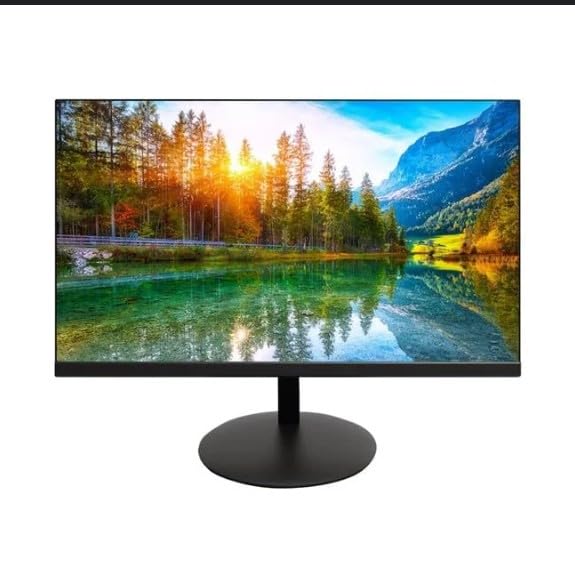
The image shows the Onn 22 inch FHD LED Monitor, highlighting its 100Hz refresh rate and 1080p resolution. The monitor features a slim design and a T-shaped base.
Тохируулах заавар
- Савлах: Carefully remove the monitor and all accessories from the packaging. Ensure all components are present: monitor, T-shaped base, HDMI cable, and power adapter.
- Стенд угсрах: Attach the T-shaped base to the monitor. The design is screw-less for easy assembly. Ensure it is securely fastened.
- Төхөөрөмжтэй холбогдож байна:
The monitor supports both HDMI and VGA inputs. Connect the provided HDMI cable from your computer's HDMI output to the HDMI IN port on the monitor. Alternatively, use a VGA cable for VGA input.

This image displays the rear panel of the Onn monitor, illustrating the available input ports: HDMI IN, VGA IN, and the DC 12V power input. These ports are essential for connecting the monitor to a computer or other devices.
- Эрчим хүчний холболт: Connect the power adapter to the DC 12V input port on the monitor, then plug the adapter into a power outlet.
- Мониторыг тохируулах: The monitor is capable of swivel, tilt, rotation, and height adjustment. Adjust the screen to your preferred viewЭргономикийн тав тухыг хангах өнцөг.
- Хос мониторын тохиргоо: This monitor is suitable for a fully functioning dual monitor setup. Connect a second monitor using the appropriate cables and configure your operating system's display settings.
Ашиглалтын заавар
- Асаах/унтраах: Press the power button, usually located on the bottom or back of the monitor, to turn it on or off.
- Оролтын сонголт: If the monitor does not automatically detect the input source, use the On-Screen Display (OSD) menu buttons to manually select between HDMI and VGA inputs.
- OSD цэсийн навигаци: Use the physical buttons on the monitor (typically on the back or bottom edge) to navigate the OSD menu. This allows you to adjust settings such as brightness, contrast, color temperature, and input source.
- Нарийвчлал болон Сэргээх Хурд: The monitor supports a native resolution of 1920x1080 at a 100Hz refresh rate. Ensure your computer's display settings are configured to these specifications for the best visual experience.
- Дасан зохицох синк: The monitor features Adaptive Sync for gaming, which helps to reduce screen tearing and stuttering. Ensure this feature is enabled in your graphics card settings if supported.
Засвар үйлчилгээ
- Дэлгэц цэвэрлэх: Зөөлөн, хөвөнгүй даавуугаар дэлгэцийг зөөлөн арчина. Зөрүүд тэмдгийн хувьд хөнгөнөөр dampen the cloth with water or a non-abrasive, monitor-specific cleaning solution. Avoid spraying liquids directly onto the screen.
- C цэвэрлэхasing: Мониторыг зөөлөн, хуурай даавуугаар цэвэрлэх casing. Do not use strong detergents or solvents, as they may damage the finish.
- Агааржуулалт: Хэт халалтаас сэргийлэхийн тулд мониторын агааржуулалтын нүхийг хаагаагүй эсэхийг шалгаарай.
- Хадгалах: Удаан хугацаагаар ашиглаагүй бол мониторыг нарны шууд тусгал, хэт температураас хол, сэрүүн, хуурай газар хадгална.
Алдааг олж засварлах
- Эрчим хүчгүй:
- Цахилгааны кабель нь дэлгэц болон тэжээлийн залгуурт найдвартай холбогдсон эсэхийг шалгана уу.
- Цахилгааны залгуур зөв ажиллаж байгаа эсэхийг шалгана уу.
- Сүлжээ алга:
- Ensure the video cable (HDMI or VGA) is firmly connected to both the monitor and the computer.
- Select the correct input source using the monitor's OSD menu.
- Таны компьютер асаалттай, унтах горимд ороогүй байгаа эсэхийг шалгана уу.
- Flickering Screen or Poor Image Quality:
- Видео кабелийг гэмтээсэн эсвэл сул холболт байгаа эсэхийг шалгана уу.
- Adjust the resolution and refresh rate settings on your computer to match the monitor's specifications (1920x1080, 100Hz).
- OSD цэсээр дамжуулан дэлгэцийн тохиргоог үйлдвэрийн тохиргоонд дахин тохируулна уу.
- Хариу өгөхгүй товчлуурууд:
- Unplug the monitor from the power outlet, wait for 30 seconds, and then plug it back in.
If problems persist, please refer to the support information provided in the "Support and Warranty" section.
Үзүүлэлтүүд
| Брэнд | Онн |
| Загварын дугаар | 100140681 |
| Загварын нэр | ОТТО |
| Дэлгэцийн хэмжээ | 21.5 инч |
| Дэлгэцийн төрөл | LED, LCD |
| Шийдвэр | 1920 x 1080 (FHD 1080p) |
| Сэргээх хурд | 100 Гц |
| Хариу өгөх хугацаа | 6.5 миллисекунд |
| Тоног төхөөрөмжийн интерфейс | hdmi, vga |
| Онцлог шинж чанарууд | Өндөр тохируулга |
| Viewing өнцөг | 160 градус |
| Харьцаа | 16:9 |
| Бүтээгдэхүүний хэмжээс | 49.2 x 20 x 37.2 см; 3.24 кг |
Дэмжлэг ба баталгаа
For technical support, product inquiries, or warranty information, please visit the official Onn support webсайт эсвэл харилцагчийн үйлчилгээтэй холбогдоно уу.
- Албан ёсны дэмжлэг Webсайт: onnsupport.ca
- Баталгаат хугацаа: Specific warranty details may vary by region and purchase date. Please refer to the documentation included with your product or visit the support webхамгийн сүүлийн үеийн баталгаат мэдээллийг авах сайт.