
Танилцуулга
Welcome to the VIBOX VTX-7 Gaming PC user manual. This guide provides essential information for setting up, operating, maintaining, and troubleshooting your new gaming system. Please read these instructions carefully before using your PC to ensure optimal performance and longevity.
Your VIBOX VTX-7 system is equipped with high-performance components designed for an immersive gaming experience and efficient productivity. Key features include:
- Nvidia GeForce RTX 5070 (12GB GDDR7 RAM / HDMI 2.1b / DisplayPort)
- AMD Ryzen 7 5700X Processor - 8 cores - Max speed 4.6 GHz
- 1TB SATA SSD for ultra-fast storage
- 32GB DDR4 RAM for smooth multitasking
- Pre-installed Windows 11 Home operating system
- Includes a 27-inch monitor, gaming keyboard, mouse, headset, LED mouse pad, and USB Wi-Fi 6 AX1300 + Bluetooth 5.4 adapter.
Хайрцагт юу байна
Carefully unpack all items from the box. Ensure all components listed below are present:
- VIBOX VTX-7 Gaming PC Tower
- 27 инчийн дэлгэц
- Тоглоомын гар
- Тоглоомын хулгана
- Тоглоомын чихэвч
- LED хулганы дэвсгэр
- USB Wi-Fi 6 AX1300 and Bluetooth 5.4 Adapter
- Цахилгаан кабель (компьютер болон дэлгэцэнд)
- HDMI/DisplayPort кабель
- Хэрэглэгчийн гарын авлага (энэ баримт бичиг)
Тохируулах гарын авлага
1. Савлах ба байрлуулах
Remove the PC tower and monitor from their packaging. Place the PC tower on a stable, flat surface with adequate ventilation. Avoid placing it directly on carpet or in enclosed spaces that could restrict airflow.

Image: VIBOX VTX-7 Gaming PC Tower with vibrant RGB lighting, showcasing түүний гоёмсог дизайн болон дотоод эд ангиуд.
2. Захын төхөөрөмжүүдийг холбох
- Монитор: Connect the 27-inch monitor to the graphics card (Nvidia RTX 5070) on the back of the PC using the provided HDMI or DisplayPort cable. Ensure the cable is securely fastened. Connect the monitor's power cable to an electrical outlet.
- Гар ба хулгана: Connect the gaming keyboard and mouse to any available USB ports on the back of the PC.
- Чихэвч: Plug the headset into the appropriate audio jacks (usually green for audio out, pink for microphone in) or a USB port if it's a USB headset.
- Wi-Fi/Bluetooth Adapter: Insert the USB Wi-Fi 6 and Bluetooth 5.4 adapter into an available USB port.
- Эрчим хүч: Connect the PC's power cable to the power supply unit (PSU) on the back of the PC, then plug it into a grounded electrical outlet.
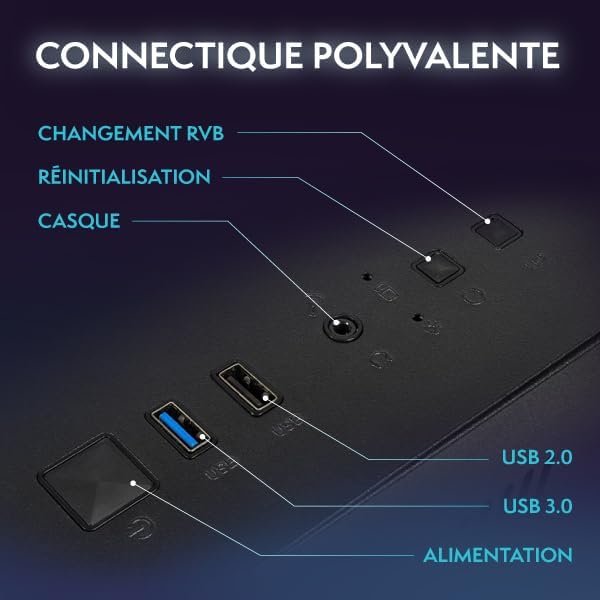
Зураг: Ойролцоогоор view of the VIBOX PC's rear panel, highlighting various connectivity ports including USB, HDMI, and audio jacks.
3. Анхдагч асаалт
Once all connections are secure, press the power button on the front of the PC tower. The system will boot up, and the monitor should display the VIBOX logo or Windows startup screen.
Ашиглалтын заавар
1. Эхний ачаалалт болон Windows тохиргоо
Upon the first boot, you will be guided through the Windows 11 Home setup process. Follow the on-screen prompts to:
- Бүс нутаг болон гарын байршлыг сонгоно уу.
- Сүлжээнд холбогдоно уу (Wi-Fi эсвэл Ethernet).
- Sign in with a Microsoft account or create a local account.
- Нууцлалын тохиргоог хийнэ үү.
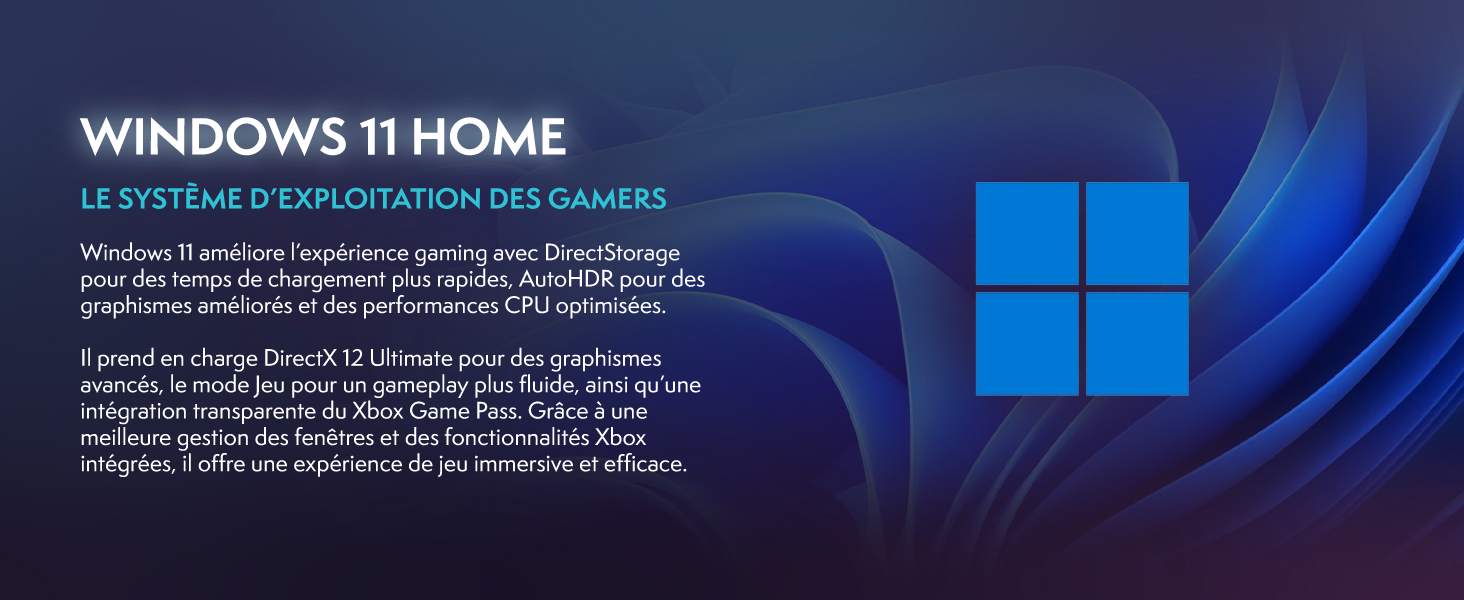
Image: Promotional image highlighting Windows 11 Home features, including faster loading times with DirectStorage and improved graphics with AutoHDR, optimized for gaming.
2. Wi-Fi болон Bluetooth-д холбогдож байна
Your system includes a USB Wi-Fi 6 and Bluetooth 5.4 adapter. After Windows setup:
- Wi-Fi: Click the network icon in the taskbar, select your Wi-Fi network, enter the password, and click Connect.
- Bluetooth: Go to Settings > Bluetooth & devices, turn on Bluetooth, and pair with your desired devices.
3. Basic Usage Tips
- Шинэчлэлтүүд: Regularly check for Windows updates (Settings > Windows Update) and graphics driver updates (Nvidia GeForce Experience) to ensure optimal performance and security.
- Програм хангамж суурилуулах: Install your preferred games and applications. Ensure you download software from trusted sources.
- RGB хяналт: Your PC features RGB lighting. Refer to the specific software provided by VIBOX or component manufacturers (e.g., motherboard, GPU) to customize lighting effects.
Засвар үйлчилгээ
1. Цэвэрлэгээ
Regular cleaning helps maintain performance and extends the lifespan of your PC:
- Гадна: Зөөлөн ашиглах, damp cloth to wipe down the exterior of the PC case and monitor. Avoid harsh chemicals.
- Тоос: Periodically use compressed air to clear dust from fan vents and internal components. Ensure the PC is powered off and unplugged before doing so.
2. Хөргөлтийн систем
Your VIBOX VTX-7 features an AIO 120mm liquid cooler and Hex RGB Infinity 120mm fans for efficient cooling. Ensure these components are free from dust buildup.

Image: The VIBOX AIO 120mm liquid cooler, featuring a compact design with RGB lighting on the pump head and fan, ensuring stable processor temperatures.
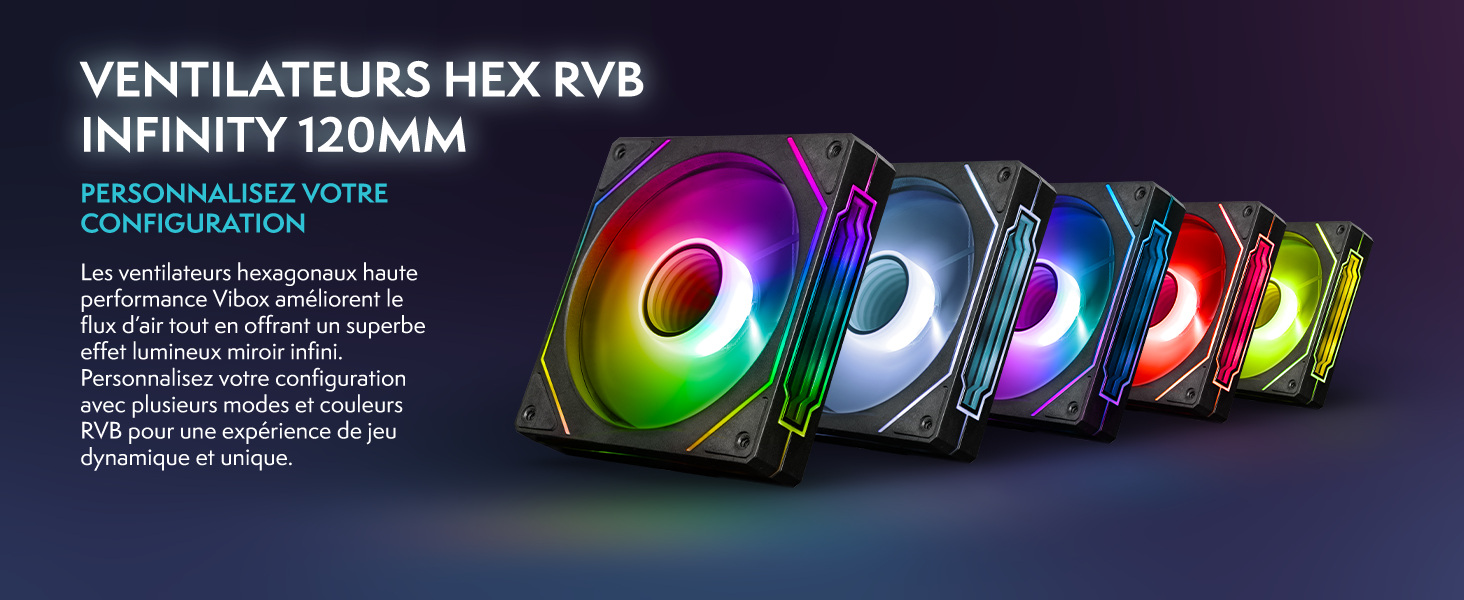
Image: A row of VIBOX Hex RGB Infinity 120mm fans, displaying various colorful lighting effects, designed to enhance airflow and customize the PC's aesthetic.
The system also utilizes an inverted airflow design for optimal thermal management.

Image: Diagram illustrating the inverted airflow design within the VIBOX PC case, showing cool air intake from the side and bottom, and hot air exhaust from the top and rear, optimizing cooling efficiency.
Алдааг олж засварлах
1. Эрчим хүчгүй
- Ensure all power cables are securely connected to the PC, monitor, and electrical outlets.
- Check the power switch on the back of the PSU (Power Supply Unit) is in the 'ON' position.
- Цахилгааны залгуур ажиллаж байгаа эсэхийг шалгахын тулд өөр төхөөрөмжөөр шалгана уу.
2. Дэлгэц дээр дэлгэц байхгүй
- Verify the HDMI or DisplayPort cable is firmly connected to both the PC's graphics card and the monitor.
- Дэлгэц асаагаад зөв оролтын эх үүсвэрт (HDMI/DisplayPort) тохируулсан эсэхийг шалгаарай.
- Try a different video cable or monitor if available to isolate the issue.
3. Интернет холболт байхгүй
- Check if the USB Wi-Fi adapter is properly inserted and its drivers are installed (Windows usually installs them automatically).
- Verify your Wi-Fi network is active and you have entered the correct password.
- If using an Ethernet cable, ensure it is securely connected to both the PC and your router/modem.
- Чиглүүлэгч/модемоо дахин эхлүүлнэ үү.
4. Системийн гүйцэтгэлийн асуудлууд
- Бүх драйверууд (ялангуяа график драйверууд) шинэчлэгдсэн эсэхийг шалгаарай.
- Шаардлагагүй дэвсгэр програмуудыг хаа.
- Check system temperatures using monitoring software to ensure components are not overheating.
Үзүүлэлтүүд
Detailed technical specifications for your VIBOX VTX-7 Gaming PC:
| Бүрэлдэхүүн хэсэг | Тодорхойлолт |
|---|---|
| Брэнд | VIBOX |
| Загварын нэр | VTX-7 |
| Үйлдлийн систем | Windows 11 Нүүр хуудас |
| CPU загвар | AMD Ryzen 7 5700X (8 Cores) |
| CPU-ийн хурд | 3.4 GHz (Base), 4.6 GHz (Max Boost) |
| График процессор | Nvidia GeForce RTX 5070 |
| График картын RAM | 12 ГБ GDDR7 |
| Суулгасан RAM | 32 ГБ DDR4 |
| Max RAM Size | 128 ГБ |
| Санах ойн хурд | 2666 МГц |
| Хадгалах багтаамж | 1 TB SSD |
| Хөргөх арга | Water Cooling (AIO 120mm) |
| Холболт | Ethernet, HDMI, USB, Wi-Fi 6, Bluetooth 5.4 |
| Видео гаралт | HDMI, DisplayPort |
| Нийт USB портууд | 6 |
| Мониторын хэмжээ | 27 инч |
| Дэлгэцийн дээд нягтрал | 1920x1080 пиксел |
| Зүйлийн хэмжээ | 42 x 28 x 43.5 см |
| Цахилгааны залгуурын төрөл | Type C/EF – 2-pin (European/Hybrid FR-DE plug) |
| Гарал үүслийн улс | Франц |
Баталгаат хугацааны мэдээлэл
Your VIBOX VTX-7 Gaming PC comes with a comprehensive warranty:
- Хэсэг: 2 жил
- Хөдөлмөр: Насан туршдаа
Please retain your proof of purchase for warranty claims. The warranty covers manufacturing defects and hardware failures under normal use conditions. It does not cover damage caused by misuse, accidents, unauthorized modifications, or improper maintenance.
Дэмжлэг
For further assistance, technical support, or warranty inquiries, please contact VIBOX Gaming directly. You can find contact information on the official VIBOX webсайт эсвэл жижиглэн худалдаалагчаар дамжуулан.
VIBOX is committed to providing high-quality gaming PCs and excellent customer service. For more information about VIBOX products and support, visit the VIBOX Gaming Store on Amazon.