
1. Танилцуулга
This manual provides detailed instructions for the Pingequa Flipper Zero Wi-Fi Devboard. This expansion module enhances your Flipper Zero with Wi-Fi connectivity and comes pre-installed with Marauder firmware, enabling advanced wireless testing capabilities. Please read this manual thoroughly before use to ensure proper setup and operation.
2. Үндсэн шинж чанарууд
- Wi-Fi холболт: Seamlessly integrates Wi-Fi capabilities with your Flipper Zero.
- Pre-installed Marauder Firmware: Equipped with Marauder firmware for advanced Wi-Fi testing.
- ESP32-S2 Chipset: Utilizes a powerful ESP32-S2 chipset for robust performance.
- Easy Firmware Installation: Supports effortless flashing of new firmware for customization and expanded functionalities.
- Олон талт хэрэглүүрүүд: Suitable for network security research, IoT projects, development, and remote device management.
3. Хайрцагт юу байна
Сав баглаа боодлыг нээхдээ бүх бүрэлдэхүүн хэсгүүд байгаа эсэхийг шалгана уу:
- 1x Pingequa Flipper Zero Wi-Fi Devboard
- 1x WiFi Board
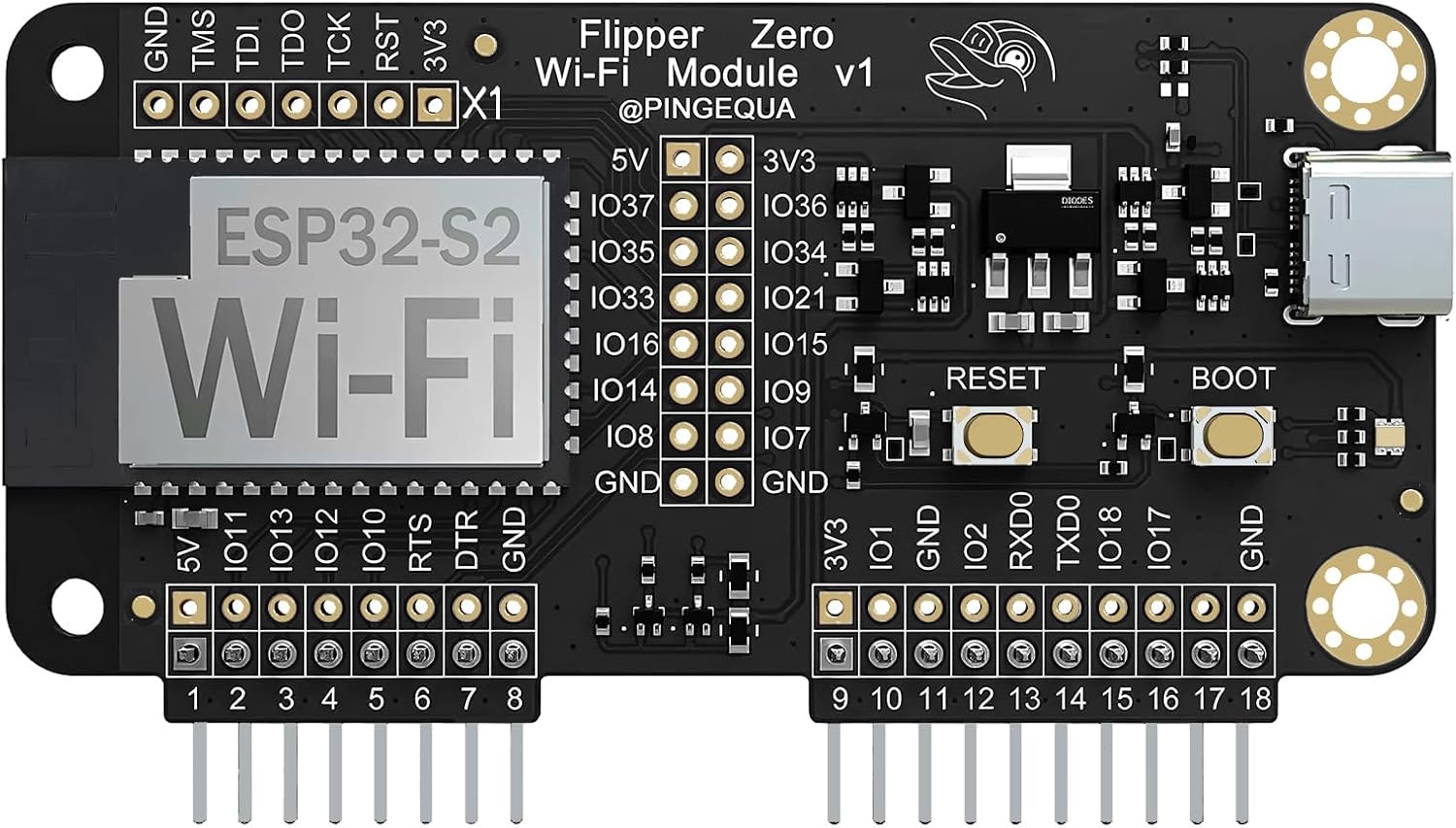
Image 1: The Pingequa Flipper Zero Wi-Fi Devboard.
4. Тохируулах гарын авлага
4.1. Физик суурилуулалт
- Ensure your Flipper Zero is powered off before connecting the Wi-Fi Devboard.
- Carefully align the pins of the Wi-Fi Devboard with the GPIO pins on your Flipper Zero.
- Gently press the Devboard into place until it is securely seated.

Image 2: Flipper Zero with the Wi-Fi Devboard securely attached.
4.2. Initial Configuration (GPIO Pins)
For the Wi-Fi Devboard to function correctly, you may need to configure the GPIO pins on your Flipper Zero. This process is similar for various Flipper Zero modules.
- Power on your Flipper Zero.
- руу шилжих Програмууд цэс.
- -г сонгоно уу Эрч хүч application (or similar firmware interface).
- руу оч Протоколууд, дараа нь GPIO зүү.
- Ensure the correct SPI settings are selected for the ESP32-S2 module. Typically, this involves setting ESP32/8266 SPI руу Анхдагч 1. Refer to your Flipper Zero's specific firmware documentation for exact pin assignments if issues arise.

Image 3: Flipper Zero display showing firmware selection options.
4.3. Visual Setup Guide
For a visual walkthrough of connecting a module and configuring GPIO pins on the Flipper Zero, please refer to the following video. While this video demonstrates a different RF module, the physical connection and GPIO setup steps are generally applicable.
Video 1: General guide on setting up and using an RF module with Flipper Zero, including GPIO pin configuration.
5. Үйл ажиллагаа
The Pingequa Wi-Fi Devboard comes pre-installed with Marauder firmware, designed for various wireless testing and analysis tasks. After successful setup, you can access its functionalities through your Flipper Zero interface.
5.1. Accessing Marauder Firmware
- From the Flipper Zero main menu, navigate to Програмууд.
- Select the application associated with the Wi-Fi Devboard (often labeled "ESP32" or "Marauder").
- Within the Marauder interface, you will find options for various Wi-Fi testing functionalities, such as network scanning, deauthentication attacks, and packet capture.

Image 4: Flipper Zero display showing the Marauder firmware menu with various Wi-Fi options.
5.2. Програм хангамжийн шинэчлэлтүүд
The Devboard supports easy firmware updates. To flash new firmware, connect the Devboard to your computer via its USB-C port while holding down the reset button. Follow the instructions provided by the firmware developer for the specific update process.
6. Засвар үйлчилгээ
- Keep the Wi-Fi Devboard clean and free from dust and debris. Use a soft, dry cloth for cleaning.
- Avoid exposing the module to extreme temperatures, humidity, or direct sunlight.
- Handle the module carefully to prevent damage to the pins or internal components.
- Store the module in a protective case when not in use to prevent physical damage.
7. Алдаа засах
| Асуудал | Боломжит шалтгаан | Шийдэл |
|---|---|---|
| Flipper Zero does not recognize the Devboard. | Incorrect GPIO pin configuration or loose connection. | Ensure the Devboard is securely connected to the Flipper Zero's GPIO pins. Verify GPIO pin settings in the Flipper Zero firmware (refer to Section 4.2). Try re-flashing the Devboard firmware if necessary. |
| Wi-Fi functions are not working. | Incorrect firmware, outdated firmware, or improper application selection. | Confirm that the Marauder firmware is correctly installed and up-to-date. Ensure you are selecting the correct application within the Flipper Zero menu. |
| Devboard is not powering on. | Loose connection or Flipper Zero power issue. | Check the connection to the Flipper Zero. Ensure the Flipper Zero itself is adequately charged and functioning. |
8. Техникийн үзүүлэлтүүд
| Онцлог | Дэлгэрэнгүй |
|---|---|
| Загварын нэр | WiFi Devboard for Flipper Zero |
| Загварын дугаар | WiFi Devboard |
| Процессорын брэнд | Эспрессиф |
| Үйлдлийн систем | Дээрэмчин |
| Холболтын технологи | Wi-Fi |
| RAM | LPDDR2 |
| Санах ойн хадгалах багтаамж | 2 MB |
| Зүйлийн жин | 1.13 унц |
| Багцын хэмжээ | 4.29 x 3.39 x 1.46 инч |
9. Баталгаат хугацаа ба дэмжлэг
This Pingequa product is covered by a standard manufacturer's warranty against defects in materials and workmanship. For specific warranty terms and conditions, please refer to the product packaging or contact Pingequa customer support.
Техникийн туслалцаа, алдааг олж засварлах эсвэл ерөнхий лавлагаа авахыг хүсвэл дараах хаягаар зочилно уу Pingequa Store on Amazon эсвэл тэдний харилцагчийн үйлчилгээтэй шууд холбогдоно уу.