
1. Танилцуулга
This manual provides detailed instructions for the installation, operation, and maintenance of your RSNAVI Android Car Stereo. This unit is designed to integrate advanced multimedia and navigation features into your Chrysler Grand Voyager (2011-2015 model years).
Please read this manual thoroughly before installation and use to ensure proper functionality and to maximize your experience with the device.

Зураг 1.1: RSNAVI Android Car Stereo with included accessories.
This image displays the RSNAVI 9-inch Android Car Stereo unit integrated into a vehicle's dashboard, specifically designed for the Chrysler Grand Voyager. Surrounding the main unit are various accessories: a rearview camera for enhanced visibility, an external microphone for clear audio input during calls, and a cooling fan to maintain optimal operating temperature. The screen shows a map interface and various application icons, indicating its multimedia and navigation capabilities.
2. Тохиромжтой байдал ба багцын агуулга
2.1 Тээврийн хэрэгслийн нийцтэй байдал
This RSNAVI Android Car Stereo is specifically designed for the Chrysler Grand Voyager manufactured between 2011 ба 2015. Before installation, confirm the year, size, and shape of your vehicle's center console to ensure proper fitment.
2.2 Багцын агуулга
The standard package includes the following components:
- RSNAVI Android Car Stereo Head Unit
- Canbus декодлогч
- Цахилгааны утас
- RCA кабель
- Радио антен
- GPS антен
- USB Cables (Dual USB interface)
- Гадаад микрофон
- Арынview Camera (AHD/CVBS compatible)
- Installation Frame (if applicable for specific models)
3. Тохиргоо ба суурилуулалт
3.1 Суурилуулалтын өмнөх шалгалт
- Цахилгааны ажил эхлэхийн өмнө тээврийн хэрэгслийн асаалт унтраалттай, батерейг салгасан эсэхийг шалгаарай.
- Verify all components listed in Section 2.2 are present.
- Familiarize yourself with your vehicle's dashboard removal process. Online video tutorials specific to the Chrysler Grand Voyager 2011-2015 can be helpful.
3.2 Утас ба холболт
The car stereo comes with dedicated wiring harnesses designed for your vehicle. Connect the power cord, RCA cables, radio antenna, GPS antenna, USB cables, external microphone, and rearview camera to their respective ports on the head unit and to the vehicle's wiring system.
- Цахилгааны утас: Connect to the vehicle's power supply, ensuring correct polarity. The included Canbus decoder facilitates integration with vehicle systems.
- RCA кабель: For audio/video input/output connections (e.g., external amplifier, additional monitors).
- Антенууд: Connect the radio antenna for FM/RDS reception and the GPS antenna for navigation functionality. Position the GPS antenna in a location with a clear view тэнгэрийн.
- USB интерфэйсүүд: Use the dual USB interfaces for connecting USB drives, charging devices, or for wired CarPlay/Android Auto connections.
- Гадаад микрофон: Connect for improved call quality and voice commands.
- Арынview Камер: Connect the camera to the 'Inverted Input' (AHD/CVBS) port. Ensure proper routing of the camera cable to the rear of the vehicle.

Зураг 3.1: Included wiring harness and installation frame.
This image displays the specific wiring harness and a custom-fit frame provided with the RSNAVI car stereo. The harness includes various connectors for power, speakers, and data, designed to integrate seamlessly with the Chrysler Grand Voyager's electrical system. The frame ensures a flush and secure installation of the 9-inch head unit into the vehicle's dashboard opening.

Зураг 3.2: Dashboard before and after stereo installation.
This image set illustrates the visual transformation of a Chrysler Grand Voyager dashboard. The top-left panel shows the original factory radio. The other panels demonstrate the RSNAVI Android Car Stereo installed, displaying various interfaces such as a navigation map, a media player, and the main application screen, highlighting the integrated appearance and functionality.
3.3 Суулгасны дараах шалгалт
- Тээврийн хэрэгслийн батарейг дахин холбоно уу.
- Turn on the ignition and power on the head unit.
- Test all functions: radio, Bluetooth, GPS, USB, steering wheel controls, and rearview камер.
- If any issues arise, refer to the Troubleshooting section or recheck connections.
4. Ашиглалтын заавар
4.1 Систем дууссанview
The RSNAVI car stereo operates on an Android system, providing a familiar and customizable user interface via its 9-inch touchscreen. The system supports various applications and features, similar to a smartphone or tablet.
4.2 Утасгүй CarPlay / Android Auto
Connect your smartphone wirelessly to access Apple CarPlay or Android Auto. This feature allows for hands-free calls, access to phone contacts, emails, notifications, map navigation, music, and video playback directly on the car stereo display. This integration is designed to enhance driving safety by minimizing phone interaction.
- Ухаалаг утсан дээрээ Bluetooth болон Wi-Fi идэвхжсэн эсэхийг шалгаарай.
- On the car stereo, open the CarPlay or Android Auto application.
- Follow the on-screen prompts to pair your device.
- Once connected, your phone's compatible apps will appear on the stereo display.

Зураг 4.1: CarPlay, Android Auto, and Mirror Link interfaces.
This image illustrates the various smartphone integration options available with the RSNAVI car stereo. It shows the user interfaces for Wireless CarPlay and Android Auto, displaying familiar app icons for navigation, music, and communication. Additionally, it demonstrates the Mirror Link function, which allows the display of an iOS or Android phone screen directly onto the car stereo, enabling full control of the phone's interface.
4.3 GPS навигаци
The unit features a dual navigation system supporting both offline and online maps. A built-in offline map is provided, but internet data download is required for initial setup or updates. Online maps require a Wi-Fi connection.
- GPS антенн зөв суурилуулсан бөгөөд тодорхой дохиотой эсэхийг шалгаарай.
- To use offline maps, navigate to the map application and download the necessary regional data via a Wi-Fi connection.
- For online navigation, connect the unit to a Wi-Fi hotspot.
4.4 WiFi холболт
Connect the car stereo to a Wi-Fi hotspot (e.g., from your smartphone) to access online features. This enables app installation from the Play Store, online navigation, and streaming media.
- Go to the system settings and select 'Wi-Fi'.
- Turn on Wi-Fi and select your desired network.
- Хэрэв асуувал нууц үгээ оруулна уу.

Зураг 4.2: GPS Navigation and WiFi Hotspot features.
This image highlights the navigation and connectivity capabilities of the RSNAVI car stereo. The top section displays a detailed GPS map with route guidance, indicating distance and estimated travel time. The bottom section illustrates the WiFi Hotspot feature, showing a screen filled with various streaming applications like Netflix, Hulu, and YouTube, demonstrating the unit's ability to access online content when connected to a network.
4.5 Bluetooth функц
The integrated Bluetooth module allows for hands-free calling, phone book synchronization, and audio streaming from your smartphone.
- Ухаалаг утсан дээрээ Bluetooth-г идэвхжүүлж, харагдахуйц болго.
- On the car stereo, open the Bluetooth application and search for devices.
- Select your phone from the list and confirm the pairing code.
- Once paired, you can make/receive calls and play music wirelessly.
4.6 FM/RDS Radio
The unit includes an FM/RDS radio tuner for clear channel reception and low noise. RDS (Radio Data System) provides additional information such as station name and program type.
- Open the Radio application.
- Use the scan function to automatically find and save available stations.
- Manually tune to frequencies or select from saved presets.
4.7 Audio Equalizer (EQ)
Adjust the audio output using the built-in equalizer to customize the sound profile. This includes settings for bass, treble, and mid-range frequencies, as well as various sound field modes.
- Access the EQ settings from the main menu or audio settings.
- Select a preset or manually adjust the frequency bands to your preference.
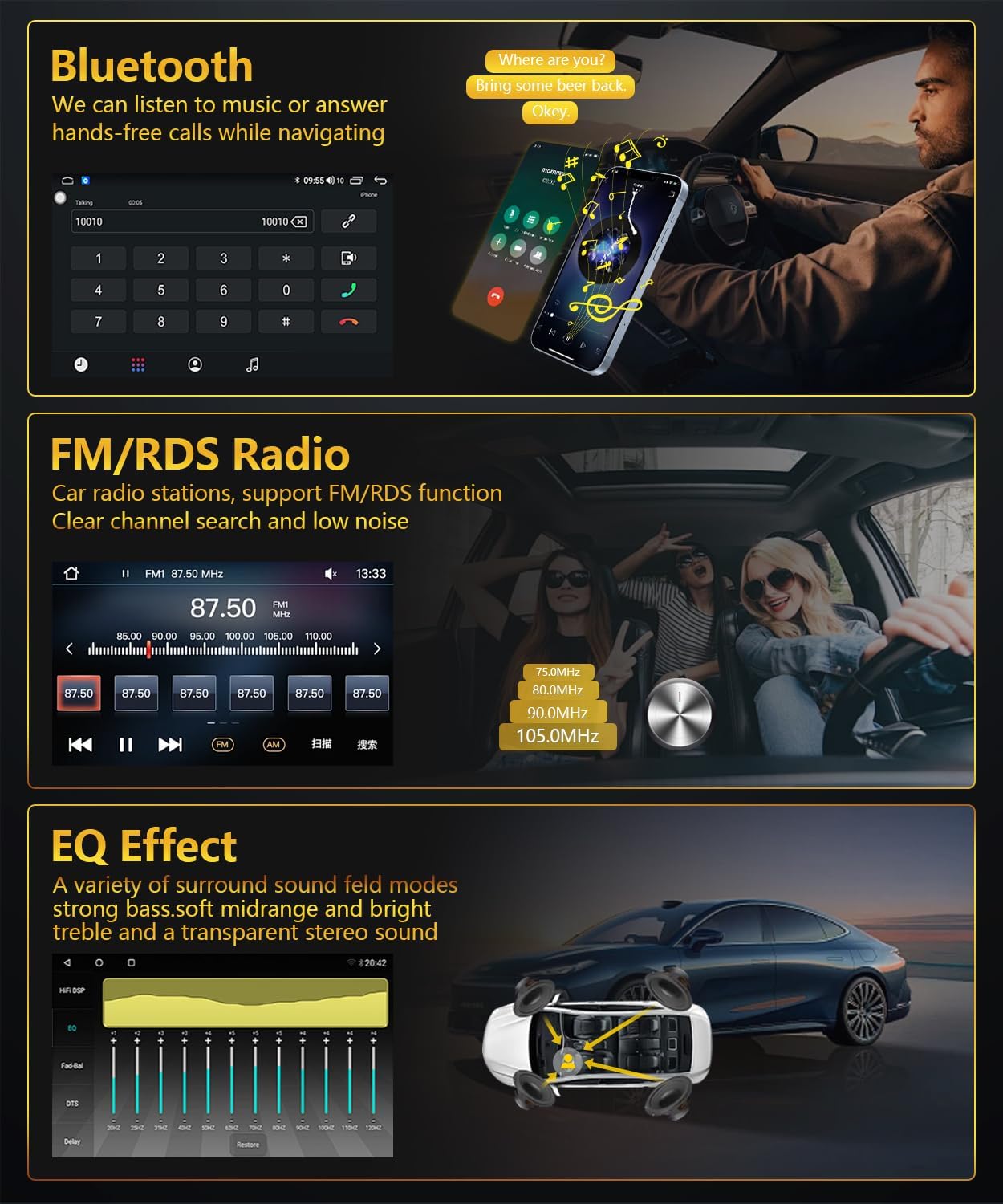
Зураг 4.3: Bluetooth, FM/RDS Radio, and EQ Effect features.
This image showcases three key audio features of the RSNAVI car stereo. The top section displays the Bluetooth calling interface, showing a dial pad and contact information. The middle section illustrates the FM/RDS radio tuner, with frequency display and station presets. The bottom section presents an audio equalizer (EQ) interface, allowing users to fine-tune sound characteristics like bass, mid-range, and treble, accompanied by a diagram showing speaker placement in a car for optimal sound distribution.
4.8 Reversing Camera Display
Төхөөрөмж нь арын хэсгийг дэмждэгview camera input. When the vehicle is shifted into reverse gear, the screen automatically switches to display the camera feed, aiding in safe maneuvering. The included camera is waterproof and features night vision and a wide-angle view.
- Ар талыг нь баталгаажуулview camera is correctly installed and connected to the 'Inverted Input'.
- Shift the vehicle into reverse gear; the display will automatically show the camera view.
4.9 Жолооны хүрдний удирдлага
If your vehicle has original steering wheel control buttons, they can be configured to operate the car radio, providing convenient and safe control while driving.
- Access the 'Steering Wheel Control' settings in the system menu.
- Follow the on-screen instructions to map the vehicle's steering wheel buttons to the desired functions on the car stereo.

Зураг 4.4: Reversing Display and Steering Wheel Control.
This image highlights two important safety and convenience features. The top section illustrates the rearview camera system, detailing its HD image quality, waterproof design, night vision, and wide-angle capabilities, with a visual representation of the camera's field of view. The bottom section displays the car stereo's interface for configuring steering wheel controls, showing various button functions like volume, track skip, and call management, allowing for seamless operation without taking hands off the wheel.
5. Засвар үйлчилгээ
5.1 Ерөнхий арчилгаа
To ensure the longevity and optimal performance of your car stereo, follow these general maintenance guidelines:
- Дэлгэц цэвэрлэх: Мэдрэгчтэй дэлгэцийг зөөлөн, хөвөнгүй даавуугаар арчих. Зөрүүд толбоны хувьд бага зэрэг dampдаавуугаар усаар эсвэл дэлгэцэнд аюулгүй цэвэрлэгчээр угаана. Хүчтэй химийн бодис, зүлгүүрийн материалаас зайлсхий.
- Тоос арилгах: Periodically clean dust from the unit's vents and openings using a soft brush or compressed air to prevent overheating.
- Температур: Avoid exposing the unit to extreme temperatures for extended periods. The operating temperature range is -20℃ to 75℃.
- Програм хангамжийн шинэчлэлтүүд: Check for available software updates periodically to ensure the system has the latest features and bug fixes.
6. Алдаа засах
This section addresses common issues you might encounter with your RSNAVI Android Car Stereo.
6.1 Нийтлэг асуудал ба шийдвэрлэх арга замууд
- Эрчим хүчгүй:
- Бүх цахилгаан холболт болон гал хамгаалагчийг шалгана уу.
- Ensure the vehicle battery is properly connected.
- Дуугүй:
- Чанга яригчийн холболтыг шалгана уу.
- Дууны түвшин болон дуугүй болгох тохиргоог шалгана уу.
- Зөв аудио эх үүсвэрийг сонгосон эсэхээ шалгаарай.
- GPS дохионы алдагдал:
- Ensure the GPS antenna is securely connected and placed in a location with a clear view тэнгэрийн.
- If using offline maps, ensure map data has been fully downloaded.
- Bluetooth холболтын асуудал:
- Ensure Bluetooth is enabled on both the stereo and your phone.
- Өмнөх холболтуудыг устгаад дахин холбохыг оролдоно уу.
- Хоёр төхөөрөмжийг дахин эхлүүлнэ үү.
- Poor UI Responsiveness:
- Шаардлагагүй дэвсгэр програмуудыг хаа.
- Системийг дахин эхлүүлнэ үү.
- Жолооны хүрдний удирдлага ажиллахгүй байна:
- Verify the Canbus decoder is correctly installed.
- Reconfigure the steering wheel control settings in the system menu.
6.2 Үйлдвэрийн тохиргоо
If persistent issues occur, a factory reset may resolve them. The factory setting keyword is 3368. Use this option with caution as it will erase all user data and settings.
7. Техникийн үзүүлэлтүүд
| Онцлог | Тодорхойлолт |
|---|---|
| Систем | Android |
| Чипсет | UIS81411 |
| Дэлгэцийн хэмжээ | 9 инч |
| Санах ой (RAM + ROM) | 2 ГБ (RAM) + 64 ГБ (ROM) |
| Дэлгэцийн нягтрал | 1280*720 |
| Радио чип | UIS |
| Эрчим хүчний гаралт | 4 х 45 Вт |
| Ашиглалтын температур | -20 хэмээс 75 хэм хүртэл |
| Хүч Ampөргөгч чип | TDA7388 |
| Радио хамтлаг | FM/RDS |
| Видео гаралт | Дэмжигдсэн |
| Inverted Input | AHD/CVBS (Rearview Камер) |
| Гадаад микрофон | Дэмжигдсэн |
| Дэлгэц хуваах | Дэмжигдсэн |
| Газрын зураг | Built-in offline map (Internet download data required) |
| WIFI | Дэмжигдсэн |
| USB | Dual USB interface |
| Холболтын технологи | Bluetooth, USB, Wi-Fi |
| Аудио гаралтын горим | Стерео |
| Оруулсан бүрэлдэхүүн хэсгүүд | Canbus, Car Radio, Power cord, RCA Cable, Radio Antenna |
| Бүтээгдэхүүний хэмжээс | 33.02 x 27 x 11.02 см; 1 кг |
| Загварын дугаар | 4 Core 2G-64G CAM |
8. Баталгаат хугацаа ба хэрэглэгчийн дэмжлэг
RSNAVI is committed to providing quality products and support. Your purchase includes:
- 30 хоногийн мөнгө буцааж өгөх баталгаа: Хэрэв та худалдан авалтдаа сэтгэл хангалуун бус байвал 30 хоногийн дотор буцаан өгч, мөнгөө бүрэн буцаан авах боломжтой.
- 24 сарын баталгаа: The product is covered by a 24-month warranty against manufacturing defects.
- Насан туршийн техникийн дэмжлэг: RSNAVI offers lifetime technical assistance for any questions regarding installation or use.
For any questions or assistance, please contact our customer service team via email. We aim to respond and address your concerns within 24 hours.