
1. Танилцуулга
This user manual provides detailed instructions for the KTC M27P6 27-inch MiniLED Gaming Monitor. Please read this manual thoroughly before operating the device to ensure proper usage and optimal performance. Keep this manual for future reference.
The KTC M27P6 is a high-performance gaming monitor featuring a 27-inch MiniLED panel with 1152 local dimming zones, offering exceptional contrast and brightness up to HDR1400. It supports dual display modes: 4K resolution at 160Hz and Full HD resolution at 320Hz, providing versatility for various gaming and professional needs. Key features include a 1ms GtG response time, Adaptive Sync technology, and comprehensive connectivity options including USB-C with 65W power delivery and KVM functionality.

Зураг: Дууслааview of KTC M27P6 monitor's key features including MiniLED, 1152 local dimming zones, dual mode 4K@160Hz/FHD@320Hz, USB-C, KVM, HDR1400, 145% sRGB, Fast IPS, and Adaptive-Sync.
2. Аюулгүй байдлын мэдээлэл
- Мониторыг унахаас сэргийлж үргэлж тогтвортой, хавтгай гадаргуу дээр байрлуул.
- Цахилгаанд цохиулах эсвэл гал түймрээс зайлсхийхийн тулд мониторыг бороо эсвэл чийгэнд бүү гарга.
- Мониторыг нарны шууд тусгал, дулааны эх үүсвэр эсвэл хэт өндөр температураас хол байлга.
- Мониторын эргэн тойронд агааржуулалт сайтай байх ёстой. Агааржуулалтын нүхийг хааж болохгүй.
- Зөвхөн үйлдвэрлэгчийн өгсөн эсвэл санал болгосон цахилгаан адаптер болон кабелийг ашиглана уу.
- Unplug the power cord from the outlet if the monitor will not be used for a long period.
- Мониторыг өөрөө засах гэж бүү оролдоорой. Бүх үйлчилгээг мэргэшсэн үйлчилгээний ажилтнуудад шилжүүлээрэй.
- Дэлгэцэнд хурц объектоор хүрэхээс зайлсхий.
3. Багцын агуулга
Бүх эд ангиуд савлагаандаа байгаа эсэхийг шалгаарай. Хэрэв ямар нэгэн зүйл алга болсон эсвэл гэмтсэн бол жижиглэн худалдаа эрхлэгчтэйгээ холбоо барина уу.
- KTC M27P6 27-inch MiniLED Gaming Monitor
- Хяналтын тавиур (суурь ба гар)
- Эрчим хүчний адаптер
- Цахилгаан кабель
- HDMI кабель
- DisplayPort кабель
- USB-C кабель
- USB-B to USB-A Cable (for KVM/USB Hub)
- Хэрэглэгчийн гарын авлага (энэ баримт бичиг)
- Баталгаат карт
4. Over Monitorview
4.1 Урд хэсэг View
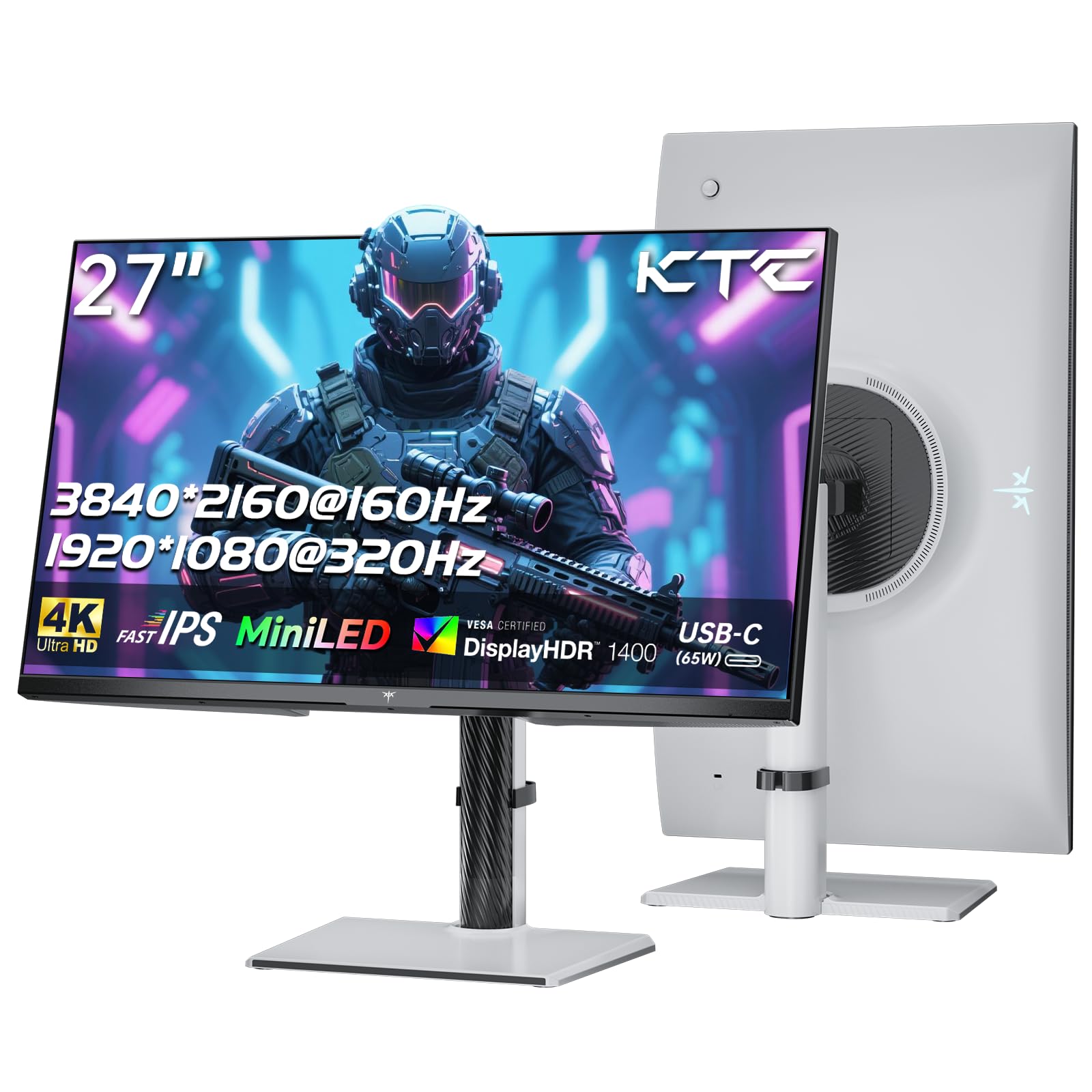
Зураг: Урд view of the KTC M27P6 27-inch MiniLED Gaming Monitor.
The front of the monitor features the 27-inch MiniLED display panel. The KTC logo is typically located at the bottom center bezel.
4.2 Арын View болон портууд

Зураг: Ар талд view of the KTC M27P6 monitor, highlighting the various input/output ports and the adjustable stand.
The rear of the monitor houses the input/output ports and the stand attachment point. The ports include:
- Эрчим хүчний оролт: Цахилгаан адаптерийг холбоход зориулагдсан.
- HDMI 2.1 портууд (x2): For connecting to devices supporting HDMI 2.1 (4K@160Hz / FHD@320Hz).
- DisplayPort 1.4 Ports (x2): For connecting to devices supporting DisplayPort 1.4 (4K@160Hz / FHD@320Hz).
- USB-C порт (x1): Full-function port supporting video input (4K@160Hz / FHD@320Hz) and 65W Power Delivery.
- USB-B Upstream Port (x1): For connecting the monitor's USB hub to your computer, enabling the downstream USB-A ports and KVM functionality.
- USB-A 3.0 Downstream Ports (x3): Гар, хулгана эсвэл USB хөтчүүд зэрэг нэмэлт төхөөрөмжүүдийг холбоход зориулагдсан.
- 3.5 мм аудио гаралт: Чихэвч эсвэл гадаад чанга яригчийг холбоход зориулагдсан.
Видео: Дууслааview of the KTC M27P6 monitor's features and design, including its connectivity options and adjustable stand.
5. Тохиргоо
5.1 Стенд угсрах
- Монитор болон тавиурын эд ангиудыг савлагаанаас болгоомжтой авч хая.
- Attach the stand arm to the monitor panel by aligning the mounting points and securing with screws (if applicable).
- Attach the stand base to the stand arm, ensuring it is firmly connected.
- Угсарсан мониторыг тогтвортой, тэгш гадаргуу дээр байрлуул.
The monitor also supports VESA mounting (100x100mm) for use with compatible wall mounts or monitor arms. Ensure the VESA mount is rated for the monitor's weight.

Image: Diagram illustrating the multi-angle adjustment capabilities of the KTC M27P6 monitor stand, including height, tilt, swivel, and pivot.
5.2 Холбох кабель
- Эрчим хүчний холболт: Connect the power adapter to the monitor's power input, then plug the power cable into a power outlet.
- Видео холболт:
- For PC/Gaming Console: Connect one end of the HDMI or DisplayPort cable to your device's output and the other end to the corresponding port on the monitor.
- For USB-C Compatible Devices: Connect the USB-C cable from your device to the monitor's USB-C port for video, data, and power delivery.
- USB Hub/KVM Connection: To use the monitor's USB-A ports and KVM functionality, connect the USB-B to USB-A cable from the monitor's USB-B upstream port to a USB-A port on your computer.
- Аудио холболт: If using external headphones or speakers, connect them to the 3.5mm audio out port on the monitor.
6. Ашиглалтын заавар
6.1 Асаах/унтраах
Press the power button (usually located on the back or bottom of the monitor) to turn the monitor on or off. The power indicator light will illuminate when the monitor is on.
6.2 OSD цэсийн навигаци
The On-Screen Display (OSD) menu allows you to adjust various monitor settings. Use the joystick or buttons (refer to your monitor's physical layout) to navigate the OSD menu:
- Press Joystick/Button: Enter OSD menu or confirm selection.
- Жойстикийг дээш/доошоо зөөх: Цэсийн сонголтуудаар шилжинэ үү.
- Жойстикийг зүүн/баруун тийш зөөх: Adjust values or move to sub-menus.
- Гарах товч: Одоогийн цэс эсвэл OSD-ээс гарах.
6.3 Dual Mode Switching (4K@160Hz / FHD@320Hz)
The KTC M27P6 supports seamless switching between two display modes: 4K (3840x2160) at 160Hz and Full HD (1920x1080) at 320Hz. This allows you to optimize performance based on your content (e.g., high-resolution graphics for AAA games or ultra-high refresh rate for competitive FPS games).
To switch modes, access the OSD menu and navigate to the "Display" or "Gaming" settings. Select the desired resolution and refresh rate. Your connected device must also support these resolutions and refresh rates for optimal performance.

Image: Illustration of the KTC M27P6 monitor's seamless dual mode switching capability, showing a 4K@160Hz gaming scene and a FHD@320Hz gaming scene.
6.4 Дасан зохицох синк
The monitor supports Adaptive Sync (AMD FreeSync and NVIDIA G-Sync compatible) to eliminate screen tearing and stuttering, providing a smoother gaming experience. Ensure Adaptive Sync is enabled in the monitor's OSD settings and in your graphics card control panel.

Image: Visual representation of Adaptive Sync technology, showing how it prevents screen tearing by synchronizing the monitor's refresh rate with the GPU's frame rate.
6.5 KVM функциональ байдал
The integrated KVM (Keyboard, Video, Mouse) switch allows you to control multiple computers or devices connected to the monitor using a single keyboard and mouse. To use KVM:
- Connect your primary computer to the monitor via DisplayPort/HDMI and the USB-B upstream cable.
- Connect your secondary device (e.g., laptop via USB-C) to the monitor.
- Connect your keyboard and mouse to the USB-A downstream ports on the monitor.
- Switch between connected devices using the KVM hotkey or OSD menu option.
6.6 Color Settings and HDR1400
The monitor features a MiniLED panel with 1152 local dimming zones and VESA DisplayHDR 1400 certification, providing high contrast and vibrant colors. You can adjust color settings (brightness, contrast, color temperature, gamma) through the OSD menu. For HDR content, ensure HDR is enabled in your operating system and the monitor's OSD. The monitor supports 10-bit color depth and a wide color gamut (145% sRGB / 99% DCI-P3).

Image: Visual comparison demonstrating the enhanced dynamic range and detail provided by HDR1400 on the KTC M27P6 monitor.
7. Засвар үйлчилгээ
- Дэлгэц цэвэрлэх: Зөөлөн, хөвөнгүй даавуугаар дэлгэцийг зөөлөн арчина. Зөрүүд тэмдгийн хувьд dampen the cloth with a small amount of screen cleaner (non-ammonia based). Do not spray cleaner directly onto the screen.
- C цэвэрлэхasing: Мониторыг зөөлөн хуурай даавуугаар арчих casing. Зүлгүүрийн цэвэрлэгч, уусгагч хэрэглэхээс зайлсхий.
- Агааржуулалт: Ensure the ventilation openings on the monitor are clear of dust and debris to prevent overheating.
8. Алдаа засах
| Асуудал | Боломжит шалтгаан | Шийдэл |
|---|---|---|
| Дэлгэц дээр зураг алга | Цахилгаан кабель салгагдсан; Видео кабель салгагдсан; Буруу оролтын эх үүсвэр. | Цахилгаан болон видео кабелийн холболтыг шалгана уу. OSD цэсээр зөв оролтын эх үүсвэрийг сонгоно уу. |
| Зураг бүдгэрсэн эсвэл гажуудсан байна | Буруу нягтрал; Видео кабель эвдэрсэн. | Set the display resolution to the native 3840x2160 or 1920x1080. Try a different video cable. |
| Дэлгэц урагдах эсвэл тоглоомонд гацах | Adaptive Sync not enabled; Graphics card driver issues. | Enable Adaptive Sync in monitor OSD and graphics card settings. Update graphics drivers. |
| USB портууд ажиллахгүй байна | USB-B upstream cable not connected; Driver issues. | Ensure the USB-B upstream cable is connected from the monitor to your computer. Check computer's USB drivers. |
| Аудио гарахаас дуу гарахгүй | Incorrect audio output selected; Volume too low. | Check audio output settings on your computer. Adjust monitor and device volume. |
9. Техникийн үзүүлэлтүүд
| Онцлог | Дэлгэрэнгүй |
|---|---|
| Брэнд | CTC |
| Загварын нэр | M27P6 |
| Дэлгэцийн хэмжээ | 27 Pollici (27 inches) |
| Самбарын төрөл | MiniLED, Fast IPS |
| Resolution (Native) | 3840 x 2160 (4K UHD) |
| Max Refresh Rate (4K) | 160 Гц |
| Max Refresh Rate (FHD) | 320 Гц |
| Хариу өгөх хугацаа | 1мс GtG |
| Орон нутгийн бүдэгрүүлэх бүсүүд | 1152 бүс |
| HDR гэрчилгээ | VESA DisplayHDR 1400 |
| Гэрэлтүүлэг | 1400 cd / m² (оргил) |
| Ялгаатай харьцаа | 1,000,000:1 (Динамик) |
| Өнгөний хүрээ | 145% sRGB, 99% DCI-P3 |
| Өнгөний гүн | 10-бит |
| Дасан зохицох синк | AMD FreeSync, NVIDIA G-Sync Compatible |
| Viewing өнцөг | 178 градус |
| Холболт | 2x HDMI 2.1, 2x DisplayPort 1.4, 1x USB-C (65W PD), 1x USB-B Upstream, 3x USB-A 3.0 Downstream, 1x 3.5mm Audio Out |
| KVM дэмжлэг | Тиймээ |
| Тохиргоог Stand | Өндөр, хазайлт, эргүүлэх, эргүүлэх |
| VESA уул | 100 х 100 мм |
| Хэмжээ (DxWxH) | 21.1P x 61.7lx 54.7H см |
10. Баталгаат хугацаа ба дэмжлэг
KTC products are covered by a limited warranty. Please refer to the warranty card included in your package for specific terms and conditions. For technical support, troubleshooting assistance, or warranty claims, please contact KTC customer service or visit the official KTC webсайт.
You can find more information and contact details on the KTC official store page: KTC Store.