
1. гаруйview
This manual provides comprehensive instructions for the Generic WiFi Range Extender, a dual-band wireless repeater designed to expand your existing Wi-Fi network coverage. It supports both 2.4GHz and 5GHz bands, offering flexible connectivity and improved signal strength to eliminate dead zones in your home or office.

Image: The Generic WiFi Range Extender, a compact white device with four adjustable antennas, designed to boost wireless signal.
2. Хайрцагт юу байна
- 1 x WiFi Extender Unit
3. Бүтээгдэхүүний онцлог
- Хос зурвасын технологи: Operates on both 2.4GHz and 5GHz frequencies for versatile connectivity and enhanced wireless coverage.
- Хурдан хурд: Achieves data transfer rates up to 300Mbps, suitable for streaming, gaming, and general internet use across multiple devices.
- Өргөтгөсөн хамрах хүрээ: Equipped with four high-performance antennas to significantly boost signal range and eliminate Wi-Fi dead zones.
- Хялбар тохиргоо: Features a simple plug-and-play installation process with LED indicators for optimal placement and signal strength monitoring.
- Нийтэд нийцтэй байдал: Works seamlessly with any standard Wi-Fi router or gateway device, supporting simultaneous connections for various devices.

Image: The WiFi Extender shown with its signal effectively penetrating walls, illustrating its strong penetrability and extended coverage capabilities.

Зураг: Дотоод view of the WiFi Extender highlighting its central processor, with overlays indicating 76% wide coverage and 74% faster performance.
4. Тохируулах заавар
The Generic WiFi Range Extender is designed for simple and quick setup. Follow these steps to extend your Wi-Fi network:
4.1. Асаах
- Plug the WiFi Extender into a power outlet in the same room as your existing router.
- Wait for the power indicator light to turn on, indicating the device is ready.
4.2. Connecting via WPS (Recommended)
WPS (Wi-Fi Protected Setup) is the easiest way to connect your extender to your router.
- Одоо байгаа Wi-Fi чиглүүлэгч дээрээ WPS товчийг дарна уу.
- Within two minutes, press the WPS button on the WiFi Extender.
- The indicator lights on both devices should flash and then turn solid, indicating a successful connection.
- Once connected, unplug the extender and move it to a location between your router and the area where you need improved Wi-Fi coverage. Ensure the signal strength indicator on the extender shows a good connection.

Image: Two individuals gaming, with the WiFi Extender visible in the background, illustrating its role in providing a stable connection for entertainment.
4.3. -ээр холбогдож байна Web Browser (Alternative Method)
If WPS is not available or fails, you can set up the extender using a web хөтөч.
- Plug the WiFi Extender into a power outlet near your computer or smartphone.
- Connect your computer or smartphone to the extender's default Wi-Fi network (e.g., "WiFi_Extender" or similar, usually found on a label on the device). No password is required initially.
- Нээлттэй a web хөтөч болон үндсэн IP хаягаа оруулна уу (жишээ нь, 192.168.1.254 or repeater.net) as specified in the device's small instruction leaflet.
- Одоо байгаа Wi-Fi сүлжээгээ сонгоод нууц үгээ оруулахын тулд дэлгэцэн дээрх зааврыг дагана уу.
- Once configured, unplug the extender and relocate it to an optimal position.
5. Үйлдлийн горимууд
The Generic WiFi Range Extender supports two primary operating modes:
5.1. Repeater Mode (Default)
In Repeater Mode, the device extends the coverage of your existing wireless network. It receives the Wi-Fi signal from your main router and re-broadcasts it, effectively expanding the range of your Wi-Fi.
5.2. Хандалтын цэг (AP) горим
In AP Mode, the extender converts a wired internet connection into a wireless access point. This is useful if you have an Ethernet port available but need to provide Wi-Fi connectivity in that area.

Image: A diagram illustrating the Repeater Mode, where the extender wirelessly extends a router's signal, and AP Mode, where it converts a wired router connection into a wireless signal.
6. Засвар үйлчилгээ
To ensure optimal performance and longevity of your WiFi Range Extender, consider the following maintenance tips:
- Байршил: Position the extender in an open area, away from obstructions like large metal objects, thick walls, or other electronic devices that may cause interference.
- Цэвэрлэгээ: Төхөөрөмжийг цэвэр, тоос шороогүй байлга. Зөөлөн, хуурай даавуугаар гадна талыг арчина. Шингэн цэвэрлэгч хэрэглэж болохгүй.
- Агааржуулалт: Ensure the ventilation holes are not blocked to prevent overheating. The device is designed with good heat dissipation.
- Програм хангамжийн шинэчлэлтүүд: Үйлдвэрлэгчийг үе үе шалгаж байгаарай website for any available firmware updates. Updating firmware can improve performance, add new features, and fix bugs.
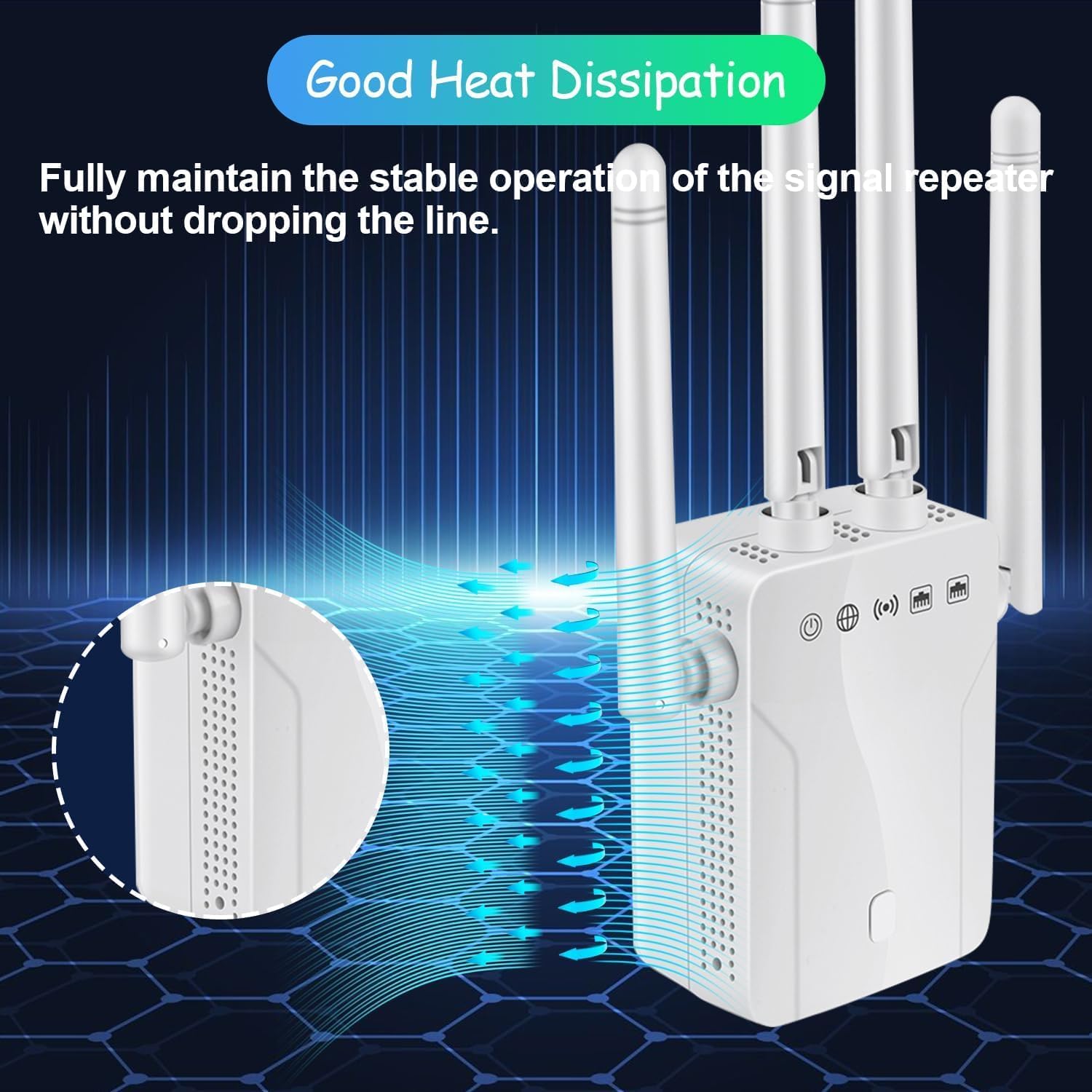
Зураг: Ойрын зураг view of the WiFi Extender highlighting its ventilation design, indicating good heat dissipation for stable operation.
7. Алдаа засах
Хэрэв та өөрийн WiFi Range Extender-тэй холбоотой асуудалтай тулгарвал дараах нийтлэг асуудал, шийдлүүдийг үзнэ үү.
7.1. No Internet Access or Weak Signal
- Байршлыг шалгах: Ensure the extender is placed within the range of your main router's Wi-Fi signal. The ideal location is halfway between your router and the Wi-Fi dead zone.
- Дохионы үзүүлэлтүүд: Observe the LED indicators on the extender. If they indicate a poor signal, move the extender closer to your router.
- Чиглүүлэгчийн холболт: Verify that your main router is working correctly and providing internet access.
- Дахин тохируулах: Try re-configuring the extender using either the WPS method or the web хөтчийн арга.
7.2. Cannot Connect to Extender's Wi-Fi
- Correct Network Name: Ensure you are connecting to the correct extended Wi-Fi network (often your original network name with "_EXT" or similar suffix).
- Нууц үг: Double-check that you are entering the correct Wi-Fi password for your extended network. It is usually the same as your main router's password unless you changed it during setup.
- Төхөөрөмжүүдийг дахин эхлүүлэх: Restart both your extender and the device you are trying to connect (e.g., smartphone, laptop).
7.3. Slow Speed After Connecting to Extender
- Хамгийн оновчтой байршил: The extender might be too far from the main router, receiving a weak signal to extend. Relocate it closer to the router while still covering the desired area.
- хөндлөнгийн оролцоо: Reduce interference from other electronic devices (microwaves, cordless phones, Bluetooth devices) by moving the extender or interfering devices.
- Хамтлаг сонголт: If your devices support 5GHz, try connecting to the 5GHz extended network for potentially faster speeds, especially for bandwidth-intensive tasks.
7.4. Extender Requires Wired Connection (Misconception)
The Generic WiFi Range Extender is primarily a wireless repeater. While it supports an Access Point (AP) mode that uses a wired Ethernet connection from your router to create a new wireless network, its main function is to extend an existing wireless signal without wires. If you are experiencing issues, ensure it is configured in Repeater Mode for wireless extension.
8. Техникийн үзүүлэлтүүд
| Брэнд | Ерөнхий |
| Утасгүй холбооны стандарт | 802.11ax |
| Өгөгдөл дамжуулах хурд | Секундэд 300 мегабит |
| Давтамжийн зурвасын ангилал | Хос зурвас (2.4 GHz ба 5 GHz) |
| Онцлог шинж чанар | WPS товчлуур |
| Тохиромжтой төхөөрөмжүүд | Чиглүүлэгч |
| Хүрээ | 150 фут хүртэл |
| Холбогч төрөл | RJ45 |
| Хэмжээ (D x W x H) | 0.5"D x 1.5"W x 2.5"H |
9. Баталгаат хугацааны мэдээлэл
This Generic WiFi Range Extender comes with a 1 жилийн баталгаат хугацаа худалдан авсан өдрөөс. Энэхүү баталгаа нь ердийн ашиглалтын үеийн үйлдвэрлэлийн согог, доголдлыг хамарна. Баталгаат заргад зориулж худалдан авалтаа нотлох баримтаа үлдээнэ үү.
The warranty does not cover damage caused by misuse, accidents, unauthorized modifications, or improper installation.
10. Хэрэглэгчийн дэмжлэг
For further assistance, technical support, or warranty inquiries, please refer to the contact information provided with your product packaging or visit the manufacturer's official webсайт.
When contacting support, please have your product model number (B0FKRCCK8T) and a detailed description of your issue ready.