
1. Танилцуулга
This manual provides detailed instructions for the installation, configuration, and operation of the D-Link Guardian 700 Pro Multi-Gig Business Router (DBR-700). The DBR-700 is designed to provide enterprise-level networking capabilities for small and medium businesses, offering high-speed connectivity, robust security features, and simplified management.
Key features include a 2.5GbE WAN port, six 2.5GbE LAN ports, a 2.5GbE SFP uplink for flexible fiber connections, Multi-WAN failover, SPI Firewall, VPN support (IPSec, WireGuard, OpenVPN), and centralized management for up to 15 D-Link Guardian Wi-Fi 6 Smart Access Points (DBR-X3000-AP, sold separately).

Image: The D-Link Guardian 700 Pro Multi-Gig Router (DBR-700) designed for small and medium business environments.
2. Багцын агуулга
Таны багц дараах зүйлсийг агуулж байгаа эсэхийг шалгана уу.
- D-Link Guardian 700 Pro Multi-Gig Business Router (DBR-700)
- Эрчим хүчний адаптер
- Хурдан суулгах гарын авлага (QIG)
Хэрэв ямар нэг зүйл дутуу эсвэл гэмтсэн бол орон нутгийн D-Link борлуулагчтай холбогдоно уу.
3. Техник хангамж дууссанview
3.1. Урд самбар
The front panel of the DBR-700 features status indicators and network ports.

Зураг: Урд view of the DBR-700 router, showing LED indicators, Console port, LAN ports, WAN port, and LAN/WAN SFP port.
- SYS LED: Системийн статусыг заана.
- SFP LED: Indicates status of the SFP port.
- Дахин тохируулах товч: Used to reset the device or restore factory defaults.
- Консол порт: Командын мөрийн интерфэйс рүү нэвтрэх зориулалттай.
- LAN портууд (1-6): Six 2.5GbE LAN ports for connecting local network devices.
- LAN/WAN порт: A 2.5GbE port configurable as either a LAN or WAN interface.
- WAN порт: A dedicated 2.5GbE WAN port for internet connectivity.
- LAN/WAN SFP Port: A 2.5GbE/1GbE SFP port for fiber or copper connections, configurable as LAN or WAN.
3.2. Арын самбар
Арын самбарт цахилгаан оролт болон цахилгаан унтраалга багтсан болно.

Зураг: Ар талд view of the DBR-700 router, showing the DC 12V/2A power input and On/Off switch.
- DC 12V/2A: Эрчим хүчний оролтын холбогч.
- Асаах/унтраах унтраалга: Төхөөрөмжийн тэжээлийн хяналт.
4. Суурилуулалт
Follow these steps for the initial setup of your DBR-700 router:
- Эрчим хүчний холболт: Connect the provided power adapter to the DC 12V/2A port on the rear panel of the router and plug it into a power outlet. Turn on the router using the On/Off switch.
- WAN холболт: Connect your internet service provider's modem or main network line to the WAN port on the router using an Ethernet cable. If using fiber, insert the SFP module (sold separately) into the LAN/WAN SFP port and connect the fiber cable.
- LAN холболт: Connect your local network devices (e.g., computers, switches, access points) to the LAN ports (1-6) or the configurable LAN/WAN port using Ethernet cables.
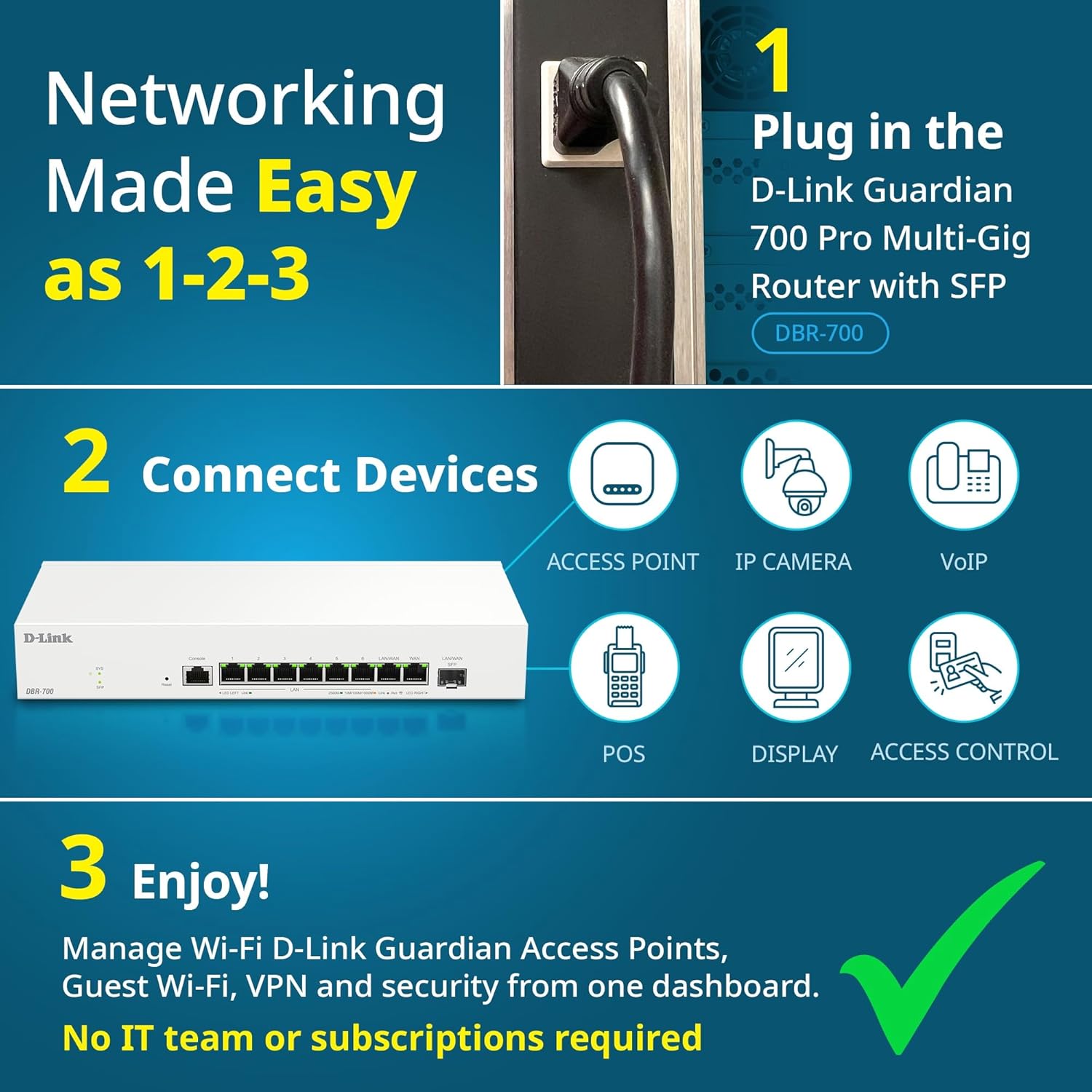
Image: Visual guide for router installation: 1. Plug in the DBR-700 router. 2. Connect devices like access points, IP cameras, VoIP, POS, displays, and access control. 3. Enjoy managed Wi-Fi, Guest Wi-Fi, VPN, and security from one dashboard.
5. Тохиргоо
5.1. хандах нь Web Интерфэйс
To configure the DBR-700, access its web- суурилсан удирдлагын интерфейс:
- Таны компьютер чиглүүлэгчийн LAN портуудын аль нэгэнд холбогдсон эсэхийг шалгаарай.
- Нээлттэй a web хөтөч (жишээлбэл, Chrome, Firefox, Edge).
- Enter the router's default IP address (typically
192.168.1.1or similar, refer to the Quick Installation Guide for the exact address) into the address bar and press Enter. - Enter the default username and password when prompted. (Refer to the Quick Installation Guide for default credentials).
5.2. Basic Network Settings
Once logged in, you can configure basic network settings:
- WAN тохиргоо: Configure your internet connection type (e.g., DHCP, Static IP, PPPoE) as provided by your ISP.
- LAN тохиргоо: Adjust the router's internal IP address, subnet mask, and DHCP server settings for your local network.
- Цагийн тохиргоо: Set the correct time zone and synchronize the router's clock.
6. Нарийвчилсан шинж чанарууд
6.1. Multi-WAN Failover
The DBR-700 supports Multi-WAN with intelligent failover, ensuring business continuity by providing redundant internet connections. If the primary WAN link fails, the router automatically switches to a secondary WAN link.

Image: The DBR-700's ports, illustrating the Primary 2.5GbE WAN, Secondary 2.5GbE LAN/WAN, and SFP Uplink for Multi-WAN failover capabilities.
6.2. VPN тохиргоо
The router includes built-in VPN support for IPSec, WireGuard, and OpenVPN, enabling secure remote access for employees and branch office connectivity. It supports up to 100 VPN tunnels.
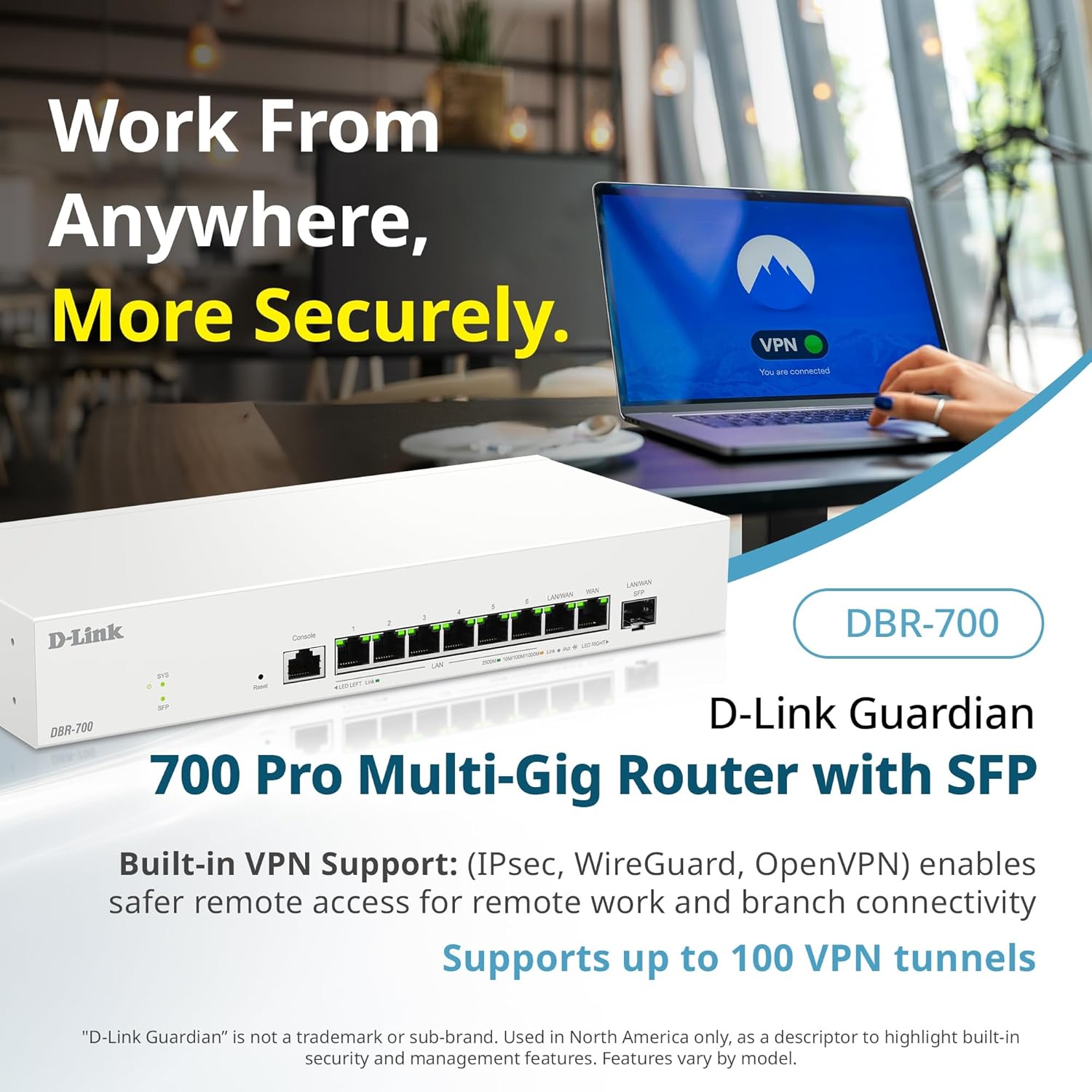
Image: A laptop displaying a 'VPN Connected' status, with the DBR-700 router in the foreground, illustrating secure remote access.
6.3. Centralized Access Point Management
The DBR-700 can discover and manage up to 15 D-Link Guardian Wi-Fi 6 Smart Access Points (DBR-X3000-AP, sold separately) from a single intuitive dashboard. This simplifies Wi-Fi network deployment and management.

Image: A tablet showing the D-Link Wi-Fi management dashboard, demonstrating centralized control over D-Link Guardian Access Points, with the DBR-700 router and a DBR-X3000-AP in the background.
6.4. Guest Wi-Fi Management
Set up and manage guest Wi-Fi networks with a Captive Portal. This allows for branded sign-in pages for guests while keeping business systems separate and secure. Configuration and management are done from the router dashboard.

Image: A smartphone screen showing a customizable guest Wi-Fi login portal, highlighting the DBR-700's ability to manage and customize guest networks.
7. Засвар үйлчилгээ
7.1. Програм хангамжийн шинэчлэлтүүд
Оновчтой гүйцэтгэл, аюулгүй байдал, шинэ функцүүдэд нэвтрэх боломжийг хангахын тулд програм хангамжийн шинэчлэлтүүдийг тогтмол шалгаж, суулгана уу. Програм хангамжийн шинэчлэлтийг ихэвчлэн D-Link дэмжлэг дээрээс олж болно webөөрийн загварт зориулсан сайт.
7.2. Үйлдвэрийн тохиргоонд дахин тохируулах
If you encounter persistent issues or wish to clear all configurations, you can perform a factory reset. To do this, locate the Reset button on the front panel. With the router powered on, use a paperclip or similar pointed object to press and hold the Reset button for approximately 5-10 seconds until the SYS LED blinks. Release the button, and the router will restart with factory default settings.
8. Алдаа засах
This section addresses common issues you might encounter with your DBR-700 router.
8.1. Интернет холболт байхгүй
- Кабель шалгах: Ensure all Ethernet cables are securely connected to the correct ports (WAN, LAN).
- Модемийн төлөв: Verify that your internet service provider's modem is working correctly and has an active internet connection.
- WAN тохиргоо: Чиглүүлэгч рүү нэвтэрнэ үү web interface and verify that the WAN settings (e.g., IP address, DNS) are correctly configured according to your ISP's requirements.
- Төхөөрөмжүүдийг дахин ачаалах: Модемоо, дараа нь чиглүүлэгчээ, дараа нь холбогдсон төхөөрөмжүүдээ унтрааж асаана уу.
8.2. Нэвтрэх боломжгүй Web Интерфэйс
- IP хаяг: Ensure your computer is configured to obtain an IP address automatically (DHCP) or has a static IP address within the router's subnet.
- Чиглүүлэгч IP: Double-check the router's default IP address. It might be printed on a label on the router itself or in the Quick Installation Guide.
- Галт хана/Антивирус: Таны компьютер дээрх хандалтыг хааж болзошгүй галт хана эсвэл вирусны эсрэг программ хангамжийг түр идэвхгүй болго.
- Хөтөчийн кэш: Өөрийгөө цэвэрлэ web хөтчийн кэш болон күүки, эсвэл өөр хөтөч ашиглаж үзнэ үү.
8.3. Slow Network Speeds
- Кабелийн чанар: Ensure you are using high-quality Ethernet cables (Cat5e or Cat6) for multi-gig connections.
- Төхөөрөмжийн нийцтэй байдал: Verify that connected devices and network adapters support 2.5GbE speeds.
- ISP Speed: Confirm your internet service plan provides the expected speeds.
- Замын хөдөлгөөний удирдлага: Check router settings for any Quality of Service (QoS) or bandwidth limits that might be affecting performance.
9. Техникийн үзүүлэлтүүд
| Онцлог | Тодорхойлолт |
|---|---|
| Брэнд | D-Link |
| Загварын дугаар | DBR-700 |
| WAN портууд | 1x 2.5GbE WAN, 1x 2.5GbE/1GbE SFP (configurable as WAN) |
| LAN портууд | 6x 2.5GbE LAN, 1x 2.5GbE (configurable as LAN) |
| VPN дэмжлэг | IPSec, WireGuard, OpenVPN (up to 100 tunnels) |
| AP менежмент | Manages up to 15 D-Link Guardian Wi-Fi 6 Smart Access Points |
| Аюулгүй байдлын онцлог | SPI Firewall, WPA3 encryption, VLANs |
| Хэмжээ (LxWxH) | 11.02 x 1.73 x 4.96 инч |
| Зүйлийн жин | 2 фунт |
| Ботьtage | 120 вольт (AC) |
| Өнгө | Цагаан |
10. Баталгаат хугацаа ба дэмжлэг
Баталгаат хугацаа, техникийн дэмжлэг болон нэмэлт эх сурвалжийн талаар дэлгэрэнгүй мэдээлэл авахыг хүсвэл албан ёсны D-Link хаягаар зочилно уу. website. You can find product registration, FAQs, firmware downloads, and contact information for customer service.
D-Link албан ёсны Webсайт: www.dlink.com
Please have your product model number (DBR-700) and serial number ready when contacting support.