
1. Танилцуулга
This manual provides essential information for the installation, operation, and maintenance of your ERYING ITX Gaming Motherboard Combo Kit with the 12th Gen Core i9 12900HK processor. This high-performance PC mainboard is designed for gaming enthusiasts, offering robust features and reliable performance. Please read this manual thoroughly before proceeding with installation and use to ensure proper functionality and to prevent damage.
2. Үндсэн шинж чанарууд
- Powerful 12th Gen Core i9 12900HK CPU: Features 14 cores and 20 threads for exceptional gaming and multitasking performance.
- DDR4 санах ойн дэмжлэг: Designed for high-speed data processing, enhancing overall system responsiveness.
- PCIe 4.0 Slots: Provides lightning-fast data transfer rates and compatibility with the latest graphics cards and expansion devices.
- M.2 Slot for NVMe SSDs: Supports ultra-fast SSD storage for quick load times and smooth gameplay.
- RJ45 2.5G Ethernet: Ensures high-speed internet connectivity, ideal for online gaming and streaming.
3. Багцын агуулга
Upon opening the package, please verify that all components are present and in good condition. The typical package contents include:
- ERYING ITX Gaming Motherboard with integrated 12th Gen Core i9 12900HK CPU
- I / O Shield
- SATA мэдээллийн кабель
- M.2 SSD Screw Kit
- Хэрэглэгчийн гарын авлага (энэ баримт бичиг)
- Драйвер CD/USB (эсвэл татаж авах заавар)
Note: Specific accessories may vary. If any items are missing or damaged, please contact your retailer.
4. Тохиргоо ба суурилуулалт
Before beginning installation, ensure your workspace is clean, well-lit, and free of static electricity. It is recommended to wear an anti-static wrist strap.
4.1. Эх хавтан хэтэрсэнview
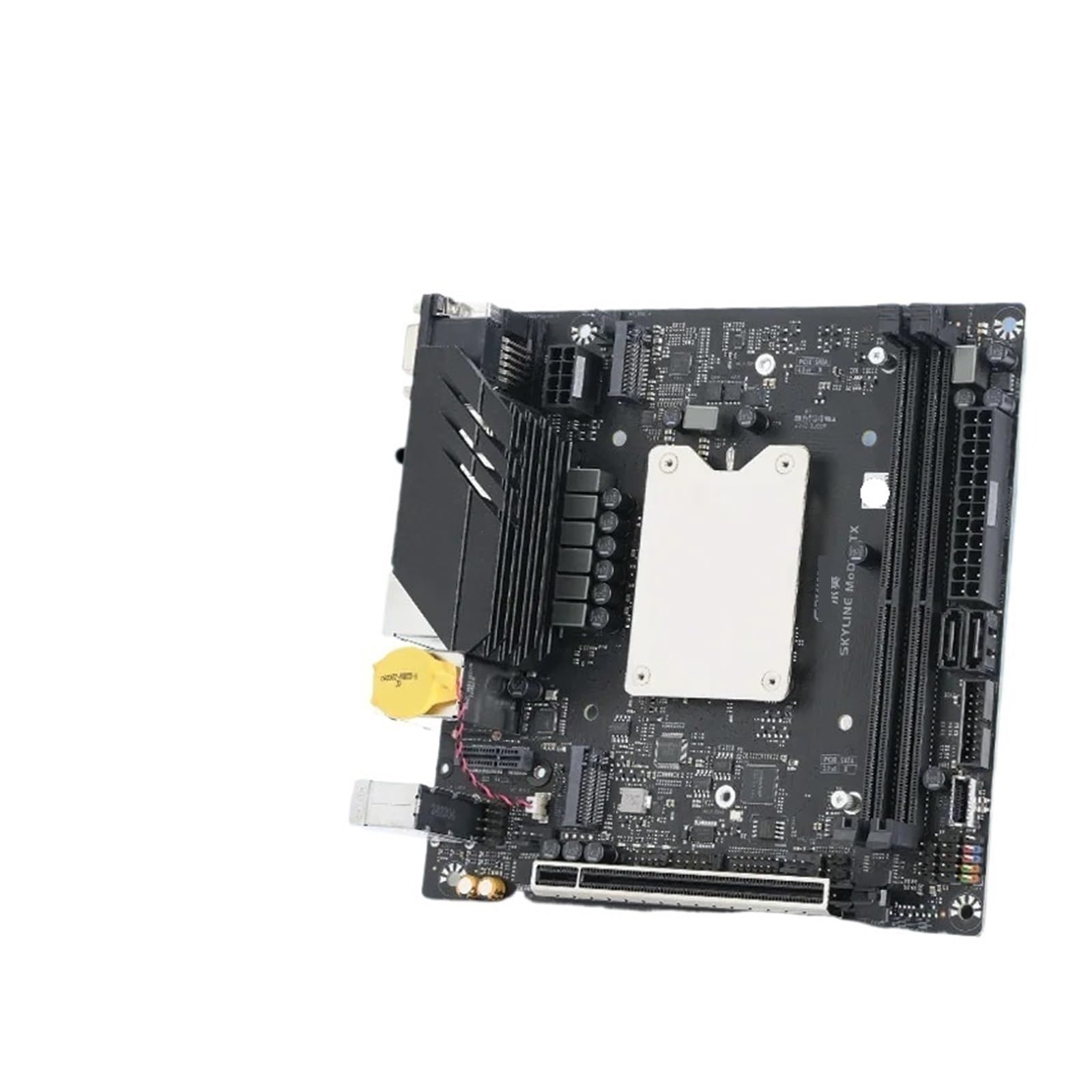
Image 1: ERYING ITX Gaming Motherboard. This image displays the compact ITX form factor motherboard, highlighting the CPU heatsink mounting area, DDR4 RAM slots, PCIe 4.0 slot, M.2 slot, and various rear I/O ports including USB, audio, and video outputs. The integrated CPU is located under the central heatsink mounting bracket.
4.2. Бүрэлдэхүүн хэсгүүдийн суурилуулалт
- RAM модулиудыг суулгах: Locate the DDR4 memory slots. Open the clips on both ends of the slot. Align the RAM module with the slot, ensuring the notch on the module matches the key in the slot. Press down firmly on both ends until the clips snap into place.
- Install M.2 SSD (if applicable): Locate the M.2 slot. Insert the M.2 SSD at an angle into the slot. Gently push it down and secure it with the provided screw.
- График картыг суулгах (хэрэв байгаа бол): Locate the PCIe 4.0 x16 slot. Open the retention clip. Align your graphics card with the slot and press down firmly until it is fully seated and the clip locks. Secure the card to your PC case with screws.
- Эх хавтанг дараах тохиолдолд холбоно уу: Carefully align the motherboard with the standoffs in your PC case. Secure the motherboard with screws, ensuring it is firmly seated but not overtightened.
- Цахилгаан хангамжийг холбох: Connect the 24-pin ATX power connector and the 8-pin (or 4+4-pin) CPU power connector from your power supply to the corresponding ports on the motherboard. Connect SATA power cables to storage devices if used.
- Урд самбарын кабелийг холбох: Connect the power button, reset button, HDD LED, power LED, and front panel USB/audio cables to the appropriate headers on the motherboard. Refer to the motherboard diagram for exact pin locations.
- SATA төхөөрөмжүүдийг холбох: Connect SATA data cables from your storage devices (HDDs/SSDs) to the SATA ports on the motherboard.
5. Ашиглалтын заавар
- Эхний ачаалах: After all components are installed and connected, connect your monitor, keyboard, and mouse. Power on your system.
- BIOS/UEFI тохиргоо: Эхлүүлэх үед заасан товчлуурыг дарна уу (ихэвчлэн ДЭЛ or F2) to enter the BIOS/UEFI setup utility. Here you can configure boot order, system time, and other advanced settings.
- Үйлдлийн системийн суурилуулалт: Үйлдлийн системээ суулгах медиа (USB диск эсвэл DVD) оруулна уу. Суулгах зөөвөрлөгчийг эрэмбэлэхийн тулд BIOS/UEFI дээр ачаалах дарааллыг тохируулна уу. Үйлдлийн системээ суулгахын тулд дэлгэцэн дээрх зааврыг дагана уу.
- Драйвер суурилуулах: After OS installation, install all necessary drivers for the motherboard components (chipset, audio, LAN, etc.). These can typically be found on the manufacturer's website or the provided driver media.
6. Засвар үйлчилгээ
Тогтмол засвар үйлчилгээ нь эх хавтангийн урт наслалт, оновчтой ажиллагааг хангахад тусалдаг.
- Цэвэр байлгах: Periodically clean dust from inside your PC case using compressed air. Pay attention to heatsinks and fans to prevent overheating.
- BIOS/UEFI шинэчлэлтүүд: Үйлдвэрлэгчийг шалгана уу website for BIOS/UEFI updates. Updates can improve stability, compatibility, and performance. Follow update instructions carefully.
- Драйверын шинэчлэлтүүд: Шинэ програм хангамж болон техник хангамжтай нийцтэй байдал болон оновчтой ажиллагааг хангахын тулд системийн драйверуудаа шинэчилж байгаарай.
- Байгаль орчны хяналт: Operate the system in a well-ventilated area, away from direct sunlight, excessive heat, humidity, and dust.
7. Алдаа засах
Энэ хэсэгт танд тулгарч болох нийтлэг асуудлуудыг авч үзэх болно.
- Эрчим хүчгүй:
- Ensure the power supply is connected correctly to the motherboard (24-pin ATX and 8-pin CPU).
- Check if the power supply switch is in the "ON" position.
- Урд самбарын цахилгаан товчийг эх хавтантай холбосон эсэхийг шалгана уу.
- Дэлгэц байхгүй:
- Ensure the monitor is connected to the graphics card (or motherboard integrated graphics if no discrete GPU).
- График карт болон RAM модулиудыг дахин суулгана уу.
- Өөр дэлгэц эсвэл дэлгэцийн кабелиар туршиж үзээрэй.
- Системийн тогтворгүй байдал/гацалт:
- Check for overheating. Ensure CPU cooler is properly installed and fans are working.
- Verify RAM modules are correctly seated and functioning.
- Драйвер болон BIOS/UEFI-г хамгийн сүүлийн хувилбар руу шинэчилнэ үү.
- Үйлдлийн систем ачаалахгүй байна:
- BIOS/UEFI дээр ачаалах дарааллыг шалгана уу.
- Ensure storage devices (SSD/HDD) are properly connected and detected.
- Run a diagnostic tool for your storage device.
For more complex issues, consult the manufacturer's support webсайт эсвэл техникийн дэмжлэгтэй холбоо барина уу.
8. Техникийн үзүүлэлтүүд
| Онцлог | Дэлгэрэнгүй |
|---|---|
| Брэнд | Ерөнхий |
| Загварын нэр | STBBTUSAB-COREI9-NONE |
| CPU | Integrated 12th Gen Intel Core i9-12900HK (14 Cores, 20 Threads) |
| Санах ойн дэмжлэг | DDR4 (Specific speeds and capacities depend on motherboard revision) |
| Өргөтгөх үүрүүд | PCIe 4.0 x16 (for graphics card) |
| Хадгалах | M.2 slot for NVMe SSDs, SATA ports |
| Сүлжээ | RJ45 2.5G Ethernet |
| Form Factor | ITX |
| ASIN | B0FS7RWD3J |
9. Баталгаат хугацаа ба дэмжлэг
This product is covered by a standard manufacturer's warranty. For specific warranty terms and conditions, please refer to the documentation provided with your purchase or visit the manufacturer's official website. For technical support, troubleshooting assistance, or to inquire about warranty claims, please contact your retailer or the product manufacturer directly.
Баталгаат хугацаанд худалдаж авсан баримтаа хадгална уу.