
1. Танилцуулга
The Next Cine800S GoogleTV Projector is designed to provide a versatile and immersive home entertainment experience. This manual offers essential information for the safe and efficient setup, operation, and maintenance of your projector. Please read this manual thoroughly before using the device.
2. Аюулгүй байдлын мэдээлэл
- Эрчим хүчний хангамж: Use only the specified power adapter. Ensure the power cord is not damaged or pinched.
- Агааржуулалт: Do not block ventilation openings. Maintain adequate space around the projector for proper airflow to prevent overheating.
- Байршил: Проекторыг тогтвортой, тэгш гадаргуу дээр байрлуул. Нарны шууд тусгал, дулааны эх үүсвэрийн ойролцоо эсвэл өндөр чийгшилтэй эсвэл тоос шороотой орчинд байрлуулахаас зайлсхий.
- Цэвэрлэгээ: Цэвэрлэхийн өмнө цахилгааныг салга. Зөөлөн, хуурай даавуу хэрэглээрэй. Шингэн эсвэл аэрозоль цэвэрлэгч хэрэглэж болохгүй.
- Линзний арчилгаа: Проекторын линзэнд шууд хүрэхээс зайлсхий. Хэрэв цэвэрлэх шаардлагатай бол оптик линзэнд тусгайлан зориулсан зөөлөн, хөвөнгүй даавууг ашиглаарай.
- Үйлчилгээ: Проекторыг өөрөө засах гэж бүү оролдоорой. Бүх үйлчилгээг мэргэшсэн боловсон хүчинд шилжүүлээрэй.
3. Бүтээгдэхүүн дууссанview
The Next Cine800S is a Full HD LED projector featuring Google TV. Below are key components and features.

Зураг 3.1: Урд view of the Next Cine800S GoogleTV Projector, highlighting its design and key features like 800 ANSI Lumens and Google TV integration.
3.1. Үндсэн шинж чанарууд
- Дэлгэцийн нягтрал: Full HD 1920x1080, supporting screen sizes from 40 to 200 inches.
- Гэрэлтүүлэг: 800 ANSI Lumens.
- Видео боловсруулалт: Supports 4Kx2K @ 60fps encode/decode.
- Focus & Keystone: Automatic or Manual Focus, Automatic Keystone Correction.
- Үйлдлийн систем: Google TV with Android 14.
- Дамжуулах үйлчилгээ: Netflix L1, Prime Video, YouTube, Disney+ with L1 DRM Certification.
- Утасгүй холболт: Wi-Fi 802.11 a/b/g/n/ac (2.4G & 5G) and Bluetooth 5.0.
- Санах ой: 2GB LPDDR4 RAM / 8GB eMMC Storage.
- Аудио: Integrated 12W (4W) Speaker.
- Оптик систем: Dust-Sealed Optical Mechanism.
- Дэлгэц толин тусгал: Air Screen and Google Cast for iOS & Android devices.
3.2. Портууд ба холболтууд
Identify the various input and output ports on your projector.
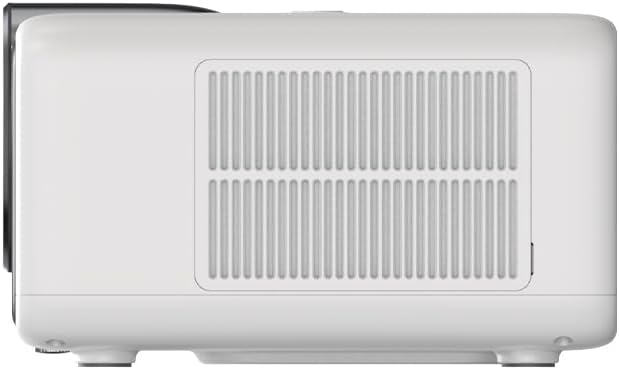
Figure 3.2: Rear panel of the projector, displaying available ports. Note: Actual ports may vary slightly by region or production batch. This model typically includes HDMI, USB, and a 2.5mm Audio Jack.
- HDMI: Connect to external video sources such as Blu-ray players, gaming consoles, or computers.
- USB: Медиа тоглуулахын тулд USB санах ойн төхөөрөмжүүдийг холбоход зориулагдсан files.
- 2.5 мм аудио залгуур: Чихэвч эсвэл чанга яригч гэх мэт гадаад аудио төхөөрөмжүүдийг холбох зориулалттай.
4. Тохиргоо
4.1. Савлах, анхны үзлэг
- Проектор болон бүх дагалдах хэрэгслийг савлагаанаас болгоомжтой авч хая.
- Check for any signs of damage during transit. If damage is found, contact your retailer immediately.
- Жагсаалтад байгаа бүх дагалдах хэрэгсэл байгаа эсэхийг шалгаарай.
4.2. Проекторын байршил
Optimal placement is crucial for the best viewтуршлага.

Зураг 4.1: Жишээ ньample of projector placement and adjustable screen sizes (40" to 200").
- Зай: Position the projector at a suitable distance from the screen or wall to achieve your desired screen size (40 to 200 inches).
- Өндөр: Place the projector on a stable surface or mount it to project the image at the desired height.
- Суурилуулалт: The projector includes a mounting point on its base. Ensure any tripod or mount used is compatible with the projector's screw size and weight. Note that some standard tripod screws may not fit.
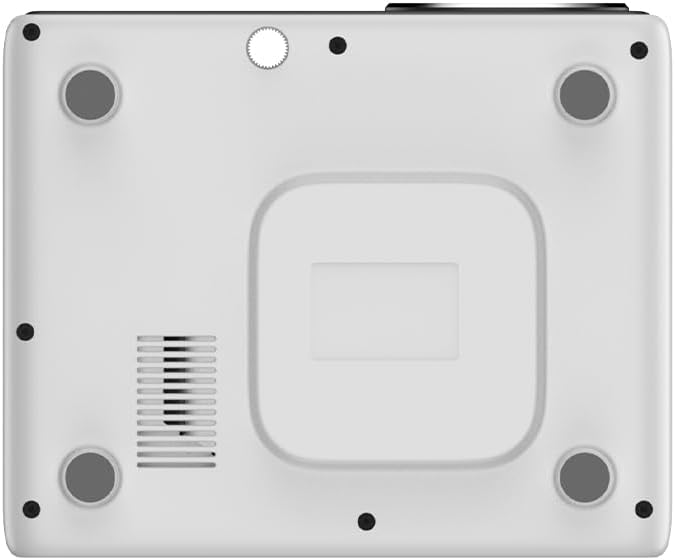
Зураг 4.2: Доод талд view of the projector, indicating the mounting point and ventilation grilles.
4.3. Эрчим хүчний холболт
- Цахилгаан адаптерийг проекторын цахилгаан оролтын порт руу холбоно уу.
- Цахилгаан адаптерийг тохирох цахилгаан залгуурт холбоно уу.
- Проектор эсвэл алсын удирдлага дээрх цахилгаан товчийг дарж асаана уу.
4.4. Анхны тохиргоо болон сүлжээний холболт
- Upon first power-on, the projector will guide you through the initial Google TV setup process.
- Follow the on-screen instructions to select your language, connect to a Wi-Fi network (2.4G or 5G), and log in with your Google account.
- The projector features automatic focus and keystone correction. If the image is not perfectly clear or rectangular, you can access manual adjustment options in the settings menu.
5. Ашиглалтын заавар
5.1. Google TV-г чиглүүлэх
The projector runs on Google TV, providing a user-friendly interface for accessing content.

Figure 5.1: The Google TV interface on the Next Cine800S Projector, showing recommended content and installed applications.
- Use the remote control to navigate through menus, select apps, and control playback.
- The home screen provides personalized recommendations and quick access to your favorite streaming services.
5.2. Урсгал дамжуулах програмууд
Access popular streaming platforms directly from your projector.

Figure 5.2: Supported streaming applications and Google Play Store access.
- Pre-installed apps include Netflix, Prime Video, YouTube, and Disney+.
- Google Play Store-оос нэмэлт програмуудыг татаж аваарай.
- Ensure you are logged into your respective service accounts to access content.
5.3. Гадаад төхөөрөмжүүдийг холбох
- HDMI: Connect your device to an HDMI port. The projector will automatically detect the input or you can manually select it from the input source menu.
- USB: Insert a USB drive into the USB port. The media player application will typically launch automatically, allowing you to browse and play supported media files (JPG, PNG, BMP, JPEG, MP3, M4A, MP2, WAV, FLAC, MP4, MOV, TS, DAT, F4V, 3GP).
5.4. Screen Mirroring
The projector supports Air Screen and Google Cast for mirroring content from your iOS or Android devices.
- Таны гар утасны төхөөрөмж болон проектор ижил Wi-Fi сүлжээнд холбогдсон эсэхийг шалгаарай.
- On your mobile device, open the screen mirroring function (e.g., 'Screen Cast', 'Smart View', 'AirPlay').
- Боломжтой төхөөрөмжүүдийн жагсаалтаас проекторыг сонгоно уу.
6. Засвар үйлчилгээ
Тогтмол засвар үйлчилгээ нь таны проекторын ашиглалтын хугацааг уртасгаж, оновчтой гүйцэтгэлийг баталгаажуулдаг.
6.1. Линзийг цэвэрлэх

Figure 6.1: Close-up of the projector lens, which requires careful cleaning.
- Use a soft, lint-free cloth or a lens cleaning brush to gently remove dust from the lens surface.
- For stubborn smudges, use a specialized lens cleaning solution applied to a microfiber cloth, not directly to the lens.
- Avoid abrasive materials or excessive force, which can scratch the lens.
6.2. Cleaning Ventilation Ports
- Periodically check the ventilation grilles for dust accumulation.
- Use a soft brush or a vacuum cleaner with a brush attachment to gently clean the grilles.
- Агааржуулалтын нүхэнд ямар нэгэн зүйл оруулж болохгүй.
6.3. Програм хангамжийн шинэчлэлтүүд
- Проектор чинь интернетэд холбогдсон эсэхийг шалгаарай.
- Navigate to the system settings to check for and install available software updates. Updates can improve performance and add new features.
7. Алдаа засах
Энэ хэсэгт проектортой холбоотой нийтлэг асуудлуудыг авч үзэх болно.
| Асуудал | Боломжит шалтгаан | Шийдэл |
|---|---|---|
| Хүч чадалгүй | Цахилгааны утас салгагдсан, цахилгаан гаралтын асуудал | Цахилгааны утасны холболтыг шалгана уу. Өөр залгуурыг туршаад үзээрэй. |
| Зураг байхгүй | Input source not selected, device not connected, lens cap on | Ensure input source is correctly selected. Check HDMI/USB connections. Remove lens cap. |
| Зураг бүдэг байна | Фокус тохируулаагүй байна | Adjust focus manually using the projector's focus ring or through the settings menu if automatic focus is not sufficient. |
| Image is distorted/trapezoidal | Keystone not adjusted, projector not perpendicular to screen | The projector has automatic keystone correction. If the image is still distorted, access the manual keystone correction settings to fine-tune the image. |
| Дуу байхгүй эсвэл дууны чанар муу | Volume too low, external audio device not connected, speaker issue | Increase volume. Check external audio connections if used. If internal speaker sound is distorted at low volumes, consider connecting external speakers via the 2.5mm audio jack or Bluetooth. |
| Wi-Fi холболтын асуудал | Буруу нууц үг, чиглүүлэгчийн асуудал, дохионы хөндлөнгийн оролцоо | Verify Wi-Fi password. Restart router. Ensure projector is within Wi-Fi range. |
| Алсын удирдлага ажиллахгүй байна | Batteries low/dead, IR sensor blocked | Replace batteries. Ensure no obstructions between remote and projector's IR sensor. |
8. Техникийн үзүүлэлтүүд
Detailed technical specifications for the Next Cine800S GoogleTV Projector.
| Онцлог | Тодорхойлолт |
|---|---|
| Загвар | Cine800S |
| Дэлгэцийн технологи | LED проектор |
| Төрөлхийн тогтоол | Full HD 1920x1080 |
| Гэрэлтүүлэг | 800 ANSI люмен |
| Төслийн хэмжээ | 40" — 200" |
| Видео тайлах | 4Kx2K @ 60fps |
| Төвлөр | Автомат эсвэл гарын авлага |
| Тулгуур чулууг засах | Автомат |
| Үйлдлийн систем | Google TV, Android 14 |
| DRM Certification | Netflix L1, Prime Video, YouTube, Disney+ L1 |
| Wi-Fi | 802.11 a/b/g/n/ac (2.4G & 5G) |
| Bluetooth | 5.0 |
| RAM | 2 ГБ LPDDR4 |
| Дотоод санах ой | 8 ГБ eMMC |
| Чанга яригчийн гаралт | 12Вт (4Вт) |
| Портууд | HDMI, 2.5mm Audio Jack, USB |
| Дэмжигдсэн медиа форматууд | JPG, PNG, BMP, JPEG, MP3, M4A, MP2, WAV, FLAC, MP4, MOV, TS, DAT, F4V, 3GP, FAT, NTFS |
| Оптик механизм | Dust-Sealed System |
| Дэлгэц толин тусгал | Air Screen, Google Cast (iOS & Android) |
9. Баталгаат хугацаа ба дэмжлэг
For warranty information, please refer to the documentation provided with your purchase or visit the official Next website. For technical support, product inquiries, or service requests, please contact Next customer service through their official channels.
Дэмжлэг үзүүлэх үйлчилгээтэй холбогдохдоо худалдан авалтын баримт болон бүтээгдэхүүний серийн дугаараа гартаа байлгаарай.