Танилцуулга
This manual provides instructions for the setup, operation, maintenance, and troubleshooting of your Microsoft Wireless Optical Mouse Blue, Model K80-00004. Please read this manual thoroughly before using your device.
Хайрцагт юу байна
Бүх зүйл багцад байгаа эсэхийг шалгана уу:
- Microsoft Wireless Optical Mouse
- Утасгүй хүлээн авагч
- 2 AA батерей (урьдчилан суулгасан эсвэл тусад нь дагалдана)
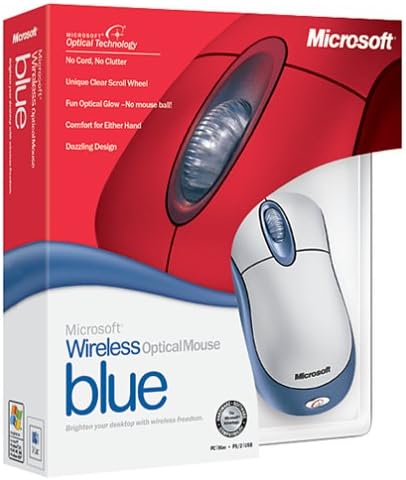
Image: Retail packaging of the Microsoft Wireless Optical Mouse Blue, showing the mouse and receiver.
Тохиргоо
1. Батерейг суурилуулах
- Хулганы доод талд байгаа зайны тасалгааг ол.
- Зайны тасалгааны тагийг нээ.
- Хоёр АА батерейг оруулж, туйлшралыг зөв (+/-) баталгаажуулна уу.
- Зайны тасалгааны тагийг хаа.

Зураг: Урд view of the Microsoft Wireless Optical Mouse Blue, showing the top buttons and scroll wheel. The battery compartment is on the underside.
2. Connect the Wireless Receiver
- USB утасгүй хүлээн авагчийг компьютер дээрх боломжтой USB порт руу залгаарай.
- Allow your operating system to detect and install the necessary drivers. This process is usually automatic.
- For optimal performance, ensure the receiver is placed at least 12 inches away from other wireless devices or large metal objects.
3. Optional Software Installation (IntelliPoint)
- While not required for basic functionality, installing Microsoft IntelliPoint software provides advanced customization options for your mouse buttons and scroll wheel.
- Refer to the Microsoft support website for the latest IntelliPoint software compatible with your operating system.
4. Set Orientation (Calibration)
- After initial setup, it is recommended to perform an "Orientation Set" or calibration if available through the IntelliPoint software or your operating system's mouse settings. This helps optimize tracking performance.
Ашиглалтын заавар
The Microsoft Wireless Optical Mouse Blue is designed for comfortable and precise navigation.
Үндсэн функцууд
- Зүүн товшилт: Зүйлс сонгох үндсэн товчлуур, нээх files, мөн програм хангамжтай харилцан үйлчлэх.
- Баруун товшино уу: Контекст цэс болон нэмэлт сонголтуудад хандах хоёрдогч товчлуур.
- Гүйлгэх дугуй: Баримт бичгүүдийг гүйлгэхийн тулд дугуйг дээш эсвэл доош гүйлгэ web pages. The scroll wheel may also function as a clickable button for additional commands, depending on software configuration.
Утасгүй ажиллагаа
- The mouse operates wirelessly up to 6 feet (approximately 1.8 meters) from its receiver.
- Optical technology scans the desktop surface for precise cursor movement without the need for a mouse pad on most surfaces.
- The mouse is designed for comfortable use with either the right or left hand.

Зураг: өнцөгтэй view of the Microsoft Wireless Optical Mouse Blue, highlighting its ergonomic shape and blue/silver design.
Засвар үйлчилгээ
Зай солих
- The mouse requires two AA batteries.
- When battery power is low, your computer may display a notification (if IntelliPoint software is installed) or mouse performance may degrade.
- Replace batteries as described in the "Install Batteries" section under Setup.
- Хамгийн сайн гүйцэтгэлтэй байхын тулд үргэлж шинэ, өндөр чанартай батерей ашиглаарай.
Цэвэрлэгээ
- To clean the mouse, gently wipe the surface with a soft, damp даавуу.
- Хүчтэй химийн бодис эсвэл зүлгүүрийн цэвэрлэгч хэрэглэхээс зайлсхий, учир нь эдгээр нь өнгөлгөөг гэмтээж болно.
- Хулганы дотоод эд ангид шингэн орохгүй байхыг анхаарна уу.
Travel Considerations
- The Microsoft Wireless Optical Mouse is a transmitting device. When traveling by air, it is recommended to remove the batteries from the mouse before boarding to comply with airline regulations regarding electronic devices.
Алдааг олж засварлах
Mouse Not Responding or Lagging
- Батерейг шалгах: Батерейг зөв суурилуулж, хангалттай цэнэгтэй эсэхийг шалгаарай. Шаардлагатай бол солино.
- Check Receiver Connection: Ensure the wireless receiver is securely plugged into a functioning USB port. Try a different USB port.
- Ойролцоох: Ensure the mouse is within 6 feet of the receiver. Reduce obstacles between the mouse and receiver.
- хөндлөнгийн оролцоо: Other wireless devices (e.g., Wi-Fi routers, cordless phones) can cause interference. Move the receiver away from such devices.
- Гадаргуу: Ensure the mouse is used on a suitable surface. Highly reflective or transparent surfaces may affect optical tracking.
- Дахин синк хийх: Some wireless mice have a re-sync button on both the mouse and receiver. Consult the full product manual or Microsoft support for specific re-sync procedures for this model if issues persist.
Clicking Issues
- If clicks are not registering or require multiple presses, check for physical obstructions or debris around the buttons.
- Хулгана асаалттай, холбогдсон эсэхийг шалгана уу.
Програм хангамжийн нийцтэй байдал
- The IntelliPoint software may have specific operating system requirements. For example, older versions may not be compatible with newer operating systems like Windows Vista or later.
- Always download the latest software from the official Microsoft support webөөрийн үйлдлийн системд зориулсан сайт.
Үзүүлэлтүүд
| Онцлог | Дэлгэрэнгүй |
|---|---|
| Загварын дугаар | K80-00004 |
| Брэнд | Microsoft |
| Холболтын технологи | Утасгүй |
| Хөдөлгөөнийг илрүүлэх | Оптик |
| Өнгө | Blue / Silver |
| Батерей | 2 АА батерей (дагсан) |
| Зүйлийн жин | 13.6 унц (ойролцоогоор 385.5 грамм) |
| Бүтээгдэхүүний хэмжээс | 9.3 x 8.9 x 2.1 инч (ойролцоогоор 23.6 x 22.6 x 5.3 см) |
| Эхний боломжтой огноо | 1 оны наймдугаар сарын 2002 |
Баталгаат хугацааны мэдээлэл
According to the legal disclaimer, this product is sold without a warranty. Please refer to your point of purchase for any return or exchange policies.
Дэмжлэг
For further assistance, driver downloads, or updated information regarding your Microsoft Wireless Optical Mouse Blue, please visit the official Microsoft support webсайт.
You can typically find support resources by searching for "Microsoft support" and your product model number (K80-00004).


