1. Танилцуулга
This manual provides essential information for the proper installation, operation, and maintenance of your Western Digital WD1600HLFS hard drive. The WD1600HLFS is a high-performance 3.5-inch internal hard disk drive designed for demanding applications, featuring a 160GB storage capacity, SATA 3Gb/s interface, and a 10,000 RPM spindle speed for rapid data access.
2. Аюулгүй байдлын мэдээлэл
Please read and understand all safety precautions before installing or operating this device. Failure to do so may result in personal injury or damage to the product or other components.
- Цахилгаан статик цэнэг алдалтын (ESD) урьдчилан сэргийлэх арга хэмжээ: Always handle the hard drive by its edges and avoid touching the circuit board or connector pins. Use an anti-static wrist strap or ground yourself by touching a metal object before handling the drive to prevent ESD damage.
- Эрчим хүчийг салгах: Хатуу дискийг суулгах эсвэл салгахаасаа өмнө компьютерийн системээ бүрэн унтрааж, цахилгааны залгуураас салгасан эсэхийг шалгаарай.
- Физик харьцах: Hard drives are delicate. Avoid dropping, striking, or exposing the drive to excessive vibration or shock.
- Агааржуулалт: Ensure adequate airflow around the hard drive within your computer case to prevent overheating.
- Өгөгдлийн нөөцлөлт: Seller is not responsible for data loss. Always back up your data before servicing or making changes to your hard disk.
3. Багцын агуулга
Таны багц дараах зүйлсийг агуулж байгаа эсэхийг шалгана уу.
- Western Digital WD1600HLFS 160GB Hard Drive
- Note: Additional accessories such as mounting screws, SATA data cables, or power adapters are typically supplied with your computer system or sold separately. The inclusion of a mounting tray may vary.
4. Тохиргоо ба суурилуулалт
4.1 Системийн шаардлага
- Available 3.5-inch drive bay in your computer case.
- Available SATA port on your motherboard.
- Available SATA power connector from your power supply.
- Тохиромжтой үйлдлийн систем (жишээ нь, Windows, macOS, Linux).
4.2 Физик суурилуулалт
- Системээ бэлтгэ: Power off your computer and unplug the power cord. Open the computer case according to your system's instructions.
- Драйвыг холбох: Slide the WD1600HLFS hard drive into an available 3.5-inch drive bay. Secure it with screws on both sides of the drive bay. If your system uses a tool-less mounting mechanism, follow its specific instructions.
- Өгөгдлийн кабелийг холбох: Connect one end of a SATA data cable to the SATA data port on the hard drive and the other end to an available SATA port on your motherboard.
- Цахилгааны кабелийг холбох: Connect a SATA power connector from your power supply to the SATA power port on the hard drive.

Зураг 1: Урд view of the WD1600HLFS with its mounting tray, highlighting the SATA data and power interfaces.

Зураг 2: Доод талд view of the WD1600HLFS, illustrating the printed circuit board (PCB) and screw points for secure installation.
4.3 Системийн анхны тохиргоо
- BIOS/UEFI тохиргоо: After reassembling your computer and powering it on, enter your system's BIOS or UEFI settings. Ensure the new hard drive is detected and configured correctly (e.g., SATA mode set to AHCI for optimal performance).
- Үйлдлийн системийн тохиргоо:
- Шинэ суурилуулалт: If installing an operating system on this drive, follow your OS installation media's instructions for partitioning and formatting the drive.
- Adding as Secondary Drive: If adding as a secondary drive, boot into your existing operating system. Use Disk Management (Windows) or Disk Utility (macOS/Linux) to initialize, partition, and format the new drive before use.
5. Үйл ажиллагаа
The Western Digital WD1600HLFS functions as a standard internal hard disk drive. Once properly installed and formatted, it can be used for:
- Operating System Storage: Install your operating system for fast boot times and application loading due to its 10,000 RPM speed.
- Өгөгдөл хадгалах: Дэлгүүр files, програмууд, хэвлэл мэдээллийн хэрэгсэл.
- Тоглоом: Benefit from quicker game loading times compared to slower drives.
- Workstation Applications: Ideal for applications requiring high I/O performance.
Үйлдлийн системээрээ дамжуулан диск рүү нэвтрэх file explorer or command line interface, just like any other storage device.
6. Засвар үйлчилгээ
To ensure the longevity and optimal performance of your WD1600HLFS hard drive, consider the following maintenance practices:
- Regular Data Backups: Periodically back up critical data to another storage device. Hard drives can fail, and backups are your only protection against data loss.
- Драйвын эрүүл мэндийг хянах: Utilize SMART (Self-Monitoring, Analysis and Reporting Technology) tools available in many operating systems or third-party utilities to monitor the drive's health status.
- Maintain Proper Cooling: Ensure your computer case has adequate ventilation to prevent the drive from overheating, which can reduce its lifespan.
- Дефрагментаци (HDD-ийн хувьд): While modern operating systems often handle this automatically, occasional defragmentation can help maintain performance on traditional hard drives.
- Бие махбодийн цочролоос зайлсхийх: Protect your computer from drops or impacts while the drive is operating.
7. Алдаа засах
If you encounter issues with your WD1600HLFS hard drive, refer to the following common problems and solutions:
- Драйв илрээгүй:
- Бүх SATA өгөгдөл болон цахилгааны кабелийн холболтыг шалгана уу.
- Системийн BIOS/UEFI тохиргоонд драйв идэвхжсэн эсэхийг шалгана уу.
- Драйвыг өөр SATA порт руу холбож эсвэл өөр кабель ашиглаж үзнэ үү.
- Ensure your power supply is providing sufficient power.
- Удаан гүйцэтгэл:
- Хэт их арын процесс эсвэл хортой програм хангамж байгаа эсэхийг шалгана уу.
- Ensure the drive is not nearly full.
- Verify SATA drivers are up to date.
- Run a disk defragmenter (if applicable).
- Monitor drive temperature; overheating can cause throttling.
- Unusual Noises (Clicking, Grinding):
- Immediately back up any accessible data.
- Unusual noises often indicate a mechanical failure. Discontinue use to prevent further damage.
- Contact Western Digital support if the drive is under warranty.
- Өгөгдлийн эвдрэл:
- Run disk error checking utilities (e.g., CHKDSK on Windows).
- Ensure proper system shutdown to prevent data loss.
If these steps do not resolve your issue, consult the Western Digital support webталбай эсвэл мэргэшсэн техникч.
8. Техникийн үзүүлэлтүүд
Below are the technical specifications for the Western Digital WD1600HLFS hard drive:

Figure 3: Product label of the WD1600HLFS, detailing model, serial, and part numbers.
- Серийн дугаар (S/N): WXE0C79C3272
- Хэсгийн дугаар (P/N): 490581-001
- Controller (CT): 2AHER013HY10B9
- Model (MDL): WD1600HLFS-60G6U1
- Spare Part Number (S/C): 8509C309GRH
| Онцлог | Тодорхойлолт |
|---|---|
| Загварын дугаар | WD1600HLFS |
| Хадгалах багтаамж | 160 ГБ |
| Интерфэйс | SATA 3Gb/s (SATA/300) |
| Булангийн хурд | 10,000 эргэлт |
| Буферийн хэмжээ | 16 MB |
| Form Factor | 3.5 инч |
| Average Read Speed | 80.5 МБ/с |
| Random Access (Read/Write) | 8.1 мс |
| Эрчим хүчний үзүүлэлтүүд | 5VDC, 0.90А; 12VDC, 0.30А |
| Зүйлийн жин | 1.25 фунт (0.57 кг) |
| Бүтээгдэхүүний хэмжээ (LxWxH) | 0.09 x 0.07 x 0.04 инч (ойролцоогоор) |
| Зохицуулалтын зөвшөөрөл | BSMI, cULus, C-Tick, MIC, CE, WEEE |
| Эхний боломжтой огноо | 4 оны дөрөвдүгээр сарын 2010 |
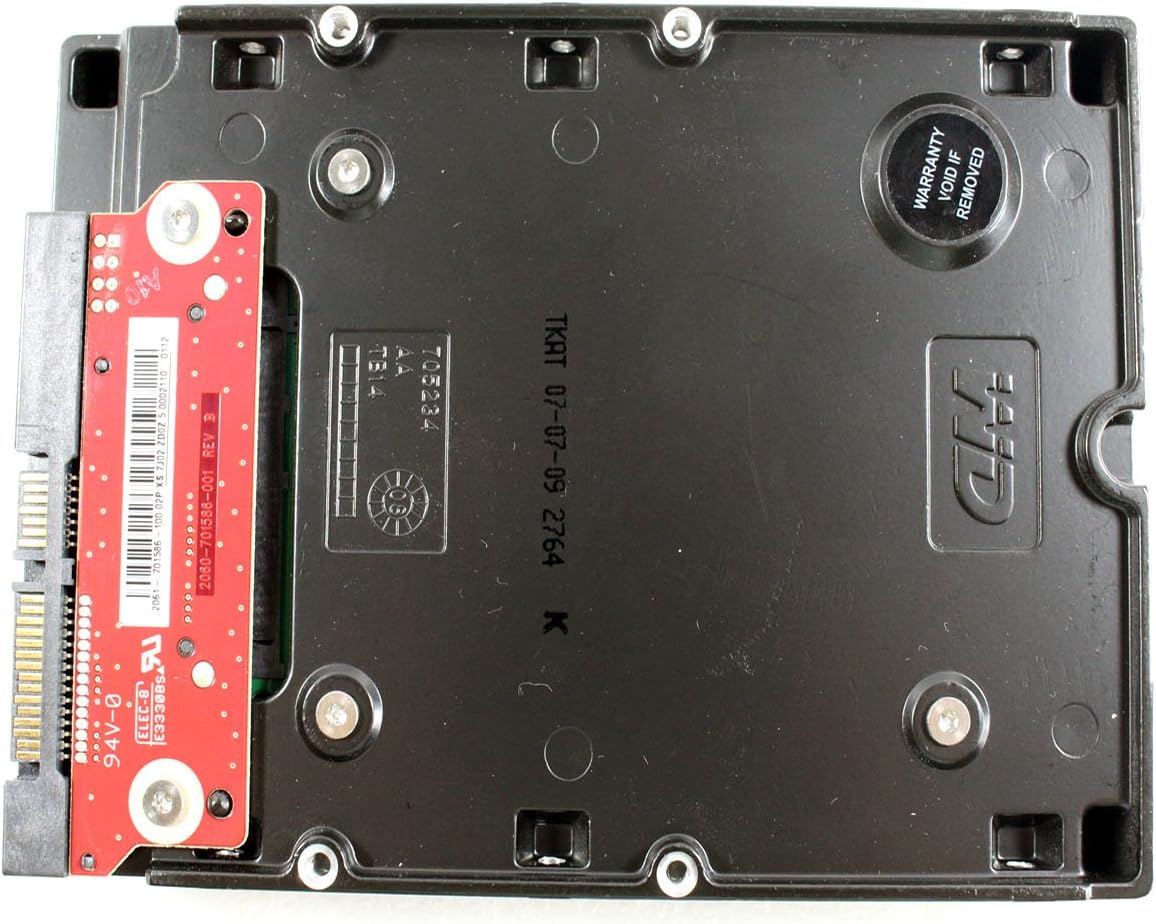
Зураг 4: Доод талд view of the WD1600HLFS without the tray, showing the PCB and a warranty sticker.

Зураг 5: Нарийвчилсан view of the WD1600HLFS PCB, including component markings.
9. Баталгаат хугацаа ба дэмжлэг
Хуулийн хариуцлага: Seller is not responsible for data loss. Always back up your data before servicing your hard disk.
The WD1600HLFS hard drive is manufactured by Western Digital. For specific warranty terms, conditions, and duration, please refer to the documentation provided with your purchase or visit the official Western Digital website. Note that tampering with the drive, such as removing certain labels or components, may void the warranty, as indicated by the 'Warranty Void If Removed' sticker on the drive.
For technical assistance, driver downloads, or further support, please visit the official Western Digital support portal:
- Western Digital Support: https://support.wdc.com


