1. Оршил ба түүнээс дээшview
The Avision AV 320D2+ is a high-performance A3 document scanner designed for efficient and reliable document digitization. Featuring a 600 dpi optical resolution and USB connectivity, it is capable of handling a wide range of document sizes up to A3, making it suitable for various professional environments. This manual provides essential information for setting up, operating, maintaining, and troubleshooting your scanner.
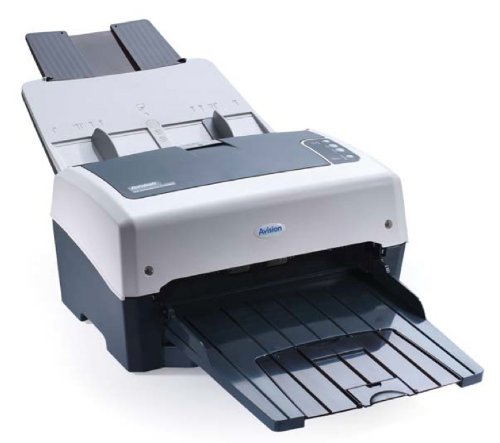
Figure 1: Avision AV 320D2+ A3 Document Scanner. This image displays the Avision AV 320D2+ A3 Document Scanner from a front-right perspective. The scanner is light grey and dark grey, featuring an automatic document feeder (ADF) at the top with paper guides visible, and an extended output tray at the front. The Avision logo is visible on the front panel.
2. Тохиргоо
2.1 Савлах
- Сканнер болон бүх дагалдах хэрэгслийг савлагаанаас болгоомжтой авч хая.
- Баглаа боодлын жагсаалтад орсон бүх бүрэлдэхүүн хэсгүүд байгаа эсэхийг шалгаарай.
- Remove all protective tapes and packing materials from the scanner, including any inside the document feeder and output tray.
2.2 Сканнерыг холбох
- Сканнерыг компьютерийнхээ ойролцоо тогтвортой, тэгш гадаргуу дээр байрлуул.
- Connect the power adapter to the scanner's power input and then plug it into an electrical outlet.
- Connect one end of the supplied USB cable to the USB port on the scanner and the other end to an available USB port on your computer.
- Power on the scanner using the power button, typically located on the side or rear panel.
2.3 Програм хангамж суурилуулах
Before using the scanner, you must install the necessary drivers and scanning software. Refer to the included software CD or visit the official Avision webхамгийн сүүлийн үеийн драйвер болон хэрэгслүүдийн сайт.
- Insert the software installation CD into your computer's CD/DVD drive, or download the software package from the Avision support webсайт.
- Follow the on-screen instructions to install the scanner drivers and bundled scanning applications. It is recommended to install all provided software for full functionality.
- Суулгац дууссаны дараа асуувал компьютерээ дахин эхлүүлнэ үү.
3. Сканнерыг ажиллуулах
3.1 Баримт бичгийг ачаалах
- Баримт бичгийг автоматаар тэжээгч (ADF): Open the ADF input tray. Adjust the paper guides to fit the width of your documents. Place the documents face-down with the top edge first into the ADF. The standard sheet capacity is 50 sheets.
- Ensure documents are free of staples, paper clips, or any foreign objects that could damage the scanner.
- For mixed-size documents, ensure they are aligned properly to prevent skewing.
3.2 Сканнердах үндсэн журам
- Дээр дурдсанчлан баримт бичгээ ADF руу оруулна уу.
- Open your preferred scanning application (e.g., Avision Button Manager, TWAIN/ISIS compatible software).
- Select the Avision AV 320D2+ as your scanner.
- Choose your desired scanning settings (e.g., color mode, resolution, destination folder).
- Initiate the scan from the software interface. The scanner will automatically feed and scan the documents.
- Review сканнердсан зургуудыг хуулж аваад хүссэн байршилдаа хадгална уу.
3.3 Скан хийх тохиргоо
The scanner supports various settings to optimize scan quality and file хэмжээ:
- Шийдвэр: Adjustable up to 600 dpi. Higher resolution provides better image quality but results in larger file хэмжээ.
- Өнгөний горим: Options typically include Color, Grayscale, and Black & White (Binary).
- Хоёр талт сканнердах: The AV 320D2+ supports duplex (two-sided) scanning, allowing you to capture both sides of a document in a single pass.
- Гаралтын формат: Common output formats include PDF, JPEG, TIFF, and searchable PDF.
4. Засвар үйлчилгээ
4.1 Сканнер цэвэрлэх
Тогтмол цэвэрлэгээ нь оновчтой ажиллагааг хангаж, сканнерын ашиглалтын хугацааг уртасгадаг.
- Гадна: Гадна талын гадаргууг зөөлөн арчиж, damp, хөвөнгүй даавуу. Зүлгүүрийн цэвэрлэгч, уусгагчийг бүү ашигла.
- Шилэн гадаргуу: Зөөлөн даавуу хэрэглэх dampened with a non-abrasive glass cleaner to clean the scanner's glass surfaces (if applicable).
- Роллерууд: Periodically clean the feed rollers with a lint-free cloth lightly dampened with isopropyl alcohol to remove paper dust and residue.
- Always power off and unplug the scanner before cleaning.
5. Алдаа засах
This section addresses common issues you might encounter with your Avision AV 320D2+ scanner.
| Асуудал | Боломжит шалтгаан | Шийдэл |
|---|---|---|
| Компьютер сканнер илрүүлээгүй байна | Loose USB cable, power off, driver issue | USB холболтыг шалгаад, сканнер асаалттай байгаа эсэхийг шалгаад драйверуудыг дахин суулгана уу. |
| Цаас гацах | Misaligned documents, worn rollers, foreign objects | Remove jammed paper carefully, align documents properly, clean rollers. |
| Сканнердах чанар муу (зураас, бүдэг зураг) | Dirty glass, incorrect settings, worn rollers | Clean scanner glass and rollers, adjust resolution/color settings. |
| Баримт бичгийг тэжээхгүй байна | Incorrectly loaded, worn feed rollers | Ensure documents are loaded correctly, clean or replace feed rollers if worn. |
6. Техникийн үзүүлэлтүүд
Key technical specifications for the Avision AV 320D2+ scanner:
- Бүтээгдэхүүний төрөл: Баримт бичгийн сканнер
- Цаасан формат: A3
- Шийдвэр: 600 dpi (Оптик)
- Холболт: USB
- Өнгө: Хар/цагаан
- Жин: Ойролцоогоор 26.46 фунт (12 кг)
- Эрчим хүчний хэрэглээ: 38.4 ватт
- Standard Sheet Capacity (ADF): 50 хуудас
- Оптик мэдрэгчийн технологи: CMOS
- Загварын нэр: AV320D2+
- Загварын дугаар: FT-0807H
7. Баталгаат хугацаа ба дэмжлэг
7.1 Үйлдвэрлэгчийн баталгаа
The Avision AV 320D2+ scanner typically comes with a Үйлдвэрлэгчийн 2 жилийн баталгаат хугацаа. This warranty covers defects in materials and workmanship under normal use. Please retain your proof of purchase for warranty claims. For specific terms and conditions, refer to the warranty card included with your product or visit the official Avision webсайт.
7.2 Техникийн дэмжлэг
For technical assistance, driver updates, or further troubleshooting not covered in this manual, please contact Avision customer support. Support contact information can usually be found on the Avision official website or in the documentation provided with your scanner.
Note: Availability of spare parts and software updates may vary. Please check the manufacturer's official channels for the most current information.


