1. Танилцуулга
The SteelSeries Sensei Laser Gaming Mouse is designed for precision and customization, catering to both casual and competitive gamers. It features an advanced laser sensor, an ambidextrous design, and extensive customization options through its dedicated software. This manual provides detailed instructions for setup, operation, maintenance, and troubleshooting to ensure optimal performance of your device.

Зураг 1: Дээрээс доош view of the SteelSeries Sensei Laser Gaming Mouse, showcasing its sleek grey finish and central scroll wheel.
2. Багцын агуулга
Таны багцад бүх зүйл байгаа эсэхийг шалгана уу:
- SteelSeries Sensei Laser Gaming Mouse
- Хурдан эхлүүлэх гарын авлага (хэрэв байгаа бол)

Image 2: Retail packaging for the SteelSeries Sensei Laser Gaming Mouse, displaying the product name and brand logo.
3. Тохиргоо
3.1 Тоног төхөөрөмжийн холболт
- Unpack the SteelSeries Sensei Laser Gaming Mouse from its packaging.
- Connect the USB cable of the mouse to an available USB port on your computer. The mouse is plug-and-play compatible, and your operating system should automatically detect and install the necessary basic drivers.
3.2 Software Installation (SteelSeries Engine)
For full customization and advanced features, it is recommended to install the SteelSeries Engine software:
- Visit the official SteelSeries webсайт (steelseries.com/engine) to download the latest version of the SteelSeries Engine software.
- Програм хангамжийг суулгахын тулд дэлгэцэн дээрх зааврыг дагана уу.
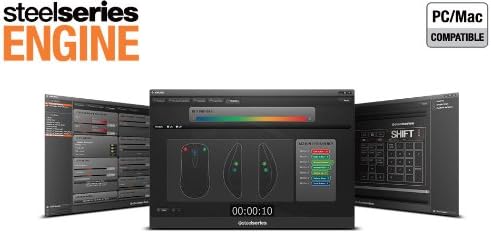
- Once installed, launch the SteelSeries Engine to configure your mouse settings, including CPI, button assignments, macros, and lighting effects.
Зураг 3: Доод талд view of the SteelSeries Sensei Laser Gaming Mouse, showing the laser sensor and product information label.
4. Хулгана ажиллуулах
4.1 Ambidextrous Design
The Sensei mouse features an ambidextrous shape, making it comfortable for both left-handed and right-handed users. The side buttons are mirrored on both sides to accommodate different grip styles and preferences.
4.2 програмчлах товчлуур
The mouse is equipped with 7 programmable buttons. These buttons can be customized using the SteelSeries Engine software to perform various functions, including:
- Standard mouse clicks (left, right, middle)
- Keyboard key assignments
- Complex macros
- CPI switching

Зураг 4: Хажуу тал view of the SteelSeries Sensei Laser Gaming Mouse, highlighting the two programmable side buttons.
4.3 CPI Adjustment
The Sensei mouse allows for on-the-fly CPI (Counts Per Inch) adjustment. The dedicated CPI indicator button, typically located behind the scroll wheel, allows you to cycle between two user-defined CPI settings. These settings can be configured within the SteelSeries Engine software to match your preferred sensitivity levels for different tasks or games.
4.4 гэрэлтүүлэг
The mouse features three-zone illumination: the scroll wheel, the CPI indicator, and the SteelSeries logo. The color and lighting effects (e.g., steady, pulse) for these zones can be customized through the SteelSeries Engine software.
5. SteelSeries Engine Software
The SteelSeries Engine is a powerful software suite that unlocks the full potential of your Sensei mouse. Key functionalities include:
- Товчлуурын зураглал: Assign any function, keyboard key, or macro to any of the 7 programmable buttons.
- CPI Settings: Fine-tune and save multiple CPI profileөөр өөр программууд эсвэл тоглоомуудад зориулагдсан.
- Макро редактор: Create and manage complex macros for in-game actions or productivity tasks.
- Санал хураалтын хувь: Хамгийн оновчтой хариу үйлдэл үзүүлэхийн тулд хулганы санал асуулгын хурдыг тохируулна уу.
- Гэрэлтүүлгийн хяналт: Customize LED colors and effects for the scroll wheel, CPI indicator, and logo.
- Profile Удирдлага: Олон мэргэжлийн хүн үүсгэх, хадгалахfiles, allowing you to switch between different configurations quickly.
- Програм хангамжийн шинэчлэлтүүд: Keep your mouse's firmware up-to-date for improved performance and new features.

Image 5: Screenshot of the SteelSeries Engine software interface, showing options for button mapping, CPI adjustment, and lighting customization.
6. Засвар үйлчилгээ
To ensure the longevity and optimal performance of your SteelSeries Sensei mouse, follow these maintenance guidelines:
- Цэвэрлэгээ: Хулганы гадаргууг зөөлөн, хуурай даавуугаар арчина. Зөрүүд шороонд бага зэрэг damp даавуу ашиглаж болох ч чийг хулганад орохгүй байхыг анхаарна уу. Хүчтэй химийн бодис эсвэл зүлгүүрийн цэвэрлэгчээс зайлсхий.
- Мэдрэгчийн арчилгаа: Keep the laser sensor on the bottom of the mouse clean and free from dust or debris. Use a cotton swab or compressed air if necessary.
- Кабелийн менежмент: USB кабелийг гэмтээхгүйн тулд хурц гулзайлгах эсвэл хэт их татахаас зайлсхий.
7. Алдаа засах
If you encounter issues with your SteelSeries Sensei mouse, refer to the following common solutions:
- Хулгана хариу өгөхгүй байна:
- USB кабель таны компьютерт найдвартай холбогдсон эсэхийг шалгаарай.
- Хулганаа өөр USB порт руу холбож үзээрэй.
- Компьютерээ дахин эхлүүлнэ үү.
- Тогтворгүй хяналт:
- Clean the laser sensor on the bottom of the mouse.
- Та хулганыг тохиромжтой гадаргуу дээр (жишээлбэл, хулганы дэвсгэр) ашиглаж байгаа эсэхээ шалгаарай.
- Check for dust or debris on your mouse pad.
- Товчлуур ажиллахгүй байна:
- Verify button assignments in the SteelSeries Engine software.
- Ensure the software is running correctly and profiles ачаалагдсан байна.
- Програм хангамжийн асуудлууд:
- Update the SteelSeries Engine software to the latest version.
- Reinstall the SteelSeries Engine software.
- Check for any available firmware updates for your mouse within the software.
8. Техникийн үзүүлэлтүүд
| Онцлог | Дэлгэрэнгүй |
|---|---|
| Брэнд | SteelSeries |
| Загварын дугаар | 62150 |
| Хөдөлгөөнийг илрүүлэх технологи | Лазер |
| Холболтын технологи | USB |
| Өнгө | Саарал |
| Техник хангамжийн платформ | PC |
| Үйлдлийн системийн нийцтэй байдал | All Major PC Operating Systems |
| Зүйлийн жин | 14.6 унц |
| Бүтээгдэхүүний хэмжээ (LxWxH) | 7.9 x 6.8 x 2.3 инч |
| Програмчлагдах товчлуурууд | 7 |
| Illumination Zones | 3 (Scroll Wheel, CPI Indicator, Logo) |
9. Баталгаат хугацаа ба дэмжлэг
The SteelSeries Sensei Laser Gaming Mouse is covered by a manufacturer's warranty. For detailed information regarding warranty terms, conditions, and duration, please refer to the warranty card included with your product or visit the official SteelSeries website. For technical support, driver downloads, and frequently asked questions, please visit the SteelSeries support page.
SteelSeries Official Webсайт: steelseries.com
SteelSeries Support: support.steelseries.com


