1. Бүтээгдэхүүн дууссанview
The D-Link AC1200 Wi-Fi Router (DIR-850L) delivers next-generation wireless speed and coverage to all your Wi-Fi devices. With wireless dual-band speeds of 300 Mbps (2.4 GHz) and 867 Mbps (5 GHz), the DIR-850L avoids interference to deliver fast wireless speeds, improved coverage, and reliable connections. This router is ideal for streaming HD video, gaming, connecting multiple devices, and watching shows on your TV simultaneously. The DIR-850L is also backward compatible with existing wireless 802.11a/g/n devices for seamless connectivity. D-Link’s free mobile apps provide easy setup, remote monitoring, and access to content from anywhere on your smartphone or tablet.
Гол онцлогууд:
- Next Generation Wireless Technology: Wireless AC1200 for optimized performance and reliable coverage, delivering high-quality HD video streaming, gaming, and file шилжүүлэг.
- Буцах нийцтэй байдал: Compatible with wireless 802.11a/g/n devices.
- Олон төхөөрөмжийн холболт: Connect more devices with four Gigabit Ethernet ports.
- Медиа хуваалцах: Stream and share files using the USB Share Port and free mobile app.
- Хялбар тохиргоо: Intelligent browser wizard and Quick Router Setup Mobile app for simplified installation.
- Дэвшилтэт аюулгүй байдал: Preset security with advanced WPA2 encryption.
2. Багцын агуулга
Ensure all items are present in your D-Link DIR-850L package:
- D-Link Wireless AC 1200 Dual-Band Gigabit Router (DIR-850L)
- Эрчим хүчний адаптер
- Ethernet кабель
- Шуурхай суулгах гарын авлага
Хэрэв ямар нэг зүйл дутуу эсвэл гэмтсэн бол жижиглэнгийн худалдаачин эсвэл D-Link-ийн тусламжтай холбогдоно уу.
3. Техник хангамж дууссанview
Familiarize yourself with the physical components and indicators of your DIR-850L router.

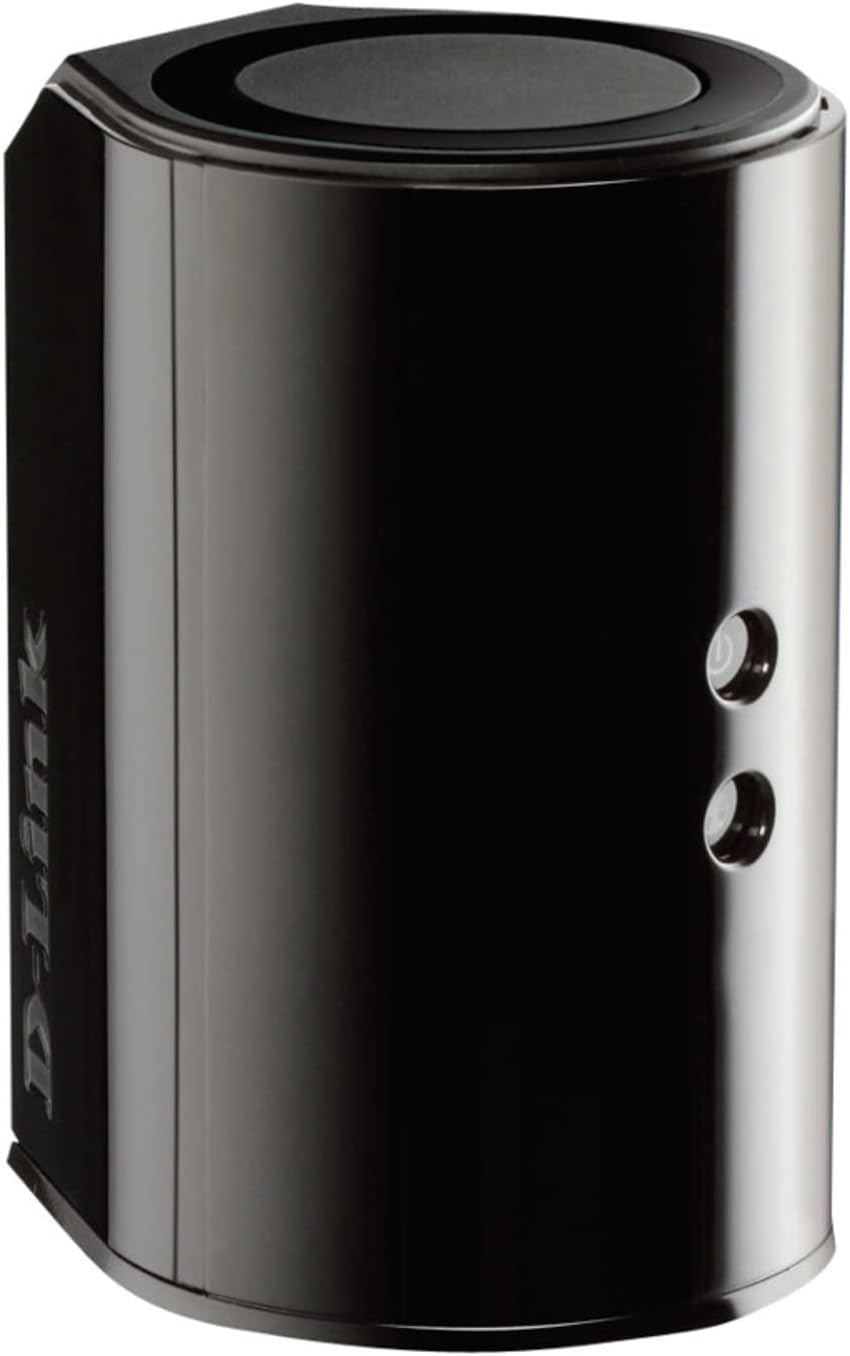
Зураг 3.1: Урд View. Shows the cylindrical design of the router with the D-Link logo and LED indicators for Power and Internet status.

Зураг 3.2: Хажуу тал View. Illustrates the side of the router, highlighting the USB port for storage sharing and the Wi-Fi Protected Setup (WPS) button.
Зураг 3.3: Ар талд View. Displays the back panel of the router, featuring the WAN (Internet) port, four LAN (Ethernet) ports, and the power input connector.
LED үзүүлэлтүүд:
- Эрчим хүчний LED: Solid green indicates the router is powered on. Blinking green indicates a firmware upgrade or reset.
- Интернет LED: Solid green indicates a successful connection to the internet. Blinking green indicates data activity. Amber indicates no internet connection.
Портууд болон товчлуурууд:
- WAN (Интернет) порт: Таны модемтой холбогдож интернетэд холбогдоно.
- LAN портууд (1-4): Компьютер, тоглоомын консол эсвэл сүлжээний санах ой зэрэг утастай төхөөрөмжүүдийг холбоно уу.
- USB порт: Connect a USB storage device for network sharing.
- Цахилгаан холбогч: Дагалдах тэжээлийн адаптерт холбогдоно.
- Дахин тохируулах товч: Үйлдвэрийн тохиргоог сэргээхийн тулд 10 секундын турш дарна уу.
- WPS товчлуур: Initiates Wi-Fi Protected Setup for easy wireless connection of compatible devices.
4. Тохиргоо
Follow these steps to set up your D-Link DIR-850L router:
- Чиглүүлэгчийг байрлуулах: Place your router in a central location in your home, away from obstructions and devices that may cause interference (e.g., cordless phones, microwaves).
- Модем руу холбогдох:
- Модемоо унтраа.
- Connect one end of the provided Ethernet cable to the WAN (Internet) port on your DIR-850L router.
- Ethernet кабелийн нөгөө үзүүрийг модем дээрх Ethernet порт руу холбоно уу.
- Асаах:
- Power on your modem and wait for its indicator lights to stabilize (usually indicating an active internet connection).
- Connect the power adapter to the power connector on your DIR-850L router and plug it into a power outlet.
- Wait for the Power LED on the router to turn solid green. The Internet LED should also turn green, indicating a successful connection.
- Төхөөрөмжийг холбох:
- Утастай холболт: Connect an Ethernet cable from one of the LAN ports (1-4) on the router to your computer's Ethernet port.
- Утасгүй холболт: On your Wi-Fi enabled device (laptop, smartphone, tablet), search for available Wi-Fi networks. Select the network name (SSID) found on the Wi-Fi Configuration Card (usually a sticker on the bottom of the router) and enter the Wi-Fi password.
- Тохируулах шидтэнг ажиллуулах:
- Нээлттэй a web browser (e.g., Chrome, Firefox) on the connected device.
- Төрөл
http://dlinkrouter.localor192.168.0.1хаягийн мөрөнд оруулаад Enter дарна уу. - Follow the on-screen instructions of the D-Link Setup Wizard to configure your internet connection and personalize your Wi-Fi network name (SSID) and password.
Setup Video (General D-Link Router Overview):
Video 4.1: D-Link Wireless AC 1200 Mbps Home Cloud App-Enabled Dual-Band Gigabit Router Overview. Энэ видео нь ерөнхий мэдээллийг өгдөгview of D-Link routers, including the DIR-850L, and highlights their features and target users. While not a step-by-step setup guide, it offers insights into the router's capabilities.
5. Ашиглалтын заавар
Once your D-Link DIR-850L router is set up, you can manage and optimize your network.
Холбох төхөөрөмжүүд:
- Утасгүй: Use the Wi-Fi network name (SSID) and password you configured during setup to connect your wireless devices. The router supports both 2.4 GHz and 5 GHz bands.
- Утастай: Connect devices directly to the LAN ports using Ethernet cables for a stable, high-speed connection.
Чиглүүлэгчийн тохиргоонд хандах:
Нарийвчилсан тохиргоонд хандахын тулд a web вэб хөтчийг сонгоод чиглүүлэх http://dlinkrouter.local or 192.168.0.1. Log in with the administrator password you set during the initial setup. From here, you can:
- Wi-Fi тохиргоог өөрчлөх (SSID, нууц үг, аюулгүй байдлын төрөл).
- Configure guest Wi-Fi networks.
- Эцэг эхийн хяналтыг тохируулна уу.
- Холбогдсон төхөөрөмжүүдийг удирдах.
- Програм хангамжийг шинэчлэх.
Using the USB Share Port:
Plug a USB storage device (e.g., flash drive, external hard drive) into the USB port on the router. You can then access and share files on this storage device across your network using the D-Link SharePort Mobile app or through network shares on your computer.
6. Засвар үйлчилгээ
Тогтмол засвар үйлчилгээ нь таны чиглүүлэгчийн оновчтой гүйцэтгэл, удаан эдэлгээг хангахад тусалдаг.
- Дахин ачаалж байна: Periodically reboot your router (unplug from power for 10 seconds, then plug back in) to clear its memory and refresh network connections. This can resolve minor performance issues.
- Програм хангамжийн шинэчлэлтүүд: D-Link дэмжлэгийг шалгана уу website for firmware updates. Firmware updates can improve performance, add new features, and fix security vulnerabilities. Follow the instructions provided by D-Link carefully when performing updates.
- Цэвэрлэгээ: Keep the router clean and free from dust. Use a soft, dry cloth to wipe the exterior. Do not use liquid cleaners or aerosols. Ensure ventilation openings are not blocked.
- Аюулгүй байдал: Regularly change your Wi-Fi password and router administrator password to enhance network security.
7. Алдаа засах
If you encounter issues with your D-Link DIR-850L router, refer to the following common problems and solutions:
Интернет холболт байхгүй:
- Кабель шалгах: Бүх Ethernet кабель чиглүүлэгч болон модемд найдвартай холбогдсон эсэхийг шалгаарай.
- Модемийн төлөв: Таны модем зөв ажиллаж, интернет идэвхтэй байгаа эсэхийг шалгана уу.
- Reboot Sequence: Power off your modem, then your router. Wait 30 seconds, then power on the modem first. Once the modem is fully online, power on the router.
- ISP-тэй холбоо барих: If the issue persists, contact your Internet Service Provider (ISP) to confirm service status.
Удаан Wi-Fi хурд:
- Чиглүүлэгчийн байршил: Чиглүүлэгчийг саад тотгор, хөндлөнгийн эх үүсвэрээс хол, илүү төв хэсэгт шилжүүл.
- Сувгийн хөндлөнгийн оролцоо: Чиглүүлэгч рүү нэвтэрнэ үү web interface and try changing the Wi-Fi channel for both 2.4 GHz and 5 GHz bands to a less congested one.
- Холбогдсон төхөөрөмжүүд: Disconnect unused devices from your network.
- Програм хангамж: Чиглүүлэгчийнхээ програм хангамж шинэчлэгдсэн эсэхийг шалгаарай.
Wi-Fi-д холбогдох боломжгүй:
- Зөв нууц үг: Double-check that you are entering the correct Wi-Fi password (case-sensitive).
- SSID нэвтрүүлэг: Ensure the router is broadcasting its Wi-Fi network name (SSID).
- WPS: If your device supports WPS, try using the WPS button on the router to connect.
- Чиглүүлэгчийг дахин тохируулах: As a last resort, perform a factory reset (see Hardware Overview) and reconfigure the router.
8. Техникийн үзүүлэлтүүд
| Онцлог | Тодорхойлолт |
|---|---|
| Загварын нэр | DIR-850L |
| Утасгүй төрөл | 802.11ac (backward compatible with 802.11a/b/g/n) |
| Давтамжийн зурвасын ангилал | Хос зурвас (2.4 GHz ба 5 GHz) |
| Утасгүй хурд | 300 Mbps (2.4 GHz) хүртэл, 867 Mbps (5 GHz) хүртэл |
| Ethernet портууд | 4 х Гигабит LAN, 1 х Гигабит WAN |
| USB порт | 1 x USB 2.0 (for SharePort) |
| Антенны төрөл | Дотоод |
| Үйлдлийн системийн нийцтэй байдал | Windows® 8, 7, Vista®, XP SP2, or Mac OS® X (v10.4 or higher) |
| Хэмжээ (LxWxH) | 4.45 x 3.43 x 5.72 инч |
| Зүйлийн жин | 9.9 унц (0.62 фунт) |
| Өнгө | Хар |
9. Баталгаат хугацаа ба дэмжлэг
D-Link бүтээгдэхүүнүүд нь хязгаарлагдмал баталгаат хугацаатай байдаг. Баталгаат нөхцлийн талаар та бүтээгдэхүүндээ дагалдаж буй баталгаат мэдээллээс эсвэл албан ёсны D-Link хаягаар зочилно уу. webсайт.
For technical support, product registration, and access to the latest drivers, firmware, and user manuals, please visit the D-Link support portal:
D-Link дэмжлэг Webсайт: www.dlink.com/support
You may also find helpful resources and community forums on the D-Link webсайт.


