Танилцуулга
Худалдан авалт хийсэнд баярлалааasing the Insignia 10-inch Digital Photo Frame. This device allows you to display your favorite digital photos and videos in a high-quality format. This manual provides detailed instructions for setup, operation, maintenance, and troubleshooting to ensure you get the most out of your new digital photo frame.
Багцын агуулга
Before you begin, please check that all items are present in the package:
- Insignia 10-inch Digital Photo Frame
- Эрчим хүчний адаптер
- Алсын удирдлага
- Хэрэглэгчийн гарын авлага (энэ баримт бичиг)
Тохиргоо
1. Цахилгааныг холбох
Connect the included power adapter to the DC IN 9V port on the back of the digital photo frame. Plug the other end of the adapter into a standard wall outlet. The frame will typically power on automatically or can be turned on using the power switch.
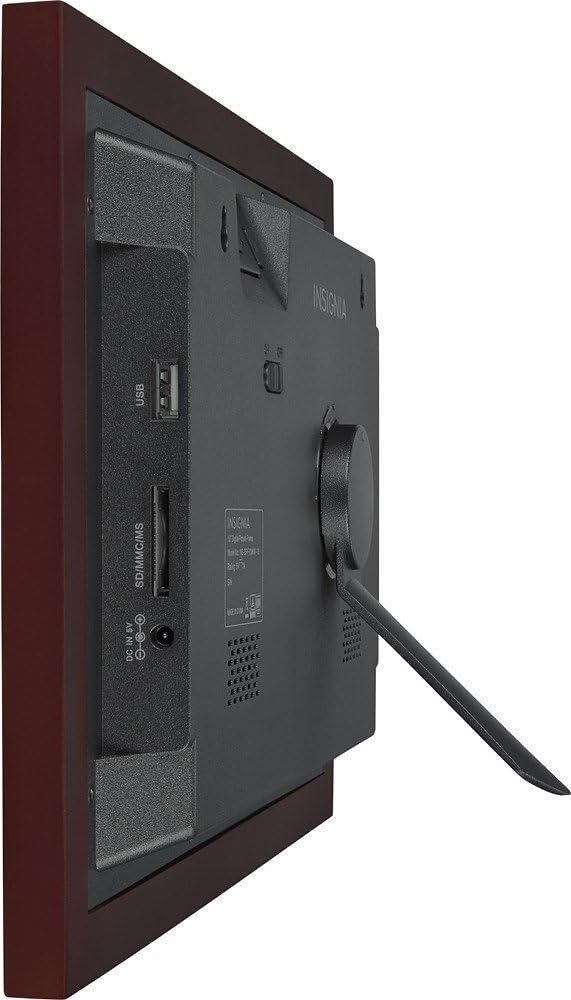
Зураг: Ар талд view of the digital photo frame, highlighting the USB port, SD/MMC/MS card slot, and DC IN 9V power input.
2. Inserting Memory Cards or USB Drives
The frame supports SD, MMC, and MS memory cards, as well as USB flash drives. Insert your memory card into the appropriate slot or your USB drive into the USB port on the side/back of the frame. Ensure the card or drive is inserted correctly. The frame will automatically detect the storage device.
3. Анхны тохиргоо
Upon first power-on, you may be prompted to set the language, time, and date. Use the navigation buttons on the frame or the remote control to make your selections and confirm.
Operating the Digital Photo Frame
1. Хяналтуудview
Your digital photo frame can be operated using the buttons on the back of the frame or the included remote control.
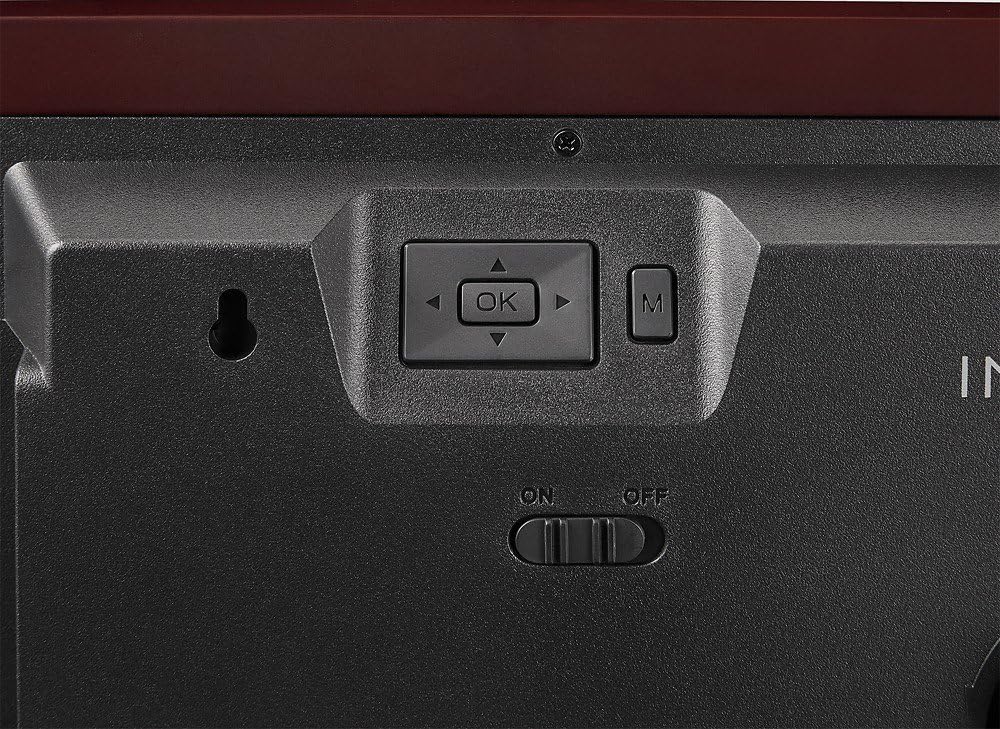
Image: Close-up of the control buttons located on the rear of the digital photo frame. These include directional arrows, an 'OK' button for selection, and an 'M' button for menu access, alongside the power switch.
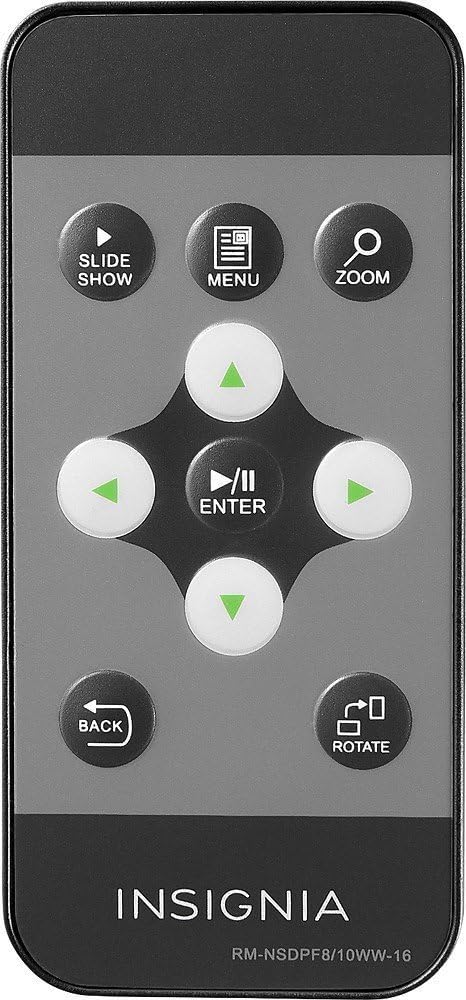
Image: The remote control for the digital photo frame, featuring dedicated buttons for slideshow, menu, zoom, directional navigation, enter, back, and image rotation functions.
2. Цэс рүү шилжих
дээр дарна уу Цэс удирдлага эсвэл удирдлага дээрх товчлуур M button on the frame to access the main menu. Use the directional arrows (▲ ▼ ◀ ▶) to navigate through options and press ENTER or OK сонголтоо баталгаажуулахын тулд. дарна уу БУЦАХ to return to the previous screen or exit the menu.
3. ViewФото болон видео бичлэг хийх
Once a memory card or USB drive is inserted, the frame will typically start a slideshow automatically. You can manually browse files by selecting the "Photo" or "Video" option from the main menu. Use the navigation buttons to select a file болон дарна уу ENTER or OK руу view тэр.
4. Slideshow Settings
From the main menu, navigate to "Settings" or "Slideshow Settings" to customize your slideshow. Options may include:
- Дэлгэцийн горим: Adjust how photos fit the screen (e.g., original, fit to screen, crop).
- Интервалын хугацаа: Set the duration each photo is displayed.
- Шилжилтийн нөлөө: Choose from various transition styles between photos.
- Давтах горим: Loop the slideshow continuously.
5. Clock and Calendar
Your frame may include a clock and calendar function. Access these features through the main menu. You can set the time and date in the settings menu.
Засвар үйлчилгээ
Хүрээг цэвэрлэх
Дэлгэцийг цэвэрлэхийн тулд зөөлөн, хөвөнгүй даавуугаар зөөлөн арчина. Зөрүүд тэмдгийн хувьд бага зэрэг dampen the cloth with water or a non-abrasive screen cleaner. Avoid using harsh chemicals or abrasive materials, as these can damage the screen and frame finish. Ensure the frame is powered off and unplugged before cleaning.
Хадгалах
When not in use for extended periods, store the digital photo frame in a cool, dry place, away from direct sunlight and extreme temperatures. It is recommended to keep the original packaging for storage.
Алдааг олж засварлах
| Асуудал | Боломжит шийдэл |
|---|---|
| Хүрээ асахгүй байна. |
|
| No photos or videos display. |
|
| Алсын удирдлага ажиллахгүй байна. |
|
| Images appear distorted or stretched. |
|
Үзүүлэлтүүд
| Онцлог | Дэлгэрэнгүй |
|---|---|
| Загварын дугаар | NS-DPF10WW-16 |
| Дэлгэцийн хэмжээ | 10 инч |
| Шийдвэр | WXGA |
| Бүтээгдэхүүний хэмжээс | 12.6 x 1.5 x 9 инч |
| Зүйлийн жин | 2 фунт |
| Холболтын технологи | USB |
| Дэмжигдсэн санах ойн картууд | SD, MMC, MS (Memory Stick) |
| Үйлдвэрлэгч | Тэмдэглэл |
Баталгаат болон дэмжлэг
For warranty information, please refer to the warranty card included with your product or visit the official Insignia website. If you encounter issues not covered in this troubleshooting section, please contact Insignia customer support for assistance.
Онлайн дэмжлэг: www.insigniaproducts.com/support