1. Танилцуулга
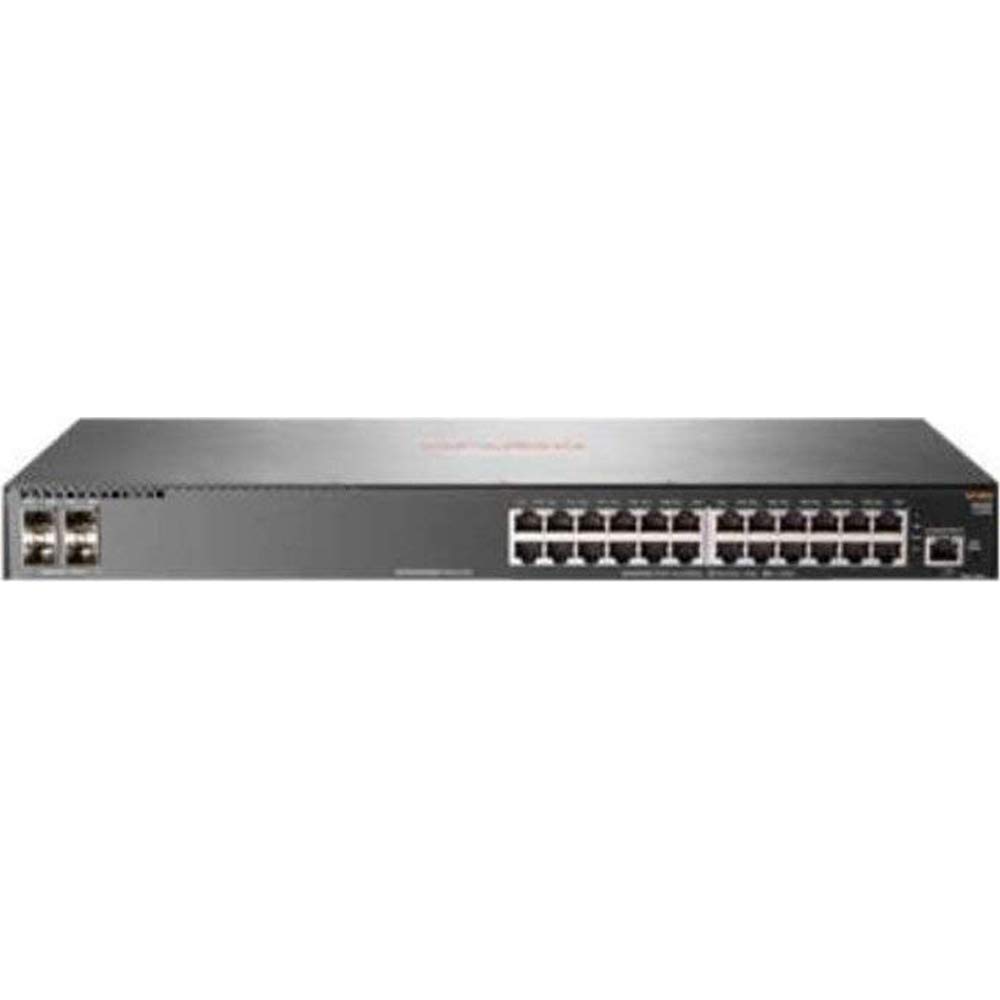
This manual provides comprehensive instructions for the installation, configuration, and operation of the HP 2930F-24G 4SFP Switch. This device is a high-performance network switch designed for reliable and secure network connectivity. It features 24 Gigabit Ethernet ports and 4 SFP uplink ports, supporting Layer 3 functionality for advanced network management.
2. Багцын агуулга
Carefully unpack the box and verify that all items are present and undamaged. If any items are missing or damaged, contact your vendor immediately.
- 1 x HP 2930F-24G 4SFP Switch
- 1 х цахилгаан утас
- 1 x шураг хэрэгсэл
- 4 х холбох чих
- 4 x Bumper Feet
- 1 х Кабелийн зангиа
3. Тохиргоо
3.1. Талбайн бэлтгэл
Ensure the installation site is clean, dry, and has adequate ventilation. Maintain proper temperature and humidity levels as specified in the environmental requirements. Ensure a stable power source is available.
3.2. Шилжүүлэгчийг суурилуулах
The HP 2930F-24G 4SFP Switch supports both rack-mountable and desktop installations.
- Ширээний суулгац: Attach the four bumper feet to the bottom of the switch. Place the switch on a flat, stable surface.
- Тавиур суурилуулах: Attach the mounting ears to the sides of the switch using the provided screws. Secure the switch into a standard 1U rack using appropriate rack screws (not included).
3.3. Цахилгааныг холбох
- Connect the provided power cord to the power inlet on the rear panel of the switch.
- Цахилгааны утасны нөгөө үзүүрийг газардуулсан цахилгааны залгуурт холбоно.
- Урд талын самбар дээрх тэжээлийн LED гэрэл асч байгаа эсэхийг шалгаарай, энэ нь унтраалга тэжээл авч байгааг илтгэнэ.
3.4. Сүлжээний кабелийг холбох
- Ethernet портууд: Connect standard RJ-45 Ethernet cables from your network devices (computers, servers, other switches) to the 24 Gigabit Ethernet ports on the front panel.
- SFP Uplink Ports: Insert compatible SFP transceivers (not included) into the 4 SFP slots. Connect fiber optic or copper SFP cables to these transceivers for uplink connections to other network devices or the core network.
4. Ашиглалтын заавар
4.1. Анхдагч асаалттай
Once power is connected, the switch will automatically begin its boot sequence. This process may take a few minutes. Observe the system status LEDs for indications of successful startup.
4.2. LED үзүүлэлтүүд
Урд талын самбарын LED гэрэл нь унтраалга болон түүний портуудын төлөвийн мэдээллийг өгдөг:
- Эрчим хүчний LED: Indicates power status (On: Power OK, Off: No power).
- Системийн LED: Indicates overall system health (Green: Normal, Amber: Warning, Red: Error).
- Port Link/Activity LEDs: Located next to each Ethernet and SFP port. (Green: Link established, Blinking Green: Activity, Off: No link).
4.3. Сүлжээний менежмент
The HP 2930F-24G 4SFP Switch can be managed via a Command Line Interface (CLI) through a console port (if available) or Telnet/SSH, and typically through a web-based graphical user interface (GUI). Refer to the comprehensive HP ArubaOS-Switch Management and Configuration Guide for detailed instructions on initial configuration, VLAN setup, Layer 3 routing, and other advanced features.
5. Засвар үйлчилгээ
5.1. Цэвэрлэгээ
Regularly clean the exterior of the switch with a soft, dry cloth. Do not use liquid or aerosol cleaners. Ensure ventilation openings are free from dust and obstructions to prevent overheating.
5.2. Програм хангамжийн шинэчлэлтүүд
Албан ёсны HP дэмжлэгийг үе үе шалгаж байгаарай website for firmware updates. Keeping the switch firmware up-to-date ensures optimal performance, security, and access to new features. Follow the instructions provided with the firmware update package carefully.
5.3. Байгаль орчны асуудал
Ensure the switch operates within its specified temperature and humidity ranges. Avoid exposing the device to direct sunlight, excessive heat, or moisture.
6. Алдаа засах
Энэ хэсэг нь танд тулгарч болох нийтлэг асуудлуудын шийдлүүдийг өгдөг.
- Эрчим хүчгүй:
- Check if the power cord is securely connected to both the switch and the power outlet.
- Цахилгааны залгуур ажиллаж байгаа эсэхийг шалгана уу.
- Ensure the power supply unit (internal) is not faulty.
- Порт дээр холбоос байхгүй:
- Ensure the Ethernet or SFP cable is properly connected at both ends.
- Холбогдсон төхөөрөмж асаалттай, зөв ажиллаж байгаа эсэхийг шалгана уу.
- Check the cable for damage. Try a different cable.
- Confirm that the SFP transceiver is compatible and correctly seated (for SFP ports).
- Сүлжээний холболтын асуудлууд:
- Verify IP address configuration on connected devices and the switch.
- Хэрэв боломжтой бол VLAN тохиргоог шалгана уу.
- Ensure no IP address conflicts exist on the network.
- Шилжүүлэгч болон холбогдсон төхөөрөмжүүдийг дахин эхлүүлнэ үү.
If problems persist, consult the detailed troubleshooting guides available on the official HP support website or contact HP technical support.
7. Техникийн үзүүлэлтүүд
| Онцлог | Тодорхойлолт |
|---|---|
| Загварын дугаар | JL259A#ABA |
| Нийт сүлжээний портууд | 24 x Гигабит Ethernet |
| Uplink портууд | 4 x SFP |
| Ethernet технологи | Gigabit Ethernet (10/100/1000Base-TX) |
| Сүлжээний технологи | 1000Base-X |
| Давхаргын дэмжлэг | Давхарга 3 |
| Эрчим хүчний эх үүсвэр | Эрчим хүчний хангамж |
| Form Factor | Rack-mountable, Desktop (1U) |
| Хэмжээ (H x D) | 1.7 инч x 7.9 инч |
| Жин | 5.31 lb (Approximate) |
| RAM | 1024 MB |
| Кейсийн материал | Металл |
| UPC | 190017006000 |
8. Баталгаат хугацаа ба дэмжлэг
Баталгаат хугацаа, бүтээгдэхүүний бүртгэл болон техникийн дэмжлэгийн талаар дэлгэрэнгүй мэдээлэл авахыг хүсвэл HP-ийн албан ёсны дэмжлэг үзүүлэх үйлчилгээнд зочилно уу. website. You can find resources such as knowledge bases, FAQs, driver downloads, and contact information for customer service.
HP дэмжлэг Webсайт: www.hp.com/support