1. Танилцуулга
The Sengled Smart Light Bulbs A19 are Zigbee-compatible LED bulbs designed for integration into smart home systems. These bulbs provide soft white (2700K) illumination, are dimmable, and offer control via voice commands or a mobile application when connected to a compatible Zigbee hub. This manual provides instructions for installation, setup, operation, and troubleshooting.

Image 1.1: Sengled Smart Light Bulbs A19 (4-Pack)
2. Аюулгүй байдлын мэдээлэл
- Цахилгааны аюулгүй байдал: Always ensure power is turned off at the switch before installing or removing bulbs.
- Зөвхөн дотор ашиглах: These bulbs are designed for indoor use in dry locations. Do not expose to water or excessive humidity.
- Ашиглалтын температур: Do not install in enclosed fixtures that restrict airflow, as this may reduce bulb lifespan.
- Диммерийн нийцтэй байдал: These bulbs are dimmable via the smart home system. Do not use with standard incandescent dimmers.
- Устгах: Орон нутгийн дүрэм журмын дагуу цахим хог хаягдлыг хариуцлагатай устгана уу.
3. Багцын агуулга
Багцад дараахь зүйлс орно.
- 4 x Sengled Smart LED Light Bulbs (A19, Soft White 2700K)
4. Техникийн үзүүлэлтүүд
| Онцлог | Дэлгэрэнгүй |
|---|---|
| Загварын дугаар | E21-N13A |
| Булцууны төрөл | LED |
| Булцууны хэлбэрийн хэмжээ | A19 |
| Булцууны суурь | E26 |
| Ватtage | 9 ватт |
| Улайсгасан эквивалент | 60 ватт |
| Гэрэлтүүлэг | 800 люмен |
| Өнгөний температур | 2700 Келвин (Зөөлөн цагаан) |
| Ботьtage | 120 вольт (100-120 В, 60 Гц) |
| Хяналтын арга | Дуу хоолой, Апп |
| Холболт | Zigbee Protocol (Hub Required) |
| Дундаж амьдрал | 25,000 цаг |
| Дотор/гадаа ашиглах | Дотор |
| Хэмжээ | 2.4"W x 4.5"H |
5. Тохируулах заавар
These Sengled Smart Light Bulbs require a compatible Zigbee hub for full functionality. Compatible hubs include Sengled Smart Hub, Amazon Echo devices with a built-in Zigbee hub (e.g., Echo 4th Gen, Echo Plus, Echo Show 10, Echo Studio), SmartThings Hub, Wink Hub, or Hubitat Hub.
5.1. Анхны тохиргооны алхамууд
- Булцууг суурилуулах: Screw the Sengled Smart Light Bulb into a standard E26 light socket. Ensure the power to the fixture is turned off before installation.
- Асаах: Turn on the power to the light fixture. The bulb should illuminate.
- Апп татаж авах: Download the Sengled Home App from the Apple App Store or Google Play Store. Alternatively, use the app for your chosen compatible hub (e.g., Amazon Alexa App, SmartThings App).
- Бүртгүүлэх/Нэвтрэх: Open the app and register for an account or log in if you already have one.
- Төхөөрөмж нэмэх: Follow the in-app instructions to add a new device. This typically involves scanning a QR code on the bulb or packaging, or initiating a device search within the app.
- Hub-д холбогдох: The bulb will connect to your Zigbee hub. This process usually completes within one minute.
5.2. Hub-Specific Setup Options
The following images illustrate common setup configurations:

Image 5.1: Setup with Sengled Smart Hub

Image 5.2: Setup with Samsung SmartThings Hub

Image 5.3: Setup with Amazon Echo (Built-in Hub)
6. Үйл ажиллагаа
Once successfully paired with your smart hub, the Sengled Smart Light Bulbs offer various control options.
6.1. Дуут удирдлага
Control your lights hands-free using voice commands with compatible assistants like Amazon Alexa or Google Home Assistant.

Image 6.1: Voice control example with Alexa
6.2. Dimming and Remote Control
Adjust the brightness from 1% to 100% and control your lights from anywhere using the Sengled Home App or your smart home platform's app.

Image 6.2: Dimming functionality from 100% to 30%

Image 6.3: Remote control from any location
6.3. Scheduling and Routines
Set schedules for your lights to turn on/off or adjust brightness at specific times, such as dusk or sunrise. Create routines for automated lighting scenarios.
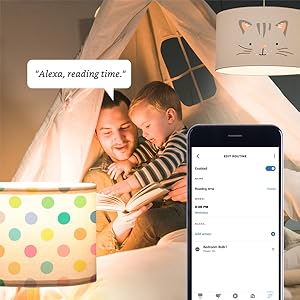
Image 6.4: Setting up a reading time routine
6.4. Бүлгийн хяналт
Add multiple smart bulbs (up to 64) to your smart hub system and control them individually or as a group within the app.
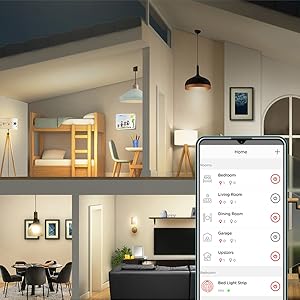
Image 6.5: Managing lights by room for group control
7. Засвар үйлчилгээ
- Цэвэрлэгээ: Цэвэрлэхийн өмнө чийдэнг унтрааж, хөргөж байгаа эсэхийг шалгаарай. Зөөлөн, хуурай даавуугаар арчина. Шингэн цэвэрлэгч хэрэглэж болохгүй.
- Хадгалах: Хэрэв чийдэнг хадгалах бол нарны шууд тусгал, хэт температураас хол, сэрүүн, хуурай газар хадгална.
- Хэрэглэгчийн засвар үйлчилгээ хийх боломжтой хэсэг байхгүй: Do not attempt to disassemble or repair the bulb. This will void the warranty.
8. Алдаа засах
8.1. Bulb Not Responding/Connecting
- Эрчим хүчийг шалгах: Ensure the light fixture switch is in the ON position and the bulb is receiving power.
- Hub холболт: Verify that your Zigbee hub is powered on and connected to your network.
- Ойролцоох: Ensure the bulb is within range of your Zigbee hub or another Zigbee device acting as a repeater.
- Дахин холбох: If the bulb loses connection, try removing it from your app and re-pairing it according to the setup instructions. Power cycling the bulb (turning it off and on 5 times) can sometimes reset it for re-pairing.
- Апп шинэчлэлт: Ensure your Sengled Home App or smart home platform app is updated to the latest version.
8.2. Voice Control Issues
- Assistant Link: Confirm that your Sengled account (or smart hub) is correctly linked to your voice assistant (Alexa, Google Home).
- Төхөөрөмжийн нээлт: Ask your voice assistant to "Discover devices" to ensure all bulbs are recognized.
- Command Clarity: Speak commands clearly and ensure the device name used in the command matches the name in your app.
8.3. Unstable Connection
- Зигби Сүлжээ: A strong Zigbee mesh network is crucial. Adding more Zigbee devices (like smart plugs or other bulbs) can strengthen the network.
- хөндлөнгийн оролцоо: Keep your Zigbee hub away from Wi-Fi routers, microwaves, or other devices that might cause wireless interference.
9. Баталгаат хугацааны мэдээлэл
Sengled Smart Light Bulbs are covered by a 3 жилийн хязгаарлагдмал баталгаат хугацаа from the date of purchase. This warranty covers defects in materials and workmanship under normal use. For warranty claims or detailed terms, please refer to the official Sengled webсайт эсвэл хэрэглэгчийн дэмжлэгтэй холбоо барина уу.
10. Хэрэглэгчийн дэмжлэг
For further assistance, technical support, or to report issues, please visit the official Sengled support website or contact their customer service department. Contact information can typically be found on the Sengled website or within the Sengled Home App.