1. Танилцуулга
This manual provides instructions for the proper setup, operation, and maintenance of your ELECOM HUGE Wireless Trackball Mouse (Model: M-HT1DRBK). Please read this manual thoroughly before using the product to ensure optimal performance and longevity.
2. Хайрцагт юу байна
- ELECOM HUGE Wireless Trackball Mouse
- USB хүлээн авагч
- АА батерей (x2)
- Хэрэглэгчийн гарын авлага (энэ баримт бичиг)
3. Тохиргоо
3.1. Зай суурилуулах
- Locate the battery compartment on the underside of the trackball mouse.
- Зайны тасалгааны тагийг нээ.
- Хоёр АА батерейг оруулж, туйлшралыг зөв (+/-) баталгаажуулна уу.
- Зайны тасалгааны тагийг сайтар хаа.
3.2. USB хүлээн авагчийн холболт
The USB receiver is stored within the trackball mouse for convenience during transport.
- Remove the USB receiver from its storage slot on the underside of the trackball mouse.
- USB хүлээн авагчийг компьютер дээрээ (PC эсвэл Mac) байгаа USB порт руу залгаарай.
- Turn on the trackball mouse using the power switch located on the underside. The mouse should be automatically recognized by your operating system.

Зураг 1: Inserting the USB receiver into the storage slot on the underside of the trackball mouse.
3.3. Software Installation (Mouse Assistant)
For full customization of the 8 programmable buttons and advanced features, it is recommended to install the ELECOM Mouse Assistant software.
- Visit the official ELECOM webсайт.
- Navigate to the 'Support' or 'Downloads' section and locate 'Mouse Assistant'.
- Download the appropriate version for your operating system (Windows or macOS).
- Суулгацыг дуусгахын тулд дэлгэцэн дээрх зааврыг дагана уу.

Зураг 2: Example of the ELECOM Mouse Assistant software interface for button customization.
4. Ашиглалтын заавар
4.1. Basic Cursor Control
The ELECOM HUGE trackball is designed for index finger control, providing precise cursor movement. Use your index finger to roll the 52mm trackball to move the cursor on the screen.
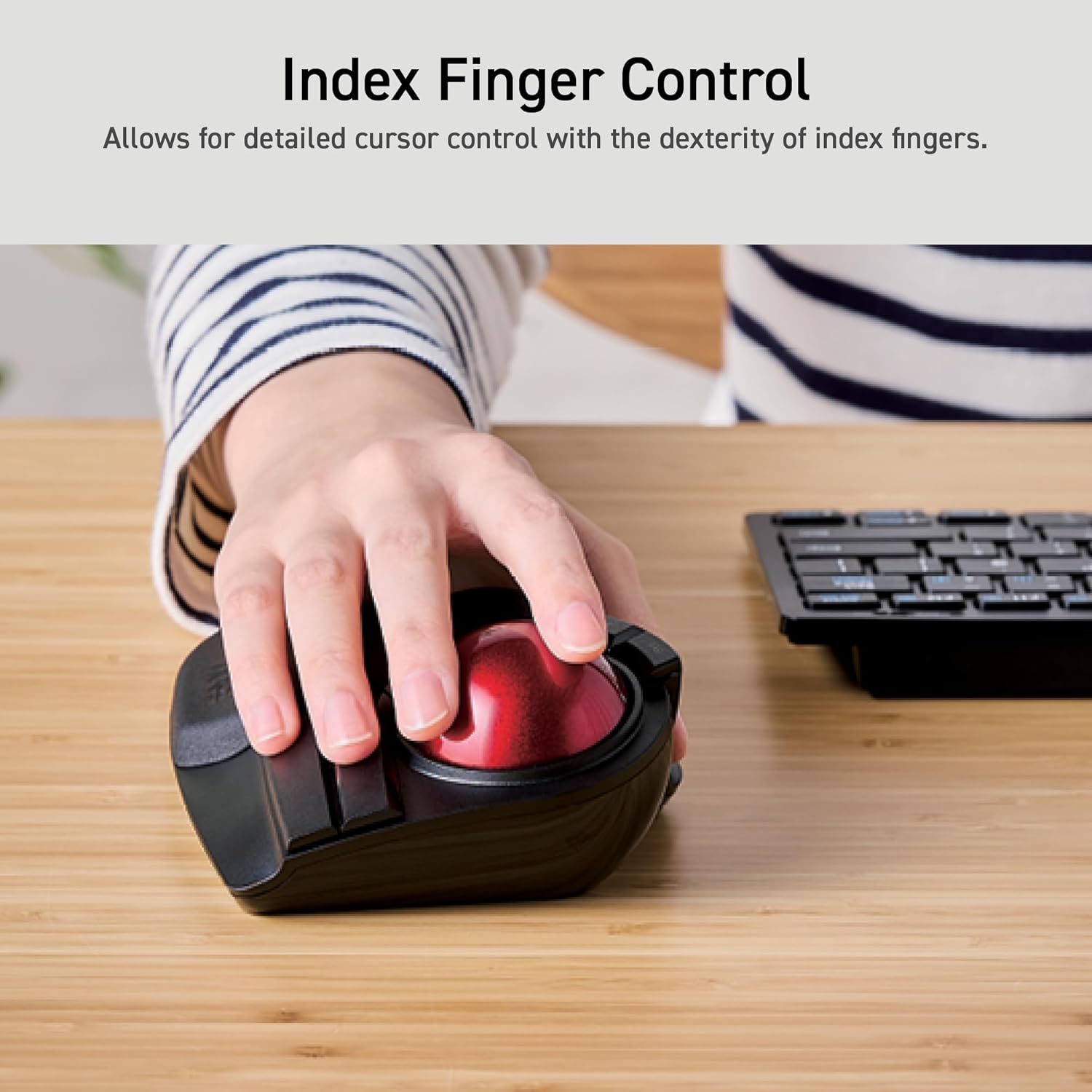
Зураг 3: Demonstrating index finger control for precise cursor movement.
4.2. DPI тохируулга
The trackball features a DPI button to adjust cursor speed. You can switch between three DPI settings: 500 (LOW), 1000 (MID), and 1500 (HIGH) DPI. Press the DPI button to cycle through these settings and find your preferred cursor speed.
4.3. Програмчлах боломжтой товчлуурууд
The trackball is equipped with 8 physical buttons, including the scroll wheel with tilt functionality. These buttons can be customized using the ELECOM Mouse Assistant software to perform various functions, such as application shortcuts, media controls, or custom macros.

Зураг 4: Дууслааview of the 8 programmable buttons and their locations.
4.4. Ergonomic Design and Palm Rest
The trackball features an ergonomic angled design and a large, soft palm rest to support your hand and wrist in a natural position, promoting comfort during extended use.
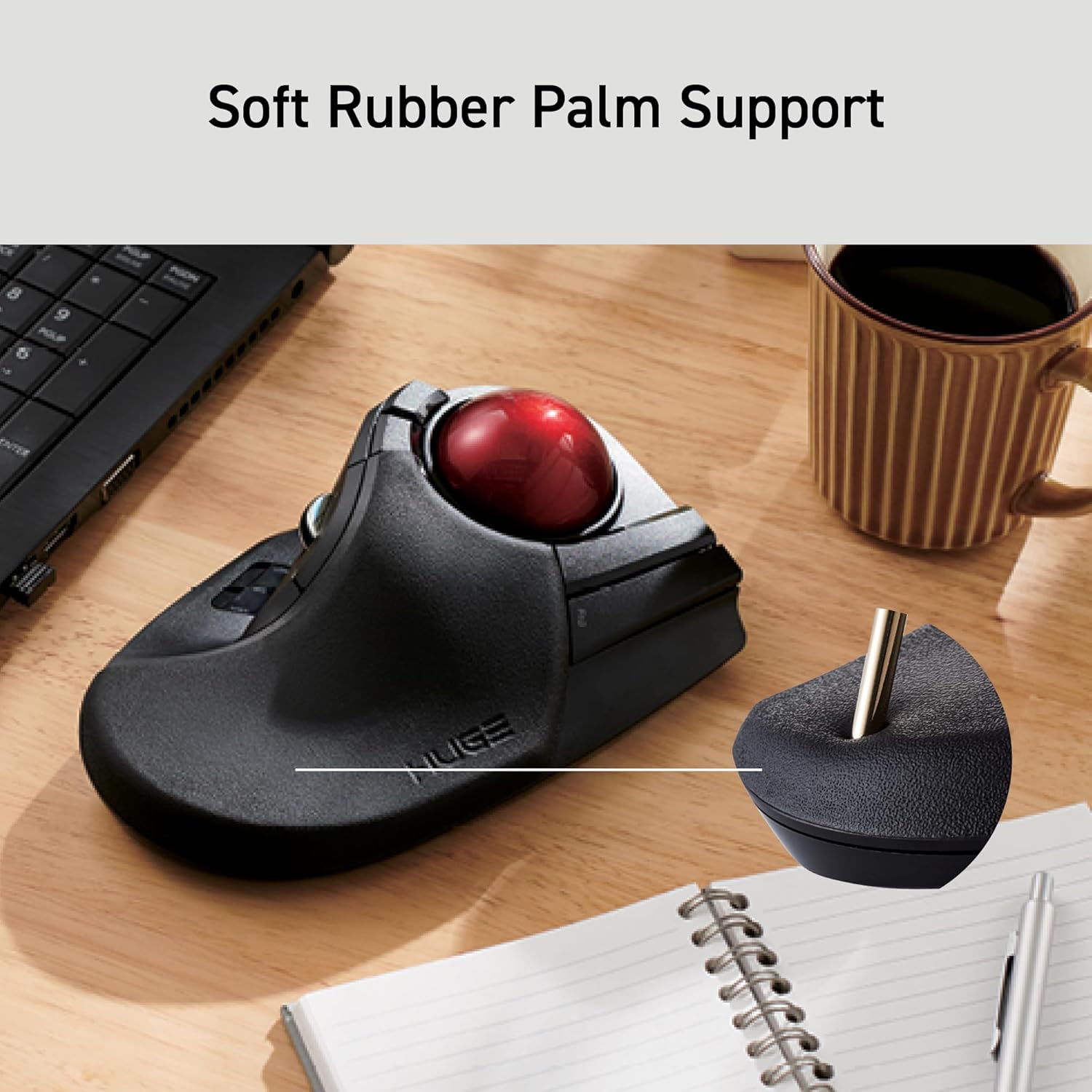
Зураг 5: The soft rubber palm support integrated into the trackball design.
5. Засвар үйлчилгээ
5.1. Trackball Cleaning
To maintain smooth operation, periodically clean the 52mm trackball and its ruby bearings. Dust and debris can accumulate and affect performance.
- Turn off the trackball mouse.
- Locate the ball removal hole on the underside of the device.
- Gently push the trackball out through this hole.
- Wipe the trackball with a soft, lint-free cloth.
- Clean the three ruby ball bearings and the inside of the trackball housing with a cotton swab or a soft brush to remove any dust or debris.
- Reinsert the trackball into the housing until it clicks into place.
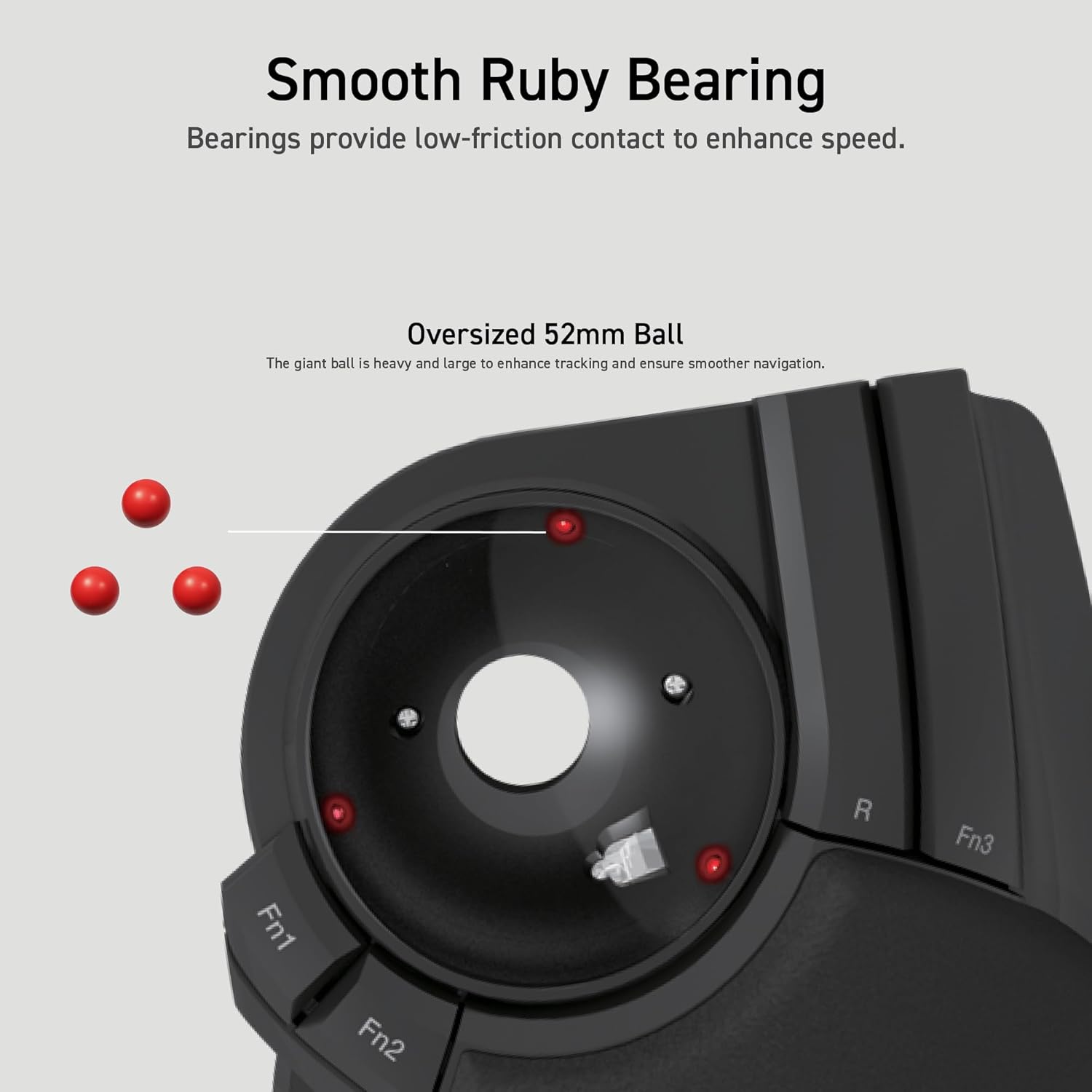
Зураг 6: Illustration of the smooth ruby bearings and the trackball removal process.
6. Алдаа засах
6.1. Cursor Not Moving or Erratic
- Батерейг шалгах: Ensure batteries are correctly installed and have sufficient charge. Replace if necessary. The trackball has a battery remaining light lamp.
- USB хүлээн авагчийг шалгах: USB хүлээн авагч ажиллаж байгаа USB порт руу найдвартай залгагдсан эсэхийг шалгаарай. Өөр USB порт ашиглаж үзнэ үү.
- Цэвэр трекбол: Refer to Section 5.1 for instructions on cleaning the trackball and bearings.
- хөндлөнгийн оролцоо: Move the trackball closer to the USB receiver or away from other wireless devices that might cause interference.
6.2. Товчлуурууд хариу өгөхгүй байна
- Програм хангамжийн шалгалт: If using custom button assignments, ensure the ELECOM Mouse Assistant software is running and configured correctly.
- Төхөөрөмжийг дахин холбох: In rare cases, re-pairing the device with the USB receiver might resolve the issue. Consult the ELECOM support webтусгай зааварчилгаа авах сайт.
7. Техникийн үзүүлэлтүүд
| Загварын дугаар | M-HT1DRBK |
| Холболт | 2.4GHz Wireless USB |
| DPI тохиргоо | 500 / 1000 / 1500 DPI (солих боломжтой) |
| Товчлуур | 8 (Programmable) + Scroll Wheel with Tilt |
| Трекболын хэмжээ | 52 мм |
| Эрчим хүчний эх үүсвэр | 2 х АА батерей (дагсан) |
| Үйлдлийн системийн нийцтэй байдал | Windows 7, 8, 10 or later; macOS 10.13 or later |
| Хэмжээ (LxWxH) | 7.16 x 4.52 x 2.25 инч (181.9 x 114.7 x 57.2 мм) |
| Жин (батерейгүй) | 9.2 унц (260 гр) |
8. Баталгаат хугацаа ба дэмжлэг
ELECOM products are designed for reliability and performance. For warranty information, technical support, or to download the latest software and drivers, please visit the official ELECOM website or contact ELECOM customer service.
Official ELECOM Webсайт: https://www.elecom.co.jp/global/