1. Танилцуулга
This manual provides instructions for the Apple TV (32GB, 4th Generation), a digital media player developed by Apple Inc. It allows users to access digital content from various sources, including streaming services, apps, and AirPlay from Apple devices. This guide covers setup, operation, maintenance, and troubleshooting to ensure optimal use of your device.
Хайрцагт юу байна
- Apple TV (32GB, 4th generation)
- Siri Remote
- Цахилгааны утас
- Lightning to USB Cable (for remote charging)
An HDMI cable (sold separately) is required to connect the Apple TV to your television.
2. Тохиргоо
2.1 Connecting Your Apple TV
- Эрчим хүчийг холбох: Plug one end of the power cord into the power port on the back of the Apple TV and the other end into a power outlet.
- ТВ-д холбогдох: Use an HDMI cable (not included) to connect the HDMI port on the back of the Apple TV to an HDMI input on your television. Note: Ensure the HDMI cable is fully engaged to prevent signal issues.
- Сүлжээнд холбогдох (заавал биш): For a wired internet connection, connect an Ethernet cable from your router to the Ethernet port on the back of the Apple TV. For Wi-Fi, you will configure this during the on-screen setup.
- Асаах: Turn on your television and select the correct HDMI input. The Apple TV should power on automatically.

Зураг 2.1: Арын view of the Apple TV showing the power, USB-C, HDMI, and Ethernet ports for connections.
2.2 Initial Setup with Siri Remote
- Pair Siri Remote: If the Siri Remote does not automatically pair, press and hold the Цэс болон Дууны хэмжээг нэмэгдүүлэх товчийг 5 секунд дарна уу.
- Хэл ба бүс нутаг: Хэл болон бүс нутгаа сонгохын тулд дэлгэцэн дээрх зааврыг дагана уу.
- Quick Setup with iOS Device: If you have an iPhone or iPad, bring it close to the Apple TV when prompted. Your device will offer to transfer Wi-Fi settings and Apple ID information automatically.
- Гараар тохируулах: If not using an iOS device, manually select your Wi-Fi network and enter your Apple ID credentials using the Siri Remote.
- Бүрэн тохиргоо: Continue following the on-screen prompts to enable location services, Siri, and other preferences.
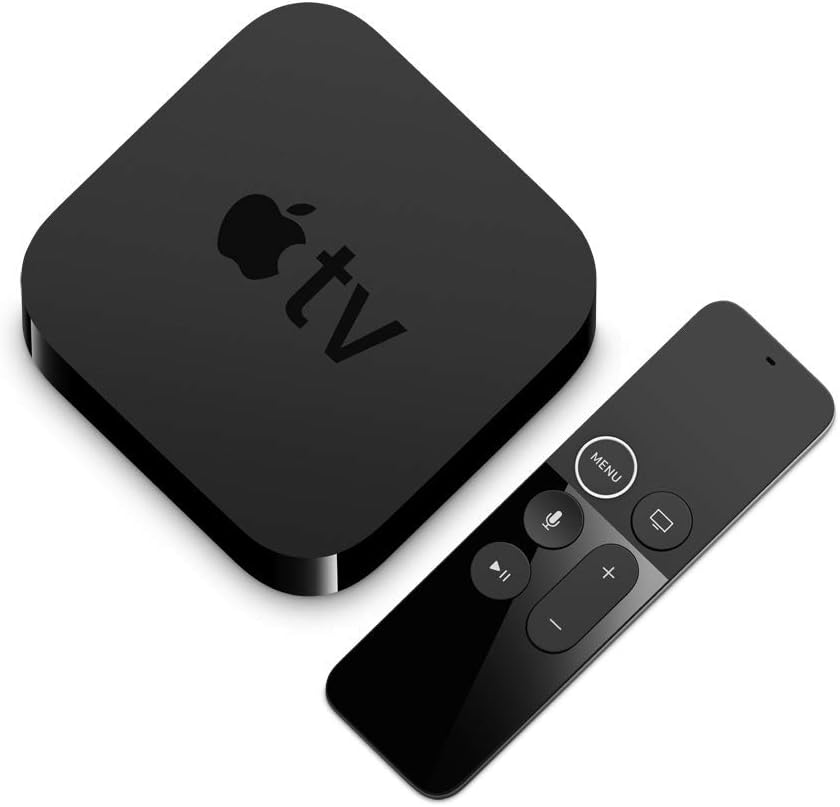
Зураг 2.2: The Apple TV unit and its accompanying Siri Remote, used for navigation and control.
3. Operating Your Apple TV
3.1 Siri Remote Functions
The Siri Remote features a touch surface for navigation and dedicated buttons for various functions:
- Мэдрэгч гадаргуу: Навигац хийхийн тулд шударна уу, сонгохын тулд дарна уу.
- Цэсийн товчлуур: Go back to the previous screen or return to the Home screen (hold).
- TV/Home Button: Go to the TV app or Home screen (single press), open App Switcher (double press), or activate Control Center (hold).
- Сири товч: Дуут команд болон хайлт хийхийн тулд Сириг идэвхжүүлэхийн тулд удаан дарна уу.
- Тоглуулах/түр зогсоох товчлуур: Медиа тоглуулахыг хянах.
- Дууны товчлуурууд: Control your TV's volume (requires TV setup).
3.2 Гол онцлогууд
- 1080p HD видео: Enjoy high-quality video content.
- Dolby Digital Plus 7.1 Surround Sound: Experience immersive audio.
- Apple TV+ Access: Watch original stories from Apple TV+.
- Apple Arcade: Play groundbreaking games.
- AirPlay: Stream photos and videos from your iPhone or iPad to your TV.
- Siri Voice Control: хайх movies, shows, and games using voice commands.
4. Засвар үйлчилгээ
4.1 Cleaning Your Apple TV and Siri Remote
- Unplug the Apple TV from the power outlet before cleaning.
- Use a soft, lint-free cloth to wipe the exterior of the Apple TV and Siri Remote.
- Avoid using abrasive cleaners, solvents, or aerosol sprays, as these can damage the finish.
- Do not allow moisture to get into any openings.
4.2 Сири алсын зай
The Siri Remote contains a rechargeable lithium-ion battery. To charge, connect the remote to a power source using the included Lightning to USB cable.
5. Алдаа засах
5.1 No Picture or Signal
- Ensure the Apple TV is properly connected to power and turned on.
- Verify the HDMI cable is securely connected to both the Apple TV and your television. Try a different HDMI port on your TV or a different HDMI cable.
- Confirm your TV is set to the correct HDMI input source.
- Apple TV-ээ дахин асаахын тулд 30 секундын турш цахилгаан тэжээлээс салгаад буцааж залгаарай.
5.2 Siri Remote Not Responding
- Алсын удирдлага цэнэглэгдсэн эсэхийг шалгана уу. Lightning-ээс USB кабель ашиглан тэжээлд холбоно уу.
- Point the remote at the Apple TV and press any button.
- If the remote is still unresponsive, try re-pairing it by holding the Цэс болон Дууны хэмжээг нэмэгдүүлэх товчийг 5 секунд дарна уу.
- Restart the Apple TV (unplug and replug power).
5.3 Сүлжээний холболтын асуудал
- Check your router and modem to ensure they are working correctly.
- For Wi-Fi, go to Тохиргоо > Сүлжээ on your Apple TV to verify your connection and re-enter Wi-Fi password if necessary.
- For Ethernet, ensure the cable is securely connected.
- Restart your router, modem, and Apple TV.
6. Техникийн үзүүлэлтүүд
| Загварын дугаар | MR912LL/A |
| Хадгалах багтаамж | 32 ГБ |
| Хэмжээ (H x W x D) | 1.4 инч x 3.9 инч x 3.9 инч (35 мм x 98 мм x 98 мм) |
| Жин | 0.94 фунт (425 гр) |
| Видео гаралт | HDMI 1.4 |
| Видеоны нягтрал | 1080p хүртэл |
| Аудио гаралт | Dolby Digital Plus 7.1 хүрээлэх дуу |
| Холболт | 802.11ac Wi-Fi with MIMO, Ethernet, Bluetooth 4.0 |
| Портууд | HDMI, Ethernet, USB-C (for service and support) |
| Siri Remote батерей | Цэнэглэдэг лити-ион |
Тэмдэглэл: Техникийн үзүүлэлтүүдийг мэдэгдэлгүйгээр өөрчлөх боломжтой.
7. Баталгаат хугацааны мэдээлэл
Your Apple TV (32GB, 4th Generation) is covered by a one-year limited warranty from the date of original retail purchase. This warranty covers manufacturing defects in materials and workmanship. It does not cover damage caused by accidents, misuse, unauthorized modifications, or normal wear and tear.
For complete details regarding the warranty terms and conditions, please refer to the official Apple warranty documentation included with your product or visit the Apple Support webсайт.
8. Дэмжлэг
For additional assistance, technical support, or service, please contact Apple Support through the following resources:
- Онлайн дэмжлэг: Apple-ийн албан ёсны дэмжлэгт зочилно уу webсайт: support.apple.com
- Олон нийтийн форумууд: Engage with other Apple users and experts: talkions.apple.com
- Apple Store: Өөрийн биеэр тусламж авахын тулд эрх бүхий Apple Store-д зочилно уу.
Please have your product's serial number ready when contacting support. The serial number can be found on the bottom of your Apple TV device or in the Settings menu on the device itself.