1. Танилцуулга
The Meross Matter Smart Plug Mini (MSS115) is designed to integrate seamlessly into your smart home ecosystem, offering multi-platform compatibility and enhanced privacy. This manual provides detailed instructions for setup, operation, maintenance, and troubleshooting to ensure optimal use of your device.
Гол онцлогууд:
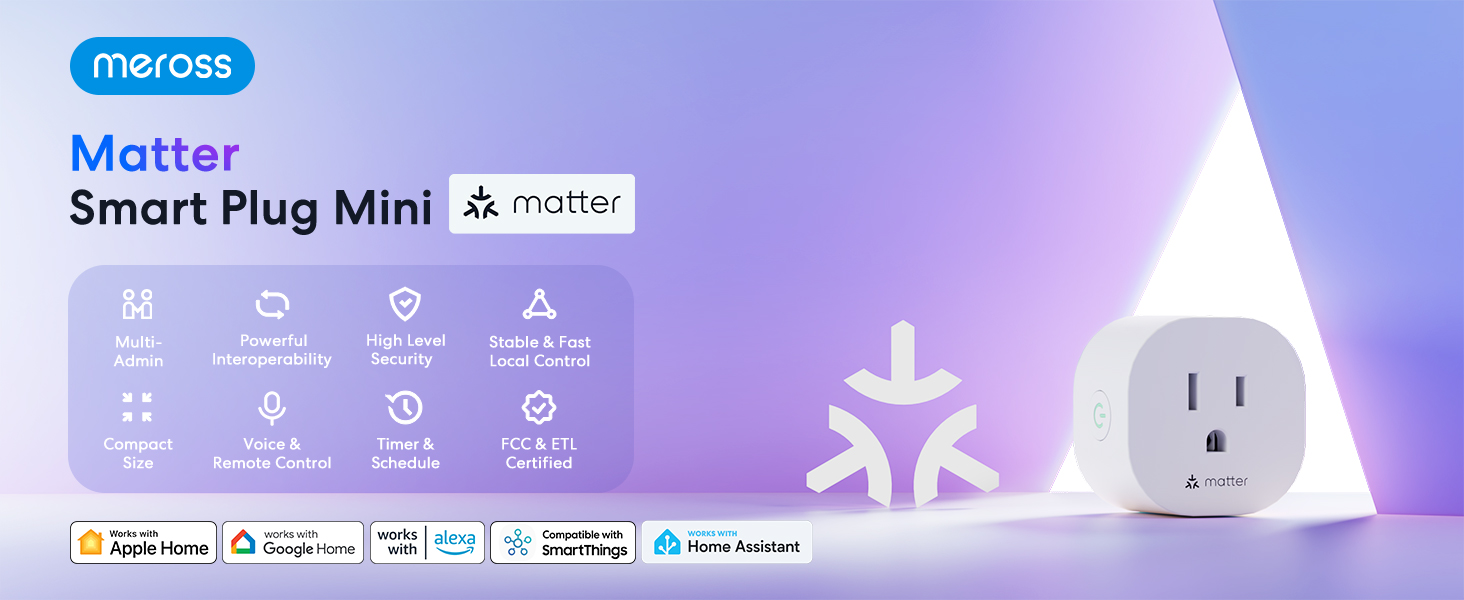
- Matter Multi-platform Compatibility: Works across certified smart home platforms including Apple Home, Alexa, Google Home, and SmartThings.
- 100% Privacy & LAN & No Cloud: Offers direct access without cloud reliance, ensuring continuous operation even if your home internet is offline.
- Customizable Schedules & Timer: Set specific times for devices to turn on or off, optimizing energy consumption.
- Апп, дуут удирдлага: Manage devices via the Meross app or voice commands with HomeKit, Google Assistant, or Alexa.
- Super Easy Setup: Quick setup by plugging in, scanning a QR code, and syncing with the app.
- Fire Retardant & Compact Size: Designed with fire-retardant materials and a compact form factor to avoid blocking adjacent outlets.

2. Хайрцагт юу байна
- 2 x Matter Smart Plug Mini
- 1 х хэрэглэгчийн гарын авлага
3. Техникийн үзүүлэлтүүд
| Онцлог | Дэлгэрэнгүй |
|---|---|
| Загварын дугаар | MSS115 |
| Холбогч төрөл | Залгана уу |
| Польшуудын тоо | 2 |
| No. of Wires | 3 |
| Залгаад форматлах | B төрөл |
| Ampарилгах | 10 Amps |
| Ботьtage | 120 вольт |
| Бүтээгдэхүүний хэмжээс | 2"D x 2"W x 2"H |
| Зүйлийн жин | 4.6 унц |
| Материал | Поликарбонат (PC) |
| Өнгө | Цагаан |
| Гэрчилгээ | CE, CSA, NEMA, UL, cUL, cULus |


4. Тохиргоо
4.1 Тавигдах шаардлага
- Одоо байгаа 2.4 GHz Wi-Fi сүлжээ.
- A smartphone with iOS 16.1 or higher, or Android 8.1 or higher.
- A Matter-compatible Home Hub (e.g., Apple HomePod, Apple TV 4K, Amazon Echo, Google Nest Hub). iPads are not supported as Matter hubs.
4.2 Анхны тохиргоо
- Plug in the Meross Smart Plug Mini into an outlet near your main Wi-Fi router.
- Download the Meross app from the App Store or Google Play, or use your preferred Matter-compatible smart home app (Apple Home, Alexa, Google Home).
- Ensure your phone is connected to a 2.4GHz Wi-Fi network and Bluetooth is enabled.
- Scan the QR code located on the device, packaging, or user manual to initiate the pairing process.

4.3 Adding to Apple Home
Video 1: Add Your Device to Apple Home. This video demonstrates the process of adding your Meross Smart Plug Mini to Apple Home.
- Төхөөрөмж дээрээ Apple Home програмыг нээнэ үү.
- Tap the '+' symbol, then select 'Add or Scan Accessory'.
- Scan the setup QR code on your Matter device.
- Wait for your device to connect. This might take a few moments.
- Төхөөрөмжийнхөө байршлыг сонгоод нэр өгнө үү.
- Tap 'Done' to complete the setup.
4.4 Adding to Amazon Alexa
Video 2: Add Your Device to Alexa. This video guides you through connecting your Meross Smart Plug Mini to Amazon Alexa.
- Төхөөрөмж дээрээ Amazon Alexa аппликейшнийг нээнэ үү.
- Tap the '+' symbol, then select 'Add Device'.
- Choose 'Matter' from the list of device types.
- Tap 'Try Numeric Code Instead'.
- Tap 'Enter Code'.
- Enter the temporary pairing code obtained from the first platform (e.g., Apple Home).
- Төхөөрөмжөө холбогдохыг хүлээнэ үү.
4.5 Adding to Google Home
Video 3: Add Your Device to Google Home. This video illustrates how to add your Meross Smart Plug Mini to Google Home.
- Төхөөрөмж дээрээ Google Home аппликейшнийг нээнэ үү.
- Tap the '+' symbol, then select 'New Device'.
- Choose 'Matter' from the list of device types.
- Tap 'Continue Without Scanning'.
- Enter the temporary pairing code obtained from the first platform (e.g., Apple Home or Alexa).
- Төхөөрөмжөө холбогдохыг хүлээнэ үү.
- Төхөөрөмжийнхөө байршлыг сонгоод нэр өгнө үү.
- Tap 'Done' when the device is connected.
4.6 Generating a New Pairing Code for Additional Platforms
If you have already added your device to one platform (e.g., Apple Home) and wish to add it to another (e.g., Alexa or Google Home), you will need to generate a new temporary pairing code from the platform where the device is already added.
- Go to the settings page of your device within the app where it is already connected (e.g., Apple Home app).
- Look for an option like 'Turn On Pairing Mode' (Apple Home) or 'Other Assistants and Apps' then 'Add Another' (Alexa) or 'Linked Matter apps & services' then 'Link apps & services' (Google Home).
- Copy the new setup code that appears. This code is temporary and typically expires in 15 minutes.
- Use this new code to add the device to the next desired platform following the steps above.

5. Ухаалаг залгуурыг ажиллуулах
5.1 Програмын хяналт
Once connected, you can control your smart plug directly from the Meross app or your chosen smart home platform app (Apple Home, Alexa, Google Home, SmartThings). This includes turning the plug on/off, setting schedules, and timers.

5.2 Дуут удирдлага
Use voice commands with Siri, Alexa, or Google Assistant to control your connected devices hands-free.
- Сири: "Сайн уу Сири, миний зочны өрөөний зурагтыг асаагаарай."
- Alexa: "Алекса, миний зочны өрөөний зурагтыг асаагаарай."
- Google Туслах: "Хөөе Google, миний зочны өрөөний зурагтыг асаагаарай."

5.3 Offline Functionality
With Matter-certified devices on your local area network (LAN), schedules and timers will continue to function normally even if your home internet connection goes offline.
Video 4: Power Your Convenient Life. This video highlights the convenience features of the Meross Smart Plug Mini, including offline routine execution.
6. Засвар үйлчилгээ
To ensure the longevity and proper functioning of your Meross Matter Smart Plug Mini, follow these maintenance guidelines:
- Keep the device clean and dry. Avoid exposure to water or excessive humidity.
- Төхөөрөмжийг өөрөө задлах, засах гэж бүү оролдоорой. Асуудал гарвал дэмжлэгтэй холбоо барина уу.
- Залгуурыг залгуурт найдвартай залгасан эсэхийг шалгаарай.
- Regularly check for firmware updates through the Meross app to ensure optimal performance and security.
7. Алдаа засах
7.1 LED and Button Rules
The LED indicator on the smart plug provides important status information:
- Хатуу хув: Initialization/Reset/Firmware upgrading mode.
- Flashing Amber and Green (slowly): Тохиргооны горим.
- Flashing Green (rapidly): Wi-Fi холболтын горим.
- Тод ногоон: Амжилттай холбогдсон ба залгуур АСААЛТТАЙ байна.
- Тод улаан: Интернэт холболт байхгүй, залгуур АСААЛТТАЙ байна.
- Унтраах: Сокет унтарсан эсвэл Meross Smart Plug унтарсан байна.
The button on the side of the plug can be used to turn the socket ON or OFF. Press and hold the button for 5 seconds until the LED is solid amber to initiate a factory reset process.
7.2 Нийтлэг асуудал ба шийдвэрлэх арга замууд
- Төхөөрөмж Wi-Fi-д холбогдоогүй байна:
- Таны Wi-Fi сүлжээ 2.4GHz байгаа эсэхийг шалгаарай.
- Check your main Wi-Fi's internet connection.
- Make sure your Wi-Fi password hasn't been changed.
- Ensure the Meross Smart Plug is not too far from the main Wi-Fi router.
- Factory reset the Meross Smart Plug and try to add it again.
- Cannot pair with HomeKit:
- Ensure you have a compatible Home Hub (HomePod, Apple TV 4K). iPads are not supported.
- Verify your iOS version is 16.1 or later.
- Таны утсан дээр Bluetooth идэвхжсэн эсэхийг шалгаарай.
- If issues persist, refer to the Meross support page for HomeKit pairing: Meross HomeKit Pairing FAQ.
- Device unresponsive or offline:
- Check the power supply to the smart plug.
- Таны Wi-Fi сүлжээ идэвхтэй, тогтвортой байгаа эсэхийг шалгана уу.
- Wi-Fi чиглүүлэгч болон ухаалаг залгуураа дахин эхлүүлнэ үү.

8. Баталгаат хугацаа ба дэмжлэг
8.1 Баталгаат хугацааны мэдээлэл
Meross provides a 1-year warranty for the Smart Plug Mini (MSS115) from the date of purchase. This warranty covers manufacturing defects and ensures the product meets its specified performance standards under normal use.
8.2 Хэрэглэгчийн дэмжлэг
For any inquiries, technical assistance, or warranty claims, please contact Meross customer support:
- Имэйл: support@meross.com
- Webсайт: Visit the official Meross webТүгээмэл асуултууд болон туслах эх сурвалжуудын сайт.
- Апп доторх дэмжлэг: Access the help section within the Meross app for pairing instructions and additional assistance.


