Танилцуулга
This manual provides comprehensive instructions for the Xfinity Comcast XR15 Voice Control Remote. Designed for seamless interaction with Xfinity X1, Xi6, Xi5, and XG2 equipment, this remote enhances your entertainment experience with intuitive voice commands and convenient features.
Бүтээгдэхүүн дууссанview
The Xfinity XR15 Voice Control Remote is engineered for ease of use and efficient control of your Xfinity entertainment system. Key features include voice control, a backlit keypad, Aim Anywhere functionality, and easy access to accessibility features like Closed Captioning, video description, and voice guidance.
Remote Layout and Button Functions
Familiarize yourself with the remote's buttons and their corresponding functions:

Figure 1: Xfinity XR15 Remote Button Functions
- ТВ оролт: Switches to the next available input on your TV.
- Эрчим хүч: Turns the TV on or off. When programmed, it can also control the TV Box and certain audio devices. The X1 TV Box is designed to remain on.
- VOL +/-: Increases or decreases the volume when programmed with a valid TV or AV receiver code.
- Дууг хаах: Turns sound off or on.
- CH +/-: Selects the next channel up or down.
- Тоглуулах/түр зогсоох: Plays or pauses live TV, XFINITY On Demand, or DVR content.
- FF (Хурдан урагшлуулах): Fast forwards XFINITY On Demand or DVR content.
- Rew (Rewind): Rewinds XFINITY On Demand or DVR content.
- Гарах: Exits on-screen guides; stops and exits XFINITY On Demand and DVR content. Returns to the "Live" point when replaying live TV.
- Record (red dot): Records the current program or saves future programs to your DVR.
- Xfinity: Displays the main menu of the guide, providing access to all guide features, including DVR and XFINITY On Demand.
- Хөтөч: Displays TV listings.
- Буцах: Цэс эсвэл өмнөх дэлгэц рүү буцна.
- Мэдээлэл (i): Displays information about programs and notifications.
- Voice Control (Microphone button): Use voice commands to search for networks, shows, set DVR recordings, and get recommendations.
- Тооны товчлуурууд (0-9): Use predictive text (T9) to quickly search for content or directly enter channel numbers.

Зураг 2: Урд view of two Xfinity XR15 Remotes
Тохиргоо
The Xfinity XR15 remote is designed for easy pairing with your Xfinity equipment. It is compatible with Xi6, Xi5, XG2, and X1 equipment.
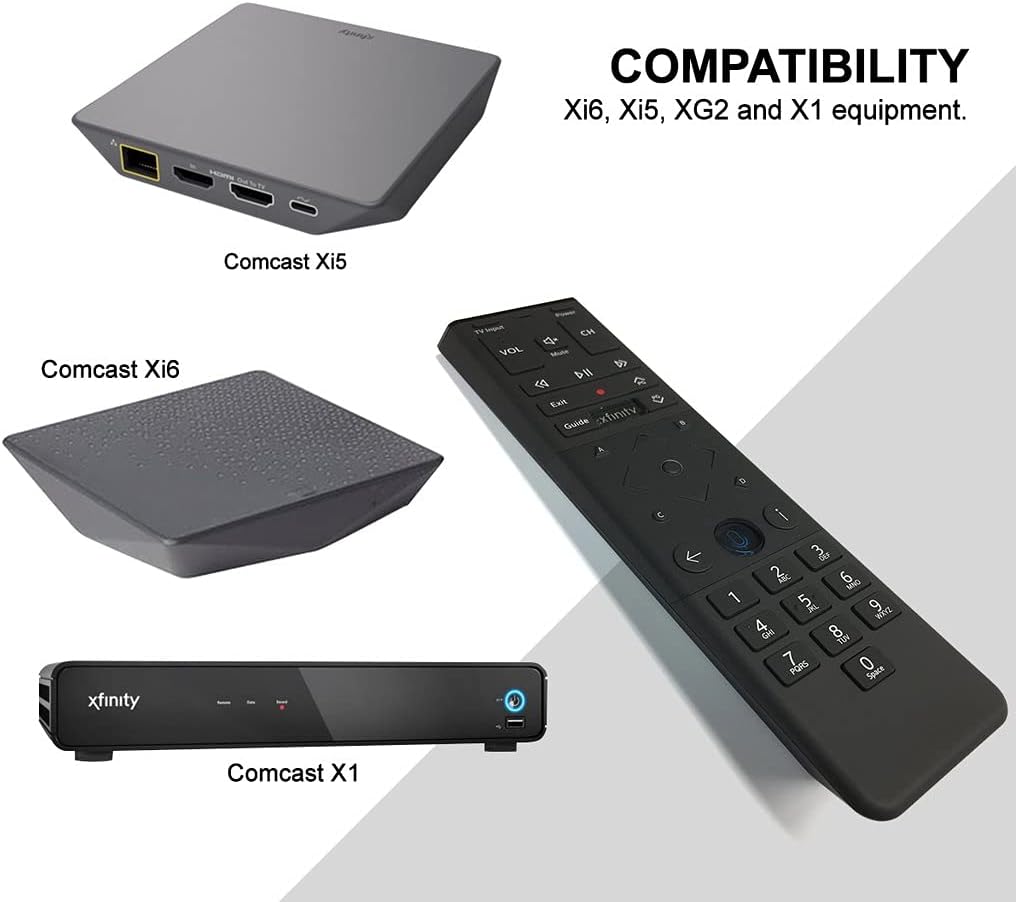
Figure 3: Xfinity XR15 Remote Compatibility
Автомат хослуулах
For most X1 TV Boxes, the remote will automatically pair when you first use it. Simply point the remote at your TV Box and press any button. Follow any on-screen prompts to complete the pairing process.
Manual Pairing (if automatic pairing fails)
- Ensure your TV Box is powered on.
- -г удаан дар Xfinity болон Мэдээлэл (i) buttons simultaneously for five seconds until the status LED on the remote changes from red to green.
- Дэлгэц дээрх зааврыг дагана уу, холболтыг дуусгана уу.
Pairing with your TV for Volume and Power Control
To control your TV's volume and power, you will need to program the remote:
- Turn on your TV and Xfinity TV Box.
- -г удаан дар Тохиргоо button (usually a small, recessed button on the remote, or sometimes the Xfinity болон Дууг хаах buttons simultaneously) until the status LED on the remote changes from red to green.
- Enter the 5-digit code for your TV brand. A list of common codes can be found on the Xfinity support webсайт.
- Алсын удирдлагыг телевизор руугаа чиглүүлээд товчийг дарна уу Хүч button. If the TV turns off, the remote is programmed. If not, try the next code for your TV brand.
Ашиглалтын заавар
Дуут хяналтыг ашиглаж байна
The voice control feature allows you to quickly find content, change channels, and control your DVR. To use voice control:

Figure 4: Voice Control Microphone Button
- -г удаан дар Микрофон button (located below the directional pad).
- Speak clearly into the microphone at the top of the remote.
- -г суллана Микрофон Ярьж дуусаад товчийг дарна уу.
Exampдуут командууд:
- "Find [Movie Title]"
- "Go to [Channel Name/Number]"
- "Record [Show Name]"
- "What's on tonight?"
- "Show me comedies"
The remote's voice recognition is highly responsive, allowing for quick navigation and content discovery.
Засвар үйлчилгээ
Зай солих
The Xfinity XR15 remote requires two AA batteries (included). To replace the batteries:

Зураг 5: Зайны тасалгаа
- Locate the battery cover on the back of the remote.
- Бүрхүүлийг доош нь гулсуулж, өргөж ав.
- Хуучин батерейг аваад хоёр шинэ АА батерейг оруулаад, зөв туйлшралыг (+/-) шалгаарай.
- Replace the battery cover by sliding it back into place until it clicks.
Хамгийн оновчтой гүйцэтгэлийн хувьд өндөр чанартай шүлтлэг батерейг ашигла.
Алдааг олж засварлах
If you encounter issues with your Xfinity XR15 remote, try the following solutions:
| Асуудал | Шийдэл |
|---|---|
| Remote not responding to commands. |
|
| Дуут удирдлага ажиллахгүй байна. |
|
| Volume or Power buttons not controlling TV. |
|
For further assistance, please visit the official Xfinity support webсайт эсвэл харилцагчийн үйлчилгээтэй холбогдоно уу.
Үзүүлэлтүүд
| Онцлог | Дэлгэрэнгүй |
|---|---|
| Загварын дугаар | XR15 |
| Хэмжээ | 7 x 5.3 x 1.6 инч |
| Зүйлийн жин | 10.2 унц |
| Батерей | 2 АА батерей (дагсан) |
| Тохиромжтой төхөөрөмжүүд | X1, Xi6, Xi5, XG2 TV Boxes |
| Онцлог шинж чанар | Voice controlled, Backlit keypad, Aim Anywhere |
| Өнгө | Хар |
Баталгаат болон дэмжлэг
For information regarding product warranty, please refer to the documentation provided with your purchase or visit the official Xfinity support website. Xfinity provides various support resources, including online guides, FAQs, and customer service contact options.
Онлайн дэмжлэг: www.xfinity.com/support


