1. Танилцуулга
This manual provides essential information for the installation, configuration, operation, and maintenance of the MOXA AWK-1137C-US-T 802.11n Wireless AP Client. This device is designed for industrial wireless applications, offering reliable 802.11n connectivity in challenging environments with a wide operating temperature range.
2. Аюулгүй байдлын мэдээлэл
- Төхөөрөмжийг цэвэрлэх, засвар үйлчилгээ хийхээс өмнө цахилгааныг үргэлж салга.
- Цахилгааны аюулаас урьдчилан сэргийлэхийн тулд зөв газардуулга хийх.
- Төхөөрөмжийг тогтоосон температур, чийгшлийн хүрээнд ажиллуулна.
- Төхөөрөмжийг чийг, хэт өндөр температурт бүү гарга.
- Зөвхөн мэргэшсэн ажилтан суурилуулах, засвар үйлчилгээ хийх ёстой.
3. Багцын агуулга
Таны багц дараах зүйлсийг агуулж байгаа эсэхийг шалгана уу.
- MOXA AWK-1137C-US-T Wireless AP Client unit
- Шуурхай суулгах гарын авлага
- Баримтжуулалтын CD (эсвэл онлайн эх сурвалжийн холбоос)
- Mounting kit (if applicable)
- Power adapter or terminal block (if applicable)
Хэрэв ямар нэгэн зүйл дутуу эсвэл гэмтсэн бол худалдагчтайгаа яаралтай холбоо барина уу.
4. Техник хангамж дууссанview
The AWK-1137C-US-T features robust industrial design. Key components typically include:
- Ethernet портууд: Утастай сүлжээний холболтод зориулагдсан.
- Антен холбогч: For external antennas to optimize wireless signal.
- Эрчим хүчний оролт: Terminal block for DC power input.
- LED үзүүлэлтүүд: Provide status information for power, WLAN, and Ethernet activity.
- Дахин тохируулах товч: For restoring factory default settings.
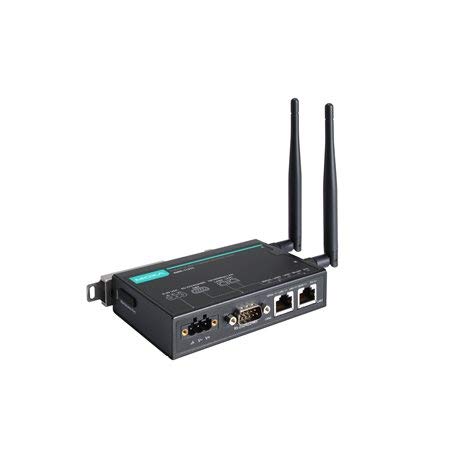
Figure 1: MOXA AWK-1137C-US-T Wireless AP Client. This image shows the compact industrial design of the device, typically featuring antenna ports, Ethernet connections, and power input.
5. Тохиргоо
5.1 Суурилуулалт
The AWK-1137C-US-T supports DIN-rail mounting. Attach the DIN-rail kit to the device and snap it onto a standard DIN-rail. Ensure the device is securely fastened to prevent vibration or accidental dislodgement.
5.2 Эрчим хүчний холболт
- Connect a suitable DC power source (e.g., 12-48 VDC) to the device's power input terminal block.
- Ensure correct polarity (+ and -) as indicated on the device.
- Tighten the screws on the terminal block to secure the power wires.
5.3 Сүлжээний холболт
- Connect an Ethernet cable from your network switch or router to the Ethernet port on the AWK-1137C-US-T.
- Attach appropriate antennas to the antenna connectors. Ensure they are securely tightened.
5.4 Анхны тохиргоо
Төхөөрөмжид хандахын тулд web- суурилсан удирдлагын интерфейс:
- Connect a computer directly to the device's Ethernet port or ensure it is on the same network segment.
- Configure your computer's IP address to be in the same subnet as the device's default IP address (refer to the Quick Installation Guide for the default IP).
- Нээлттэй a web browser and enter the device's default IP address.
- Анхдагч хэрэглэгчийн нэр, нууц үгээ ашиглан нэвтэрнэ үү (Шуурхай суулгах гарын авлагыг үзнэ үү).
- Change the default password immediately for security.
6. Ажиллаж байгаа
6.1 Үйлдлийн горимууд
The AWK-1137C-US-T can operate in various modes, including Access Point (AP) and Client mode. Select the appropriate mode based on your network requirements.
- Хандалтын цэг (AP) горим: The device acts as a central hub for wireless clients to connect.
- Үйлчлүүлэгчийн горим: The device connects to an existing Access Point, extending wired network connectivity wirelessly.
6.2 Утасгүй сүлжээний тохиргоо
Configure the following wireless parameters via the web интерфэйс:
- SSID: The name of your wireless network.
- Суваг: Select an appropriate wireless channel to avoid interference.
- Хамтлаг: Configure for 2.4 GHz or 5 GHz operation, depending on the model and environment.
- Дамжуулах хүч: Adjust the output power for optimal coverage and compliance.
6.3 Аюулгүй байдлын тохиргоо
Implement strong wireless security to protect your network:
- Шифрлэлт: Use WPA2/WPA3-PSK or Enterprise for robust security.
- Password/Passphrase: Choose a strong, unique password.
- MAC хаягийн шүүлтүүр: Optionally restrict access to specific devices.
7. Засвар үйлчилгээ
7.1 Програм хангамжийн шинэчлэлтүүд
MOXA-г тогтмол шалгаж байгаарай website for the latest firmware updates. Firmware updates can provide new features, performance improvements, and security patches. Follow the instructions provided with the firmware package for a safe update process.
7.2 Цэвэрлэгээ
Clean the device periodically with a soft, dry cloth. Do not use liquid or aerosol cleaners. Ensure the device is powered off before cleaning.
7.3 Байгаль орчны асуудал
Ensure the operating environment remains within the specified temperature and humidity limits (-40 to 75°C). Avoid placing the device near heat sources or in direct sunlight.
8. Алдаа засах
8.1 Эрчим хүчгүй
- Check the power cable connection and ensure the power source is active.
- Эрчим хүчний эх үүсвэрийг шалгана ууtage is within the device's specified range.
- Inspect the power input terminal block for loose connections.
8.2 Сүлжээний холболт байхгүй
- Check Ethernet cable connections and ensure they are properly seated.
- Verify that the network switch or router is functioning correctly.
- For wireless connections, ensure the SSID, security settings, and channel match the connected AP/client.
- Check the LED indicators for network activity.
8.3 Утасгүй холболтын хурд
- Ensure antennas are properly connected and positioned for optimal signal.
- Check for sources of interference (e.g., other wireless devices, microwave ovens).
- Adjust the wireless channel to a less congested one.
- Verify that the device is operating in 802.11n mode and not a slower standard.
8.4 Үйлдвэрийн тохиргоонд дахин оруулах
If configuration issues persist, you may need to reset the device to its factory default settings. Locate the reset button (often recessed) and press and hold it for approximately 5-10 seconds while the device is powered on. The device will reboot with default settings.
9. Техникийн үзүүлэлтүүд
| Онцлог | Тодорхойлолт |
|---|---|
| Загварын дугаар | AWK-1137C-US-T |
| Утасгүй стандарт | 802.11n |
| Үйлдлийн хамтлаг | US Band |
| Ашиглалтын температур | -40-аас 75 хэм хүртэл |
| Багцын хэмжээ | 7.87 x 6.57 x 1.97 инч |
| Зүйлийн жин | 1.15 фунт |
| Үйлдвэрлэгч | MOXA |
| Эхний боломжтой огноо | 30 оны дөрөвдүгээр сарын 2018 |
10. Баталгаат хугацаа ба дэмжлэг
10.1 Баталгаат хугацааны мэдээлэл
MOXA products typically come with a standard warranty. For detailed warranty terms and conditions, please refer to the official MOXA webсайт эсвэл таны бүтээгдэхүүнд багтсан баталгаат карт. Баталгаат нэхэмжлэл гаргахын тулд худалдан авалтаа нотлох баримтаа хадгалаарай.
10.2 Техникийн дэмжлэг
For technical assistance, product documentation, or driver downloads, please visit the official MOXA support website. You can also contact MOXA's customer support team directly through the contact information provided on their webсайт.


