1. Танилцуулга
Thank you for choosing the Macally USB Type C Wired Mouse. This manual provides detailed instructions for setting up, operating, and maintaining your new mouse. Designed for simplicity and reliability, this plug-and-play mouse offers comfortable use with adjustable DPI settings for various computing needs.
2. Багцын агуулга
- Macally USB Type C Wired Mouse
- Зааварчилгааны гарын авлага
3. Тохиргоо
The Macally USB Type C Wired Mouse is designed for easy plug-and-play functionality, requiring no additional drivers for most operating systems.
- Хулгана холбоно уу: Locate an available USB-C port on your computer (MacBook Pro, iMac, PC, Laptop, Tablet, etc.). Insert the USB-C connector of the mouse cable firmly into the USB-C port.
- Автомат таних: Your operating system should automatically detect and configure the mouse. No software installation is typically required.
- Ашиглаж эхлэх: Хулгана танигдсаны дараа шууд ашиглахад бэлэн болно.

Image: The Macally USB-C mouse connected to a laptop via its USB-C cable, demonstrating the plug-and-play setup.
Video: A demonstration of connecting the wired USB-C mouse to a laptop, highlighting its plug-and-play functionality for Type-C computers.
4. Ашиглалтын заавар
4.1 Үндсэн хэрэглээ
The mouse features a standard 3-button layout for intuitive control:
- Зүүн товшилтын товчлуур: Зүйлс сонгох, нээхэд ашигладаг files ба тушаалуудыг гүйцэтгэх.
- Баруун товчлуур дээр дарна уу: Контекст цэс болон нэмэлт сонголтуудад хандахад ашигладаг.
- Гүйлгэх дугуй: Баримт бичгүүдийг гүйлгэх болон web pages. The scroll wheel can also be pressed as a middle click button for specific functions in some applications.

Зураг: Дээрээс доош view of the Macally USB-C mouse, clearly showing the left-click, right-click, and scroll wheel buttons.
4.2 DPI тохируулга
The mouse features a dedicated DPI (Dots Per Inch) switch to adjust cursor sensitivity. This allows you to change the speed and responsiveness of the cursor to suit your preference or task.
- дээр дарна уу DPI товчлуур (located below the scroll wheel) to cycle through the available sensitivity settings: 800, 1200, 1600, and 2400 DPI.
- Select the DPI setting that provides the most comfortable and efficient cursor movement for your current activity.
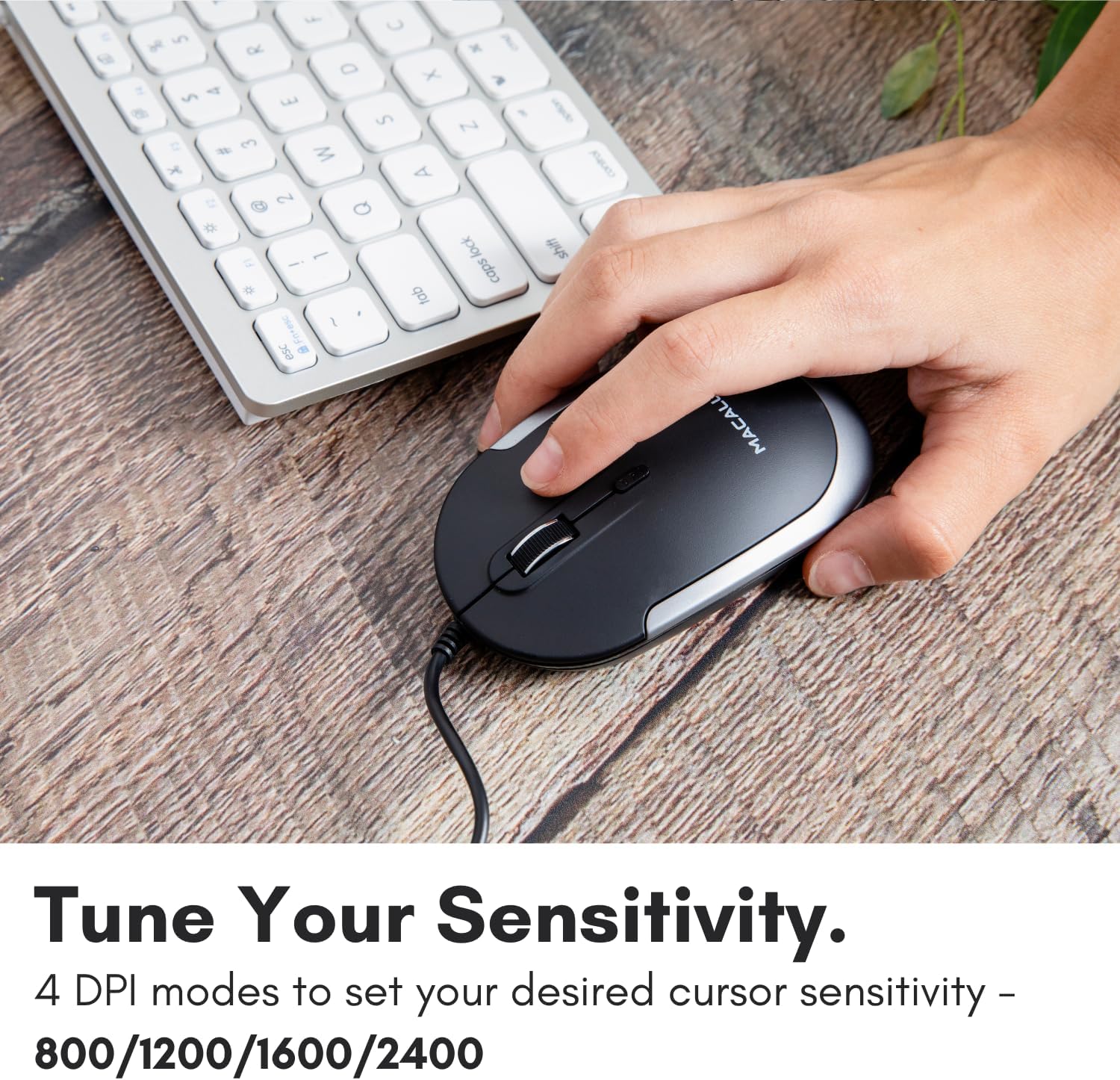
Image: A hand demonstrating how to press the DPI button on the Macally USB-C mouse to adjust sensitivity.
4.3 Тохиромжтой байдал
The Macally USB Type C Wired Mouse is universally compatible with a wide range of devices and operating systems:
- Mac (macOS)
- Компьютер (Windows)
- iPadOS
- Android devices with USB-C ports

Image: The Macally USB-C mouse displayed with compatibility logos for Mac, PC, iPadOS, and Android operating systems.
5. Үндсэн шинж чанарууд
- USB-C холболт: Specifically designed for modern laptops and computers with USB-C ports, ensuring a reliable wired connection.
- Slim & Compact Design: With a height of only 1 inch, the mouse is slim, comfortable, and portable, fitting snugly in your hand.
- Чимээгүй товшилтын товчлуурууд: Reduces clicking noise by 90% compared to traditional mice, providing a quieter work environment.
- Тохируулах DPI: Easily switch between 800, 1200, 1600, and 2400 DPI settings for precise cursor control.
- 5-Foot Cable: хангадаг ample length for flexible setup and comfortable use, even with desktop computers.
- Хоёр талт загвар: Баруун болон зүүн гартай хэрэглэгчдэд тохиромжтой.

Image: The Macally USB-C mouse highlighting its elegant and slim design with dimensions.
Video: A detailed look at the Macally USB-C Optical Mouse, emphasizing its quiet click buttons and compatibility with Mac and PC.
6. Засвар үйлчилгээ
To ensure the longevity and optimal performance of your Macally USB Type C Wired Mouse, follow these simple maintenance guidelines:
- Цэвэрлэгээ: Хулганы гадаргууг зөөлөн, хуурай, хөвөнгүй даавуугаар арчина. Зөрүүд шороонд бага зэрэг dampУс эсвэл зөөлөн цэвэрлэгээний уусмалаар даавууг арчина. Хүчтэй химийн бодис эсвэл зүлгүүрийн материал хэрэглэхээс зайлсхий.
- Оптик мэдрэгч: Хулганы доод талд байрлах оптик мэдрэгчийг тоос шороо, хог хаягдалгүй цэвэр байлгаарай. Шаардлагатай бол хөвөн арчдас эсвэл шахсан агаар хэрэглээрэй.
- Кабель арчилгаа: Avoid sharp bends or excessive pulling on the USB-C cable to prevent damage. Store the cable neatly when not in use.
- Хадгалах: Ашиглаагүй үед хулганыг хэт өндөр температураас хол, цэвэр, хуурай орчинд хадгална.
7. Алдаа засах
If you encounter any issues with your Macally USB Type C Wired Mouse, please refer to the following common solutions:
| Асуудал | Шийдэл |
|---|---|
| Хулгана хариу өгөхгүй байна. |
|
| Курсорын хөдөлгөөн тогтворгүй эсвэл үсрэлттэй байна. |
|
| Buttons or scroll wheel are not working. |
|
8. Техникийн үзүүлэлтүүд
| Брэнд | Макалли |
| Загварын дугаар | UCDYNAMOUSESG |
| Холболтын технологи | USB-C утастай |
| Хөдөлгөөнийг илрүүлэх технологи | Оптик |
| DPI тохиргоо | 800, 1200, 1600, 2400 |
| Кабелийн урт | 5 фут (ойролцоогоор 1.5 метр) |
| Товчлуур | 3 (Left, Right, Scroll Wheel/Middle Click) + DPI Switch |
| Зүйлийн жин | 2.56 унц (ойролцоогоор 72.5 грамм) |
| Бүтээгдэхүүний хэмжээ (LxWxH) | 2.8 x 4.21 x 1 инч (ойролцоогоор 7.1 x 10.7 x 2.5 см) |
| Тохиромжтой байдал | Mac (macOS), PC (Windows), iPadOS, Android (with USB-C) |
9. Баталгаат хугацаа ба дэмжлэг
Macally provides a 1 жилийн баталгаат хугацаа for this product. For technical support, troubleshooting assistance, or warranty claims, please contact Macally customer service. You can find contact information and additional resources on the official Macally webсайт:
Webсайт: www.macally.com
Macally also offers easy returns and lifetime support with your purchase.


