1. Танилцуулга
Thank you for choosing the XTUGA A4 4-Channel Audio Mixer. This compact and versatile mixing console is designed for various audio applications, including home music production, webcasting, and live sound. It features 4 channels, Bluetooth connectivity, USB recording and playback, 48V phantom power for condenser microphones, and built-in effects. This manual provides detailed instructions for setup, operation, maintenance, and troubleshooting to ensure optimal performance and longevity of your device.
2. Аюулгүй байдлын мэдээлэл
- Эрчим хүчний хангамж: Use only the specified power adapter or a reliable USB power source that meets the voltage and current requirements (greater than 5V and 1.5A). Incorrect power can damage the device or cause noise.
- Ус ба чийг: Do not expose the unit to rain, moisture, or extreme humidity. Avoid placing liquid containers on or near the mixer.
- Агааржуулалт: Төхөөрөмжийн эргэн тойронд хангалттай агааржуулалт байгаа эсэхийг шалгаарай. Агааржуулалтын нүхийг бүү бөглөөрэй.
- Дулаан: Төхөөрөмжийг радиатор, халаалтын төхөөрөмж, зуух эсвэл бусад дулаан ялгаруулдаг төхөөрөмж зэрэг дулааны эх үүсвэрээс хол байлга.
- Цэвэрлэгээ: Disconnect power before cleaning. Use a dry, soft cloth. Do not use liquid cleaners or aerosols.
- Үйлчилгээ: Энэ төхөөрөмжийг өөрөө засварлах гэж бүү оролдоорой. Бүх үйлчилгээг мэргэшсэн үйлчилгээний ажилтнуудад шилжүүлээрэй.
3. Багцын агуулга
Бүх зүйл байгаа эсэхийг шалгахын тулд хайрцгийг задлахдаа багцын агуулгыг шалгана уу:
- XTUGA A4 4-Channel Audio Mixer
- USB цахилгаан кабель
- USB цахилгаан хувиргагч

Image: The XTUGA A4 Audio Mixer shown with its included USB power cable and USB power adapter.
4. Бүтээгдэхүүн дууссанview
The XTUGA A4 mixer features a compact design with essential controls for audio mixing. Key features include:
- 4 оролтын суваг: Two MIC/LINE (XLR/TRS combo) inputs with 48V phantom power and two stereo LINE (RCA) inputs.
- Bluetooth холболт: Wirelessly stream audio from your smartphone or other Bluetooth-enabled devices.
- USB аудио интерфэйс: Connect to a computer for recording and playback. Supports U-Disk (USB drive) for MP3/WAV/WMA/FLAC playback and direct recording.
- Суурилуулсан эффектүүд: Adjustable DELAY and REPEAT effects for vocal enhancement.
- Хяналт: Dedicated PHONES output for headphone monitoring.
- EQ хяналт: HIGH and LOW equalization for each input channel.

Зураг: Урд view of the XTUGA A4 Audio Mixer, illustrating its Bluetooth connectivity feature with a smartphone icon.
5. Тохиргоо
5.1 Powering the Mixer
The A4 mixer can be powered via USB. For stable performance and to avoid noise, ensure your power source provides at least 5V and 1.5A.
- USB цахилгаан адаптер: Connect the provided USB cable to the mixer's USB port and the USB power adapter, then plug into a wall outlet. This is the recommended method for optimal performance.
- Computer USB Port: Connect the USB cable directly to a computer's USB port. Note that some computer USB ports may not provide sufficient power, potentially leading to noise or unstable operation.
- Цахилгаан банк: For portable use, connect the USB cable to a power bank with sufficient output.

Image: Illustration of three ways to power the XTUGA A4 mixer: via a computer's USB port, a wall power adapter, or a portable power bank. A note emphasizes the requirement for a USB power supply of at least 5V and 1.5A.
5.2 Аудио төхөөрөмжүүдийг холбох
Refer to the diagram below for a general connection overview.

Image: A comprehensive diagram illustrating how to connect various audio equipment to the XTUGA A4 mixer, including condenser microphones, dynamic microphones, wireless microphones, a computer, a power amplifier, passive speakers, and headphones.
5.2.1 Оролтын холболтууд
- Microphones (Channels 1 & 2): Connect XLR or 1/4" TRS cables from your microphones to the MIC/LINE inputs. For condenser microphones requiring phantom power, ensure the +48V switch is engaged.
- Line-Level Devices (Channels 3 & 4): Connect devices like CD players, media players, or other line-level sources using RCA cables to the LEFT and RIGHT LINE inputs.

Зураг: Ойрын зураг view of the mixer's input section, demonstrating the connection of both a 1/4-inch TRS cable and an XLR cable into the MIC/LINE combo jacks.
5.2.2 Гаралтын холболтууд
- Үндсэн гаралт: Connect the L/R MAIN RCA outputs to your power amplifier, active speakers, or recording device.
- Чихэвч: Connect your headphones to the PHONES 1/4" TRS output for monitoring.
6. Ашиглалтын заавар
6.1 Basic Mixing
- GAIN хяналт: Adjust the input sensitivity for each MIC/LINE channel. Set it so the PEAK LED flashes only occasionally during the loudest parts of the signal.
- HIGH/LOW EQ: Use these knobs to adjust the treble (HIGH) and bass (LOW) frequencies for each channel.
- EFX Send: Controls the amount of signal sent from each channel to the built-in effects processor.
- MAIN Output: Adjusts the overall volume of the main mix.
- УТАСНЫ ГАРАЛТ: Чихэвчний гаралтын дууны түвшинг тохируулна.
- +48V Phantom Power: Activate this switch for condenser microphones that require phantom power. Ensure microphones are connected before activating.
6.2 Bluetooth-ийн ажиллагаа
Bluetooth төхөөрөмжийг холбохын тулд:
- Press the MODE/BT button on the USB/Bluetooth section until the display shows "BT".
- On your smartphone or Bluetooth device, search for available devices and select "XTUGA A4" (or similar name).
- Once paired, audio from your device will play through channels 3/4. Adjust the volume using the 3-4/USB knob.
6.3 USB Playback (U-Disk)
Аудио тоглуулахын тулд files from a USB flash drive:
- Insert a USB flash drive (U-Disk) containing MP3/WAV/WMA/FLAC fileUSB порт руу оруулна.
- The mixer will automatically detect and begin playing files. Use the playback controls (play/pause, next/previous) on the mixer.
- Adjust the volume using the 3-4/USB knob.

Image: The XTUGA A4 mixer with a USB flash drive inserted into its USB port, highlighting its U-Disk functionality for playing MP3/WAV/WMA/FLAC files and recording audio.
6.4 USB Recording to Computer
The mixer can send its main stereo mix to a computer for recording.
- Connect the mixer to your computer via the USB cable.
- Your computer should recognize the mixer as an audio input device. Select it in your recording software (e.g., Audacity, GarageBand, OBS).
- Adjust input levels on the mixer and in your software. The mixer will send a stereo mix of all active channels to the computer.

Image: A diagram illustrating the connection for recording. A computer sends background music to the audio mixer, and the audio mixer's output is recorded by a computer program.
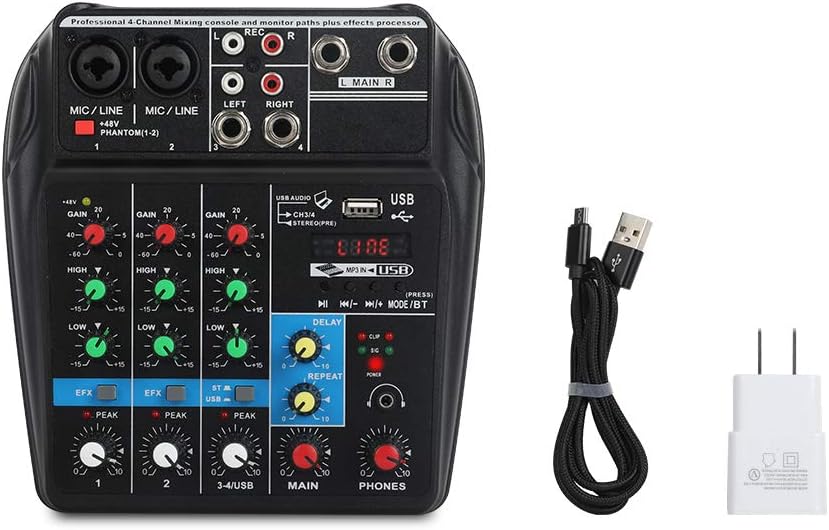
Image: A visual guide detailing the process of recording audio to a computer. Steps include connecting the USB cable, setting the mixer to 'Record' status, pressing record in a computer program (like GoldWave), and then playing back the recorded audio.
6.5 Effects (DELAY & REPEAT)
The mixer includes built-in delay and repeat effects:
- ХОЙШЛОО: Adjusts the delay time of the effect.
- ДАВТАХ: Controls the number of repetitions for the delay effect.
- Use the EFX send knobs on individual channels to control how much of that channel's signal is sent to the effects processor.
6.6 Бүтээгдэхүүний видео үзүүлбэр
Watch this video for a visual demonstration of the XTUGA A4 Audio Mixer's features and operation.
Video: A demonstration of the XTUGA A4 4-Channel Audio Mixer, showcasing its various features, connections, and operational aspects. This video provides a visual guide to understanding the product's capabilities.
7. Засвар үйлчилгээ
- Цэвэрлэгээ: Regularly wipe the mixer's surface with a soft, dry cloth. Avoid using abrasive cleaners or solvents.
- Хадгалах: When not in use, store the mixer in a clean, dry environment away from direct sunlight and extreme temperatures.
- Кабель арчилгаа: Handle cables carefully. Avoid sharp bends or excessive pulling, which can damage connectors or internal wiring.
8. Алдаа засах
| Асуудал | Боломжит шалтгаан | Шийдэл |
|---|---|---|
| Хүч чадалгүй | Incorrect or insufficient USB power supply. | Ensure the USB power adapter is properly connected to a wall outlet. If using a computer USB, try a different port or a dedicated USB power adapter (recommended). Verify the power source provides at least 5V and 1.5A. |
| Дуугүй эсвэл дуу багатай | Incorrect connections, low gain/volume settings, phantom power off for condenser mics. | Check all input and output cable connections. Increase GAIN for input channels, MAIN volume, and PHONES volume. Ensure +48V phantom power is engaged for condenser microphones. |
| Үнсэх эсвэл хөдөлгөөнгүй чимээ | Ground loop, insufficient power, poor quality cables, interference. | Use the provided USB power adapter plugged into a wall outlet instead of a computer USB port. Ensure all cables are good quality and properly shielded. Try isolating the mixer from other electronic devices. |
| USB recording/playback issues (disconnects, not recognized) | Faulty USB cable, computer port issues, driver conflicts. | Try a different USB cable and a different USB port on your computer. Restart your computer. Ensure your operating system has the latest audio drivers. |
| Cannot record multiple microphones to separate tracks | The mixer outputs a stereo mix, not individual tracks. | This mixer is designed to output a combined stereo mix to your computer. It does not support multi-track recording of individual inputs. For multi-track recording, a dedicated multi-channel audio interface is required. |
9. Техникийн үзүүлэлтүүд
- Загварын дугаар: A4
- Барааны жин: 1.5 фунт
- Бүтээгдэхүүний хэмжээ: 3.15 x 9.45 x 9.45 инч
- Сувгийн тоо: 4
- Техник хангамжийн интерфейс: Bluetooth, USB
- Холболтын технологи: Bluetooth
- Эрчим хүчний эх үүсвэр: Утастай цахилгаан (USB)
- Ботьtage: 48 вольт (Phantom Power-д зориулсан)
- Гаралтын холбогч төрөл: XLR (implied for mic inputs), RCA (Main Out), TRS (Phones Out)
10. Баталгаат хугацаа ба дэмжлэг
For warranty information, technical support, or service inquiries, please contact the seller or manufacturer directly through the platform where the product was purchased. Keep your purchase receipt as proof of purchase.


