Танилцуулга
This manual provides detailed instructions for the installation, operation, and maintenance of your FLYLINKTECH Dash Cam CD10. Please read this manual thoroughly before using the device to ensure proper functionality and safety.

Зураг: урд ба хойд view of the FLYLINKTECH Dash Cam CD10, highlighting its compact design and 1.5-inch LCD screen.
Бүтээгдэхүүний онцлог
- Full HD 1080P видео: Records video at 1080p resolution for clear details.
- 170° Өргөн өнцгийн линз: Covers up to 5 traffic lanes, reducing blind spots.
- G-Sensor and Emergency Lock: Automatically detects collisions and locks video files.
- WDR Function: Enhances video quality in various lighting conditions, including low light.
- Давталтын бичлэг: Overwrites oldest fileХадгалах сан дүүрсэн үед s нь тасралтгүй бичлэг хийхийг баталгаажуулдаг.
- 1.5 инчийн LCD дэлгэц: Compact display for easy viewing болон навигаци.
- Зогсоолын монитор: Records incidents when the vehicle is parked.
- Хөдөлгөөн илрүүлэх: Initiates recording when motion is detected.
- Шөнийн хараа: Improved low-light performance.

Image: Diagram illustrating key features of the dash cam, including 1080P resolution, 1.5-inch LCD, G-Sensor, motion detection, loop recording, 170-degree wide angle, WDR, and super night vision.
Багцын агуулга
Хайрцагнаас задлахдаа багцын агуулгыг шалгана уу:
- FLYLINKTECH Dash Cam CD10
- Сорох цомын уул
- Наалдамхай бэхэлгээ
- Статик наалт
- Car Charger with additional USB port
- Микро USB кабель
- Хэрэглэгчийн гарын авлага (энэ баримт бичиг)
Note: An SD card is not included and must be purchased separately.

Image: All items included in the product package: the dash cam, packaging box, car charger, micro USB cable, suction cup mount, adhesive mount, and user manual.
Тохиргоо ба суурилуулалт
1. Micro SD картыг оруулж байна
Before first use, insert a high-speed Micro SD card (Class 10 or higher, up to 32GB recommended) into the dash cam's SD card slot. Ensure the card is inserted correctly until it clicks into place.
2. Зураасны камерыг суурилуулах
Choose between the suction cup mount or the adhesive mount for installation.
- Сорох аяганы бэхэлгээ:
- Clean the windshield surface where you intend to mount the camera.
- Attach the dash cam to the suction cup mount.
- Сорогчийг салхины шилэнд хүчтэй дарж, хөшүүргийг эргүүлж бэхлээрэй.
- Наалдамхай бэхэлгээ:
- Салхины шилний гадаргууг сайтар цэвэрлэ.
- Apply the static sticker to the windshield first, then attach the adhesive mount to the static sticker for easier removal later.
- Attach the dash cam to the adhesive mount.
- Бат бөх бэхлэхийн тулд 30 секундын турш чанга дар.
Position the dash cam near the rearview толин тусгалыг ашиглан танд саад болохгүй эсэхийг шалгаарай view замын.
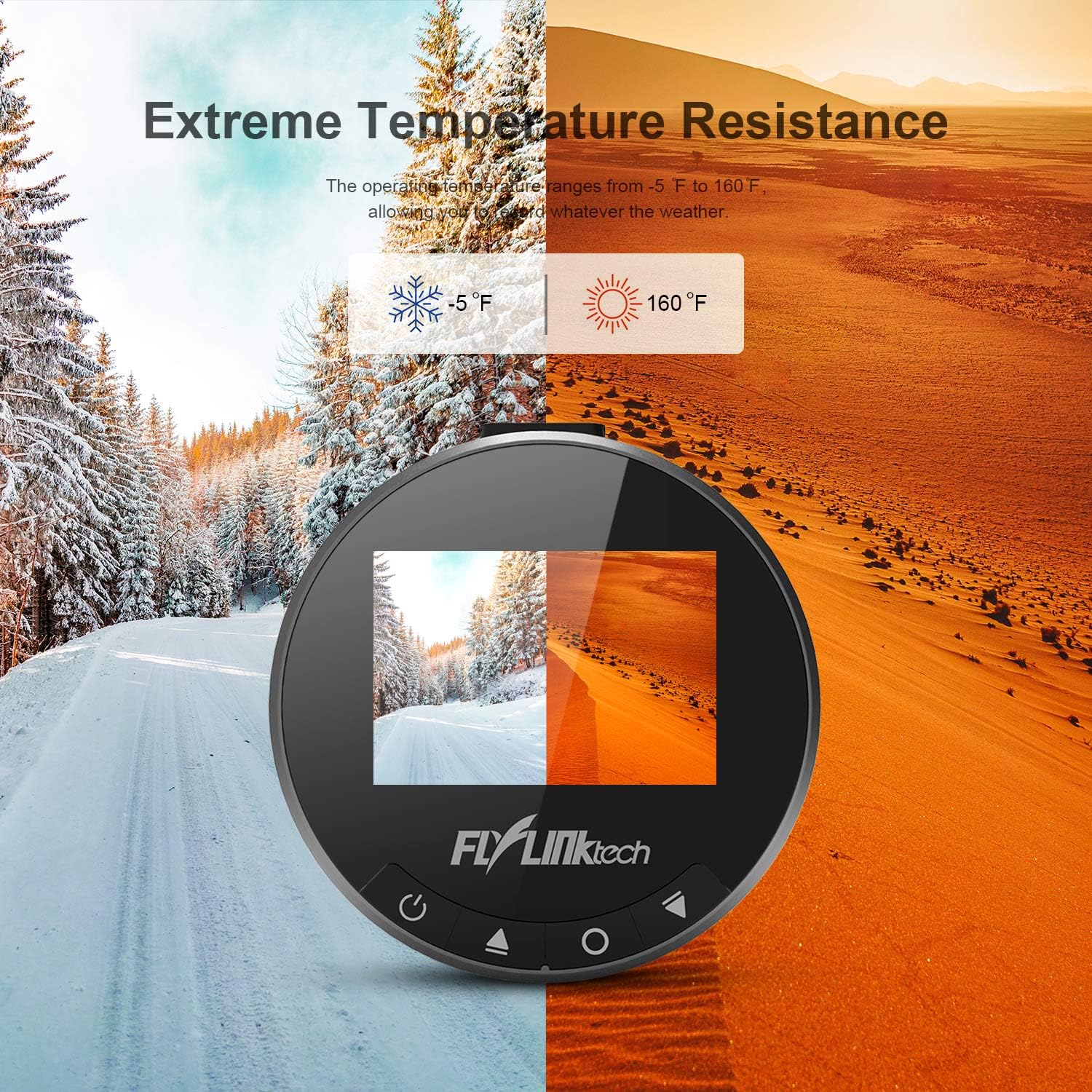
Зураг: Хуучинample of the dash cam installed on a car's windshield, showing optimal placement to avoid obstructing the driver's view while covering the road ahead.
3. Цахилгааныг холбох
Connect the provided car charger to your vehicle's cigarette lighter socket and the Micro USB cable to the dash cam's power port. Route the cable neatly along the windshield and dashboard to avoid interference with driving.
Ашиглалтын заавар
1. Асаах/унтраах
- The dash cam will automatically power on and begin recording when connected to power and the vehicle ignition is turned on.
- To manually power on/off, press and hold the Power button (usually marked with a power symbol) on the device.
2. Үндсэн бичлэг
Once powered on, the dash cam will automatically start loop recording. Video files are saved in segments (e.g., 1, 3, 5, or 10 minutes) and the oldest files are overwritten when the SD card is full.

Image: Visual representation of the loop recording function, showing how older video segments are automatically replaced by new ones to ensure continuous recording.
3. G-мэдрэгч (Яаралтай түгжээ)
The built-in G-Sensor detects sudden impacts or rapid deceleration. When triggered, the current video segment is automatically locked and protected from being overwritten, serving as crucial evidence in case of an accident.

Image: Illustrations depicting the G-Sensor activating upon collision and the 24-hour parking monitor function, which records incidents when the vehicle is parked.
4. Зогсоолын хяналт
When enabled, the Parking Monitor function uses the internal battery to detect impacts or motion around the vehicle while parked. It will automatically start recording for a short period to capture any incidents.
5. Хөдөлгөөн илрүүлэх
In Motion Detection mode, the camera will only record when it detects movement in its field of view, conserving storage space. This feature is typically used when the vehicle is stationary.
6. WDR (Өргөн динамик хүрээ)
WDR technology helps the camera perform optimally in challenging lighting conditions, such as strong backlight or low light, by balancing exposure to produce clearer images.

Image: Comparison showing how WDR improves image clarity in varying light conditions, alongside an illustration of the 170-degree wide angle coverage across multiple lanes.
Засвар үйлчилгээ
- Цэвэрлэгээ: Use a soft, dry cloth to clean the camera lens and screen. Do not use liquid cleaners or abrasive materials.
- SD карт форматлах: It is recommended to format the Micro SD card regularly (e.g., once a month) within the dash cam's settings to prevent data corruption and ensure optimal recording performance. This will erase all data on the card.
- Температур: Avoid exposing the dash cam to extreme temperatures outside its operating range (-20°C to 70°C / -5°F to 160°F) for prolonged periods.
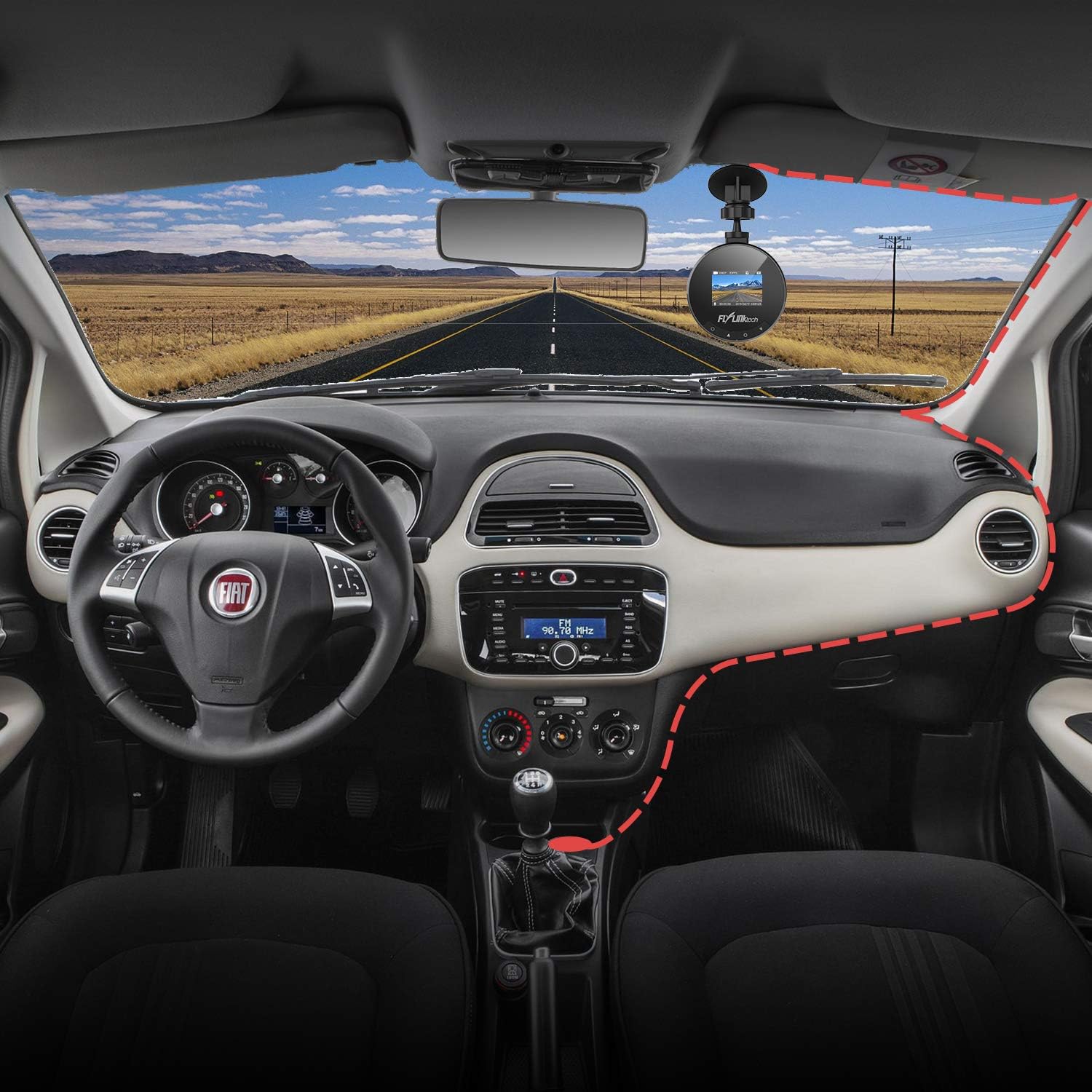
Image: Visual representation of the dash cam's ability to withstand extreme temperatures, from cold winter conditions (-5°F) to hot desert environments (160°F).
Алдааг олж засварлах
- Камер асахгүй байна:
- - Ensure the car charger is properly connected to both the dash cam and the vehicle's power outlet.
- - Check if the vehicle's cigarette lighter socket is functioning.
- - Боломжтой бол өөр USB кабель эсвэл машины цэнэглэгчийг туршаад үзээрэй.
- Бичлэг зогсох эсвэл гацах:
- - Format the Micro SD card within the camera's settings.
- - Та өндөр хурдны (10 буюу түүнээс дээш зэрэглэлийн) Micro SD карт ашиглаж байгаа эсэхээ шалгаарай.
- - The SD card may be full; enable loop recording or replace the card.
- Видео чанар муу:
- - Камерын линзийг цэвэрлэ.
- - Линзнээс хамгаалалтын хальсыг авсан эсэхээ шалгаарай.
- - Adjust settings for WDR or exposure if available.
- Suction cup not sticking:
- - Clean both the windshield and the suction cup thoroughly.
- - Moisten the suction cup slightly before applying.
- - Ensure the lever is fully engaged after pressing the cup to the windshield.
Үзүүлэлтүүд
| Онцлог | Дэлгэрэнгүй |
|---|---|
| Дэлгэц | 1.5 инчийн LCD дэлгэц |
| Нээлт | F1.8 |
| G-мэдрэгч | Нэгдсэн |
| Видеоны нягтрал | 1080P бүрэн HD |
| Фото зургийн нягтрал | 12M / 10M / 8M / 5M / 3M / 2M / 1.3M |
| Видео горим | Normal / Loop Recording / Motion Detection / Parking Monitor |
| Ашиглалтын температур | -20°C ~ 70°C (-5°F ~ 160°F) |
| Хэмжээ | 5.99 x 5.99 x 3 см |
| Жин | 280 гр |
| Холболт | USB |
Баталгаат болон дэмжлэг
FLYLINKTECH provides a 2-year worry-free warranty for all dashboard cameras.
For technical support or warranty claims, please contact FLYLINKTECH customer service through the contact information provided in your product packaging or on the official FLYLINKTECH webсайт.


