1. Танилцуулга
The Xiaomi Mi Router 4A Gigabit Edition (Model: R4AC) is a high-performance dual-band wireless router designed for home and small office environments. It features Gigabit Ethernet ports and supports both 2.4GHz and 5GHz Wi-Fi bands, providing fast and stable internet connectivity for multiple devices. This manual provides detailed instructions for the proper setup, operation, and maintenance of your router.
2. Багцын агуулга
Before proceeding with the setup, please verify that all items are present in your package:
- Xiaomi Mi Router 4A Gigabit Edition (Host)
- Эрчим хүчний адаптер
- Хэрэглэгчийн гарын авлага (энэ баримт бичиг)

Image: Visual representation of the router, power cable, and instruction manual included in the package.
3. Бүтээгдэхүүн дууссанview
The Xiaomi Mi Router 4A Gigabit Edition features a minimalist design with four external antennas for enhanced signal coverage. It includes multiple ports for wired connections and LED indicators for status monitoring.
3.1 Урд хэсэг View

Зураг: Урд view of the Xiaomi Mi Router 4A Gigabit Edition, showing its sleek white casing and four antennas.
3.2 өнцөгт View антеннуудтай

Зураг: өнцөгтэй view of the Xiaomi Mi Router 4A, highlighting its four external antennas in an upright position.
3.3 Хэмжээ
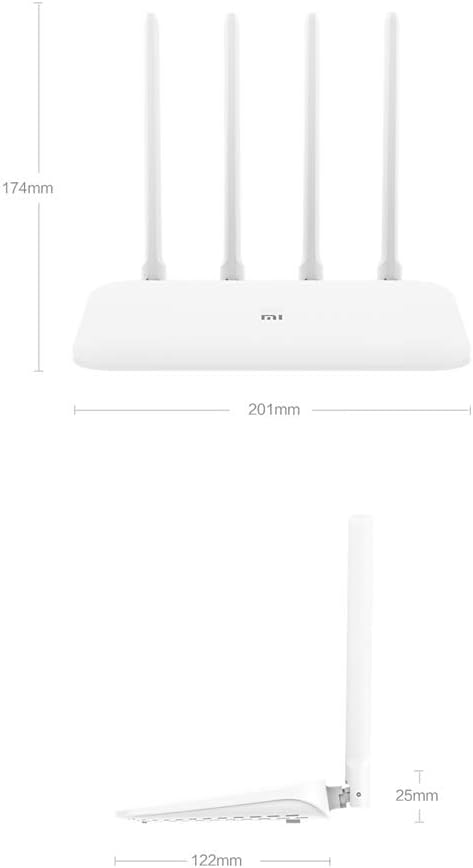
Image: Technical drawing displaying the dimensions of the Xiaomi Mi Router 4A, with measurements in millimeters.
3.4 Портууд ба үзүүлэлтүүд
The router features:
- WAN порт: 1x 10/100/1000M adaptive port for connecting to your modem or internet service provider.
- LAN портууд: 2x 10/100/1000M adaptive ports for connecting wired devices like computers or gaming consoles.
- Эрчим хүчний оролт: Цахилгаан адаптерийг холбоход зориулагдсан.
- Системийг дахин тохируулах товч: Үйлдвэрийн тохиргоог сэргээхэд ашигладаг.
- LED үзүүлэлтүүд: Two indicators for system status and network activity.
4. Тохиргоо
4.1 Тоног төхөөрөмжийн холболт
- Цахилгаан хувиргагчийг холбоно уу: Цахилгаан адаптерийг чиглүүлэгчийн тэжээлийн оролтод, дараа нь цахилгаан залгуурт залгаарай.
- Интернетэд холбогдох: Connect an Ethernet cable from your modem's LAN port to the router's WAN port.
- Утастай төхөөрөмжүүдийг холбох (заавал биш): For wired connections, connect Ethernet cables from your devices to the router's LAN ports.
4.2 Анхны тохиргоо
You can configure the router using a web browser or the Mi Wi-Fi mobile application.
- Чиглүүлэгчийн Wi-Fi-д холбогдоно уу: On your computer or smartphone, connect to the default Wi-Fi network broadcast by the router. The network name (SSID) and password are usually found on a label on the bottom of the router.
- Access the Configuration Interface:
- Web Хөтөч: Нээлттэй a web хөтөч болон үндсэн IP хаягаа оруулна уу (жишээ нь,
192.168.31.1ormiwifi.com) into the address bar. Follow the on-screen instructions to set up your internet connection and Wi-Fi network. - Mi Wi-Fi App: Download and install the Mi Wi-Fi app on your smartphone. Open the app and follow the prompts to detect and configure your new router.
- Web Хөтөч: Нээлттэй a web хөтөч болон үндсэн IP хаягаа оруулна уу (жишээ нь,
- Set Up Wi-Fi Name and Password: During the initial setup, you will be prompted to create a new Wi-Fi network name (SSID) and a strong password for both the 2.4GHz and 5GHz bands. The router supports a unified Wi-Fi name for both frequencies, allowing devices to automatically switch to the optimal band.

Image: Diagram illustrating the unified Wi-Fi name feature, where both 2.4GHz and 5GHz bands share a single SSID for seamless connectivity.
5. Ашиглалтын заавар
5.1 Төхөөрөмжүүдийг холбох
- Wi-Fi холболт: On your wireless devices (smartphones, tablets, laptops), search for your Wi-Fi network name (SSID) and enter the password you set during configuration.
- Ethernet холболт: For devices requiring a wired connection, plug an Ethernet cable from the device into one of the router's LAN ports.
5.2 Сүлжээний удирдлагын онцлогууд
The router offers several features to manage and optimize your home network:
- Тоног төхөөрөмжийн удирдлага: Control internet access times and accessible websites for specific devices.
- Intelligent Speed Limit: Allocate bandwidth on demand to ensure a smooth online experience for critical applications.
- Wi-Fi оновчтой болгох: Perform a one-click detection to improve network performance and resolve common Wi-Fi issues.
- Сүлжээний аюулгүй байдал: Active interception features help eliminate the risk of unauthorized access or network attacks.

Image: Icons representing various router features, including network management, speed measurement, bandwidth control, Wi-Fi optimization, and network security.
5.3 Төхөөрөмжийн хүчин чадал
The Xiaomi Mi Router 4A Gigabit Edition is equipped with 128MB of DDR3 memory, supporting stable data transmission for up to 128 connected devices simultaneously. This makes it suitable for smart homes with numerous connected gadgets.

Image: Illustration showing the router's 128MB memory capacity, capable of supporting up to 128 connected devices, surrounded by various smart home devices.
6. Засвар үйлчилгээ
6.1 Програм хангамжийн шинэчлэлтүүд
Regularly check for and install firmware updates to ensure optimal performance, security, and access to new features. Firmware updates can typically be performed through the router's web интерфэйс эсвэл Mi Wi-Fi апп.
6.2 Чиглүүлэгчийг дахин тохируулах
If you encounter persistent issues or wish to clear all configurations, you can perform a factory reset:
- With the router powered on, locate the System Reset Button (usually a small pinhole button).
- Use a paperclip or a similar pointed object to press and hold the reset button for approximately 5-10 seconds until the LED indicators change behavior.
- Release the button. The router will restart with factory default settings. You will need to reconfigure it.
6.3 Байгаль орчны асуудал
To ensure the longevity and stable operation of your router, adhere to the following environmental guidelines:
- Ашиглалтын температур: 0°C - 40°C (32°F - 104°F)
- Ашиглалтын чийгшил: 10% -аас 90% RH (конденсацгүй)
- Хадгалах температур: -40°C - 70°C (-40°F - 158°F)
- Хадгалах чийгшил: 5% -аас 90% RH (конденсацгүй)
Avoid placing the router in direct sunlight, near heat sources, or in areas with high humidity.
Image: Details on recommended operating and storage temperature and humidity ranges for the router.
7. Алдаа засах
This section addresses common issues you might encounter with your Xiaomi Mi Router 4A Gigabit Edition.
- Интернет холболт байхгүй:
- WAN портын кабель таны модемд найдвартай холбогдсон эсэхийг шалгана уу.
- Таны модем зөв ажиллаж, интернет идэвхтэй байгаа эсэхийг шалгана уу.
- Модем болон чиглүүлэгчээ дахин эхлүүлнэ үү.
- Ensure the router's internet settings (e.g., PPPoE, DHCP, Static IP) are correctly configured according to your ISP.
- Wi-Fi дохио сул эсвэл тогтворгүй:
- Чиглүүлэгчийг төвлөрсөн байршилд, саад бэрхшээл болон хөндлөнгийн эх үүсвэрээс (жишээ нь, богино долгионы зуух, утасгүй утас) хол байрлуул.
- Дохионы чиглэлийг оновчтой болгохын тулд чиглүүлэгчийн антеннуудыг тохируулна уу.
- Use the Wi-Fi Optimization feature in the router's interface or app.
- Ensure your devices are connecting to the appropriate 2.4GHz or 5GHz band.
- Чиглүүлэгчийн тохиргооны хуудсанд хандах боломжгүй байна:
- Төхөөрөмжөө чиглүүлэгчийн сүлжээнд (Wi-Fi эсвэл Ethernet-ээр дамжуулан) холбогдсон эсэхийг шалгана уу.
- Verify that you are entering the correct IP address (e.g.,
192.168.31.1) эсвэл домэйн (miwifi.com). - Хөтөчийнхөө кэшийг цэвэрлэх эсвэл өөр хөтөч ашиглаж үзнэ үү.
- Таны төхөөрөмж дээрх VPN эсвэл прокси тохиргоог түр идэвхгүй болго.
- Удаан интернетийн хурд:
- Интернетийн үйлчилгээ үзүүлэгчийнхээ хурдыг шалгана уу.
- Ensure no other devices are consuming excessive bandwidth. Use the Intelligent Speed Limit feature if necessary.
- Perform a Wi-Fi Optimization scan.
- If using Wi-Fi, try connecting via Ethernet to determine if the issue is wireless-related.
8. Техникийн үзүүлэлтүүд
Detailed technical specifications for the Xiaomi Mi Router 4A Gigabit Edition:

Image: Table detailing the router's internal specifications, including processor, memory, Wi-Fi standards, and port configuration.
| Онцлог | Тодорхойлолт |
|---|---|
| Загварын дугаар | R4AC |
| Процессор | MT7621A MPIS Dual Core 880MHz |
| ROM | 16 МБ |
| Product Memory (RAM) | 128MB DDR3 програм |
| 2.4G WiFi | 2x2 (supports IEEE 802.11n protocol, up to 300Mbps) |
| 5G WiFi | 2x2 (supports IEEE 802.11ac protocol, up to 867Mbps) |
| Product Antenna | 2x 2.4G (max gain 5dBi), 2x 5G (max gain 6dBi) |
| Машины интерфейс | 1x 10/100/1000M adaptive WAN port (Auto MDI/MDIX), 2x 10/100/1000M adaptive LAN ports (Auto MDI/MDIX) |
| LED үзүүлэлт | 2 |
| Системийг дахин тохируулах товчлуур | 1 |
| Эрчим хүчний оролтын интерфейс | 1 |
| Протоколын стандарт | IEEE 802.11a/b/g/n/ac, IEEE 802.3/3u |
| Хос давтамж | 2.4 GHz ба 5 GHz |
| Утасгүй сувгууд (2.4GHz) | 1, 2, 3, 4, 5, 6, 7, 8, 9, 10, 11, 12, 13 |
| Утасгүй сувгууд (5GHz) | 36, 40, 44, 48, 149, 153, 157, 161, 165 |
| Үйлдлийн систем | RouterOS (Custom Xiaomi firmware) |
| Өнгө | Цагаан |
| Хэмжээ (L x W x H) | 201mm x 122mm x 174mm (with antennas up) |
| Тохиромжтой төхөөрөмжүүд | Хувийн компьютер, зөөврийн компьютер, таблет, ухаалаг утас, тоглоомын консол |
| Зөвлөмж болгож буй хэрэглээ | Гэр |

Image: Diagram illustrating the router's dual-core CPU with an 880MHz main frequency, emphasizing its processing capabilities.
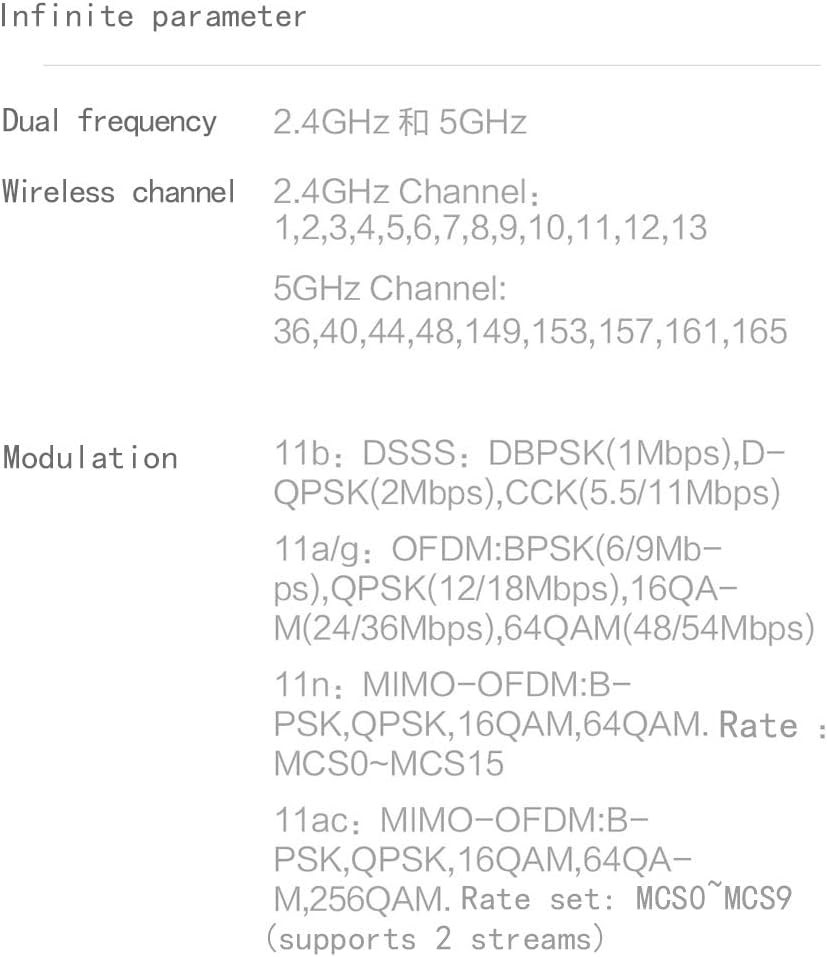
Image: Information on the specific wireless channels available for 2.4GHz and 5GHz bands, along with supported modulation types.
9. Баталгаат хугацаа ба дэмжлэг
Баталгаат мэдээллийг авахыг хүсвэл бүтээгдэхүүндээ дагалдсан баталгаат картаас эсвэл албан ёсны Xiaomi-д зочилно уу website for your region. Support resources, including FAQs and contact information, can also be found on the official Xiaomi support pages. Please retain your proof of purchase for warranty claims.