Танилцуулга
Thank you for choosing the Macally Wireless Bluetooth Keyboard. This multi-device keyboard is designed to enhance your productivity across various platforms, including Mac, iOS, Windows, and Android devices. Featuring 110 keys, 20 Mac OS shortcuts, and a numeric keypad, it offers a comfortable and efficient typing experience. Its ultra-slim design and rechargeable battery make it an ideal companion for both work and leisure.

Image: The Macally Wireless Bluetooth Keyboard, showcasing its full layout and sleek silver design.
Багцын агуулга
- Macally Wireless Bluetooth Keyboard
- Цэнэглэх кабель
- Хэрэглэгчийн гарын авлага
Тохиргоо
1. Гарыг цэнэглэж байна
Before initial use, fully charge the keyboard using the included charging cable. Connect the cable to the keyboard's charging port and a USB power source. The LED indicator will show charging status.

Image: Illustration showing the keyboard connected to a charging cable, emphasizing its rechargeable nature.
2. Төхөөрөмжүүдтэй хослуулах
The Macally Wireless Bluetooth Keyboard supports connecting up to three Bluetooth-enabled devices simultaneously. Follow these steps to pair your devices:
- Цахилгаан унтраалга ашиглан гарыг асаана уу.
- Press and hold one of the Bluetooth keys (BT1, BT2, or BT3) for a few seconds until the corresponding LED indicator starts blinking rapidly. This indicates pairing mode.
- On your device (computer, tablet, or smartphone), go to Bluetooth settings and search for available devices.
- Select "Macally Keyboard" (or similar name) from the list.
- If prompted, enter the pairing code displayed on your screen using the Macally keyboard and press Enter.
- Хослуулсны дараа LED индикатор анивчихаа больж, унтрахаасаа өмнө хэдэн секундын турш тогтвортой хэвээр байх болно.
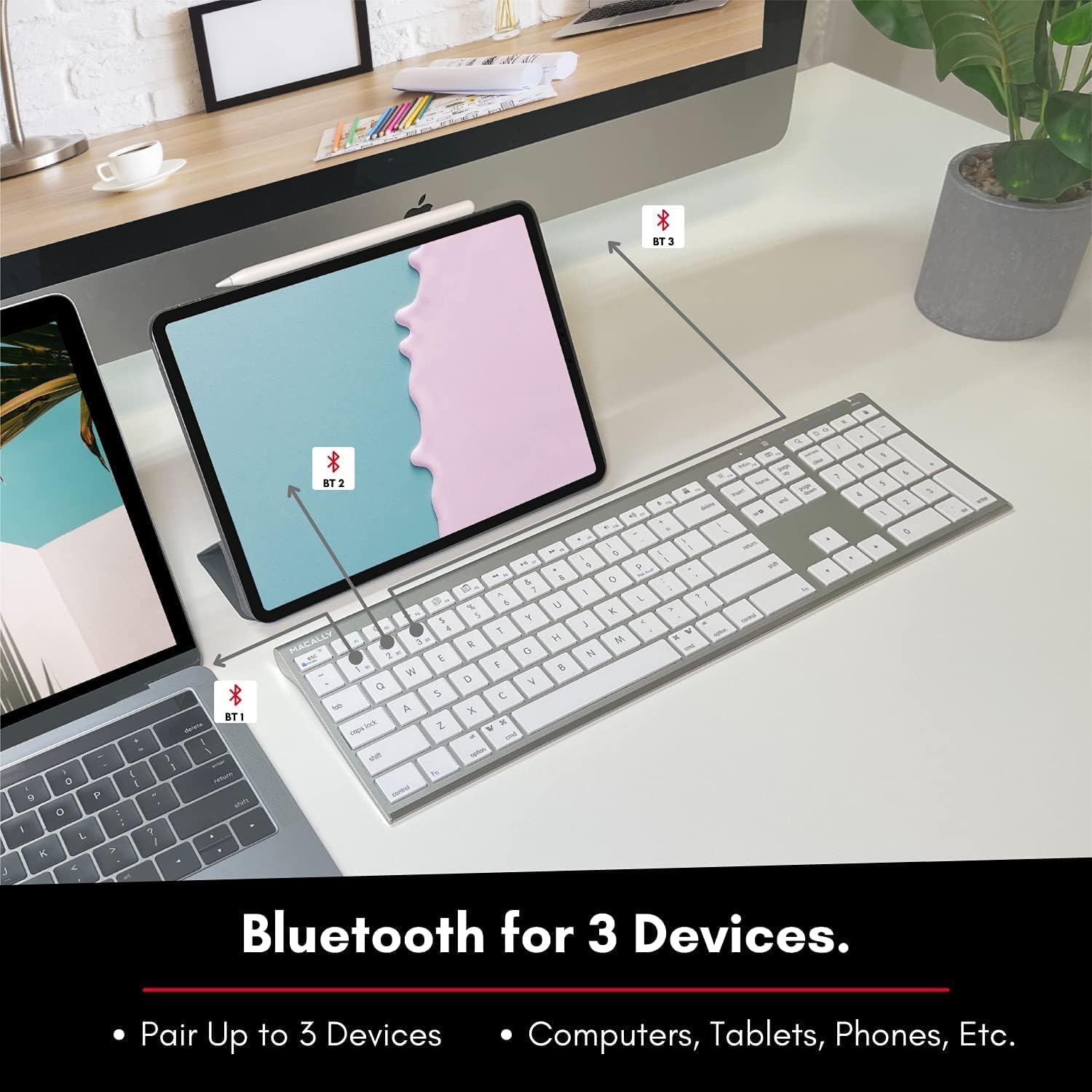
Image: The keyboard connected to a laptop and a tablet, illustrating its multi-device pairing capability.
Ашиглалтын заавар
Төхөөрөмжүүдийн хооронд шилжих
To switch between paired devices, simply press the corresponding Bluetooth key (BT1, BT2, or BT3) once. The keyboard will automatically connect to the selected device within a few seconds.

Image: Visual representation of the keyboard seamlessly switching between a smartphone, iMac, and laptop, highlighting the multi-sync feature.
Function Keys and Shortcuts
The keyboard features a full set of 110 keys, including a numeric keypad and 20 dedicated Mac OS shortcut keys. These shortcuts provide quick access to various functions such as brightness control, volume adjustment, media playback, and more. Refer to your device's operating system documentation for specific shortcut functionalities.
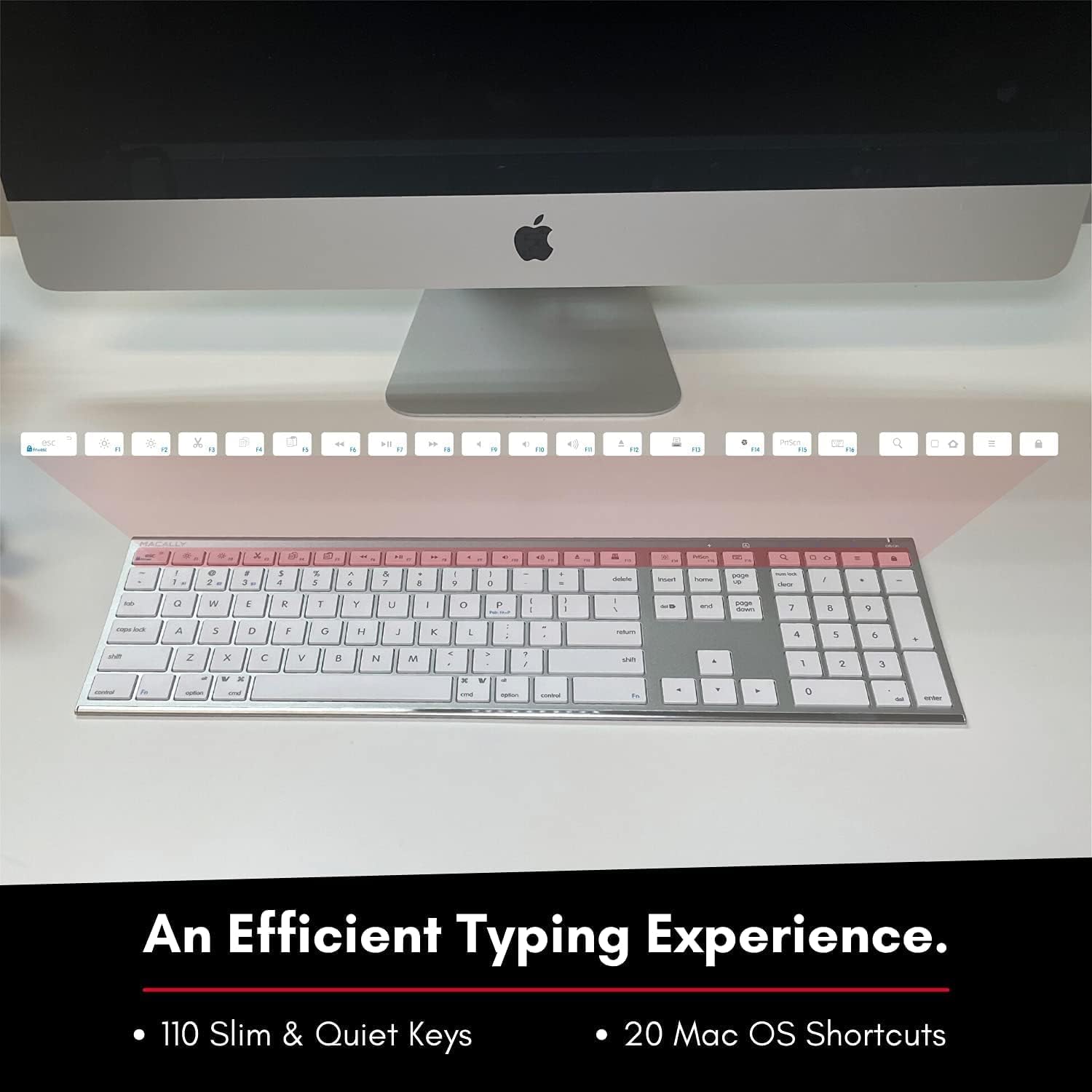
Image: Close-up of the keyboard's top row, highlighting the dedicated function and shortcut keys.
Тохиромжтой байдал
This keyboard is broadly compatible with a range of operating systems and devices, including:
- macOS
- Windows
- iOS (iPhone, iPad)
- Android

Image: The keyboard positioned in front of an iMac, indicating its compatibility with Mac systems.
Засвар үйлчилгээ
Macally утасгүй Bluetooth гарныхаа удаан эдэлгээтэй, оновчтой ажиллагааг хангахын тулд дараах засвар үйлчилгээний удирдамжийг дагаж мөрдөнө үү.
- Цэвэрлэгээ: Use a soft, lint-free cloth to wipe the surface of the keyboard. For stubborn dirt, slightly dampУс эсвэл зөөлөн цэвэрлэгээний уусмалаар даавууг арчина. Хэт их чийгнээс зайлсхий.
- Батерейны арчилгаа: The keyboard features a built-in rechargeable battery. To maximize battery life, avoid fully discharging the battery frequently. Charge the keyboard when the low battery indicator appears.
- Хадгалах: Гарыг удаан хугацаагаар ашиглахгүй байх үед батерейны цэнэгийг хэмнэхийн тулд унтраагаарай. Үүнийг сэрүүн, хуурай газар, нарны шууд тусгал болон хэт өндөр температураас хол хадгална уу.
- Асгарахаас зайлсхийх: Дотоод эд ангиудыг гэмтээхгүйн тулд шингэнийг гарнаас хол байлга.
Алдааг олж засварлах
Keyboard Not Responding or Typing Incorrectly
- Гар цэнэглэгдсэн эсэхийг шалгаарай.
- Verify that the keyboard is powered on and the correct Bluetooth channel (BT1, BT2, or BT3) is selected for your device.
- Гараа төхөөрөмжтэйгээ дахин холбож үзнэ үү.
- Check if the Fn lock is active. On the top right, there should be a lock symbol with an FN in the lock. If there is a Blue LED light on the panel which is on the top right, then press and hold Fn болон дарна уу ESC to shut off the Fn lock.

Image: A troubleshooting tip for the Fn lock feature, showing the relevant keys.
Mouse Keys Issue (macOS)
- If your keyboard inputs are behaving like mouse movements, you may have "Mouse Keys" enabled.
- Go to System Preferences (or System Settings on newer macOS versions), then click on Хүртээмжтэй байдал. After that, scroll to Заагч удирдлага болон идэвхгүй болгох Хулганы товчлууруудыг идэвхжүүлэх.

Image: A troubleshooting tip for disabling Mouse Keys in system settings.
Bluetooth холболтын асуудал
- Ensure your device's Bluetooth is enabled and discoverable.
- Move the keyboard closer to your device to ensure a strong signal.
- Боломжит хөндлөнгийн эх үүсвэрийг (жишээлбэл, бусад утасгүй төхөөрөмж, том металл объект) устгана уу.
- Гар болон төхөөрөмжөө хоёуланг нь дахин эхлүүлнэ үү.
Үзүүлэлтүүд
| Брэнд | Макалли |
| Загварын дугаар | ACEBTKEY-US |
| Бүтээгдэхүүний хэмжээс | 18.11 x 6.3 x 0.91 инч |
| Зүйлийн жин | 14.9 унц |
| Холболтын технологи | Bluetooth |
| Түлхүүрүүдийн тоо | 110 |
| Тохиромжтой төхөөрөмжүүд | MacOS, Windows, iOS, Android |
| Батерей | 3 литийн полимер батерей (багцад багтсан, цэнэглэдэг) |
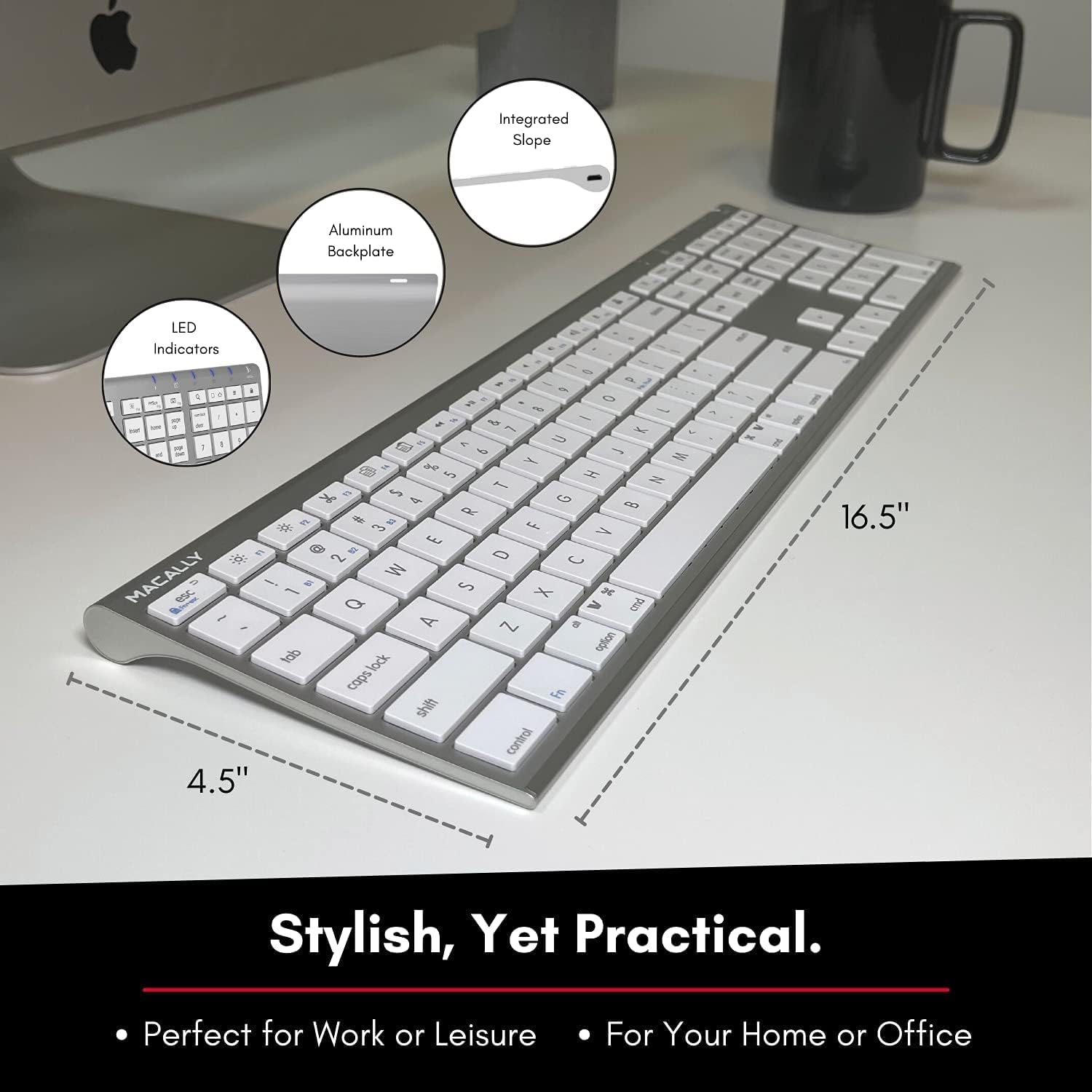
Image: Diagram illustrating the physical dimensions of the Macally Wireless Bluetooth Keyboard.
Баталгаат болон дэмжлэг
Macally is committed to delivering high-quality, user-friendly workflow solutions. For any product inquiries, technical support, or warranty information, please visit the official Macally webсайт эсвэл харилцагчийн үйлчилгээтэй холбогдоно уу. Та нэмэлт мэдээлэл, тусламжийн эх сурвалжийг эндээс авах боломжтой Амазон дээрх Macally дэлгүүр.


