Танилцуулга
The Logitech K400 Plus Wireless Touch Keyboard is designed for comfortable control of your entertainment from a distance. Featuring a full-size keyboard layout and a large, integrated touchpad, it offers seamless navigation for your PC-connected TV, media center, or other compatible devices. This manual provides essential information for setting up, operating, and maintaining your keyboard.
Тохиргоо
1. Зай суурилуулах
The Logitech K400 Plus requires two AAA batteries (included). To install them:
- Гарны доод талд байрлах батерейны тагийг олоорой.
- Тагийг нь нээнэ үү.
- Хоёр AAA батерейг зөв туйлшралыг (+/-) баталгаажуулна уу.
- Зайны тасалгааны тагийг сайтар хаа.
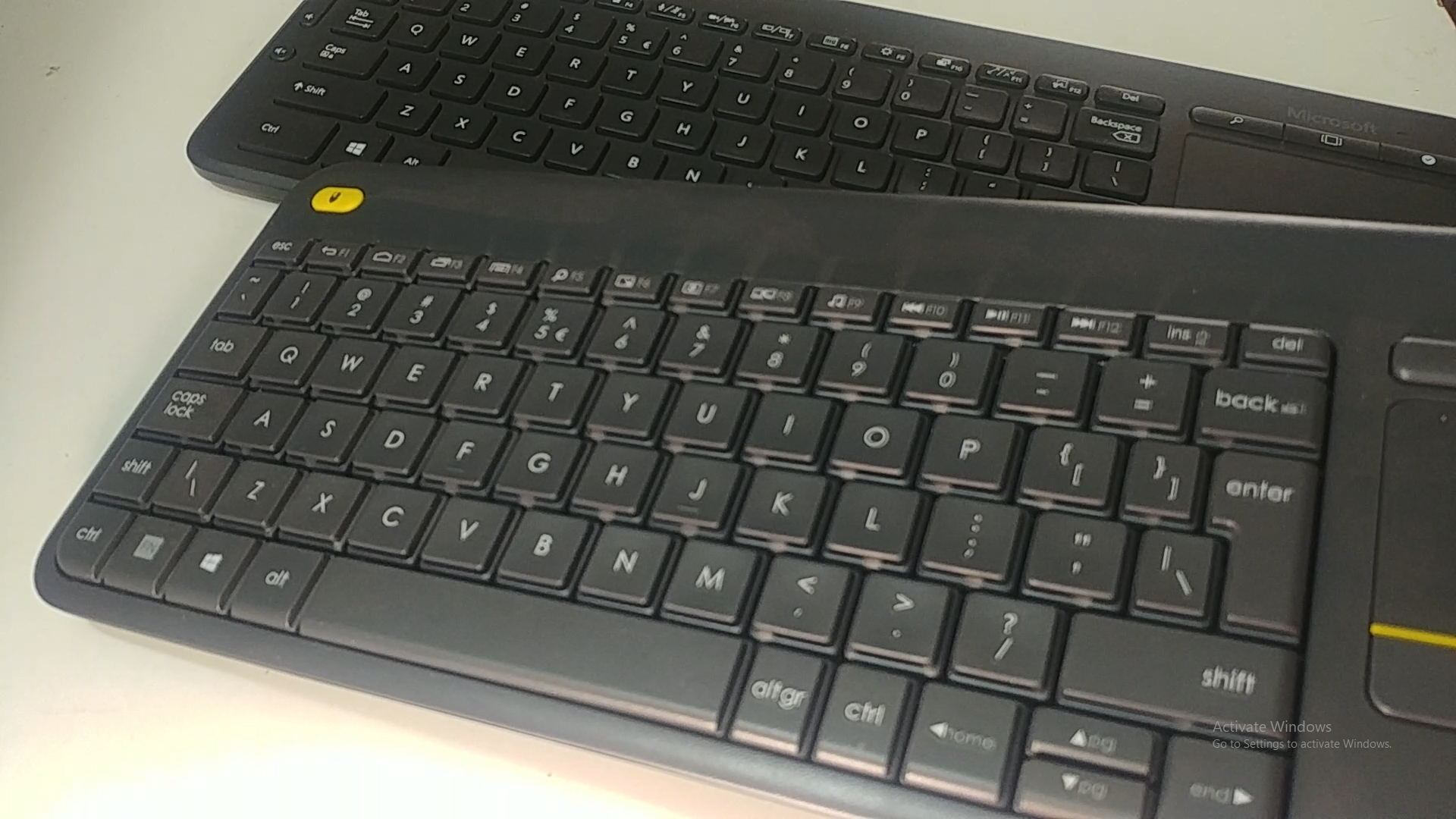
Image: Underside of the Logitech K400 Plus keyboard with the battery compartment open, showing two AAA batteries.
2. Connecting the Keyboard (USB Unifying Receiver)
The K400 Plus connects wirelessly via a small USB Unifying receiver. This receiver is typically stored inside the battery compartment for safekeeping.
- Open the battery compartment cover and remove the USB Unifying receiver.
- Plug the USB Unifying receiver into an available USB port on your PC, smart TV, or other compatible device.
- Turn on the keyboard using the On/Off switch located on the top right edge of the keyboard. A green indicator light will appear.
- Your keyboard should automatically connect. If not, refer to the troubleshooting section or visit the Logitech support website for the Unifying software.

Image: The Logitech K400 Plus Wireless Touch Keyboard, showing its compact design with integrated touchpad.
Ашиглалтын заавар
Гарны зохион байгуулалт
The K400 Plus features a standard QWERTY layout with additional function keys and an integrated touchpad.
Зураг: Нарийвчилсан view of the Logitech K400 Plus keyboard keys, highlighting the QWERTY layout.
Мэдрэгч самбарын хэрэглээ
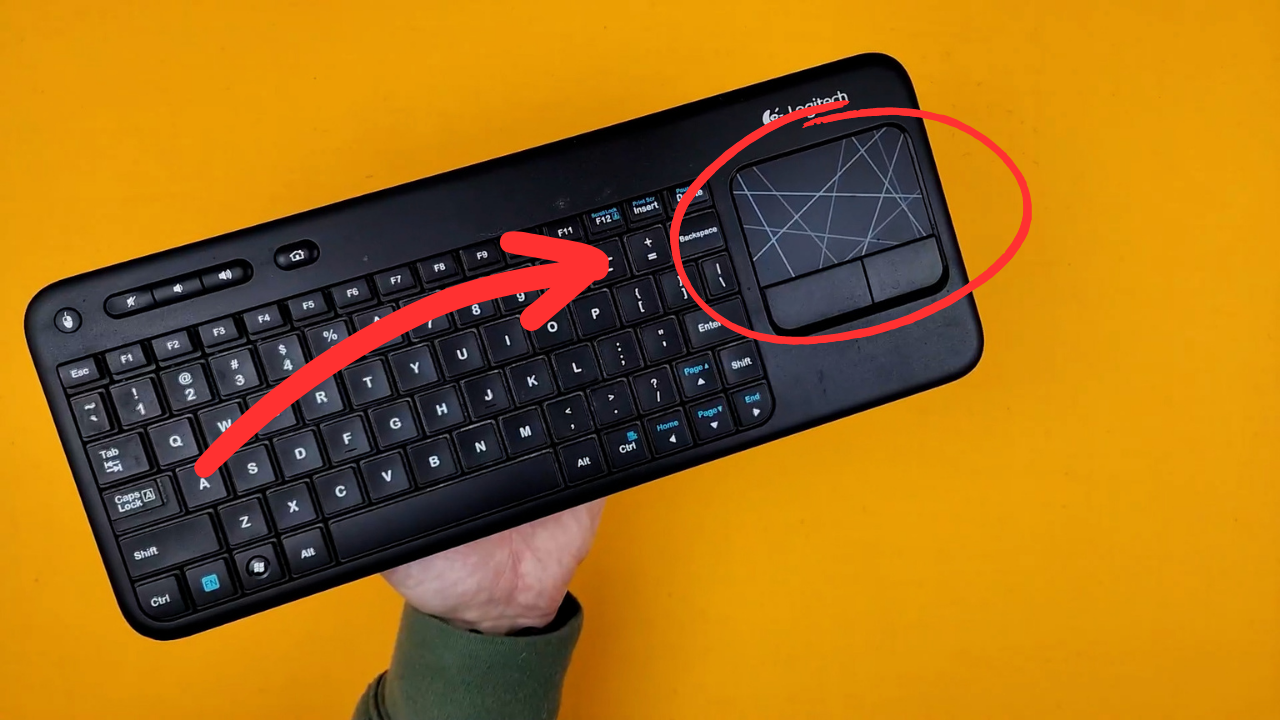
The large 3.5-inch touchpad allows for intuitive navigation. It supports multi-touch gestures for enhanced control.
- Нэг хуруугаараа товших: Хулганы зүүн товчийг дарна уу.
- Хоёр хуруугаараа товших: Хулганы баруун товчийг дарна уу.
- Хоёр хуруугаараа гүйлгэх: Scroll vertically or horizontally.
- Томруулахын тулд хавчих: Zoom in or out (if supported by the application).
- Dedicated left and right-click buttons are located below the touchpad for traditional mouse button functionality.
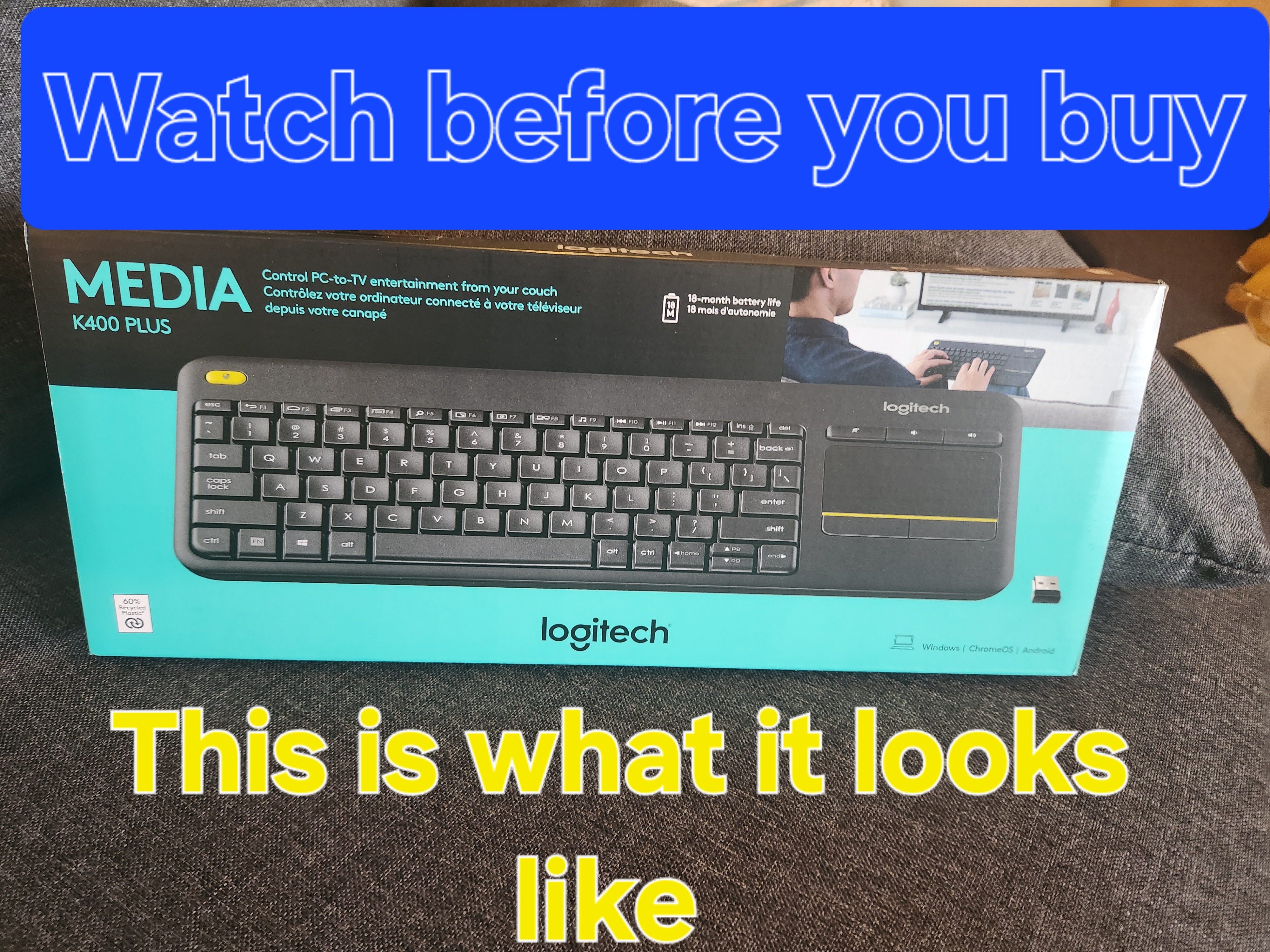
Image: A hand demonstrating the use of the integrated touchpad on the Logitech K400 Plus.
Мультимедиа болон функцийн товчлуурууд
The top row of keys includes dedicated multimedia controls and function keys (F1-F12) with secondary actions. To activate the secondary actions (indicated by blue icons), press and hold the Fn key (located near the left Ctrl key) while pressing the desired function key.
- Дууны хяналт: Dedicated buttons for mute, volume down, and volume up are located above the touchpad.
- Нүүр хуудас товч: Access your device's home screen or browser home page.
- Page Up/Down, End: Баримт бичгүүд болон web хуудаснууд.
- Left Mouse Button (top left): An additional left-click button is located on the top left corner of the keyboard for convenient two-hand operation.
Засвар үйлчилгээ
Цэвэрлэгээ
Гараа цэвэрлэхийн тулд:
- Turn off the keyboard using the On/Off switch.
- Зөөлөн, хөвөнгүй даавууг бага зэрэг хэрэглээрэй dampусаар эсвэл зөөлөн цэвэрлэгээний уусмалаар дүүргэнэ.
- Avoid excessive moisture and do not immerse the keyboard in liquid.
- For stubborn dirt between keys, use compressed air.
Зай солих
When the battery indicator light (usually located near the On/Off switch) turns red or the keyboard becomes unresponsive, it's time to replace the batteries. Follow the "Battery Installation" steps in the Setup section to replace the two AAA batteries.
Алдааг олж засварлах
Гар хариу өгөхгүй байна
- Эрчим хүчийг шалгах: Ensure the keyboard is turned on and the battery indicator light is green. Replace batteries if necessary.
- Хүлээн авагчийг шалгах: Make sure the USB Unifying receiver is securely plugged into a working USB port on your device. Try a different USB port.
- Зай: Ensure the keyboard is within the operating range (up to 10 meters or 33 feet) of the USB receiver.
- хөндлөнгийн оролцоо: Гар болон хүлээн авагчийг бусад утасгүй төхөөрөмж эсвэл хөндлөнгийн оролцоо үүсгэж болзошгүй том металл объектоос холдуул.
- Дахин холбох: If issues persist, you may need to re-pair the keyboard with the Unifying receiver using the Logitech Unifying software, available for download from the official Logitech support webсайт.
Мэдрэгч самбар зөв ажиллахгүй байна
- Цэвэр гадаргуу: Мэдрэгч самбарын гадаргуу цэвэрхэн, хог хаягдалгүй байгаа эсэхийг шалгаарай.
- Драйверын шинэчлэлт: Check your device's operating system for updated drivers for the Logitech Unifying receiver or touchpad.
- Тохиргоо: Verify touchpad settings in your device's control panel or system preferences.
Үзүүлэлтүүд
| Брэнд | Logitech |
| Загварын дугаар | 920-009280 |
| Холболтын технологи | Wireless (2.4 GHz via USB Unifying Receiver) |
| Утасгүй сүлжээ | 10 метр (33 фут) хүртэл |
| Батерей | 2 x AAA батерей (дагсан) |
| Зайны ашиглалт | 18 сар хүртэл (хэрэглээнээс хамаарч өөр өөр байж болно) |
| Нэгдсэн мэдрэгчтэй самбар | 3.5 инчийн олон мэдрэгчтэй мэдрэгчтэй самбар |
| Тохиромжтой төхөөрөмжүүд | PC (Windows 7, 8, 10 or later), Android TV, Chrome OS |
| Хэмжээ (L x W x H) | Ойролцоогоор 13.9 x 5.5 x 0.9 инч (354 x 139.9 x 23.5 мм) |
| Жин | Approximately 13.76 oz (390 g) with batteries |
Баталгаат болон дэмжлэг
Logitech provides a limited hardware warranty for this product. For detailed warranty information, technical support, and driver downloads, please visit the official Logitech support webсайт:
You can also find FAQs and community forums for additional assistance.


